


With locking you secure recorded times against subsequent changes. Up to a lock date, attendance and project times are then frozen – the basis for clean reports, data exports and accounting sign-off. There are three ways: manual, central and automatic.
Choosing the basic setting
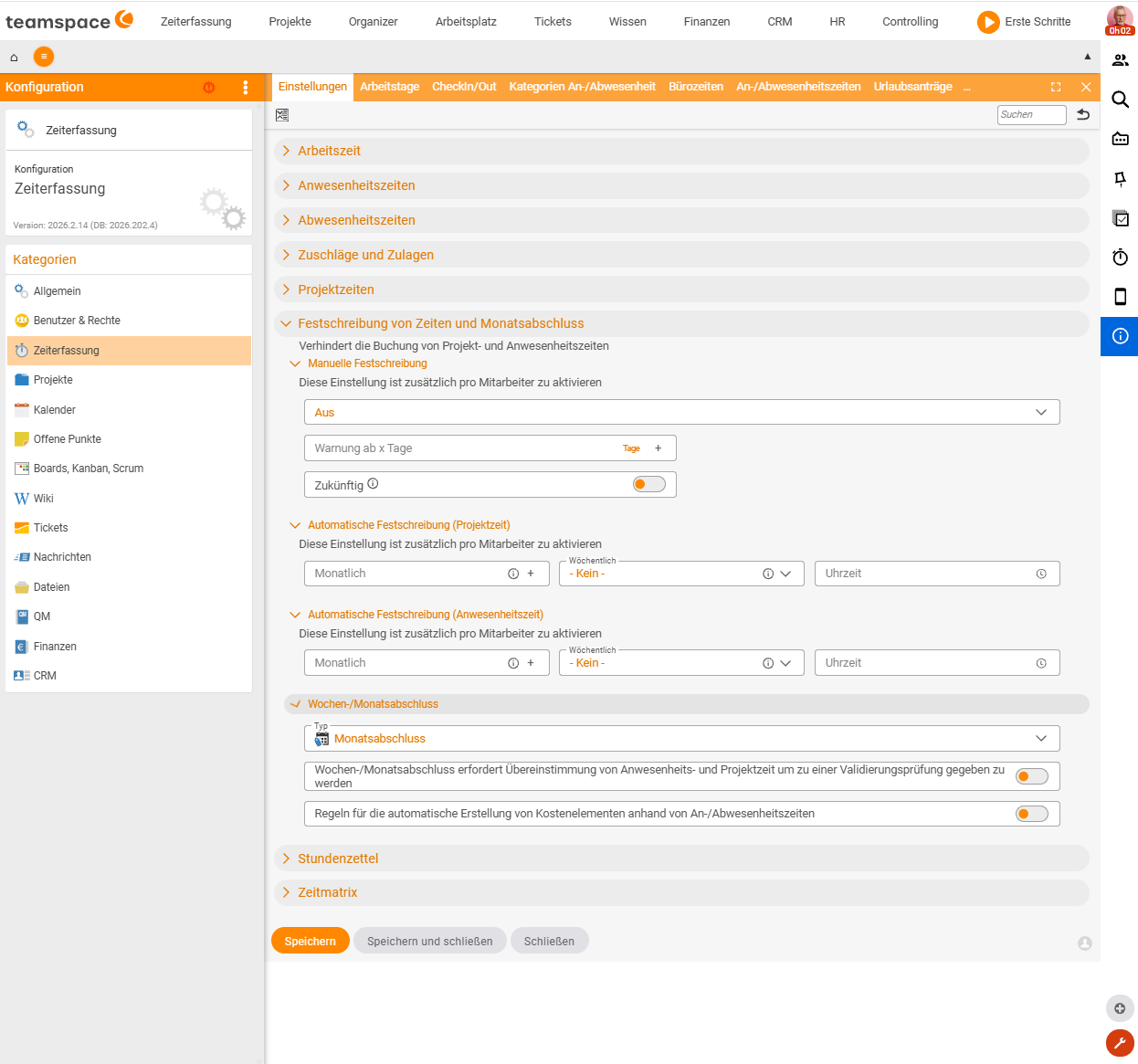
Configuration › Time tracking › Settings › LockingHere you define the mode:
- Off – no locking.
- By employee – everyone sets their own lock date.
- Central locking – authorised people lock for several people at once.
You also define a warning period: from x days before the upcoming lock, a red note appears under My day that there are still open times to record.
Manually by the employee
- Employees open Time tracking → My day.
- Via the action Locked until [date] they set a new date.
- Save. A date earlier than the one already set is not possible – locking only moves forward.
Centrally by authorised people
Anyone holding the “Central locking” right (a user-group right under Permissions → Working day) locks for several people:
- Open one of the lists: Configuration → Time tracking → Working-days administration list, HR → Employee list or Projects → Employee overview.
- Run the Central locking action.
- Choose individual employees, user groups or everyone.
- Enter the lock date (suggestion: the oldest date in the selection).
- Confirm – the date is set for the selection, provided it is not earlier than the date already set in each case.
Automatically
Automatic locking can be set up separately for attendance times and project times:
- Monthly – specify a day in the following month (e.g. “15th” → editable up to the 15th of the following month).
- Weekly – choose a weekday and time.
Automatic locking must be enabled for the individual employee.
Correcting despite a lock
If something exceptionally has to be changed afterwards, an HR admin adjusts the date:
HR › Employee list › <Employee> › Rules and settings › Retroactive changesThis moves the lock date in a controlled way.
Notes
- Locking is one of several locks. Bookings are also locked when the editing deadline has passed, the project has been completed or the time has already been billed (see Book project times).
- The permission for other people’s times only lifts the editing deadline – not the other lock conditions.
- Locked days can no longer be changed via the time matrix or the reference day either.
Common questions & needs
| You want to … | How to |
|---|---|
| Set the locking mode | Under Configuration → Time tracking → Settings → Locking, choose between Off, By employee and Central locking. |
| Be warned about open times | Define a warning period – from x days, a red note appears under My day. |
| Lock your own times | In Time tracking → My day, set a new date via the action Locked until [date]. |
| Lock for several people | With the “Central locking” right, run the Central locking action and choose employees, user groups or everyone. |
| Have locking happen automatically | Set it up separately for attendance and project times, monthly (a day in the following month) or weekly (weekday/time). |
| Lock attendance and project time differently | Configure automatic locking separately for attendance times and project times. |
| Exceptionally change a locked day | An HR admin moves the date under HR → Employee list → |
Related topics
- Configure time tracking Time tracking How-to
- Activity report and timesheets Time tracking How-to
- Topic: Permissions Permissions