


Leave and sickness are absences and are recorded in teamspace in the context of time tracking – leave via a request-and-approval workflow, sickness as a notification. The associated accounts (remaining leave, working-time account) are updated automatically in the process.
Leave entitlement, cover rules and the HR-side analysis belong to the Personnel & HR topic. This article is about recording them from the point of view of employees and approvers.
Requesting leave
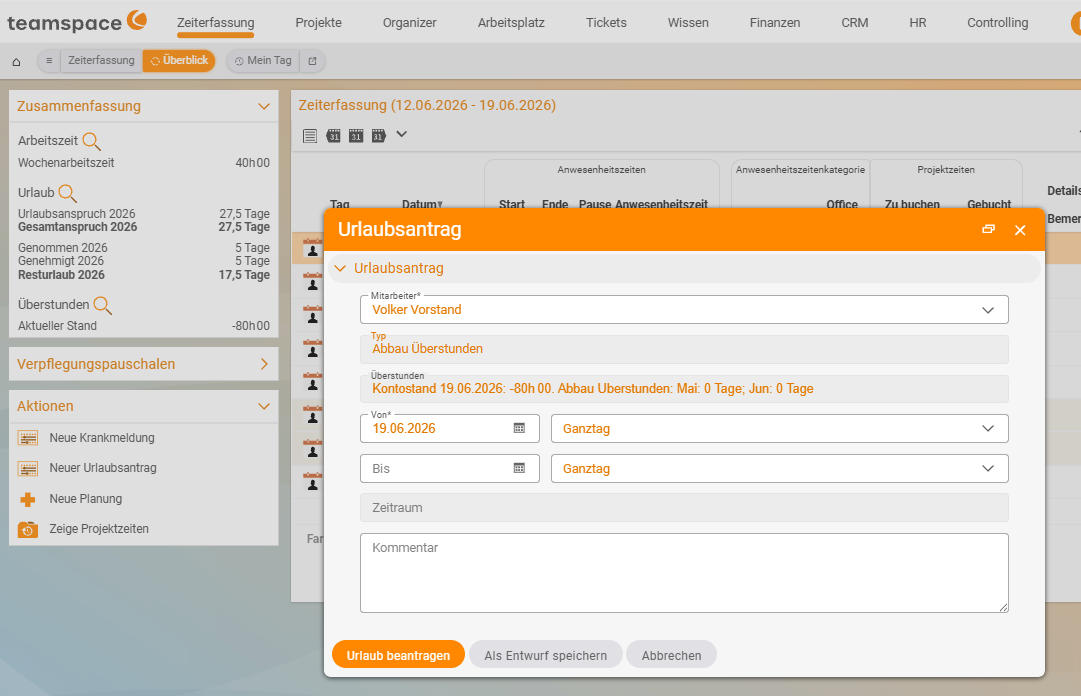
Time tracking › My leave › Create new leave request- Open Time tracking → My leave and use the Create new leave request action box.
- Choose the leave type – e.g.
Annual leave,Special leave,Time off in lieuorUnpaid leave. - Set the period and choose full or half days. The remaining leave is shown automatically.
- Submit – the responsible manager receives a notification.
teamspace warns you when other leave requests already fall within the same period (±1 week) – useful for planning cover.
Approving leave
Approvers open the request in the HR module and decide:
- Green tick – approve.
- Red cross – reject.
Approval groups govern who is responsible for whom – each manager sees only the requests relevant to them.
Entering a sick note
- Enter the sick note via Home / Time tracking (by yourself or by your manager).
- Choose the appropriate type (e.g.
Sick,Child sick) and state whether a medical certificate is available. - Save.
When leave meets sickness
If you fall sick during approved leave, teamspace automatically releases the affected leave days again (they are removed, not deleted) – provided the “release on sickness” category is active. You are informed about the return; the working-time account is corrected accordingly.
Notes
- You can see the current year’s remaining leave and any carry-over from the previous year at any time in the summary of time tracking.
- The magnifying glass opens detailed leave and absence reports.
- You request time off in lieu as a leave type of its own – see Overtime and supplements.
Common questions & needs
| You want to … | How to |
|---|---|
| Request leave | In Time tracking → My leave, use Create new leave request to choose the period and leave type, then Submit. |
| Take half-days of leave | In the request, choose half days when selecting the days. |
| Choose the right leave type | Set the leave type in the request (e.g. Annual leave, Special leave, Time off in lieu, Unpaid leave). |
| Reduce overtime via time off | Request the leave type Time off in lieu (see Overtime and supplements). |
| See your remaining leave | Shown automatically in the request; also at any time in the summary of time tracking. |
| Approve or reject a request | As an approver, open the request in the HR module – green tick (approve) or red cross (reject). |
| Enter a sick note | Via Home / Time tracking, choose the type (e.g. Sick, Child sick) and state whether a medical certificate is available. |
| Get leave days back when sick during leave | Happens automatically (days are removed, not deleted), provided the “release on sickness” category is active. |