



teamspace can be installed as a Progressive Web App (PWA) – that is, placed on your home screen like an app, without an app store. For time tracking this means clocking and time booking are one tap away, on your smartphone on the move just as much as at a permanently installed time terminal.
The PWA is not a separate program but your familiar teamspace in an app’s clothing. Features and data are identical.
Installing on a PC (Chrome/Edge)
- Open teamspace in the browser.
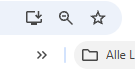
- Click the install icon (monitor with an arrow) in the address bar, or ⋮ → “Install app”.
- Confirm the installation – teamspace appears as a window of its own and in the Start menu.
For a terminal, you start the installed app in kiosk mode (full screen without an address bar).
Installing on a smartphone
The quickest way is via a QR code: on the PC, choose the smartphone option in the install dialog, scan the displayed QR code with your phone camera and follow the link to install. Alternatively, directly on the device:
- Android (Chrome): menu ⋮ → “Add to home screen” or “Install app”.
- iOS (Safari): Share icon → “Add to Home Screen”.
teamspace then sits as an icon on your home screen and starts in full screen.
Quick access for clocking
After installation you reach clocking without a detour: press and hold the app icon (Android/iOS) or right-click the desktop icon – the context menu shows Check In and Check Out directly. In addition, the installed app can show notifications.
Managing installed devices
You can see which devices are connected to your account under:
Personal settings › DevicesHere teamspace lists all installed devices. You can remove individual devices – this blocks access for the removed device. Handy when a tablet or smartphone is replaced or lost.
Notes
- The PWA is ideal for mobile check in and check out.
- For a permanently stationed clocking terminal, combine the PWA with the terminal setup.
Common questions & needs
| You want to … | How to |
|---|---|
| Install teamspace on a PC | In Chrome/Edge, click the install icon in the address bar, or ⋮ → “Install app”. |
| Get teamspace onto a smartphone | Quickest via a QR code from the install dialog; alternatively Android ⋮ → “Add to home screen” or iOS Share → “Add to Home Screen”. |
| Clock without a detour | Press and hold the app icon (Android/iOS) or right-click the desktop icon – the context menu shows Check In and Check Out. |
| Run a clocking terminal | Start the installed app in kiosk mode (full screen without an address bar) – see also Set up a time terminal. |
| See which devices are connected | Under Personal settings → Devices, view all installed devices. |
| Block a lost device | Under Personal settings → Devices, remove the device in question – its access is blocked. |
| Receive notifications | The installed app can show notifications. |
Related topics
- Check in and check out (with video) Time tracking How-to
- Set up a time terminal (with video) Time tracking How-to
- Time tracking in the home office