



Project times allocate your work to a specific project or task – the basis for billing, post-calculation and utilisation. You can book in several ways; all of them end up in the same project-times list.
Quick path: via “My day”
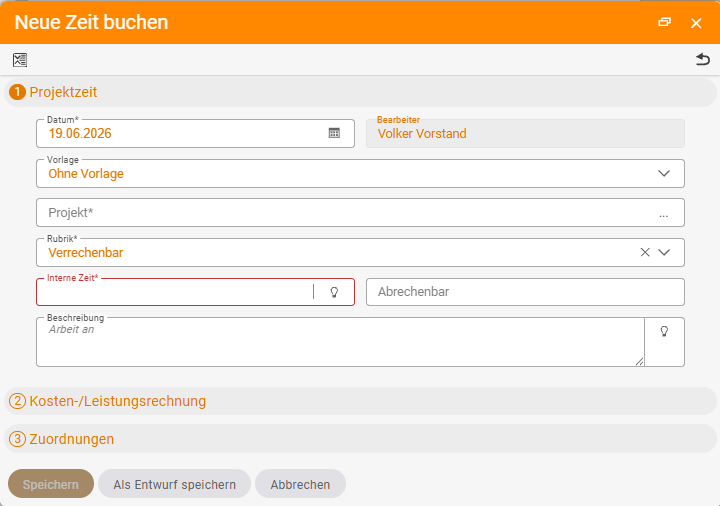
Time tracking › My day › Record project time- Open Time tracking → My day and click Record project time (plus sign) in the action box.
- Choose the project and – if available – the work package. The Recently booked and Favourites tabs put your frequent projects right at hand; for the chosen work package, teamspace shows the remaining planned budget.
- Enter the working time. Mark hours with
h(e.g.1hor1.5h); if start/end is enabled, you instead record a time span (breaks are then deducted automatically). - Tick Billable or On site (client assignment) if they apply to the booking.
- Fill in the description (optional or mandatory depending on the configuration; a default text may be pre-filled).
- Assign a category and, if applicable, an area (see below) and save. You secure recurring bookings via Save dialog as template.
Booking directly from the project
If you are in the project anyway, you book there via the actions icon on the project page – the project and its assignment are then already pre-selected.
In real time with the stopwatch
For ongoing tasks, start the stopwatch in My day. It measures to the minute; when you stop it, you carry the duration straight into a booking. Handy when you do not know in advance how long something will take.
Save as a draft (from version 2025.4)
You can create a booking with empty fields as a draft and complete it later:
- Create a draft via the icon in the header of the detail manager or in My day.
- Open drafts appear in the right-hand sidebar and remind you to finish them.
Categories and areas: for correct billing
teamspace offers two “drawers” for this:
- Category – governs the billability of a booking, e.g.
Billable,Non-billable,Travel time,On site. Categories are freely configurable (e.g. with a quarter-hour increment) and can trigger different hourly rates in order processing (e.g.Senior consultantvs.Junior consultant). - Area – an additional area of activity (e.g.
Programming,Design,Administration); it works much like a category and can be enforced as a mandatory field.
Both can later be filtered and analysed in a targeted way. Which values are available for selection is governed by the configuration.
Managing bookings
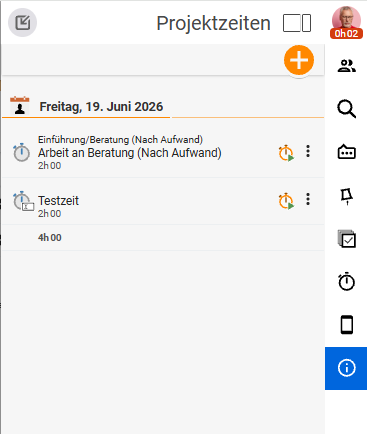
Under Time tracking → Project times you see your bookings with a date-range filter and the top projects of the last 30 days. Here you can correct, copy or delete times and download an Excel report or working-time record – as long as no edit lock applies.
Notes
- When a booking is locked: when the editing deadline has passed, the project has been completed, the time has already been billed to the client, a timesheet has been validated or the lock date has been set.
- You may only edit other people’s times with a project role (full access), agent permission or admin rights.
- For whole weeks the time matrix is faster; for recurring days, booking time via a reference day.
Common questions & needs
| You want to … | How to |
|---|---|
| Quickly book time against a project | In Time tracking → My day, use Record project time (plus sign) to enter the project, working time and description. |
| Book directly from a project | Book on the project page via the actions icon – the project and assignment are pre-selected. |
| Measure an ongoing task in real time | Start the stopwatch in My day; carry the duration into a booking when you stop it. |
| Complete a booking later | Save it with empty fields as a draft (from version 2025.4); open drafts appear in the right-hand sidebar. |
| Mark hours as billable | Tick Billable or choose the matching category (it governs billability). |
| Flag a task as a client assignment | Tick On site. |
| Assign an area of activity | Use the Area field (e.g. Programming, Design, Administration). |
| Secure recurring bookings | Use Save dialog as template in the dialog. |
| Correct or delete booked times | Under Time tracking → Project times, correct, copy or delete – as long as no edit lock applies. |
| Download a report | Under Time tracking → Project times, output an Excel report or working-time record. |
| Book whole weeks faster | Use the time matrix, or a reference day for uniform days. |
Related topics
- Time matrix: book whole weeks (with video) Time tracking How-to
- Activity report and timesheets Time tracking How-to
- Project time tracking