


Every check-in/check-out creates an attendance block – a stretch of time with a start, an end and (optionally) a category. teamspace assembles these blocks into your daily and weekly working time and displays them graphically. You find them under Time tracking → Overview and Time tracking → My day.
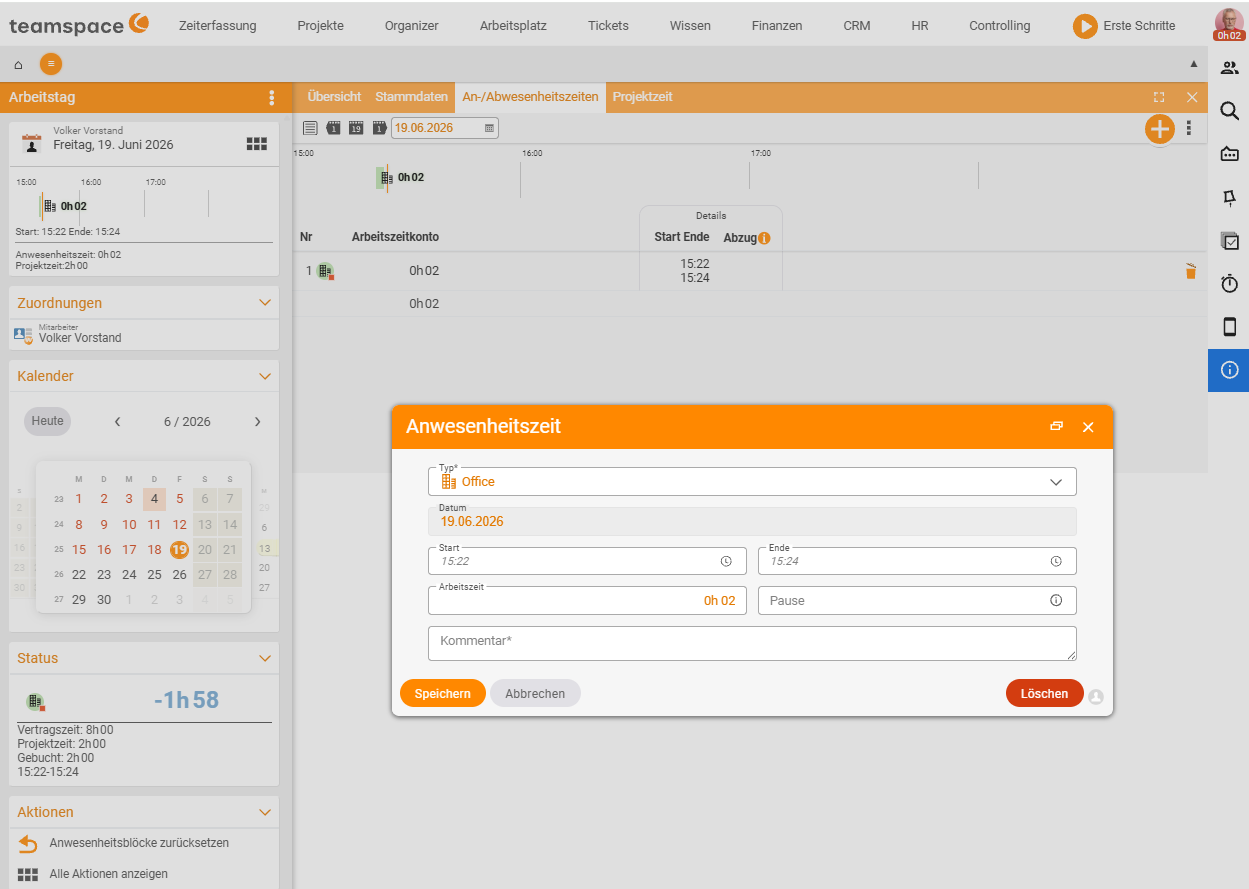
Categories: where the time comes from
With categories you assign each block a work location or a type of attendance. Common ones are:
Office,Home office,External workVocational school,Training
Categories carry a colour and an icon and can bring their own break rules and daily limits. Which categories exist is determined by your administrators (see Configure time tracking).
Working-time model: how time is assessed
How your attendance is counted towards your target depends on the working-time model stored for you:
- Fixed hours – a binding framework with core and flexible periods.
- Flexitime – free start/end, counted against a daily or weekly target; differences flow into the overtime account.
- Trust-based time – attendance is recorded but not counted strictly against a target.
Supplements
Attendance blocks can automatically trigger supplements – for example for night, Sunday or public holiday work. The supplement rules (period of validity, percentage, combination) are defined by your administrators; you see the resulting supplement on the day’s card. Details in Overtime and supplements.
Keeping an eye on the summary
In the time-tracking sidebar, teamspace summarises your status:
- Working time – recorded weekly/daily working time against the target.
- Leave – entitlement, taken, remaining leave (see Record leave and sickness).
- Overtime – the current balance of the working-time account.
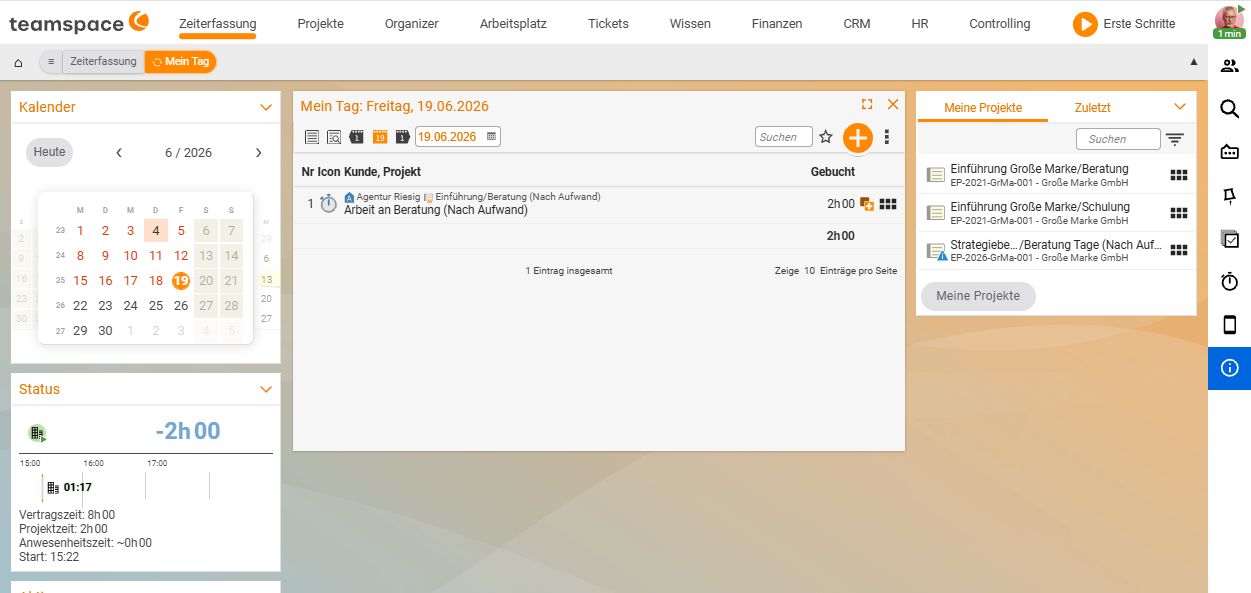
Editing attendance times after the fact
If you forgot to clock or clicked the wrong thing, you correct the block directly:
- Open Time tracking → My day and use the calendar to navigate to the day in question.
- Click the attendance block and adjust its start, end or category.
- Save.
Manually changed blocks are flagged (a note icon), so it stays traceable what was clocked and what was adjusted afterwards. How far back you may correct is configurable via the editing deadline. This is only possible as long as the day is not locked. How times are locked is described in Lock time entries.
Notes
- A magnifying glass on the summary opens detailed reports on working time, leave and overtime.
- Attendance time and project time are kept separate. If you book both, the time matrix points out discrepancies.
Related topics
- Check in and check out (with video) Time tracking How-to
- Overtime and supplements Time tracking Concept
- Working-time recording