


Minutes or a status report are only as good as their content – and in teamspace that content usually already exists: as open items, work packages, appointments or receipts. Instead of typing them out (and letting them go out of date), you embed the real elements. The report then stays linked to day-to-day operations and remains current.
ℹ Note (review). That teamspace elements can be embedded in minutes/status reports is part of the product concept (status report template, linked elements). The exact UI route for embedding (element selection, command or link) differs by document type – wiki page or file – and has not yet been fully checked against the live interface in this version (
last_verified: null).
Variant A: Status report as a wiki page
Wiki pages are well suited to living, linked reports because they can reference elements.
- In the
Knowledge → Wiki pagestab, create a new page via the blue+button (or use a status report template, see Set up templates, headers and footers). - Write the report text in wiki syntax (period, progress, risks).
- Embed the relevant teamspace elements – e.g. an open-items list or individual work packages. The current status then appears directly in the report.
→ Basics: Create and edit wiki pages
Variant B: Minutes/status report as a document from a template
For formal reports that need approval, use the file template.
- In file management, choose
Actions→New document→ the status report template (see QM document templates at a glance). - Fill in the report; teamspace partly fills placeholders (project, period) automatically from the context.
- Set references to open items and work packages as links, so you can jump from the report straight to the elements.
- Have it approved if needed (see Review and approve a document).
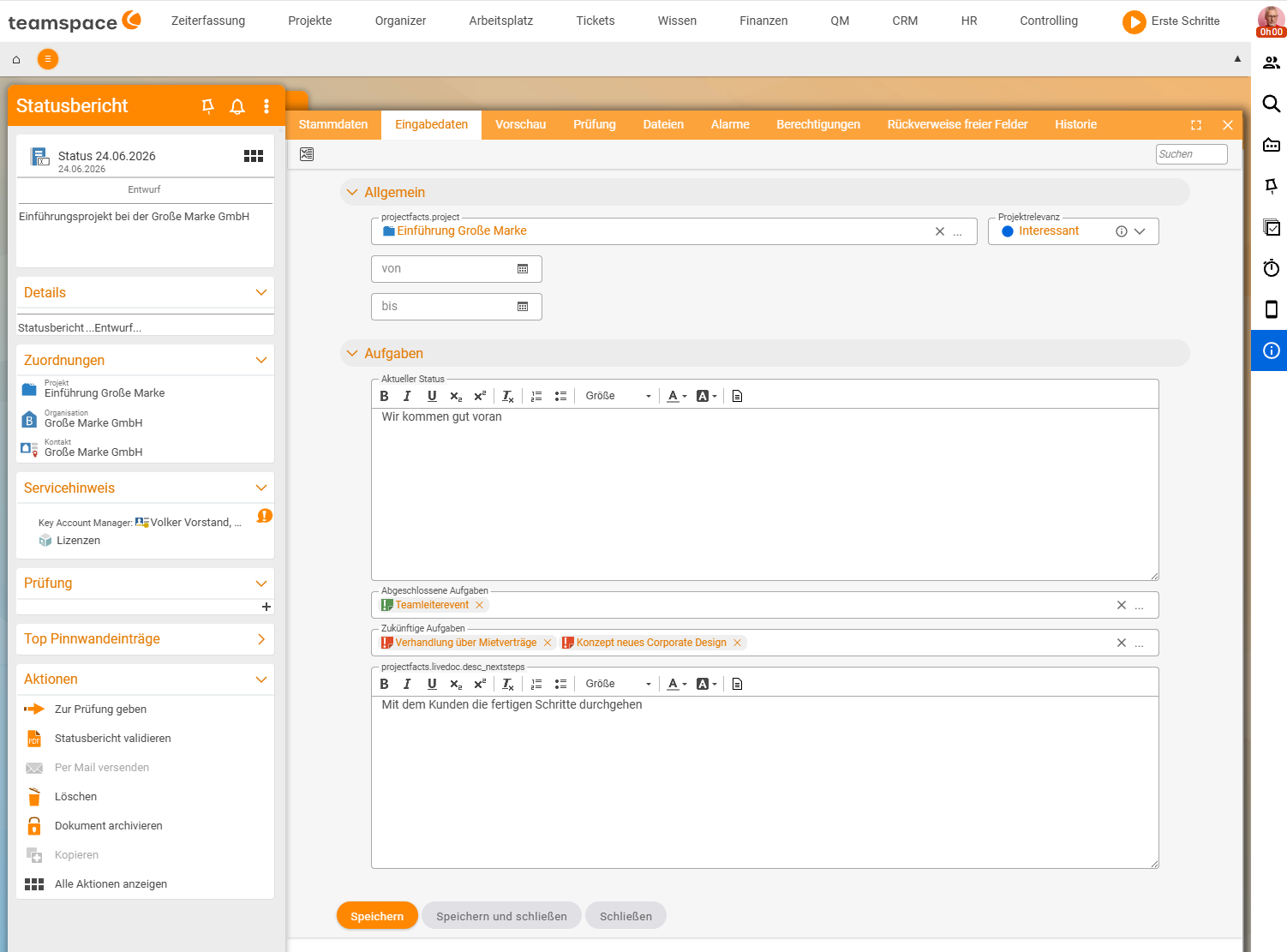
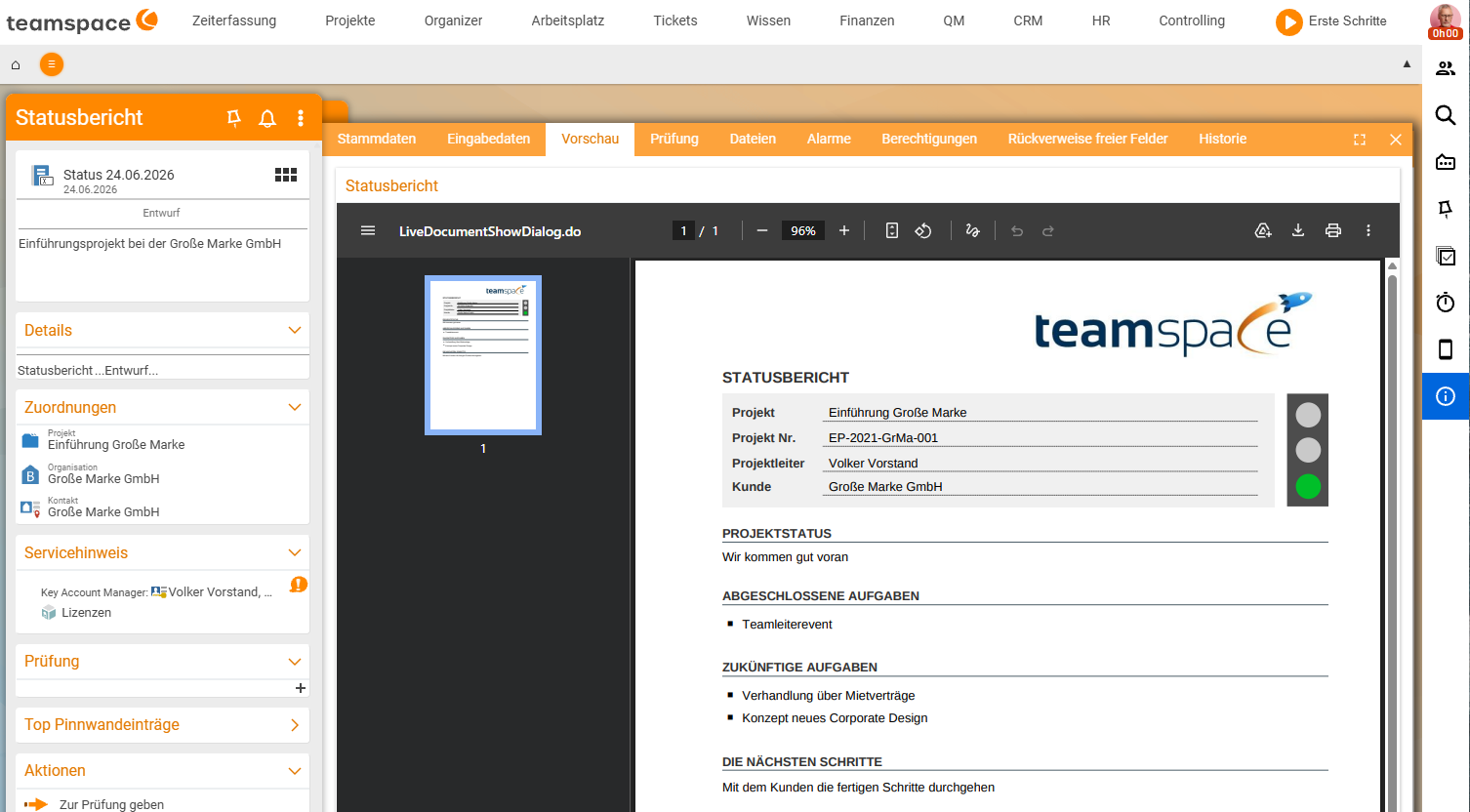
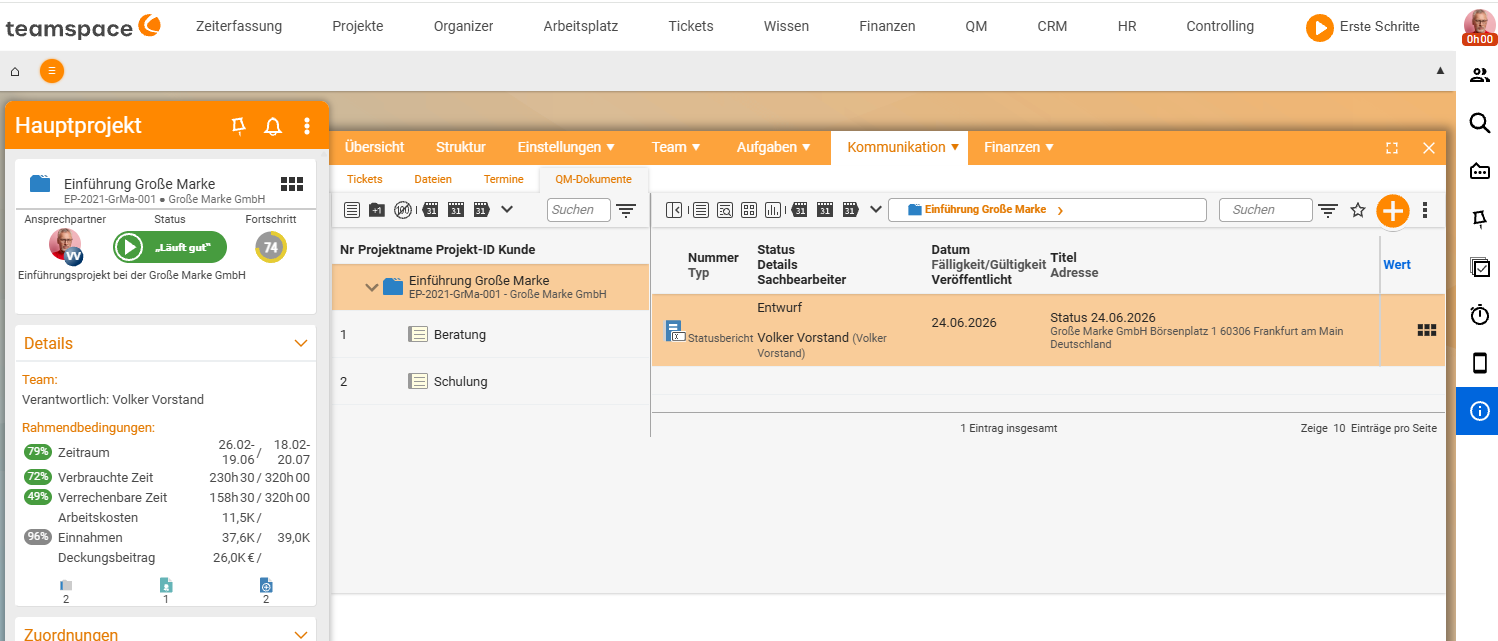
On the Input data tab you embed the real elements, in the Preview you see the finished, rendered document, and in the project you find the report again under Communication → QM documents.
Which elements work well
- Open items / open-items lists – the classic choice for minutes: to-dos, decisions, pending matters. See Open-items lists and Open items in the project.
- Work packages – for project progress in the status report. See Project management topic.
- Appointments, receipts, contacts – wherever the report refers to them.
Why embed instead of type out
- Up to date: if an open item changes, the change is visible through the link – the report shows the real status.
- Fewer errors: no typing mistakes, no outdated copies.
- Traceability: from the minutes you jump straight to the element and carry on working there.
Common questions & needs
| You want to … | How to |
|---|---|
| Show open to-dos in the minutes | Embed an open-items list in the wiki page (Variant A). |
| Report on project progress | Embed work packages in the status report. |
| Approve a report later | Create it as a file from the status report template and have it reviewed (Variant B). |
| Keep decisions traceable | Create decisions as open items and reference them in the minutes. |
| Keep the report current | Link elements instead of typing the content out. |
Related topics
- QM document templates at a glance Quality management Reference
- Document processes & work instructions Quality management How-to
- Open-items lists Open items How-to
- Topic: Project management Project management