


A controlled document is only useful if you can find it again – and find the right, current version. In QM this is one of the most important points. teamspace gives you four levers: a clear structure, subject-based file classes, searchable metadata and search.
1. A clear directory structure
Store QM documents in their own, meaningful directory tree – not scattered across project folders.
- One root directory, e.g.
QMorManual. - Below it, topic folders (e.g.
Processes,Work instructions,Templates,Status reports). - Meaningful file names rather than “final_v2_new”.
→ Basics: Working in the file manager
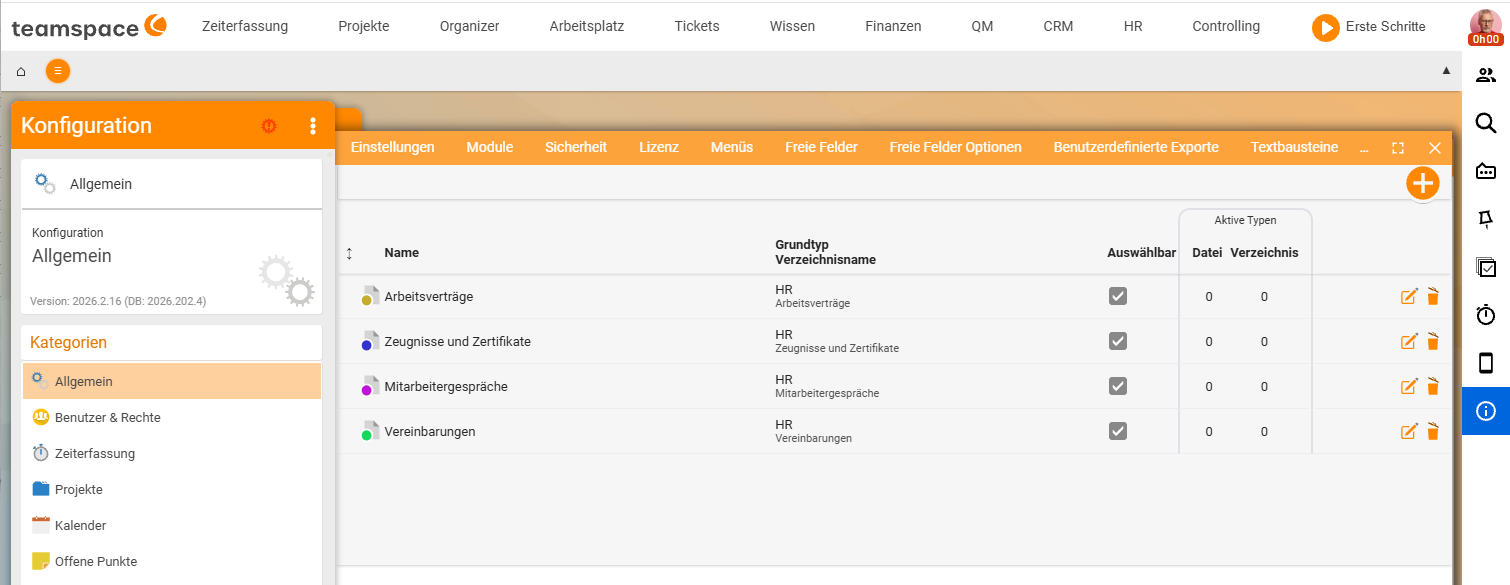
2. File classes: the subject meaning
Through file classes you give a document its subject meaning (e.g. work instruction, process description, status report). This is more than a folder: you can filter by it and check for completeness (“Which process is still missing its approved work instruction?”).
→ In detail: File classes and required files
3. Maintain metadata
In the detail manager under Properties → the Properties section, you enter a description and keywords. This metadata helps the search – especially when the file name alone is not enough.
4. Use search
Through search you find documents by full text and metadata. Combine search terms with the file class to narrow down quickly to the right document type. As all lists always show the current version, you automatically land on the valid version (you reach older ones via the Versions tab, see Manage versions).
5. Links instead of copies
If the same document is relevant in several places (e.g. a work instruction in several projects), use systemic links instead of copies: the document exists once but appears in many places – always in the current version. That way there are no contradictory copies.
Common questions & needs
| You want to … | How to |
|---|---|
| Find a document quickly | Combine search with a keyword + file class. |
| Show only work instructions | Filter by the file class work instruction. |
| Check whether a document is missing | Use file classes as “required files” (File classes). |
| Always hit the current version | Lists automatically show the current version. |
| Show a document in several places | Create a systemic link instead of a copy. |