


When a document is to become binding – a work instruction, an authorisation, a sign-off – the author does not approve it himself, but attaches it to a review process. teamspace notifies the reviewer or reviewers automatically; after the approval a notification goes back to the requester. This is how a document matures from a work-in-progress into a valid version. This article shows the procedure from the perspective of both the author and the reviewer.
ℹ Note (Review). The basic procedure (attaching to a review process, automatic notification, digital approval, feedback to the requester) is confirmed by the product description; the columns
For acknowledgementandReviewin theVersionstab are documented. The exact button labels and dialog names of the review procedure have not yet been checked against the live interface in this version (last_verified: null).
1. Submit the document for review
- In the file list, click the
Detailsicon on the right-hand edge of the file row – the detail manager opens. - Switch to the
Versionstab. The current version is at the top; its columnsFor acknowledgementandReviewshow the respective status. - In the
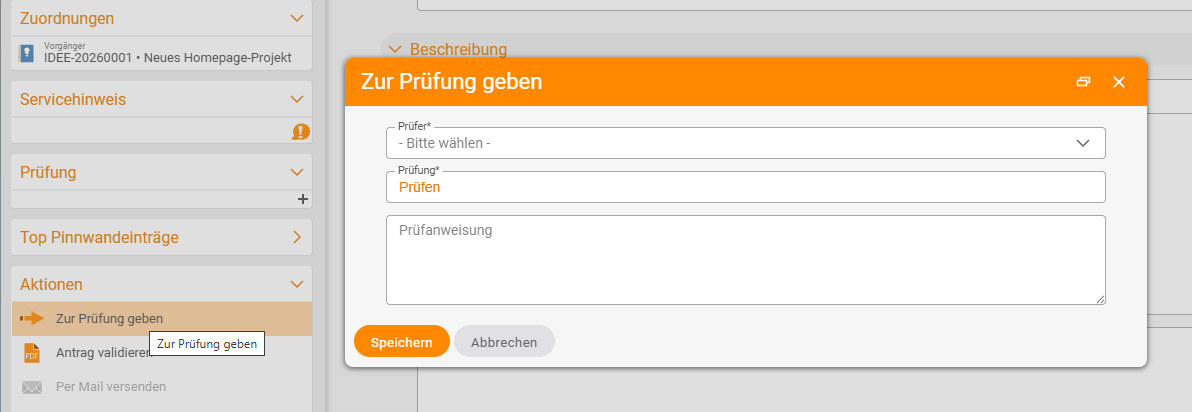
Actionssidebar, choose the actionSubmit for review. In the dialog you set the reviewer, the review (e.g.Review) and a review instruction.
2. Choose the review type: Approval or Acknowledgement
- Approval (Review) – the specialist approval. Choose it when a second person is to sign off on the document’s content before it becomes valid (four-eyes principle).
- Acknowledgement – the read confirmation. Choose it when the recipients only need to confirm that they have read the document (e.g. a new work instruction).
The two can be combined: first Approval by the reviewer, then Acknowledgement by the team.
⚠ Important. If you submit the document to yourself, the four-eyes principle is undermined. For the Approval, choose a person other than the author.
3. The reviewer is notified and approves
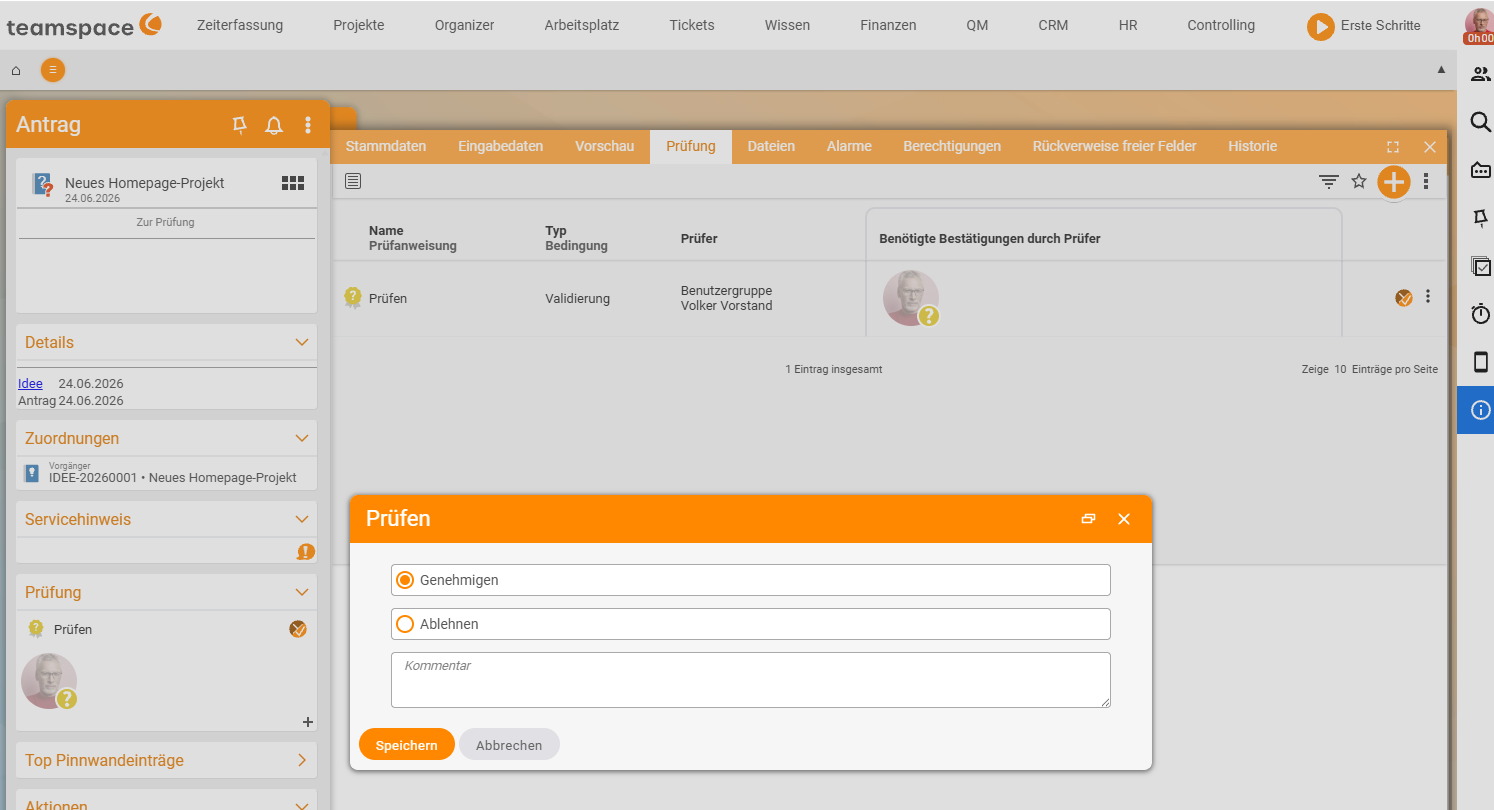
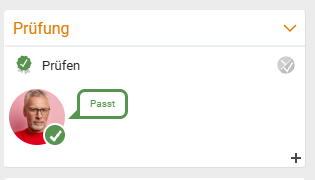
The reviewer automatically receives a notification. They open the document, review it and grant the approval digitally – or reject it with a comment. After the approval, the requester automatically receives a notification.
4. Check the status
- In the
Versionstab, the columnsReviewandFor acknowledgementshow the current status for each version – you can see at a glance what has already been approved. - Anyone who needs it can additionally see in the
Historytab who submitted and approved what and when (see Understand document management).
When a new version is needed
If the document is rejected or needs to be changed, you upload a new version (or edit it online). The new version is initially unreviewed and must go through the review process again – the old approved version is retained until then.
Common questions & needs
| You want to … | How to |
|---|---|
| Have a document approved on its merits | Submit it for review in the Versions tab and choose the review type Approval. |
| Have everyone confirm they have read it | Assign the review type Acknowledgement to the people concerned. |
| Comply with the four-eyes principle | As the reviewer, choose a person other than the author. |
| See who approved what and when | Open the History tab in the detail manager. |
| Have a changed version approved again | Upload a new version – it goes through the review process again. |
| Be reminded of a due re-review | Set a reminder in the Alarms tab (see detail manager). |