


In teamspace, QM is a configuration task: you set up the building blocks so that users can manage, review and approve documents without having to think about the mechanics. This article walks you through the four levers – templates, review/approval processes, permissions and version/archive rules.
ℹ Note (Review). QM uses the configuration of the Files module and the wiki; a dedicated “QM” configuration area does not necessarily exist. The exact UI paths of individual review-process settings have not yet been fully reviewed against the live interface in this version (
last_verified: null).
1. Provide QM templates
So that users can create documents via Actions → New document from QM templates (Idea, Proposal, Approval, Work instruction … – see QM document templates at a glance), you create a template in the configuration for each document type. A file under System/Templates is not needed for this. Each template needs two things:
- Valid layout: Every template must be linked to a valid layout – only then does it become usable.
- Workflow: In the template you set the workflow, that is, which follow-up document may be created from a document (e.g. a Proposal from an Idea, and an Approval from that).
Configuration → Templates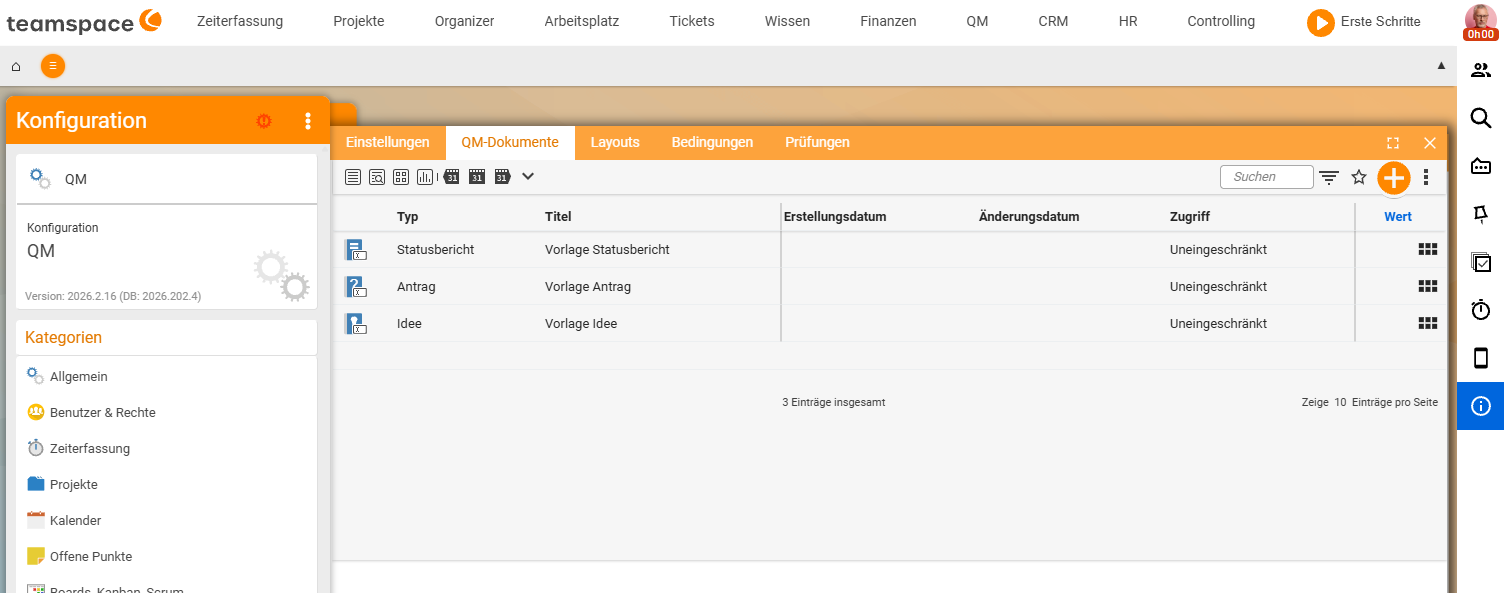
ℹ Info. If no template appears under
New document, it has not been created in the configuration or is not linked to a valid layout.
2. Define the review and approval process
Define how a document is reviewed and approved:
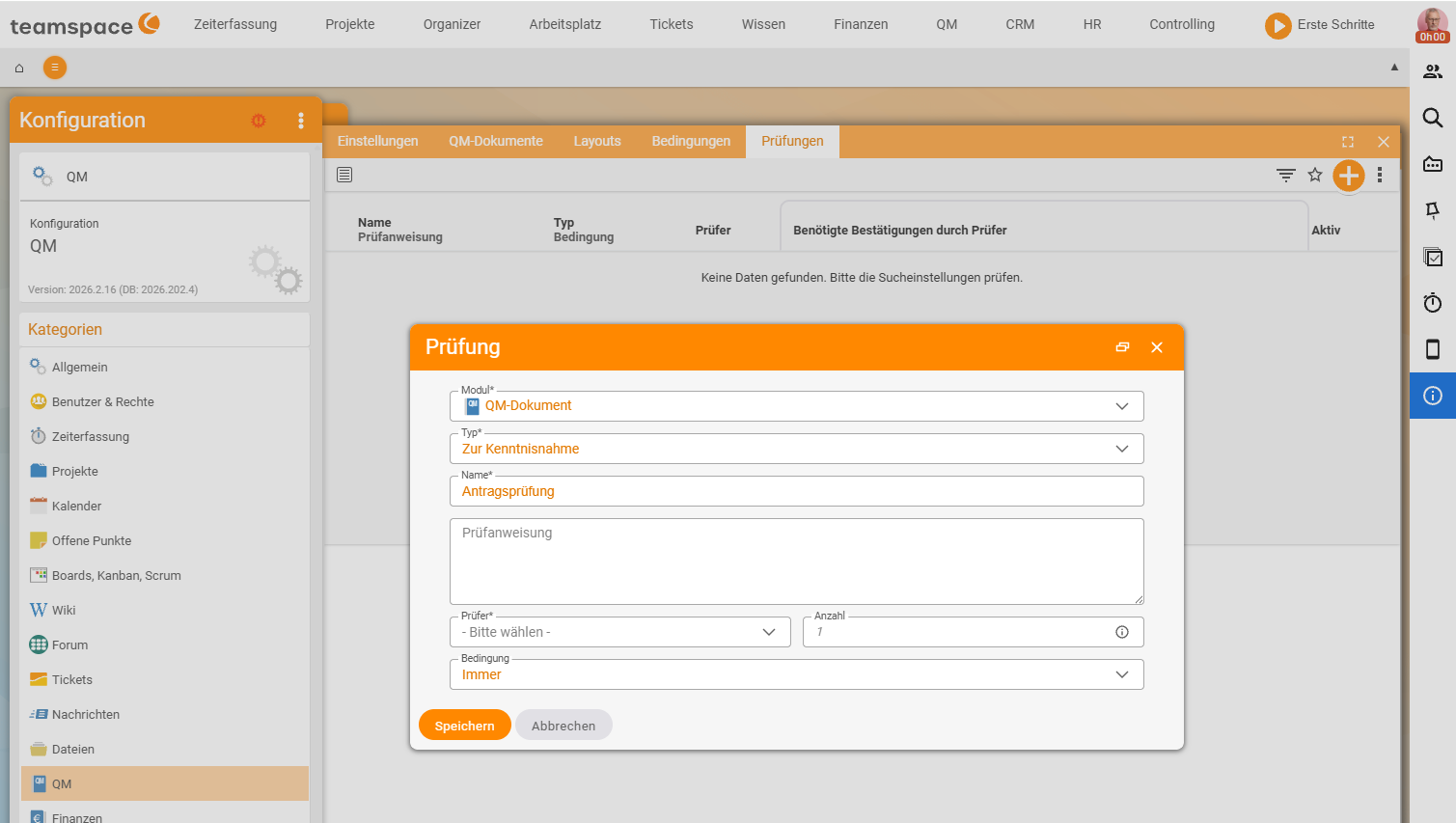
- Review types: Approval (technical sign-off) and Acknowledgement (read confirmation) – both are available per version via the columns
ReviewandFor acknowledgement. - Reviewers/those responsible: Who may approve, who must acknowledge – controllable via the permissions (Step 3).
- Notifications: Reviewers are informed automatically on handover, and the applicant after approval.
3. Permissions: who may do what
Using the permission system you separate reading, editing, reviewing and approving. This is how you technically enforce the four-eyes principle (authors may not approve their own documents). Create a dedicated QM directory with clear access modes:
- How the access modes work: Control access to files.
- Cross-cutting permission logic: Permissions topic.
4. Version and storage rules
- Version limit: Set the default value for
Maximum numbercentrally; for QM documents rather high, so that older versions are retained when revising (Configuration → Files → Setting). - Resubmission: Users set reminders per document in the
Alarmstab when a document is to be updated periodically. - Structure for finding documents: Create a clear QM directory with meaningful folders – this is the basis for users finding documents quickly (see Structure and find documents).
ℹ Optional: audit-proof archiving (GoBD). Anyone who must retain tax-relevant or completed documents in an unalterable form can use GoBD mode. This is a special case, not the normal operation of QM. GoBD mode and certifications come from the product description; activation in configuration mode has not yet been reviewed against the live interface.
Common questions & needs
| You want to … | How to |
|---|---|
| Offer QM templates to users | Create templates in the configuration, link them to a valid layout and define the workflow. |
| Enable the four-eyes principle | Separate review/approval rights from editing rights (Permissions). |
| Keep older versions when revising | Set the Maximum number of versions high. |
| Remind people of due updates | Users set reminders in the Alarms tab. |
| Archive completed documents in an unalterable form (special case) | Use GoBD mode (review activation against the live configuration beforehand). |
Related topics
- Set up files (configuration) File management Configuration
- File classes and required files File management Concept
- Control access to files File management How-to
- Topic: Permissions Permissions