


Once a project has been created, you give it its shape in the structure view: you break it down into subprojects, work packages and phases, set milestones, plan effort and dates and define dependencies.
1. Create structure elements
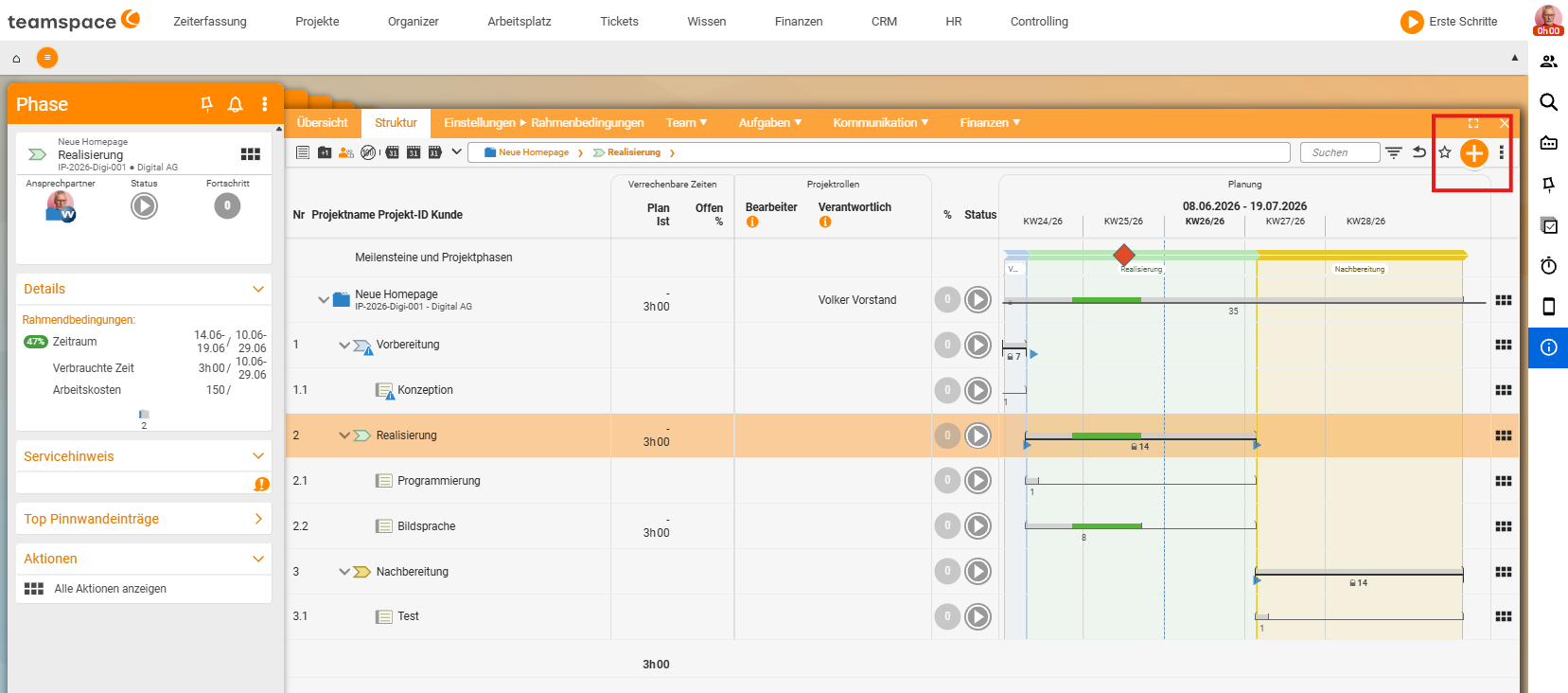
You work in the work breakdown structure. You create new elements in two ways:
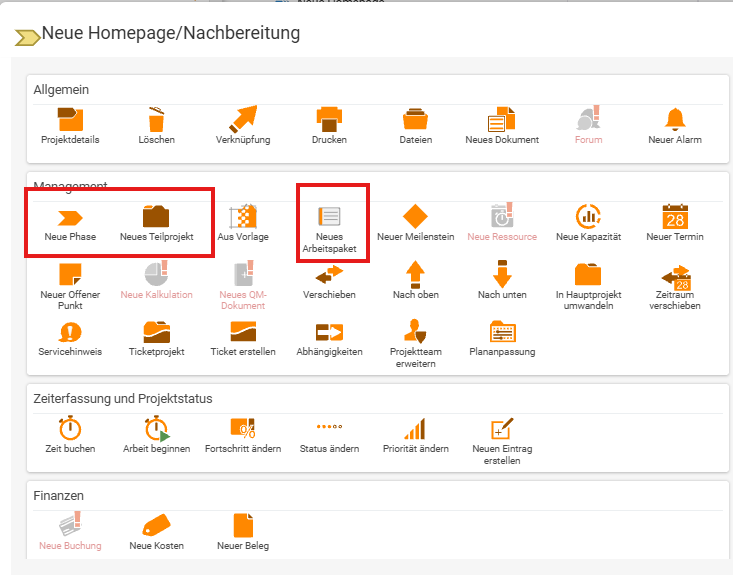
- via the orange round plus or the action “New phase” (top/left) – this attaches the element to the main project;
- via the context menu (the “chocolate bar”) or the “General actions” panel in the respective row – this lets you attach to that specific element, e.g. “New subproject”.
New elements are attached to the level marked with the light-orange arrow.
- Subproject (icon: grey folder) – nestable to any depth.
- Work package (icon: index card) – the smallest unit, which cannot be broken down further. Via an option you can define that time is booked only onto work packages.
- Phase – can be colour-coded, appears directly in the schedule and can be chained to predecessor phases.
Elements can be converted afterwards (work package ↔ subproject etc.). You copy several elements via three dots → multiple selection → Copy and choose the target.
2. Plan effort (bottom-up)
Enter the effort on the work packages – teamspace accumulates it automatically upwards. You recognise editable fields by the small triangles.
- Gross duration – how long an element runs overall (e.g.
10 days). - Project time – the actual working time planned within it (enter e.g.
8 hor1 d).
Inherited (accumulated) values appear in grey, directly entered ones in black. For each property (budget, time target) you have three modes in the parameters:
- None – no restriction,
- Auto – the values of the super-/subordinate elements are accumulated,
- Manual – you enter your own value.
3. Dependencies: predecessors and successors
Between subprojects and work packages you define predecessors/successors – either when creating them or later in the parameters. In the list, dependencies are shown with arrows; a percentage shows the average progress of all predecessors. The structure view automatically arranges the elements correctly in time and marks planning errors with colour.
4. Schedule in the Gantt chart
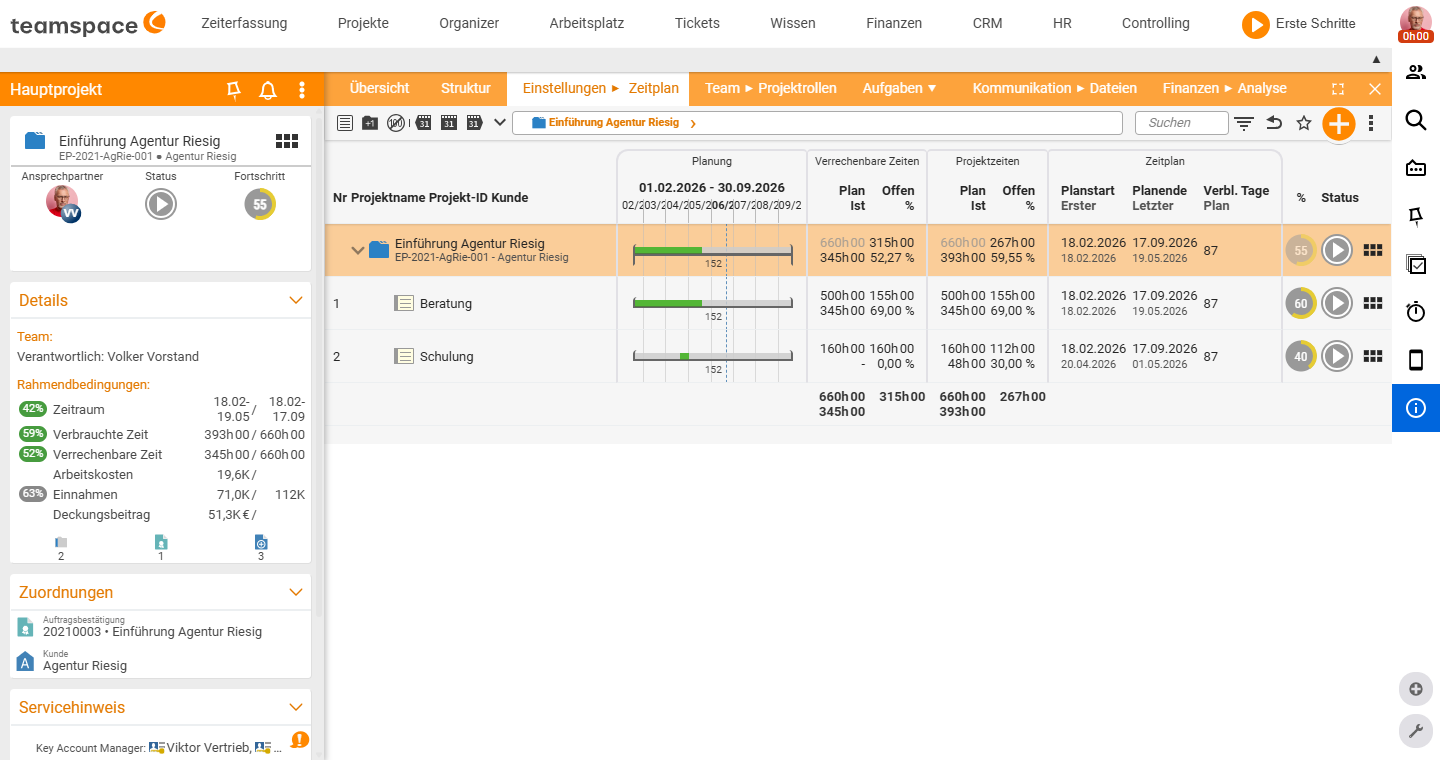
The “Schedule” view is a Gantt chart; you adjust times directly. For an element’s start and end there are three options:
- Date – earliest/latest start and end date (flexible within the limits).
- Milestone – project-specific or global.
- Predecessor/successor – the start is calculated from the predecessor’s duration and adjusts automatically when things change.
You move the whole plan via “Management” → “Move time period” (days +/–; with a tick for subprojects, resources and milestones).
5. Set milestones
- “New milestone” in the action box (on the left).
- Name the milestone and give it a completion date.
- Optionally set an advance-warning date for an early reminder.
Via the multiple-selection checkboxes in the structure view you assign the milestone to projects and tasks. Milestones can be project-specific or global.
6. Assign staff
You clarify who takes on which task in the “Project roles” view: click the cell (role × element) → choose a person via the “Add” symbol → Save. The detailed instructions on roles, time budget and utilisation are in Assign people.
Larger structures: Excel export/import
For extensive plans you use the export/import (Excel) action: it is best to export an existing project, supplement the file and import it back. The export contains two header rows – a readable one and a technical one for mapping on import.
Caution: Via the import, large amounts of data can be changed very quickly. Check the file carefully before re-importing.
Common questions & needs
| You want to … | How to |
|---|---|
| Attach an element at a specific point | Via the context menu (“chocolate bar”) of the respective row, e.g. “New subproject” – the element attaches to the level marked with the light-orange arrow. |
| Create a new phase | Via the orange round plus or the action “New phase” (top/left) – this attaches it to the main project. |
| Allow time only on work packages | Use the corresponding option to define that time is booked only onto work packages. |
| Plan the effort | Enter gross duration and project time on the work packages – teamspace accumulates automatically upwards (inherited values appear grey). |
| Define whether a budget accumulates or is fixed | In the parameters, choose the mode None, Auto (accumulated) or Manual per property. |
| Dependencies between elements | Set predecessors/successors when creating or in the parameters; dependencies appear in the list as arrows. |
| Adjust the schedule graphically | In the “Schedule” view (Gantt chart), steer start/end via Date, Milestone or predecessor/successor. |
| Set a milestone | ”New milestone” in the action box → name it, give it a completion date and optionally an advance-warning date. |
| Assign staff | In the “Project roles” view, click the cell (role × element) → choose a person → Save (details in Assign people). |
| Edit an extensive structure all at once | Via the export/import (Excel) action: export an existing project, supplement it and import it back. |
Related topics
- The tools of project management (with video) Project management Concept
- Project views: structure and details Project management Reference
- Assign people – who does what? (with video) Project management How-to
- Work breakdown structure software