


For some people, project numbers are unimportant; for others they are a central reference: you mention only the number and the other person knows immediately what it is about. teamspace assigns project numbers automatically – according to a naming rule per project type.
Where the project number is visible
- In the project overview the number sits directly below the project name.
- On a project’s business card it appears large.
- When booking time under “My day” it is visible and searchable.
Set up the naming rule
The rule hangs off the project type: Configuration → Projects → Project types → on the desired type, open “Naming rules” at the end. Under “Project creation”, expand the rule.
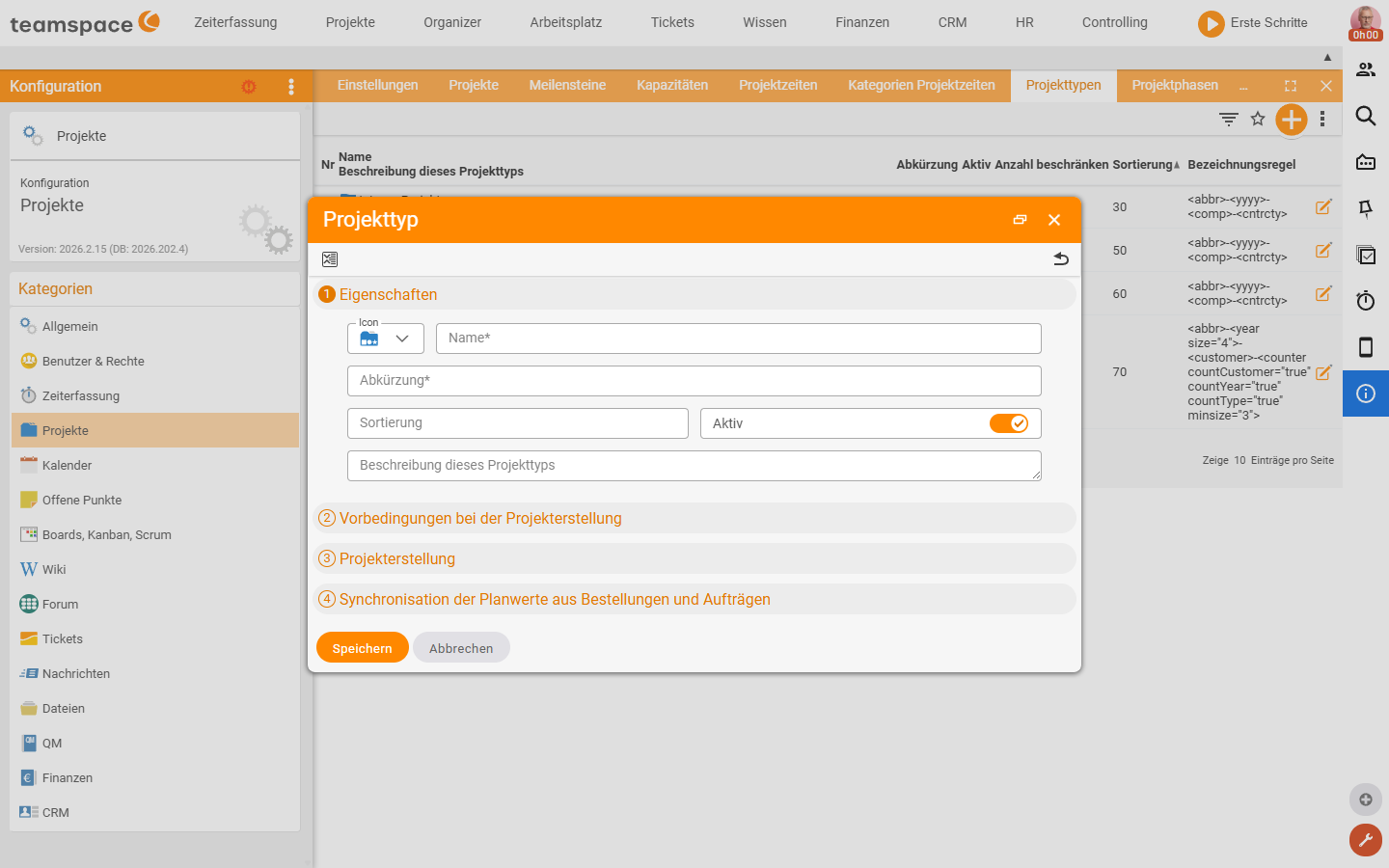
Composition of a project number
A typical rule is made up of four building blocks:
- Abbreviation of the project type (e.g. “EP” for implementation project).
- Year (four or two digits).
- Company abbreviation (customer code).
- Counter – optionally taking company and type into account.
Example: EP + 2021 + brand code + 001 = the first implementation project for that brand in 2021.
Classic vs. new notation
Classic notation (counter logic):
- If there is a “Y” in the rule, the counter starts from scratch each year – useful when the year comes first.
- If you delete the “Y”, the counter runs continuously across the years.
New notation (switchable via the light-bulb icon) makes the building blocks explicitly configurable:
- Year: number of digits via
size–size=4= four digits,size=2= only the last two digits. - Counter: a switch for whether type, year (Y) and customer are counted. A counted type means, for example, that implementation and consulting projects each have their own counter.
Tip: You can feel your way in well by trial and error – the values in brackets are the same everywhere and reusable. There is also a blog post explaining the rules.
Editability and behaviour on deletion
- The “editable” setting defines whether a number can be overwritten by hand.
- When creating in early 2025, for example,
25+001arises, and the next project gets002. - On deletion, the highest assigned number is reused (if you delete
006, the next project gets006again). - Gaps in the middle are not reused – that would be pointless given the value of the number. Numbers are therefore always filled “upwards”.
- You can fill gaps deliberately only via administrator mode or by making the ID editable.
Common questions & needs
| You want to … | How to |
|---|---|
| Set up the number rule | Configuration → Projects → Project types → on the type, open “Naming rules” at the end and expand the rule under “Project creation”. |
| Combine year, customer code and counter | Compose the rule from the four building blocks abbreviation, year, customer code and counter (e.g. EP + 2021 + code + 001). |
| The counter to restart each year | In the classic notation, put a “Y” in the rule; without “Y” the counter runs continuously across the years. |
| Set the number of digits of the year | In the new notation (via the light-bulb icon), control the year via size (size=4 four digits, size=2 two digits). |
| Separate counters per project type | In the counter of the new notation, set type (and optionally year/customer) to be counted. |
| Overwrite a number by hand | Activate the “editable” setting. |
| Understand what happens on deletion | On deletion the highest number is reused; gaps in the middle are not filled (only possible via administrator mode). |
Related topics
- Set up project types and directories (with video) Project management Configuration
- Create, adjust and move projects (with video) Project management How-to
- Multi-project management software