



Scheduling staff means: you assign people to a project or to the work packages attached to it. Only then can someone book time, see the task in their own tasks and be informed.
1. Assign an assignee
- In the project overview, open the work package (e.g. an “Implementation” with a consulting and a training part).
- In the “Assignee” field, enter a person (e.g. “Fin Finance”).
- Press Save – now it is their work package.
Directly below it is the “responsible” field. Assignee and responsible are so-called project roles. You can enter several people and also whole user groups (e.g. “all staff” or “the entire Finance department”).
The assignment does three things: the person can book time, sees the package in their own tasks (e.g. in the task manager) and receives a notification that they have been added.
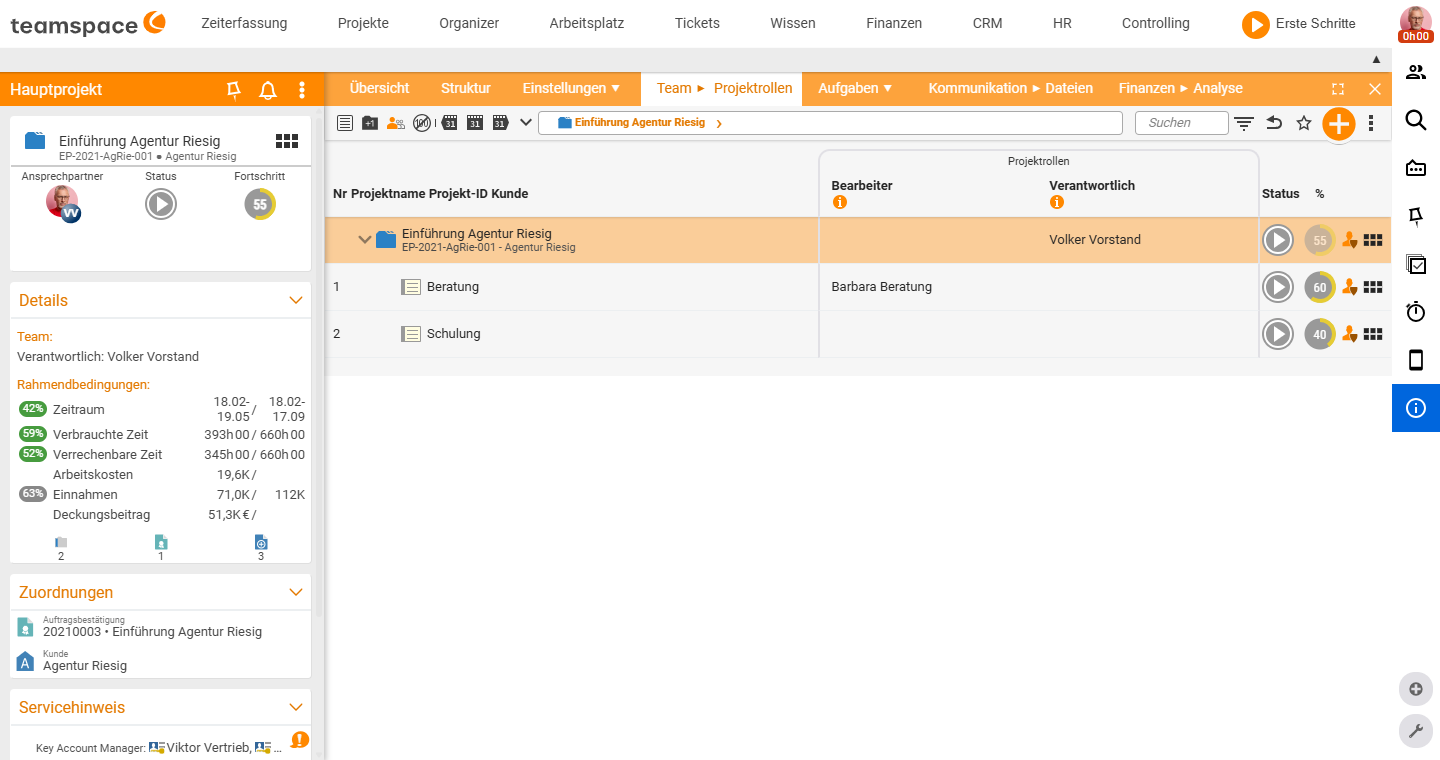
2. Understanding the roles
- Assignee – works on the element and books time.
- Responsible – may do “much, much more” (assign staff, change budgets); typically the subproject or project lead.
- Further roles (e.g. “intern” with fewer rights) can be defined freely.
Roles can be assigned from any structure level – for example a subproject lead who is fully responsible for their subtree. There are main roles (assignee/responsible) and supporting secondary roles.
3. Distribute the time budget across people
When several people are on one work package (e.g. 12 hours to be split):
- Open the work package → “Team” tab.
- There you see the assigned people and distribute the time budget (e.g. 10 hours to one, 2 to the other).
Tip: With just two people it is enough to give the budget to one – teamspace allocates the rest to the other automatically.
4. Viewing assignments (columns and filters)
Via the active columns (on the element or via the filter at the top) you show and hide the “Project roles” column; via the plus next to people you make the roles editable again. In the project overview it is often useful to display the work packages.
By default you see your own work packages (filter “I am the assignee”). You can add further assignees and, at the top, “split by assignee” – then the list is grouped per person. A special list shows all work packages without hierarchy, with the assignee immediately visible, e.g. filtered to “all work packages that are to be finished next week and still have no assignee”.
Note: Special lists are not enabled by default – this is done via the permission system and the menu.
5. Keeping an eye on utilisation: three tiles
teamspace offers three views of scheduling – from rough to quantified:
- Deployment planning – like the old metal board in the office: name plus date, showing a person’s projects/work packages. It is not quantified: what is displayed is whatever is not at 100% progress – even when the budget is used up; a package with 1 hour of remaining work appears as the same-sized bar as a large one.
- Utilisation – shows planned resources in the future and the time actually worked in the past (a line marks the end of an 8-hour day). Only useful in special cases.
- Dynamic resource planning (DRP) – the quantified variant without any planning effort of its own.
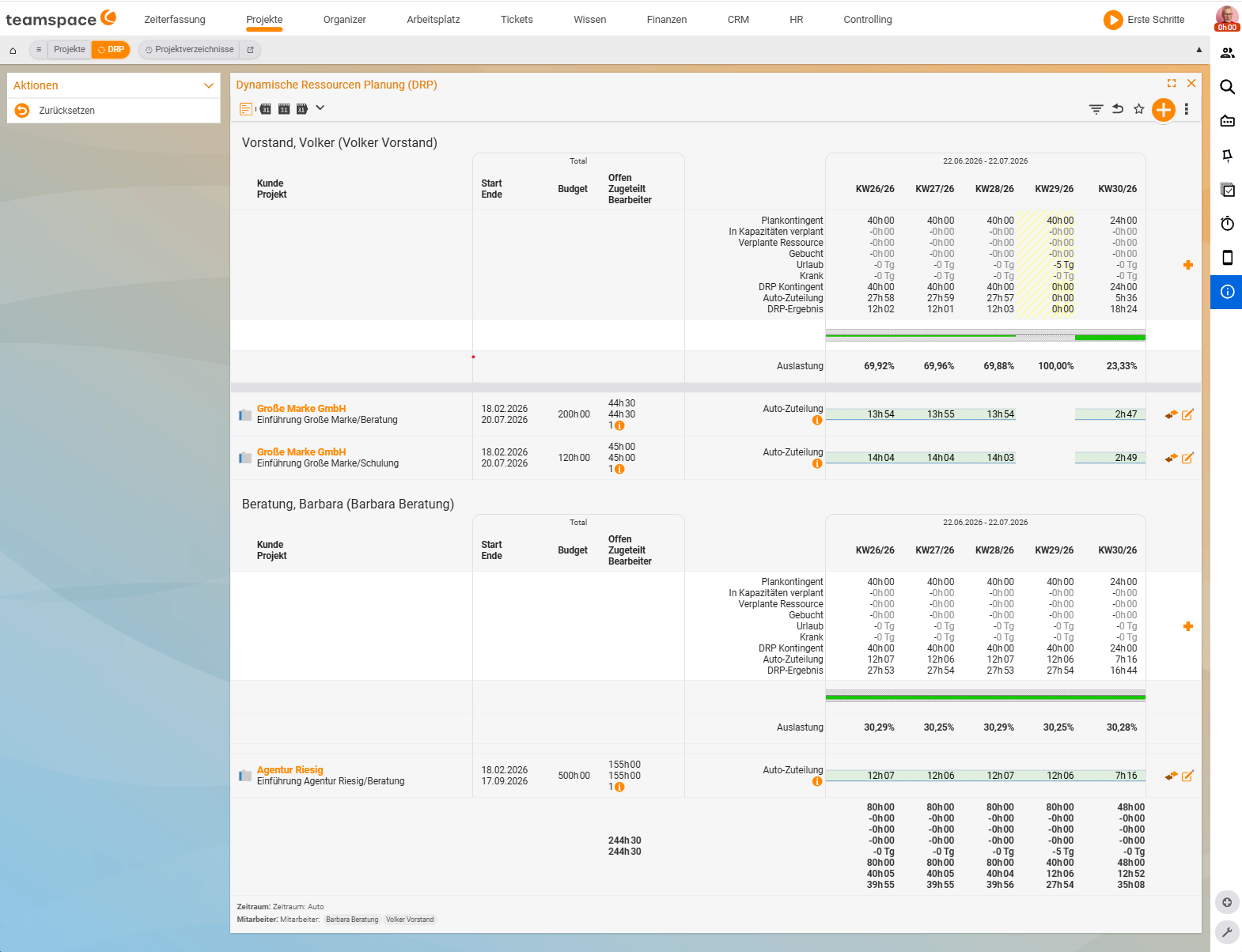
Dynamic resource planning (DRP)
DRP takes a person’s available quota (minus leave/sickness and what is already planned) and distributes it automatically across the projects and work packages in which the person is the assignee, that have an end in the future and an open budget. So you can see at once whether someone can still take on a project or is full – without manually setting hours per day (that would be the high effort of sophisticated capacity planning).
- You switch the period between weekly and monthly; for larger periods teamspace distributes the packages across the weeks. In practice a quarterly view also works well: you push work packages in until someone is at 80–90% utilisation.
- A tick makes the time allocation less complex.
- At the bottom you see the total hours still available in the next period.
If you remove one of two assignees from a work package, the remaining person is automatically allocated correspondingly more time.
Difference from deployment planning: Fewer assignments appear in DRP than in deployment planning, because projects without a future budget (ongoing activity, used-up budget, no end in the future) do not take effect in DRP.
Common questions & needs
| You want to … | How to |
|---|---|
| Hand a work package to someone | Open the work package → enter the person in the “Assignee” field → Save; they can then book time, see the task and are notified. |
| Assign a whole group | In the “Assignee” field, enter several people or a user group (e.g. “the entire Finance department”). |
| Give someone more rights (assign, change budgets) | Enter the person as “responsible” – this role may do considerably more; further roles can be defined freely. |
| Split a time budget across several people | Work package → “Team” tab → distribute the time budget across the assigned people. |
| See who has which packages | Show the “Project roles” column via the active columns or the filter; “split by assignee” at the top groups the list per person. |
| Find work packages without an assignee | Filter via the special list of all work packages without hierarchy (e.g. “done next week and still no assignee”) – enable it first via the permission system if necessary. |
| Quickly see who still has capacity | Use dynamic resource planning (DRP) – it distributes the available quota automatically across packages with an end in the future and an open budget. |
| Change the DRP period | Switch between weekly and monthly; at the bottom you see the hours still available in the period. |
| A rough overview of scheduling | Use deployment planning (name × date) – it shows, unquantified, whatever is not yet at 100% progress. |