


After years of use, a lot of projects pile up. There are three approaches to keeping order, which you use individually or in combination: distinguishing projects by project types, archiving completed projects and project folders as an additional classification (see Set up project types and directories). This article covers archiving.
What archiving does
Archiving has two effects:
- Archived projects are no longer displayed – the project-list filter is set this way by default.
- They are read-only – viewable, but no longer editable.
Note: To bring a project back out of the archive, a special permission is needed, which you can give to everyone or only to certain people.
Archive a project
There are two ways:
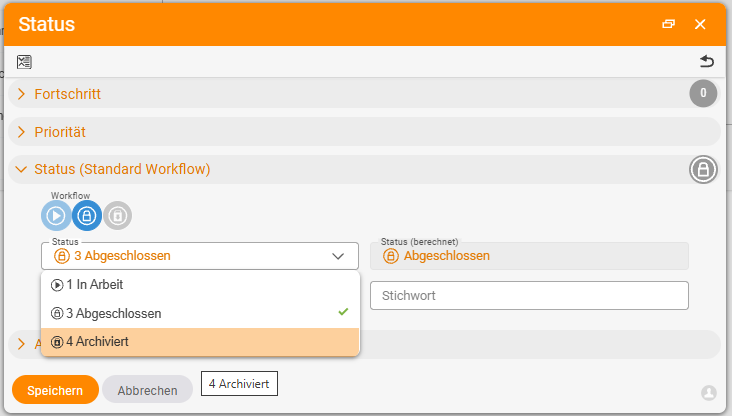
Way 1 – via the list: In the project overview, switch on editing and set the project’s status to “archived”.
Way 2 – via the action menu: Via the context menu (the “chocolate bar”), open the status for editing and switch it from “In progress” to “archived”.
After that the project disappears from the list. To see it again, set the status filter so that archived projects are shown too – the project then appears at the bottom as archived.
The status types behind it
You configure the project status under Configuration → Projects → Project status. By default there are In progress, Completed and Archived; you create your own statuses via the plus. What matters is the type – there are only four basic types.
- “Completed” and “Archived” are both of the completed type → both carry a lock symbol and are no longer editable.
- The difference: “Completed” stays visible, “Archived” is not shown in the default filter – that is the little trick when tidying up.
Via workflows you set a default workflow per status and define transition permissions – who may switch from which status into which. This lets you enforce, for example, that a project runs through “In progress” → “Completed” → “Archived” and is not archived directly.
Troubleshooting: If a status cannot be entered, this is usually down to this transition permission.
Recommendation
Archiving pays off above all with multi-year use, to get rid of old projects and keep the overviews tidy. Of the three ordering approaches, project folders and the archive are the ones you can most easily do without – project types are usually the most helpful.
Common questions & needs
| You want to … | How to |
|---|---|
| Make a completed project disappear from the list | Set the status to “archived” – archived projects are no longer shown in the default filter and are read-only. |
| Archive a project via the list | In the project overview, switch on editing and set the project’s status to “archived”. |
| Archive a project via the action menu | Via the context menu, open the status for editing and set it to “archived”. |
| Find an archived project again | Set the status filter so that archived projects are shown too. |
| Bring a project back out of the archive | Requires a special permission, which you can give to everyone or only to certain people. |
| Create your own statuses | Create them under Configuration → Projects → Project status via the plus; what matters is the choice of one of the four basic types. |
| Enforce that nothing is archived directly | Use workflows and transition permissions to define the route “In progress → Completed → Archived”. |