



The task manager slides in from the right and shows everything attached to you: appointments, follow-ups, tickets and open items from across the whole system. It is placed in front of the actual application – you look in from anywhere and come back out exactly where you were. Besides gathering, you also create new things from here: an appointment, a follow-up, an open item, a ticket – all in one place.
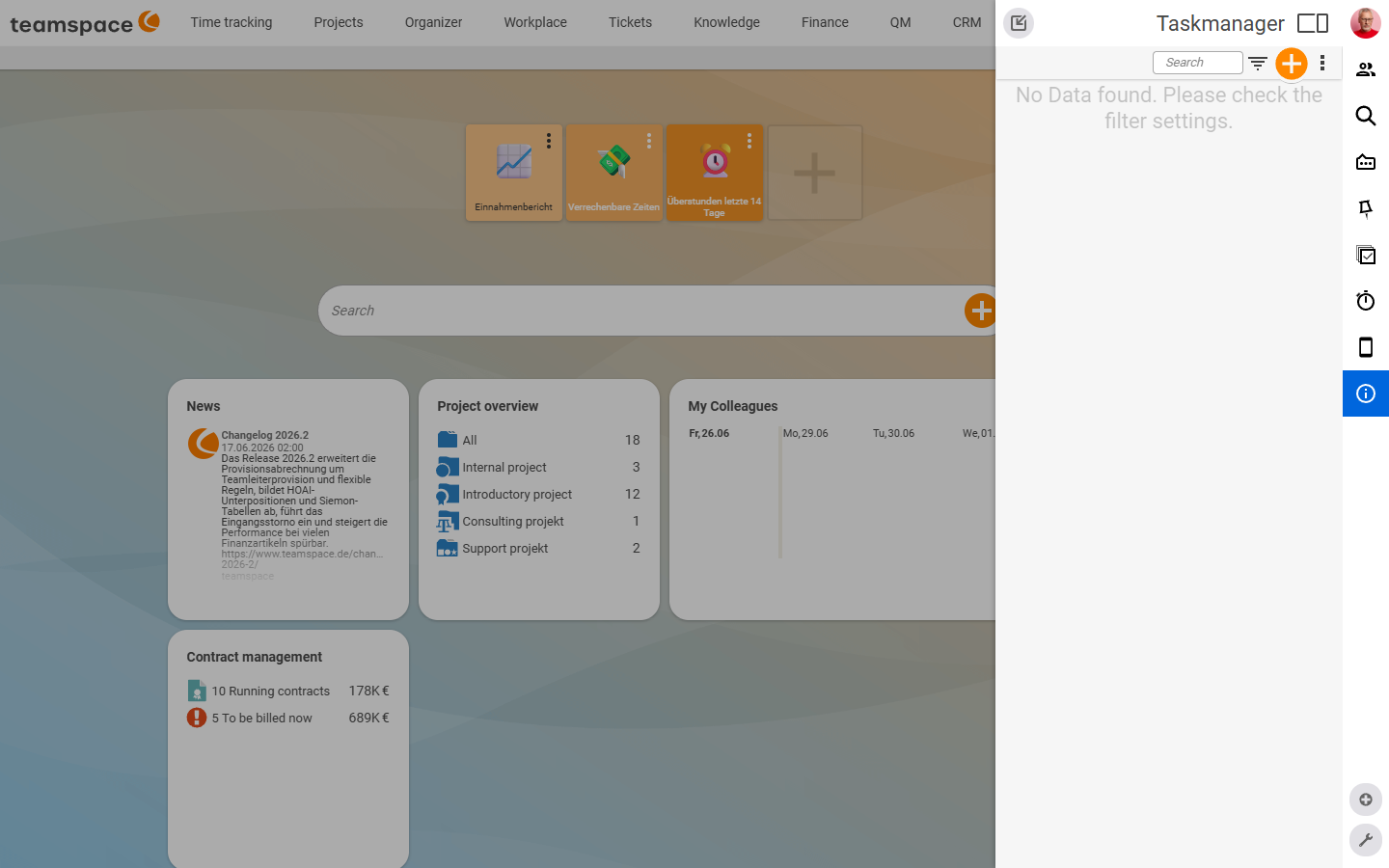
Where the task manager sits
You reach the task manager from anywhere and at any time via the tasks icon in the footer. One click slides it in from the right, a second click hides it again – the main view in the background stays unchanged. In the Overview tab you get an overview of your tasks; the detail views sit in the further tabs.
What ends up in the task manager
The task manager gathers all personal tasks from teamspace – not only open items, but also appointments, follow-ups and tickets. That makes it the gathering tool for everyone who mainly works with tickets or appointments too. The cards can be shown as a list or as a tile view.
Note: Even though the task manager is documented under the “Open items” topic, it gathers across modules. The open items are just one of several types that end up here.
Create new items from the task manager
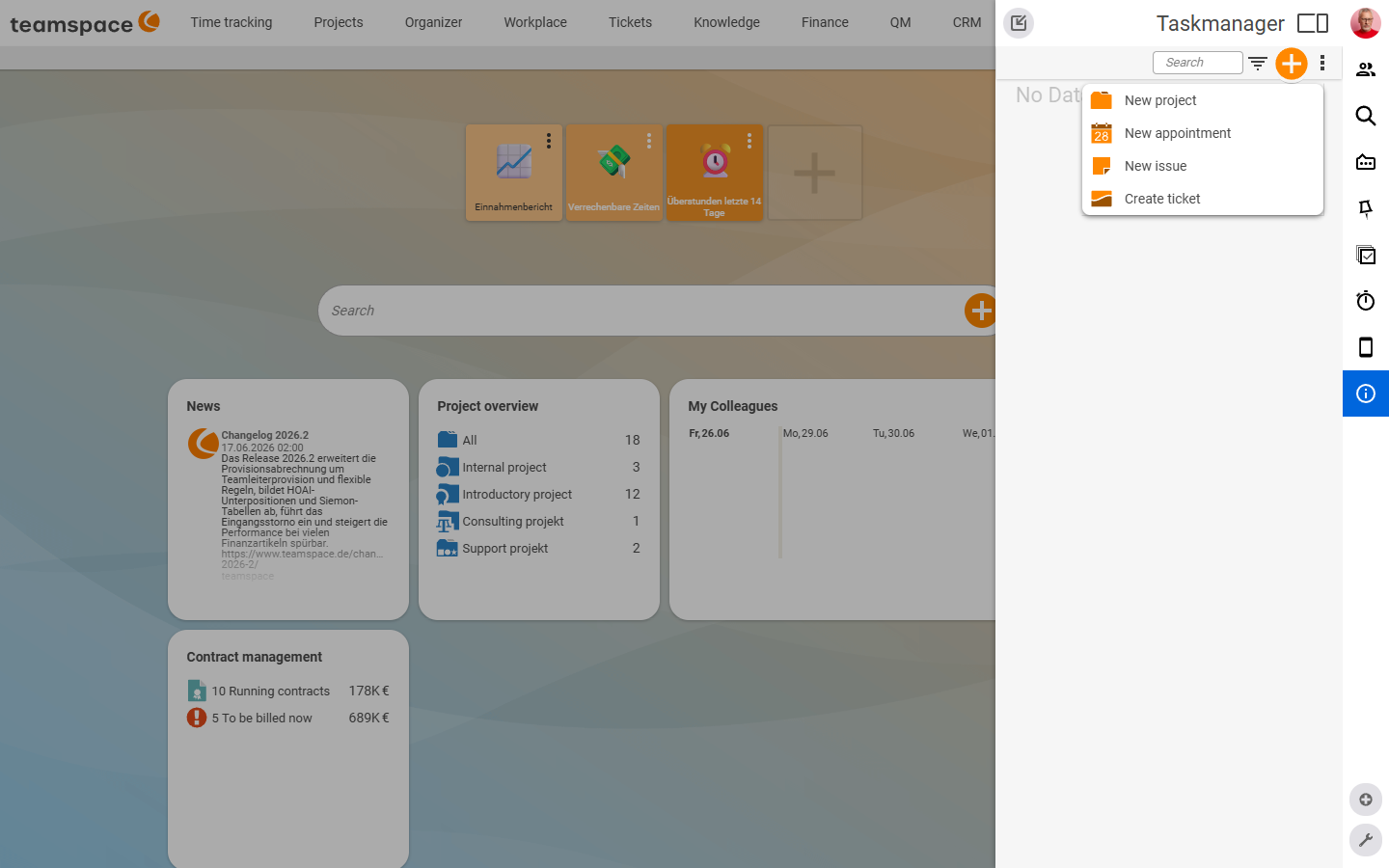
The task manager is not just an inbox but a control centre: via the + button you open a drop-down and create something new directly – without first switching to the module. Typical options:
New projectNew appointment/New follow-upNew open itemCreate ticket
Example follow-up: press +, choose the occasion (“follow up with someone”, “call”), enter who should do what and when, optionally link it to a contact from the CRM. The follow-up appears in the task manager straight away – and as soon as the date has passed, in red.
Book times directly
The cards in the task manager carry the action grid (the 4-/6-cell grid) – one click opens the action selection for the element. One of the actions is Book time: enter three hours, for example, and the time is booked and appears in your time overview straight away. In the same way you trigger other actions from here – set progress, convert into a project, copy.
The “Open items” tab as a mini-board
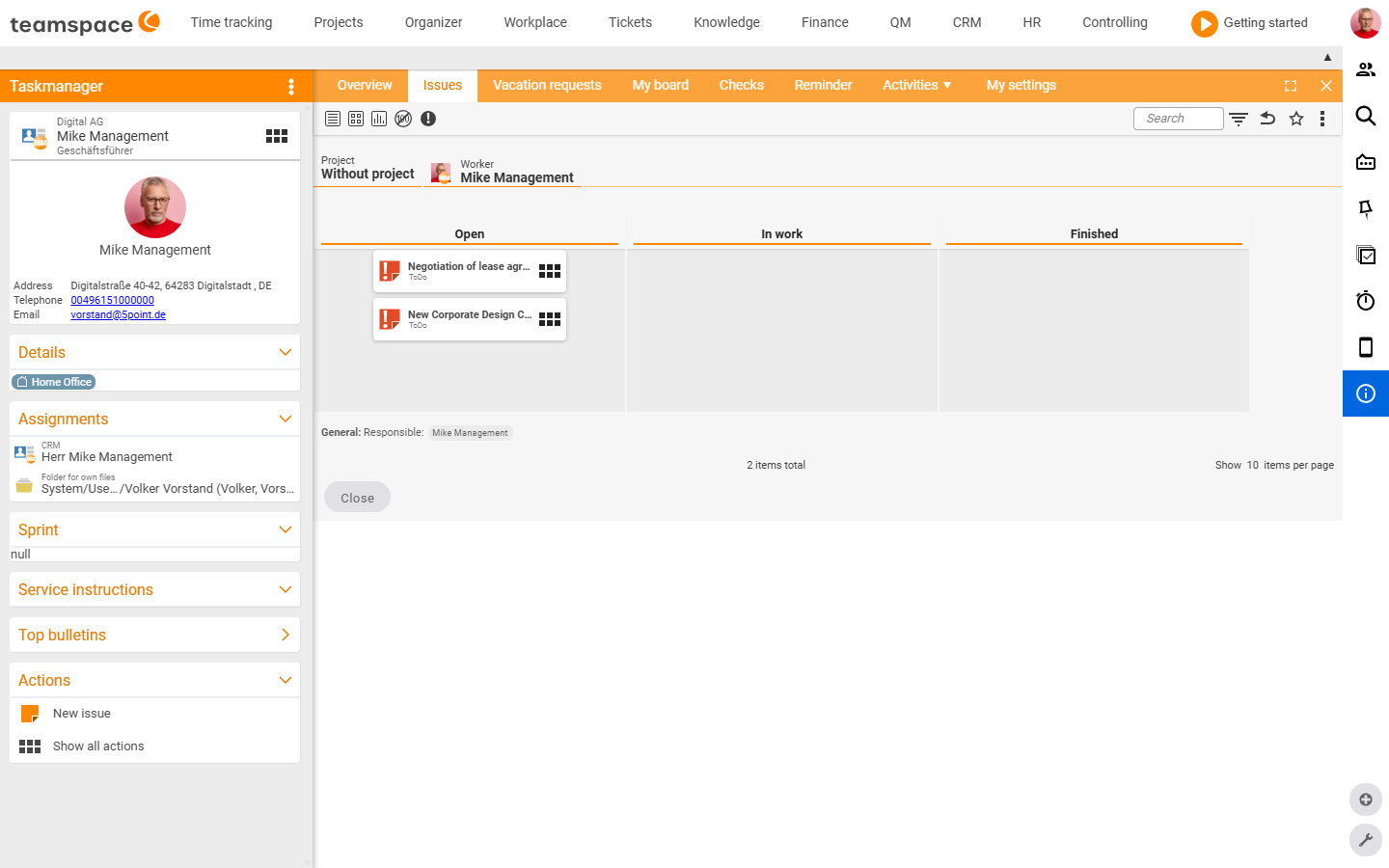
The task manager has a tab of its own, Open items. By default the items there are arranged in a board layout. This helps with moving between statuses: drag a card from Open into Done and the item is done – without opening it individually.
Via the filter modal you choose Split and decide whether to group by Status, Project, Assignee or Type. Particularly useful: items without a project end up at the top, items with a project assignment below them – you see at a glance what belongs to your free day-to-day work and what is attached to an ongoing project.
The personal pin board
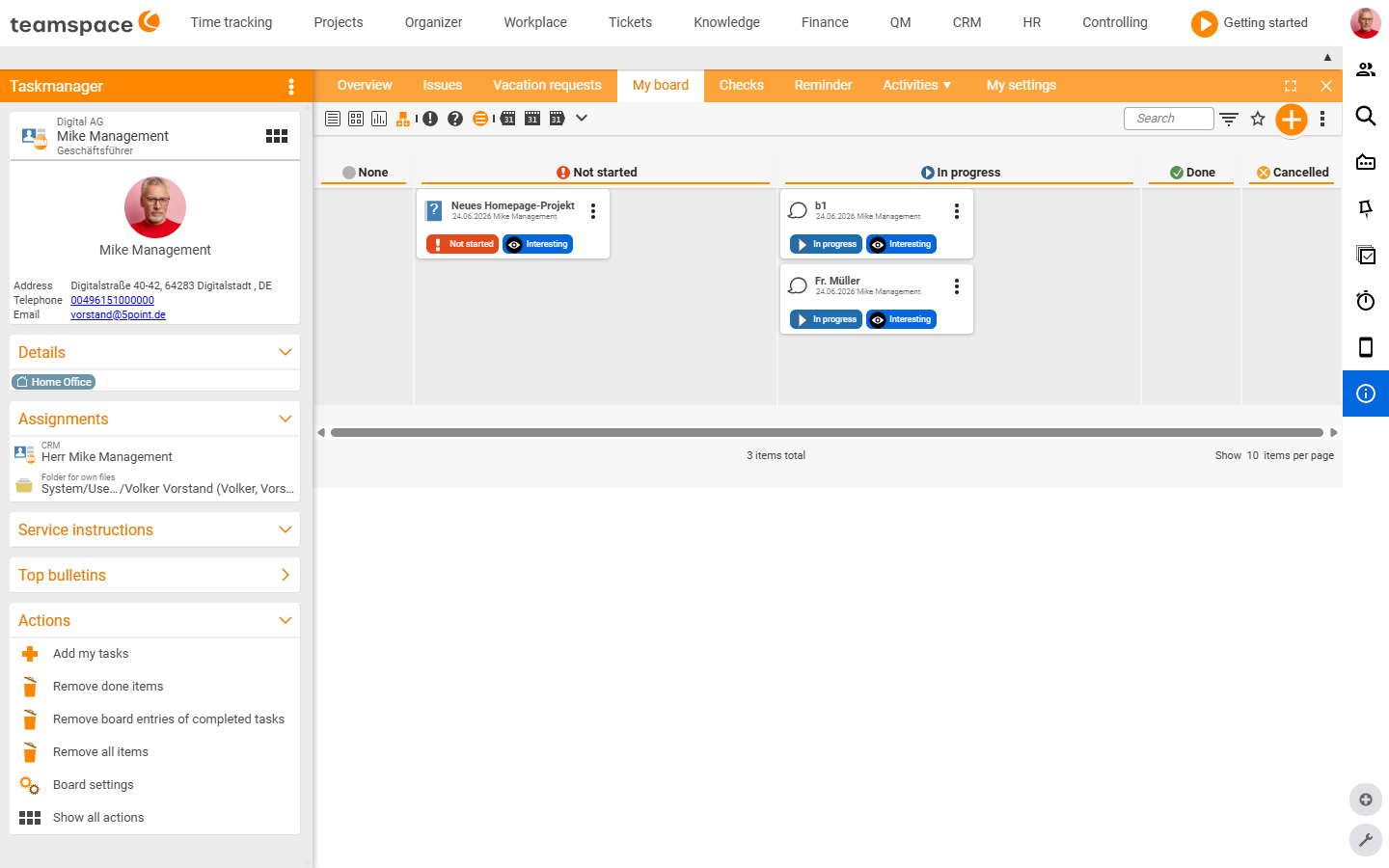
Besides the gathered tasks, the task manager carries a Pin board of its own – a private collecting surface. If yours looks different, go to Settings at the bottom and switch on Tile view, Pin board, a size and, as columns, e.g. the Status; via Fixed column width the layout snaps into place cleanly.
This is how you work with it:
- Create your own notes. Click into a cell and write e.g. call into it – that makes a note of your own.
- Pin any elements. Open the list of recently used elements on the right and drag, say, a quote onto the pin board as a reminder. Alternatively, in an object’s detail manager set the pin icon to a colour (importance) – the element then ends up on your pin board automatically.
- Use it as a matrix. With the tile view plus columns you build yourself a matrix (e.g. by relevance) and push cards into a different status.
The cards are yellow sticky notes of their own: click on the note and you store your comment on the element; if you want to go into the element itself, click the title at the top. The original element does not change as a result – if someone else has the same element on their pin board, they have a note of their own with their own annotations.
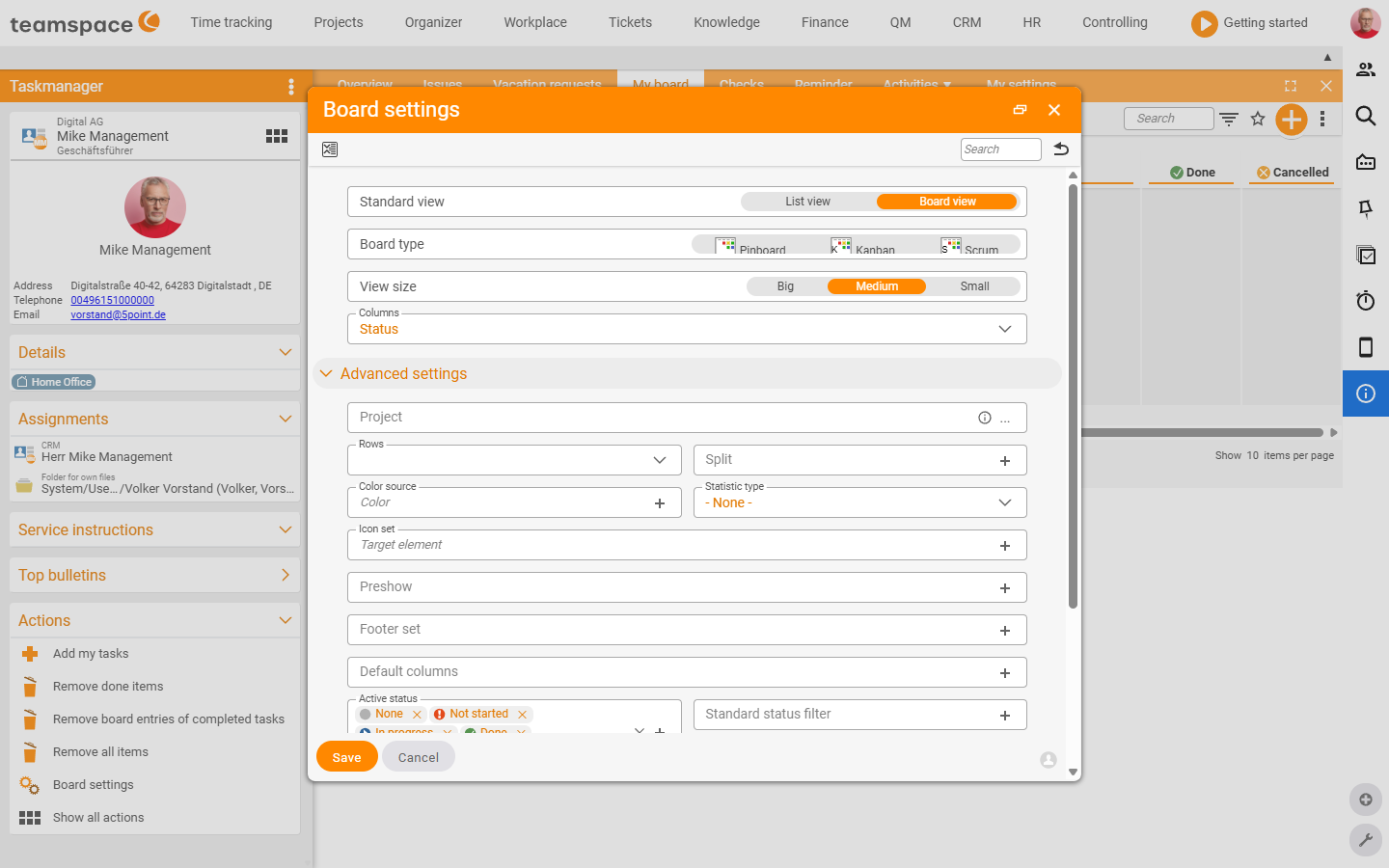
Tip: The pin board is the same tool as the personal pin board in the Boards topic. How to configure status columns, colour sorting and pinning elements in detail is described there.
Common questions & needs
| You want to … | How to |
|---|---|
| See quickly what is pending overall | Tasks icon in the footer, Overview tab – gathers appointments, tickets, follow-ups, open items. |
| Create something without switching to the module | + button → the appropriate option (project, appointment, open item, ticket). |
| Be reminded of something | + → create a follow-up, set an appointment in the future, optionally link a CRM contact. |
| Book time on a task | On the card the action grid → Book time. |
| Complete open items by drag | Open items tab → drag a card from Open to Done. |
| Keep important elements in view | In the detail manager colour the pin icon → the element appears on your pin board. |
Related topics
- Open items – introduction (with video) Open items Introduction
- My open items: create and work through (with video) Open items How-to
- Use the personal pin board Boards How-to
- Task management tool