


In a project the open item is the handy checklist on the work package: small activities that are part of completing the package, ticked off instead of formally planned as a work package. Because it is always the same item, every completion applies in the project immediately too. This way you quickly gather items in the project, hand them to assignees and, where needed, book times on them directly.
Prerequisite: activate open items in the project
For open items to appear on the project, they have to be enabled for the project. If the Open items column or tab is not yet visible, you activate “Open items” in the user group (Project detail manager) and in the project role (Menu) – both permissions must be set. The exact path is described in Configure open items.
Create an item on the work package
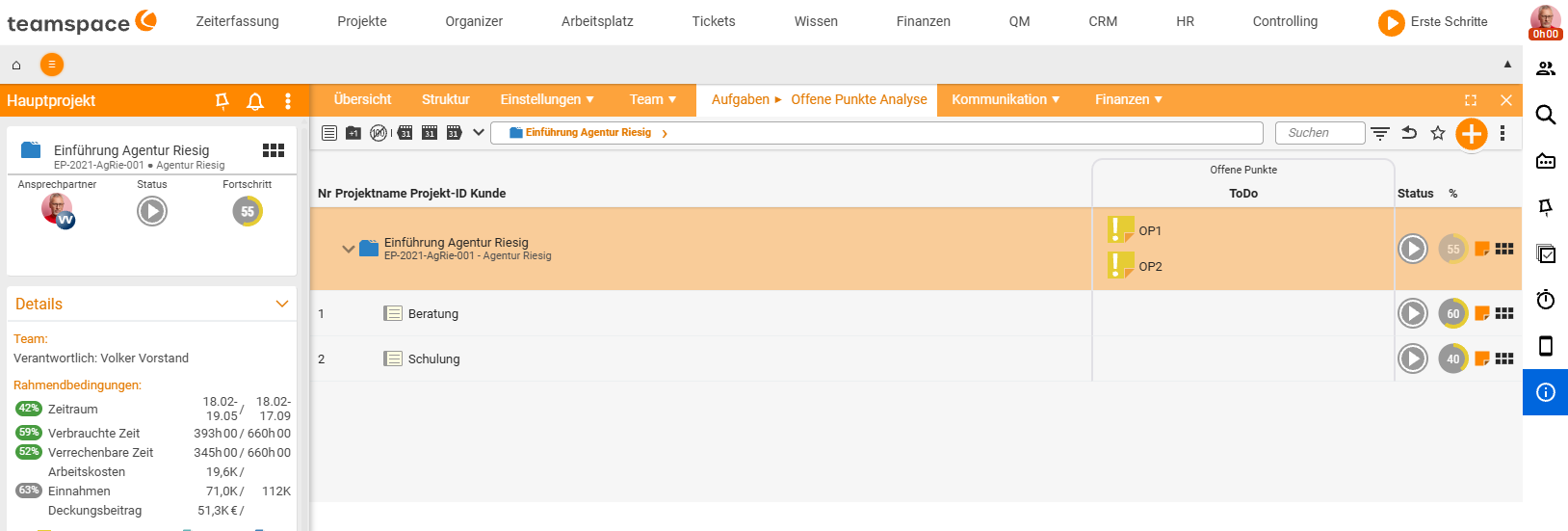
In the project’s structure manager you find the open items on the work packages:
- Select the work package the task belongs to.
- Create a new open item – either directly in the area shown on the outside or via the action grid (the grid icon → actions) of the package.
- Assign a subject and
Type(e.g.ToDoinstead ofIdea). The item appears on the package straight away. - If needed, enter an
Assignee– without an assignee it simply means “this needs to be done”. If a different assignee is set, they are notified.
This way you create several items one after another (op1, op2, …) as a checklist on the package. If you complete an item in the project, it is done everywhere else too.
Structure manager vs. detail manager
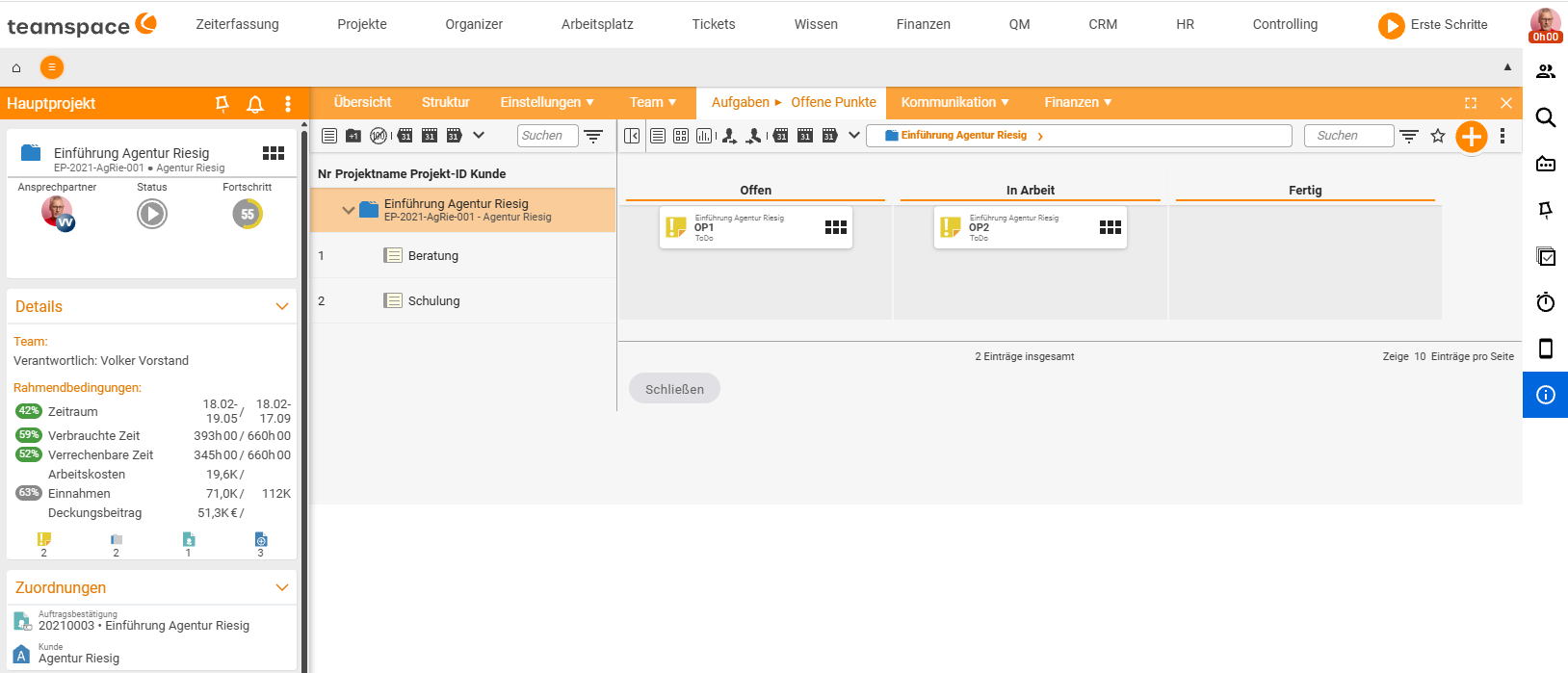
There are two places where you maintain a project’s open items:
- Structure manager – the open items hang directly on the individual work packages; ideal for quickly creating and ticking off along the project structure.
- Detail manager →
Open itemstab – here you see the items bundled, grouped by open and done by default. You create new items (op3), set theStatus(e.g. in progress) and assign assignees.
A work package shows you how many open items are attached to it (e.g. “4 open items”) and who the assignee is.
Show and hide completed items
By default the list on the project shows only the items still open – completed ones disappear from the view. If you also want to see the completed ones, go into the filter and switch to “all”.
Note: The
open itemsfilter (open/all) only appears if theOpen itemscolumn is shown as well.
Action grid: actions & booking time
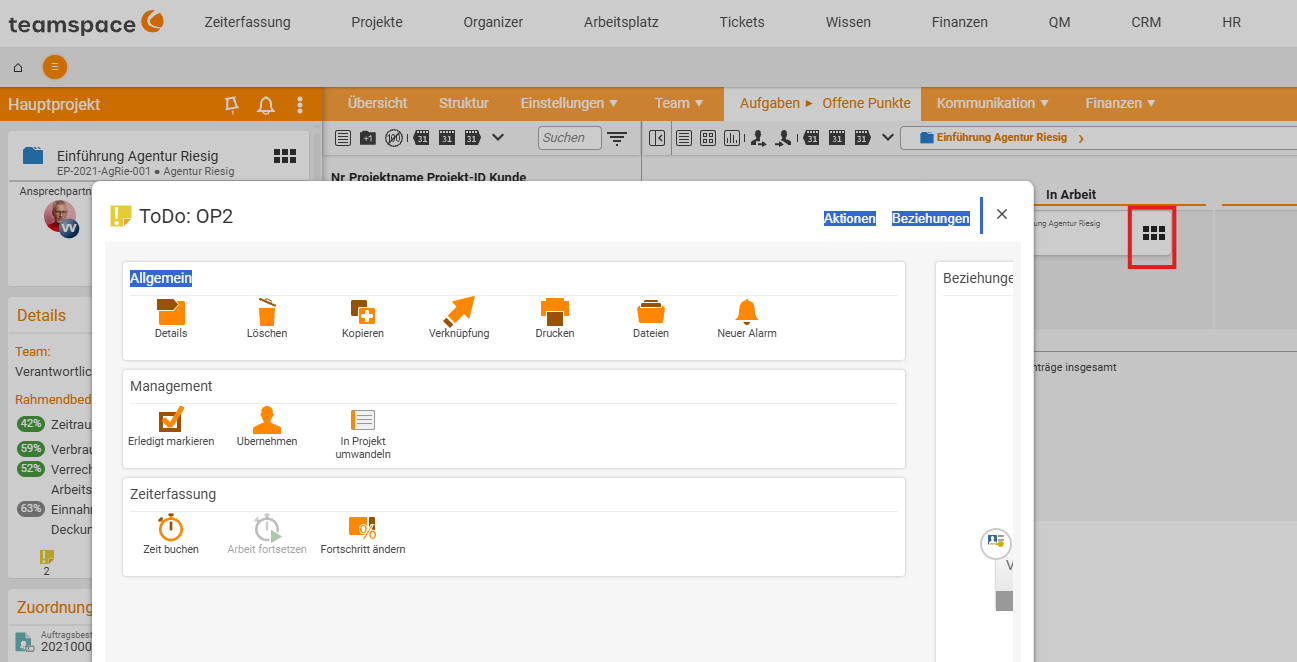
Via the action grid (the grid icon) you open an item’s action modal. If the item is attached to a project you are allowed to book on, you can Book time directly here – the time lands in your time overview straight away. Further actions: set progress, copy, convert into a work package.
When the item grows too big
If it turns out along the way that there is more effort behind an open item – effort to estimate, hours to plan, a formal process –, convert it into a work package. The handy checklist task becomes a fully fledged planning object in project management.
Common questions & needs
| You want to … | How to |
|---|---|
| Attach a checklist to a work package | In the structure manager create open items on the package (ToDo). |
| See which items are already done | In the filter switch from “open” to “all” (the Open items column must be active). |
| Give a project task to someone | Enter an Assignee on the item – they are notified. |
| Book time on a small task | The item’s action grid → Book time (booking right on the project required). |
| See items bundled instead of on the package | Detail manager → Open items tab (grouped by open/done). |
| Make more out of a small task | Actions → convert into a work package. |
| Switch on open items on the project in the first place | Activate via configuration / permission groups (see the configuration article). |
Related topics
- Configure open items Open items Configuration
- Open items – introduction (with video) Open items Introduction
- Project management – introduction Project management Introduction
- Work breakdown structure software