


Open items come largely ready to use – but at a few points the setup is worth it: a couple of extra fields, defined colour markers and activating open items per project. The area’s own settings sit in the system configuration under the Open items category, the Settings tile (verified live on 20 June 2026). The priority display and colour markers, by contrast, sit under the General category (see below).
System configuration → Open items → SettingsNote: There are deliberately not many options here – the open items are meant to be a lean tool. The following settings are enough for most tenants.
Enable categories
By default open items carry their Type (ToDo, Goal, Problem, Idea, Note). If you need an extra ordering dimension, set the Categories field in the Settings tile to Visible (levels: Off · Visible in admin mode · Visible · Visible and mandatory). In the Options field below it you define the selectable category values. This gives the items an additional input field by which you can then filter and structure.

Enable the internal comment field
In addition, the Comment field (the same levels as for Categories) lets you activate an internal comment field. With it you cleanly separate the task from the workflow status:
- The remark/description says what is to be done.
- The internal comment records what you have already done.
This is handy when several people work on an item together or you want to document the history without overwriting the original task description.
Define colour markers
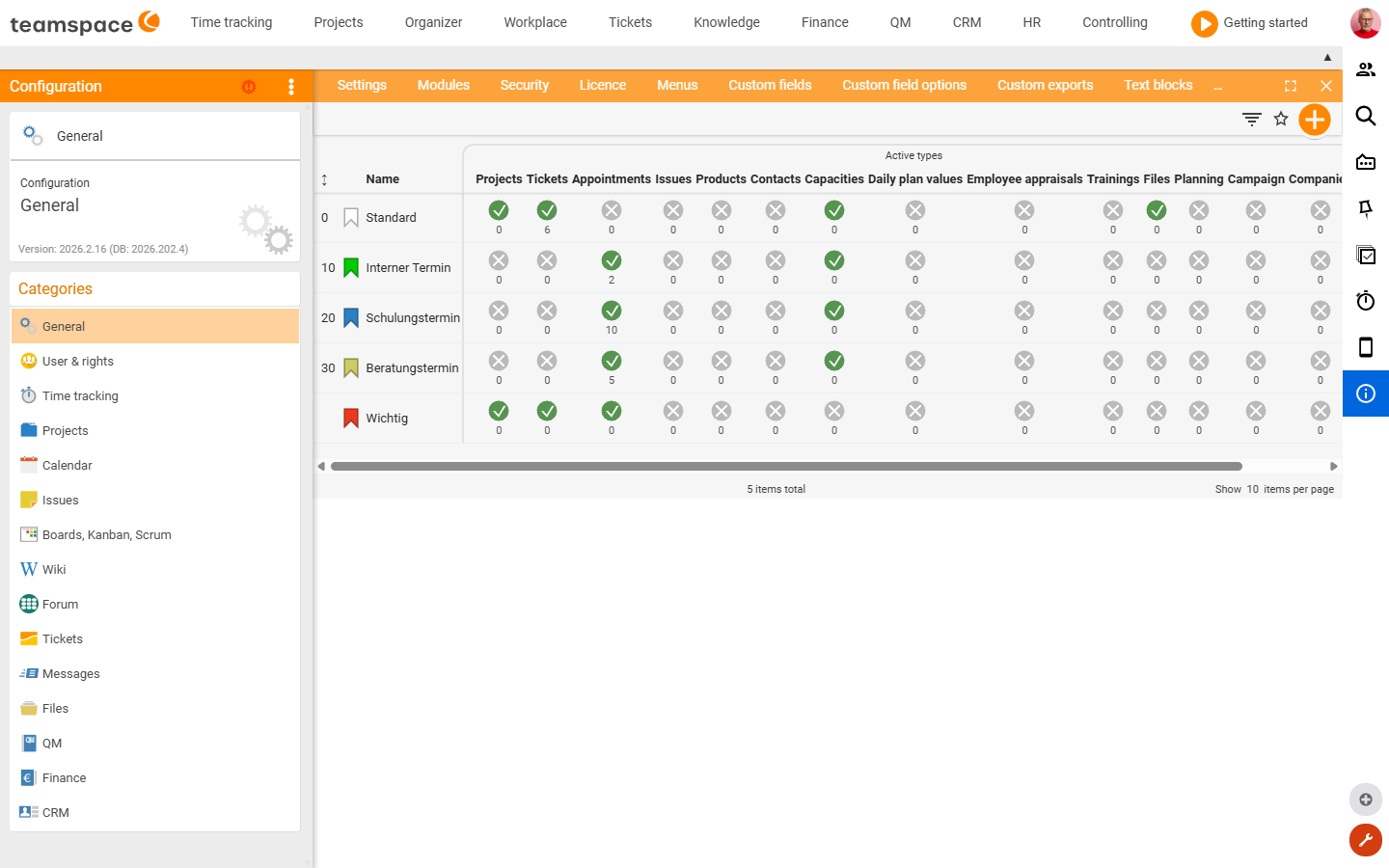
Users can give an open item a colour marker – but only from a set of pre-defined colours. You maintain these colours globally under Configuration → General → Colour markers (verified live on 22 June 2026) – there is no colour-markers tile of its own in the Open items category. Each colour (e.g. “Important” in red) carries a column per element type; via the “Open items” column you enable the colour to be available on open items as well. Only after that does it appear on the item and in the lists.
Distinction: The colour marker is independent of the list’s automatic due-date colour (red = overdue, yellow = open, green = done). That one results from the due date and is not configurable.
Define the priority display
Priority runs internally on a scale of 1 (low) to 9 (very high). How it is shown to users is set system-wide in System configuration → General → Settings in the Priority display field – the three values in use are 0 to 9, C, B, A and 1 to 5 stars (verified live on 20 June 2026). It is the same scale in substance; only the display in the dialog and the list changes.
Activate open items per project
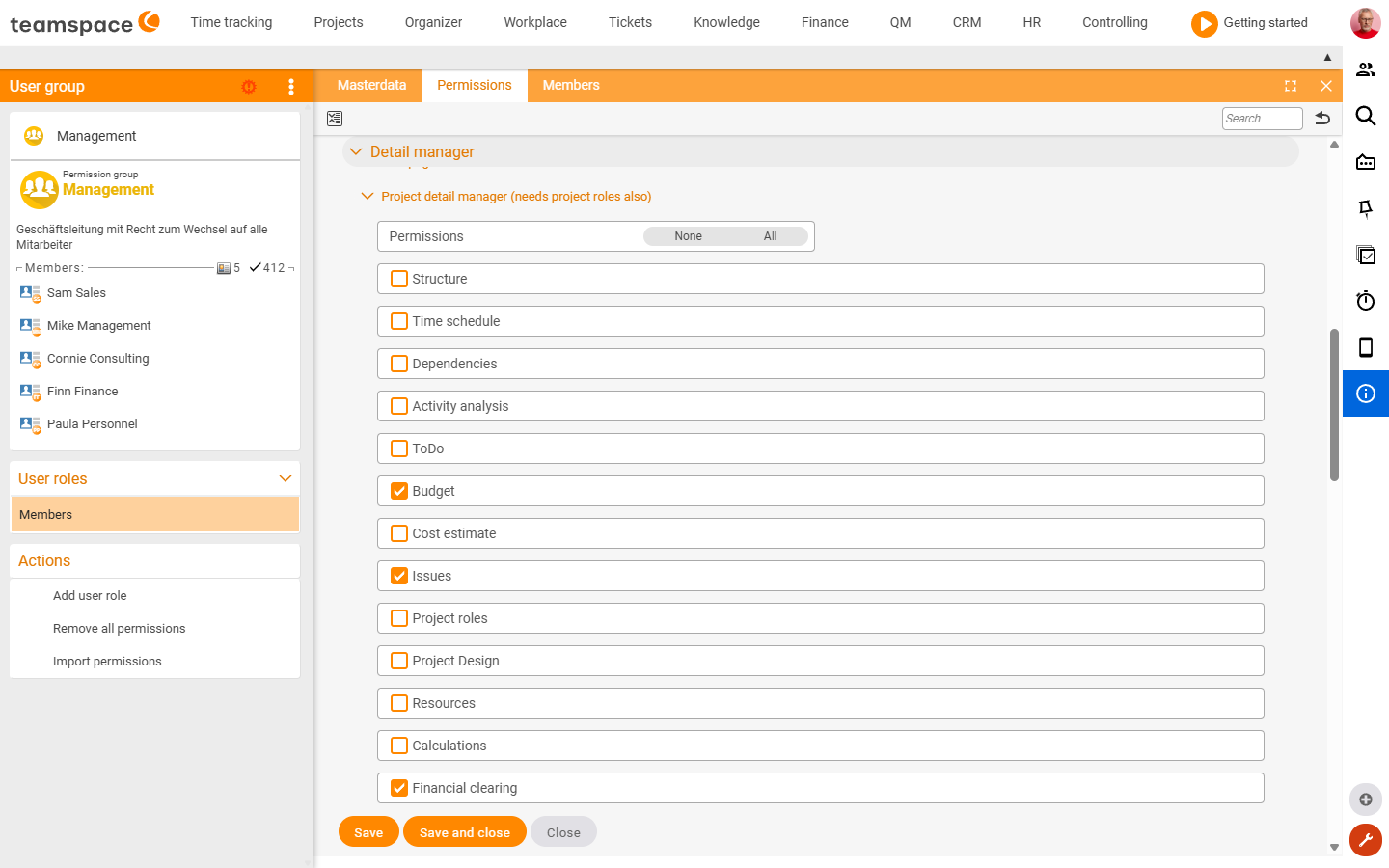
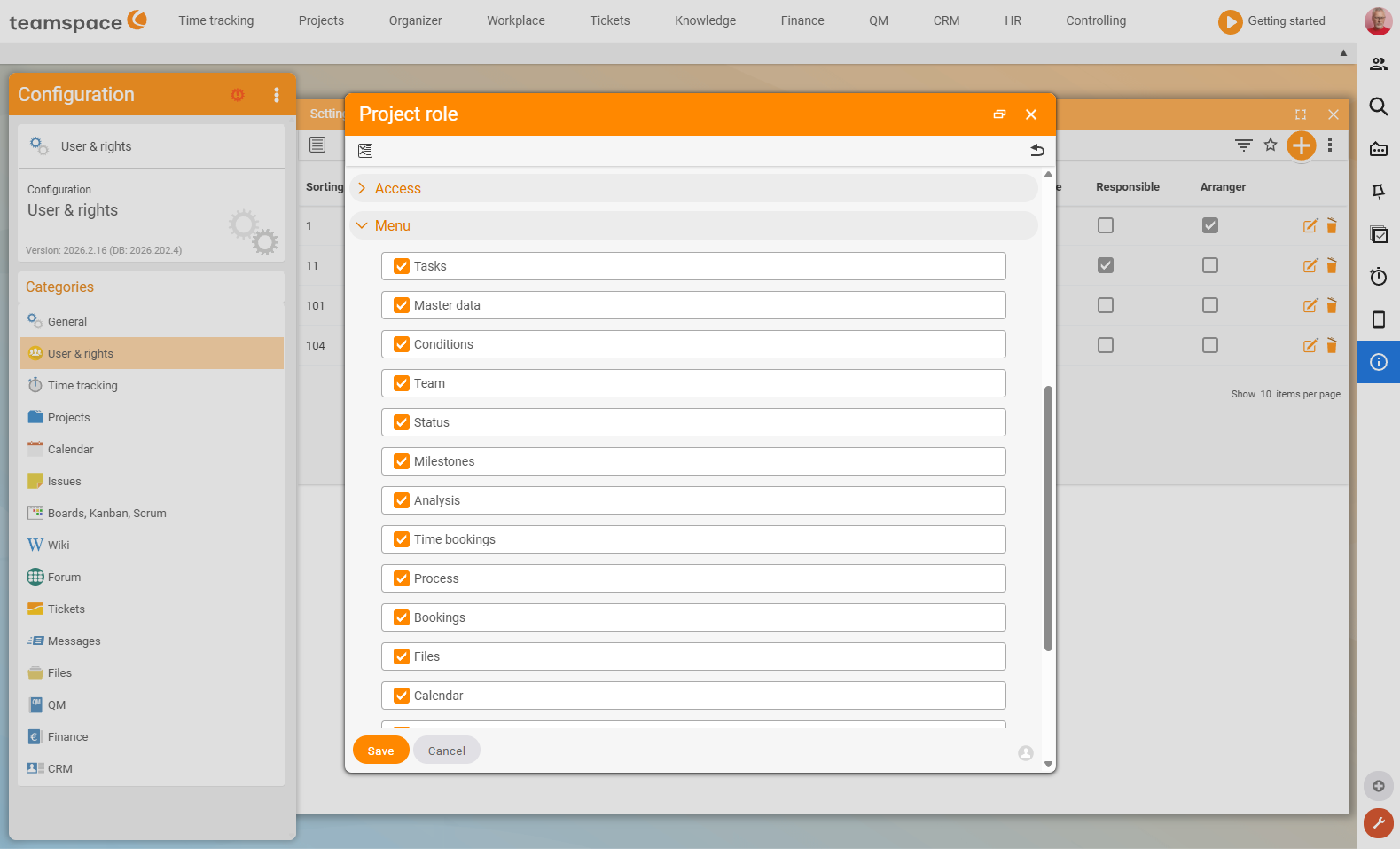
For open items to appear on a project (on the work package, in the detail manager tab Open items), they have to be enabled for the project. Access results from two permissions that must both be met – from the permission group (user group) and from the project role (the project detail manager itself points this out in the dialog: “The permissions from the project roles and from the user groups must both be met”):
- In the user group →
Permissionstab →Project detail managersection, tick theOpen itemscheckbox. - In the project role →
Menusection, also enableOpen items.
Only when both are set are the Open items column and tab available on the project. How to work with them is described in Open items in projects & on the work package.
Common questions & needs
| You want to … | How to |
|---|---|
| An extra ordering level besides the type | Open items Settings → enable categories. |
| Separate the task from the workflow status | Open items Settings → enable the internal comment field. |
| Make items markable by colour | Define the permitted colour markers in the configuration. |
| Show priority as stars instead of a number | Switch the priority display in the configuration (the same 1–9 scale). |
| Use open items on a project | Enable “Open items” in the user group (Project detail manager) and in the project role (Menu). |
Related topics
- Open items in projects & on the work package Open items How-to
- Open items – introduction (with video) Open items Introduction
- My open items: create and work through (with video) Open items How-to