


The scheduling assistant is the tool for everything that goes beyond a single entry. With it you create capacity entries, delete them, lock slots, move plans or even out overbookings – six actions in one dialog. The assistant is designed for day-based planning.
You open it in several places: in the Resource schedule tab via the Actions sidebar, in the list view via the plus action or directly from an individual capacity. Depending on where you start from, some fields are already pre-filled.
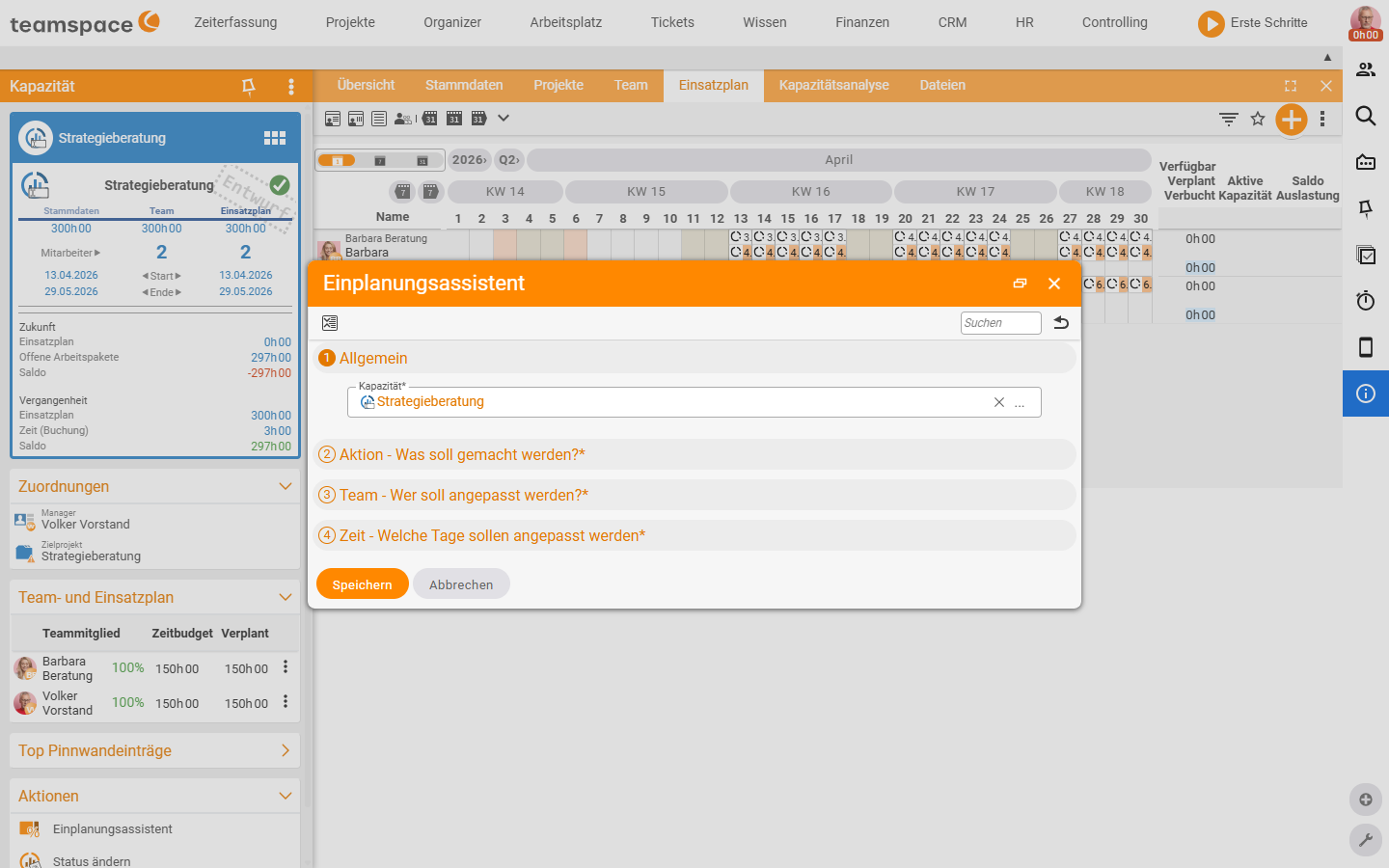
The four steps of the dialog
The dialog is built as an accordion; you work your way down from top to bottom:
General– required fieldCapacity: the capacity in which the action takes effect. Started from within a capacity, the field is already pre-filled.Action – What should be done?– a drop-down with the six action modes (New,Delete,Lock,Adjust,Move,Corrections).Team – Who should be adjusted?– who the action applies to. A choice betweenAll(every employee in the system, regardless of the capacity’s team) or individual employees.Time – Which days should be adjusted?– the period and the filtering. The default isAll days; alongside it there are options such asOnly sick days(particularly useful when deleting). Via theDaysfield you narrow it to specific weekdays.
At the bottom you finish with Save, and the action runs across all the selected employees and days.
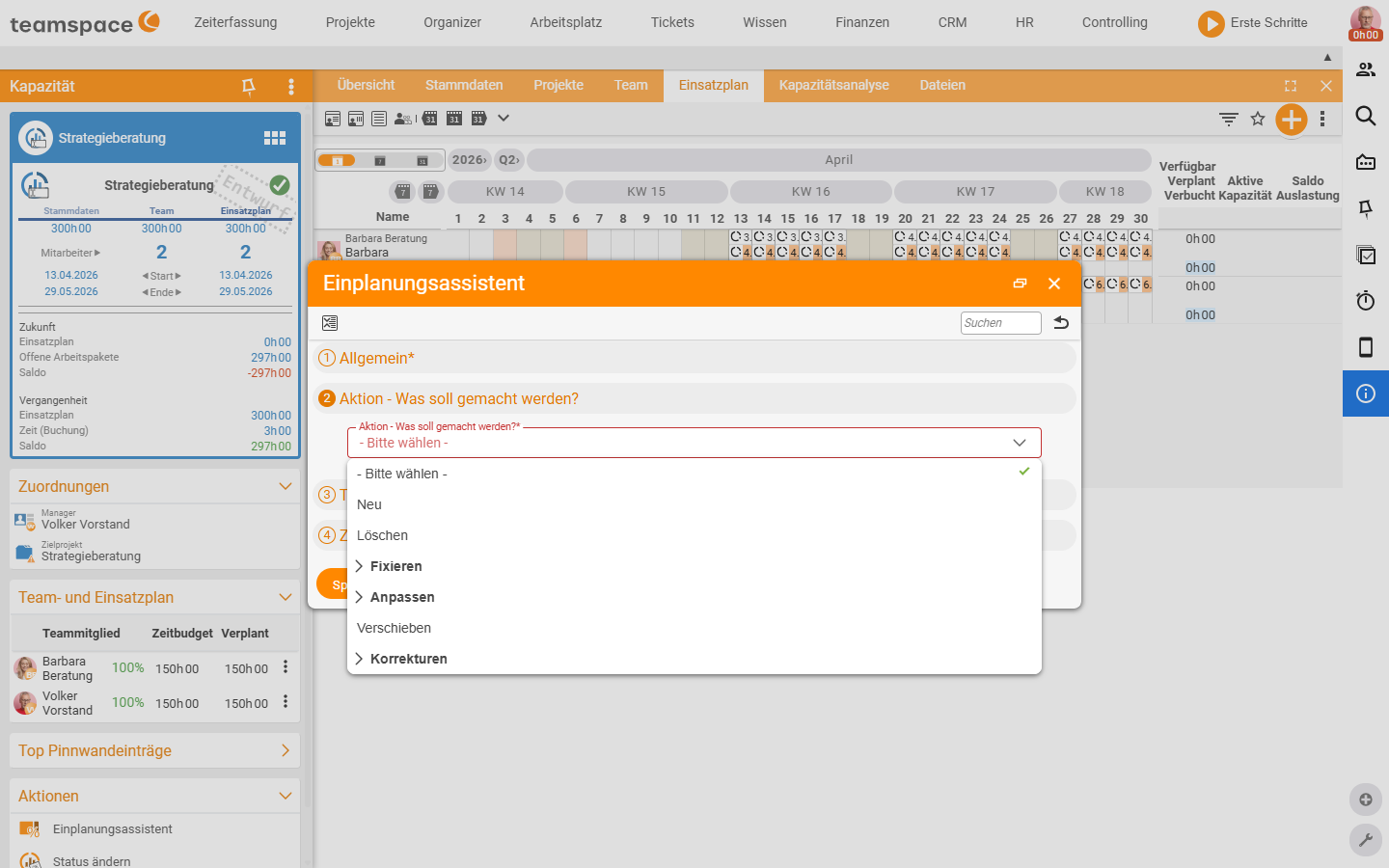
New – schedule hours
With New you schedule hours into the resource schedule. You set the distribution parameters directly: full-day or half-day planning, or individual values via Time per day, Utilisation or Total number of hours.
The distribution governs how the hours are laid out across the period:
Start early– the scheduling begins right at the start date and runs until the desired number of hours is reached.Start late– the scheduling begins at the latest possible point, so that the number of hours is reached exactly at the end date.Evenly distributed– the hours are spread as evenly as possible across the period.
The Limit to available capacity option automatically takes out holidays, sick days and public holidays – the planning skips these days and lays the hours onto the remaining ones.
Delete – clear out entries
With Delete you clear away existing entries. The mechanism is the same as when creating, except that the Team and Time steps define which entries are deleted. The time filter is especially important here: with Only sick days you delete precisely the slots that fall on a sick day, without losing the rest.
Lock – protect a plan
With Lock you protect existing plans from further changes. Locked slots carry a lock symbol in the overview and can only be moved by employees with the Edit all elements permission – you find the setting in the Team tab of every capacity (column Permission for all). Via the same assistant you also release the lock again.
Adjust – change daily values
With Adjust you overwrite existing plan values or add time budgets on top. The values each refer to a single day – so if you choose “add 2 hours”, every day in the period gets 2 hours more. Useful when a project is extended and you do not want to re-plan everything: you add 30 minutes per day on top, and the existing distribution is preserved.
Move – shift a plan in time
With Move you shift a plan by a certain number of days. You choose:
- by how many days it should be shifted;
- whether only working days count – with
Yesthe shift jumps over weekends, withNothey count too.
In the Time step you set which plan data is moved – for example only part of the period or all of it. So you do not inadvertently move slots that are meant to stay put.
Corrections – align plan and actuals
The correction mode offers two uses:
- Evening out overbookings: when employees are scheduled for more on individual days than their contractual working time, the assistant automatically redistributes the overbooking across the remaining days in the period.
- Overwriting target values with actual values: when past plans are no longer relevant for the future and only the actually booked times should count, the assistant adopts the bookings from the past as the new plan values. Typical at the end of a quarter.
When the assistant helps – and when it does not
The scheduling assistant pays off as soon as there is more than one or two entries to set. Where it is unbeatable:
- Distributing 80 hours evenly across four weeks and three people.
- Clearing out sick days without touching the remaining slots.
- Shifting the entire plan by two weeks after the project has slipped.
- Locking a series of entries at the end of a quarter before new planning begins.
What remains finger work, by contrast, is setting one slot on exactly one day – that is quicker via a direct click in the resource schedule (see Maintain the resource schedule).
Common questions & needs
| You want to … | How to |
|---|---|
| Distribute 80 hours evenly across four weeks | Action New, set Total number of hours, distribution Evenly distributed. |
| Plan so the end date is hit exactly | Action New, distribution Start late. |
| Skip holidays and public holidays when creating | Activate the Limit to available capacity option. |
| Delete only the slots on sick days | Action Delete, in the Time step the Only sick days filter. |
| Protect a finished plan from being moved | Action Lock; release via the same action. |
| Add 30 minutes per day | Action Adjust, add the value per day. |
| Push the plan back by two weeks | Action Move, number of days + “only working days”. |
| Smooth out an overbooking | Action Corrections → even out overbookings. |
| Reckon only with the actually booked times from now on | Action Corrections → overwrite target with actual. |