


The warning system turns deviations between plan and actuals into a readable check status per capacity. You activate it centrally in the configuration and then read the results in every capacity and in the capacities list.
1. Activate warning mechanisms
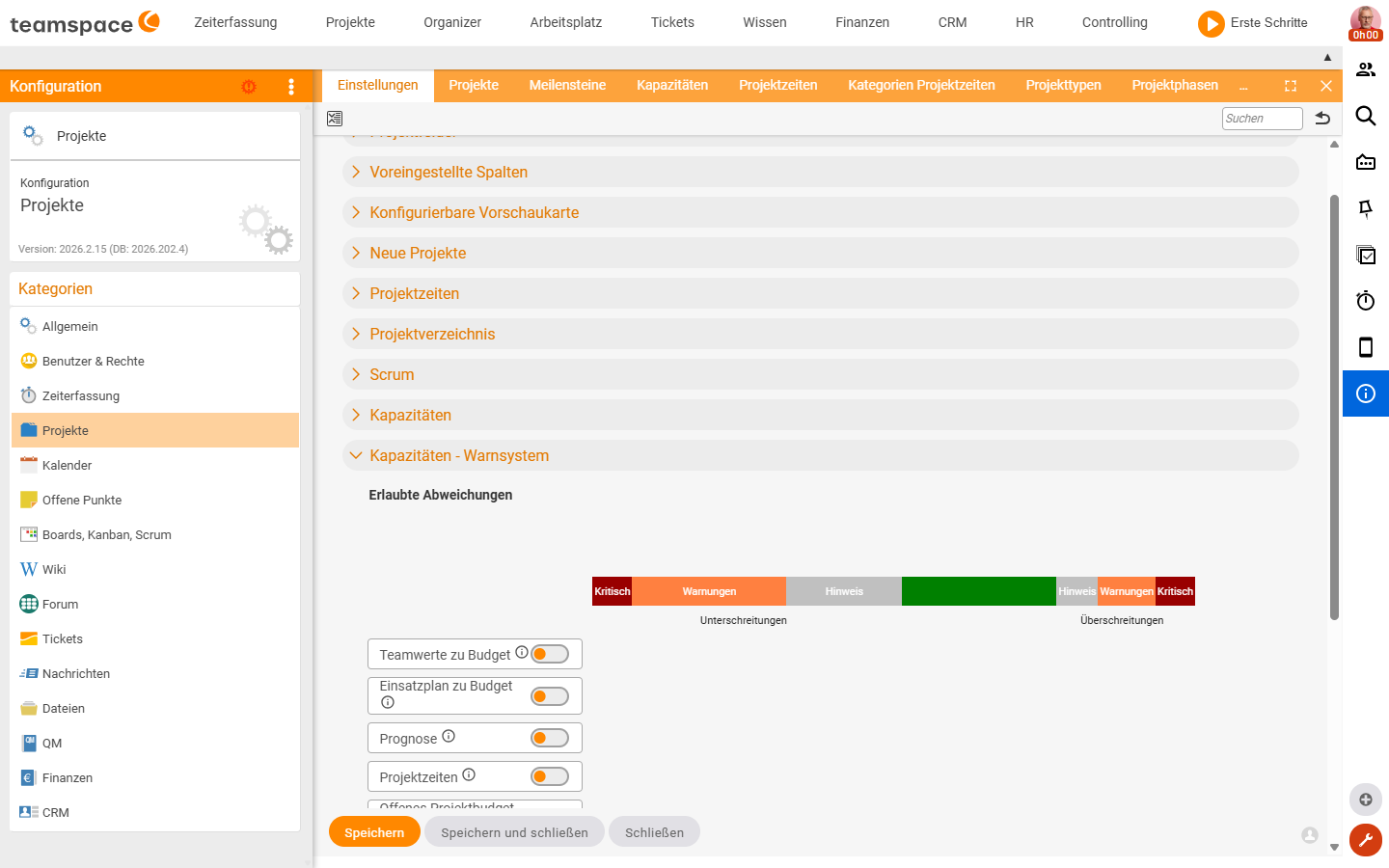
You find the path under Configuration → Projects → Settings in the Capacities – warning system accordion (verified live on 22 June 2026). There you activate various warning mechanisms via switches – each one can be turned on individually. Available live, among others:
Team values vs budget– the team time budget against the master-data budget.Resource schedule vs budget– the resource schedule against the time budget.ForecastandProject times– booked/forecast times against the plan.Open project budget– the remaining budget.
Each warning mechanism can be activated individually – you switch on only the ones that suit the way you work.
2. Set thresholds
For each warning mechanism you set several thresholds that, on a deviation – positive or negative – trigger one of three levels:
Notice– a small deviation, no action needed, but visible.Warning– a noticeable deviation, someone should take a look.Critical– a serious deviation, action urgently required.
You define the thresholds either as fixed hour values (e.g. >10 hours deviation) or as percentages (e.g. >15% deviation).
3. Adjust per capacity
You then see all activated mechanisms in the master data of every capacity in the Capacities – warning system accordion. There you can adjust or deactivate them per capacity – for instance when a project is deliberately meant to run overbooked.
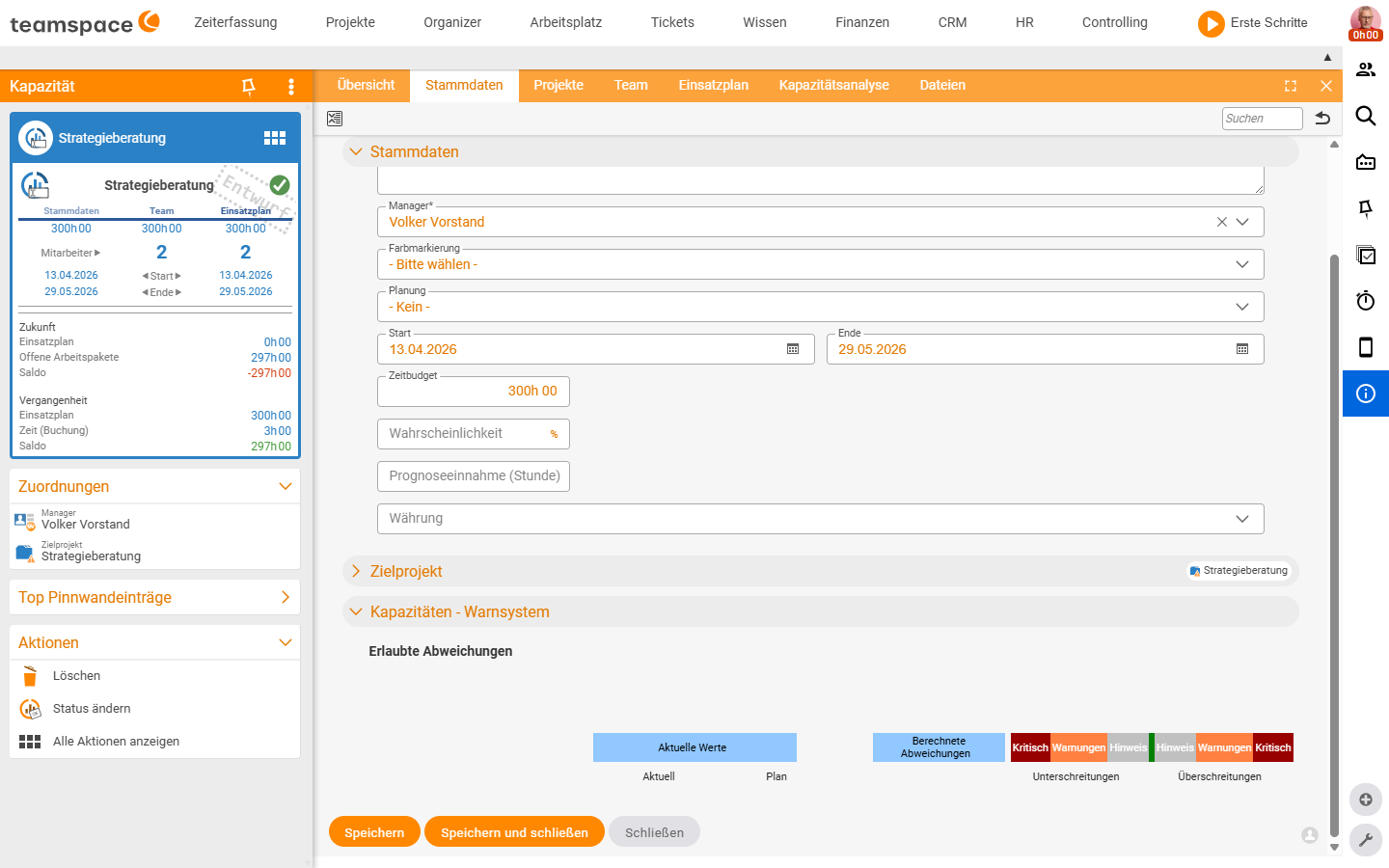
When a deviation occurs, it appears in two places: in the capacity’s Capacities – warning system accordion and directly in the resource schedule, where the deviation sits.
4. Read the check status and check report
The result of all warning mechanisms combined flows into the Check status – visible in the Check status list column with the values OK, Warning, Error, Critical. On the left of the list view you filter by it and so quickly find the capacities that need attention.
Further details on the individual triggers are in the Check report column, where notice texts and warning reasons appear – for instance “Employee X is overbooked by 8 hours in week Y”.
Common questions & needs
| You want to … | How to |
|---|---|
| Be warned when more is scheduled than budgeted | Activate the “Resource schedule deviates from time budget” warning mechanism. |
| Recognise when bookings deviate from the plan | Activate the “booked times deviate from the resource schedule” warning mechanism. |
| Only be alerted on larger deviations | Set the threshold higher (fixed hours or percentage) and assign the Warning/Critical level. |
| Let a capacity deliberately run overbooked | In the capacity’s Capacities – warning system accordion, deactivate the mechanism. |
| Quickly find all problematic capacities | In the list, filter by Check status (Warning/Critical) via the filter box. |
| See the exact reason for a warning | Open the capacity’s Check report column. |
Notes
- The warning system reckons plan against actuals – meaningful warnings require booked times (see Topic: Time tracking).
- The triggered issues also appear, aggregated, in the
Capacity planningreport in theIssuescolumn – see Analyse capacities.
Related topics
- Analyse capacities Capacity How-to
- Create and set up a capacity Capacity How-to
- Capacity – introduction Capacity Introduction