



The file manager works the same way in every module – whether in the central File manager, in the private directory or in the file area of a project, ticket or order. This article shows the layout, the navigation and the three most important actions in the Actions sidebar: Create subdirectory, Create link and New document.
The layout of the file manager
You open the file manager via Knowledge → File manager tile and land in the main directory. You work from three areas:
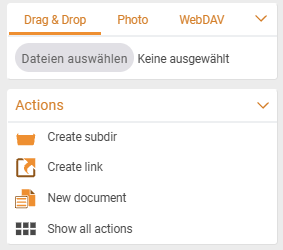
- Upload sidebar (top left) – upload files via
Drag & Drop,Photo,WebDAV(see Upload files). Actionssidebar (bottom left) –Create subdirectory,Create link,New documentand further actions.- File table (centre) – directories and files with the columns
No,File name,Description,Colour marker,File size,Version,Date modified. Folders show no version and no file size – these fields stay empty.
How to navigate
- Above the table sits the breadcrumb
Main directory ›. A click on a directory opens it; use the breadcrumb to get back. - To the right of the breadcrumb sits the
Searchfield – it searches within the current directory. - When you hover over a row, two icons appear on the right:
Details(opens the detail manager) andShow all actions(opens the actions modal with the full inventory of actions).
In an element file area (e.g. the file tab of a project) you navigate downwards as deep as you like but cannot get up and out of the element context – a security feature.
Create a subdirectory
- In the
Actionssidebar click Create subdirectory. - In the dialog enter the name.
- Save – the new directory sits in the directory currently open.
Tip. If you prefix a directory name with a letter such as
a, it sorts high up in the list.
Create a link
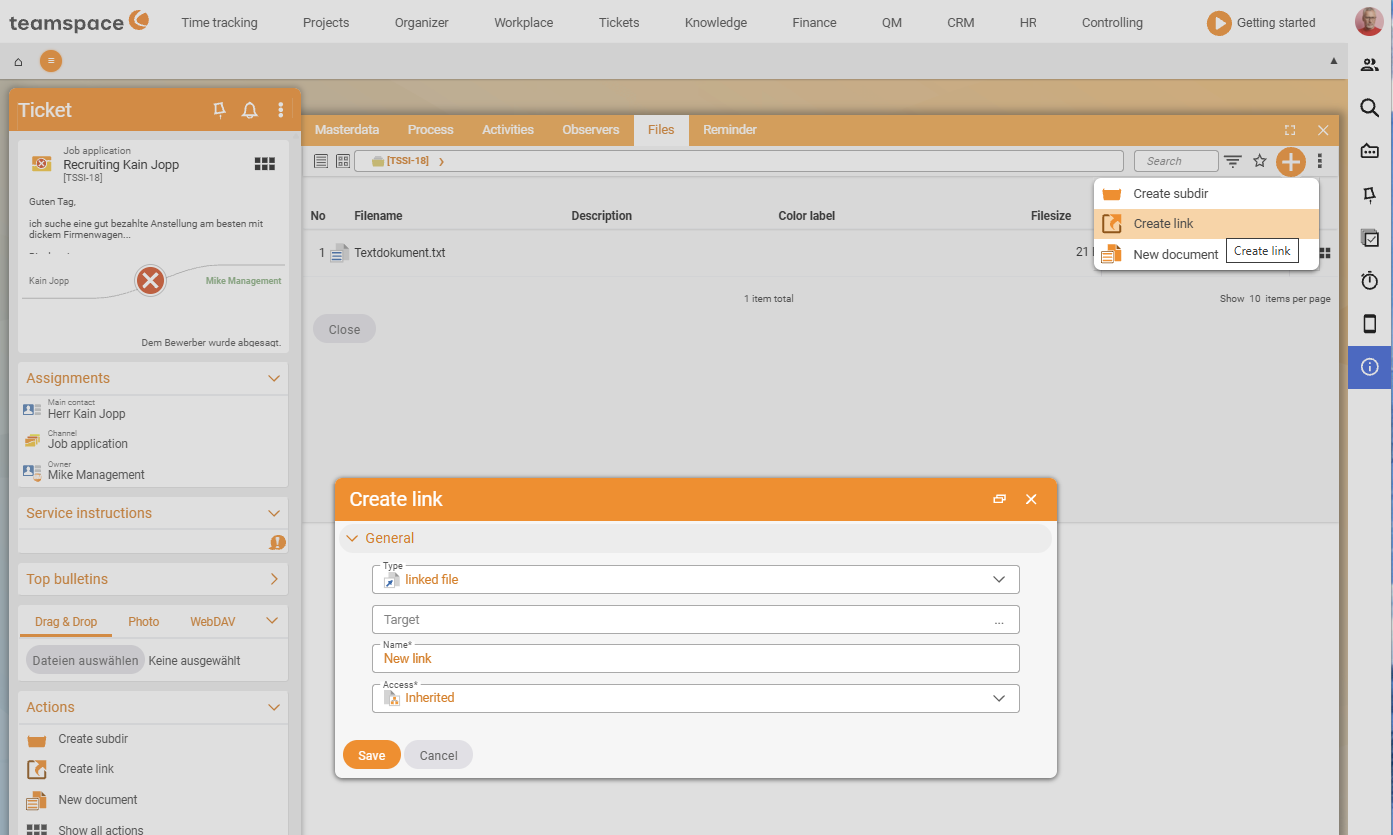
A link makes a file or directory visible in a second place without copying the original – the file is stored once, the link shows it everywhere (and uses up no extra storage). This way you keep, say, the latest version of a manual in several projects at once.
- In the
Actionssidebar click Create link. - In the
Typefield choose one of the four types:File link– a link to a file in the system. TheTargetfield opens a selection dialog.Directory link– a link to a directory. In the selection dialog you pick an existing one or create a new one.Internet link– a URL to any web page, optionally in a new window.Local target– a link to a local network directory (e.g.file:///X:/User/). You can drag a file into theTargetfield by drag & drop instead of typing the path.
- In every case give it a
Name*and set theAccess*– the permission modes are the same as for a standalone file.
Create a new document from a template
Via Actions → New document you create a file from a template. If the template carries placeholders (customer name, address, project), teamspace fills them automatically from the context when you create the document – if you produce an NDA on a CRM contact, for example, the name and address are already entered. On request, teamspace produces a PDF straight away as well.
Actions → New document → choose template → save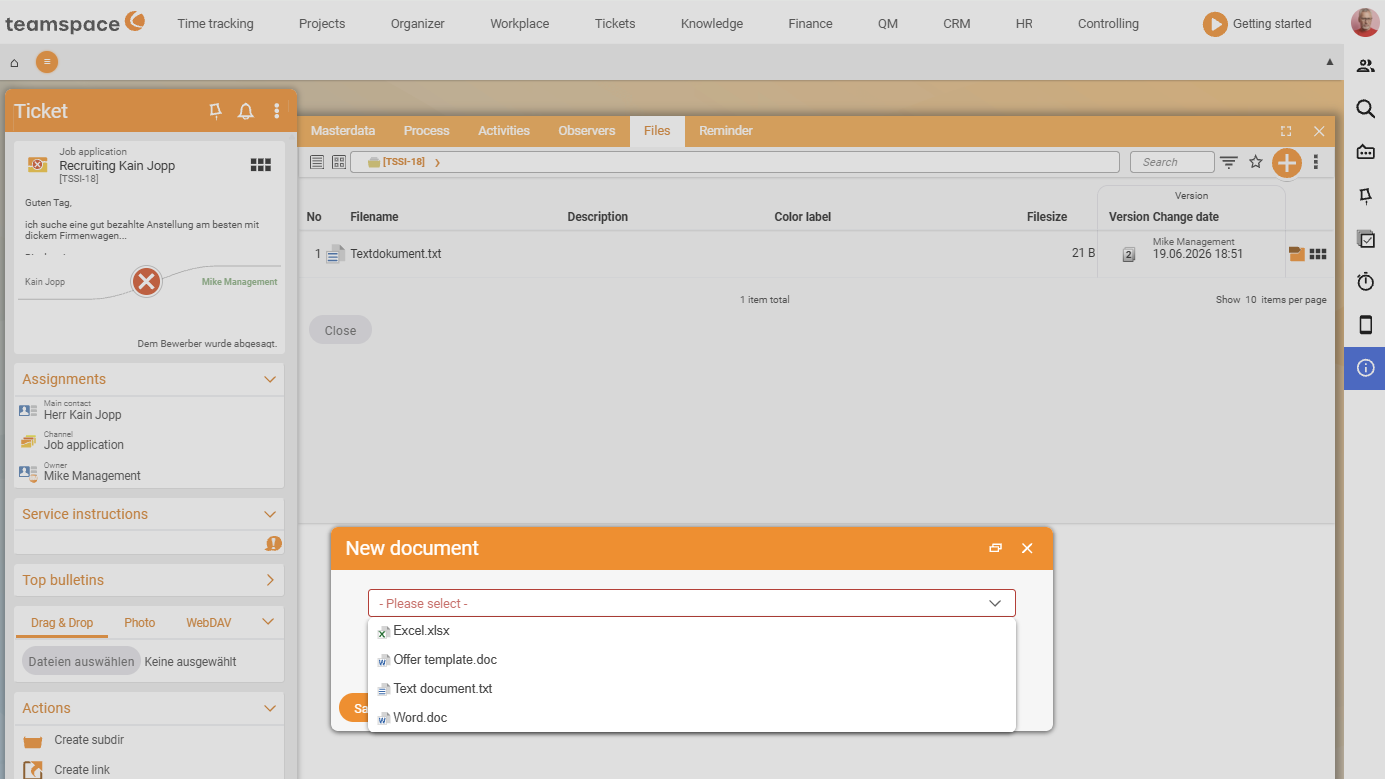
ℹ Info. This requires at least one document template in the
System/Templatesdirectory. If no template appears, it is missing there. The directory and permission defaults are set by the administrator in configuration mode – see Set up file management (configuration).
Working in the element context
Every element – project, order, invoice, ticket, CRM contact, activity – has its own file tab (via the element’s detail manager, Files tab). The handling is identical: the same Upload sidebar, the same Actions sidebar. The difference: the context is closed, and you only see the files of that element. Which directory structure a new project comes with is defined via project templates – see Project types and directories.
Common problems
Why does no template appear under New document?
Then there is no template in the System/Templates directory. The administrator places at least one document template there – see Set up file management (configuration).
Why can’t I get out of an element file area into the main directory?
That’s intentional: in an element file area (e.g. the file tab of a project) you navigate downwards as deep as you like but not out of the element context. You open the shared main directory via Knowledge → File manager tile.
Why doesn’t my new directory sort to where I’m looking for it?
Directories sort by name. Prefix the name with a letter such as a, and the directory sits high up in the list.
Common questions & needs
| You want to … | How to |
|---|---|
| Keep the same file up to date in several projects | Create a File link – the original is stored once, and the link shows the current version everywhere. |
| Produce a standard document (NDA, contract) quickly | Actions → New document; placeholders are filled from the context. |
| Bring order to a full directory | Create subdirectory; with a prefixed letter you sort it to the top. |
| Find a particular file in the directory | Use the Search field to the right of the breadcrumb – it searches the current directory. |
| Point to a local network folder | Create a link of type Local target with a file:/// path. |
Related topics
- Introduction to file management File management Introduction
- Upload files File management How-to
- The detail manager of a file File management Concept
- Project types and directories Project management How-to