


If you want to share a file with external people without their needing a teamspace account, you create a public link in the detail manager under the External links tab. The link works for anyone who has it – optionally protected with a login requirement and an expiry date.
Create an external link
- Click the file’s
Detailsicon and switch to theExternal linkstab. - Create a new external link and set the options.
- Pass the link or QR code to the recipient.
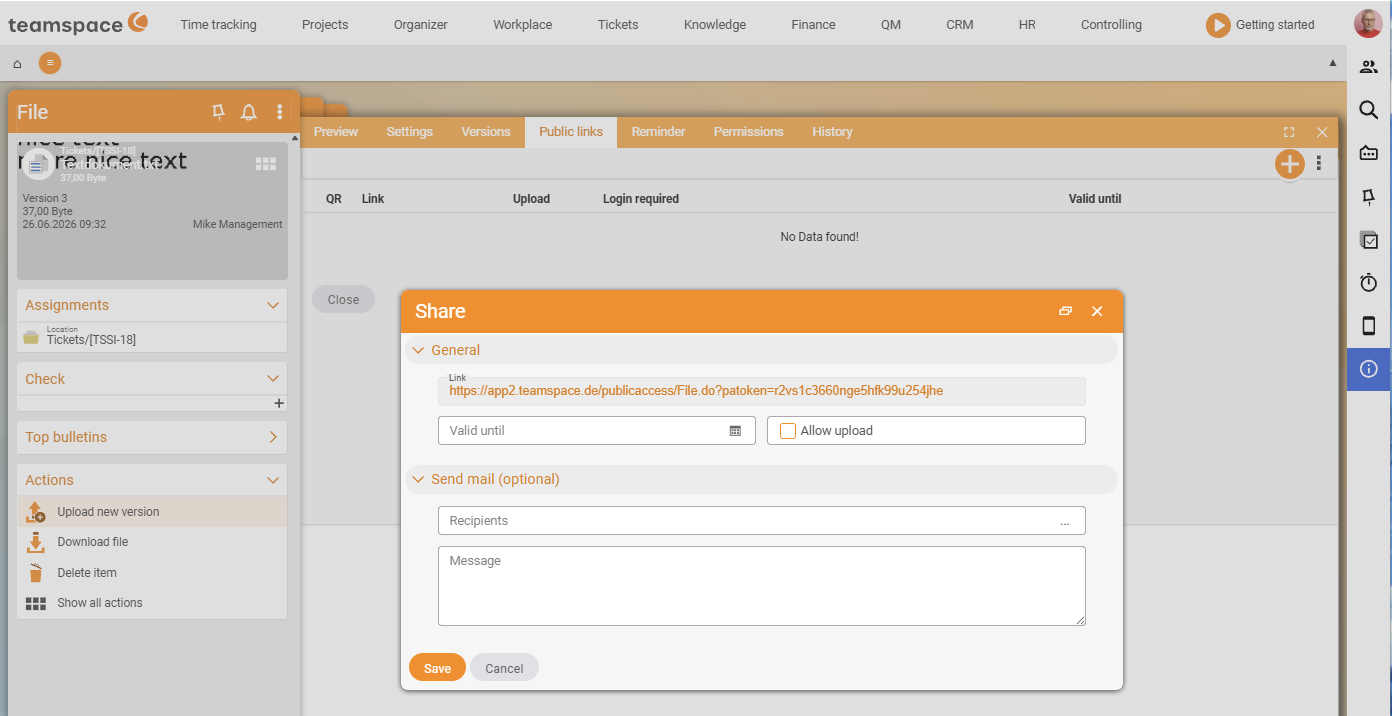
The options of an external link
The table shows five columns:
QR– renders a QR code for handover on mobile.Link– the public link to the file.Upload– lets the recipient upload a new version.Require login– forces the recipient to sign in before access.Valid until– sets an expiry date, after which the link no longer works.
⚠ Important. An external link without
Require loginworks for anyone who has it. For sensitive documents, set a login requirement and/or aValid untildate.
Larger collaboration: the self-service portal
For permanent, structured customer access – to tickets, invoices and shared files, for instance – there is the self-service portal. With it you selectively share parts of teamspace with customers and partners, who see only the content released to them. As a second option there are external accounts, which are set up in the configuration and stored on the CRM contact.
Common questions & needs
| You want to … | How to |
|---|---|
| Send a file to a customer without an account | Create a link in the External links tab and hand it over. |
| Limit access in time | Set a Valid until date on the external link. |
| Make sure only a particular person has access | Enable Require login. |
| Let the recipient send something back | Enable the Upload option – they may upload a new version. |
| Collaborate with customers permanently | Use the self-service portal instead of individual links. |