


teamspace versions files automatically: whether you upload the same file again, edit it online or change it via WebDAV – each new version becomes the next version, and the old one is kept. In all lists and previews you always see the current version; you reach the older ones via the detail manager under the Versions tab.
When a new version is created
Versions grow automatically – you don’t have to create them by hand. Three triggers:
- Uploading a file with the same name again. Drag & drop of the same file stores it as Version 2, next time as Version 3 – the file name stays the same, the number in the
Versioncolumn rises. - Editing online and saving. If you open a file with
Edit with File Connectoror a Microsoft Office action, teamspace saves a new version when you finish (see Edit files online). - Saving via WebDAV. If you change the file in the connected drive, a new version is created automatically on save. In Explorer itself the history is not visible.
How you reach an old version
- Click the
Detailsicon at the right-hand edge of the file row – the detail manager opens. - Switch to the
Versionstab. The table shows all versions with the columnsVersion,Date, File name,File size,Acknowledgement,Versioning,Review. The current version is at the top.
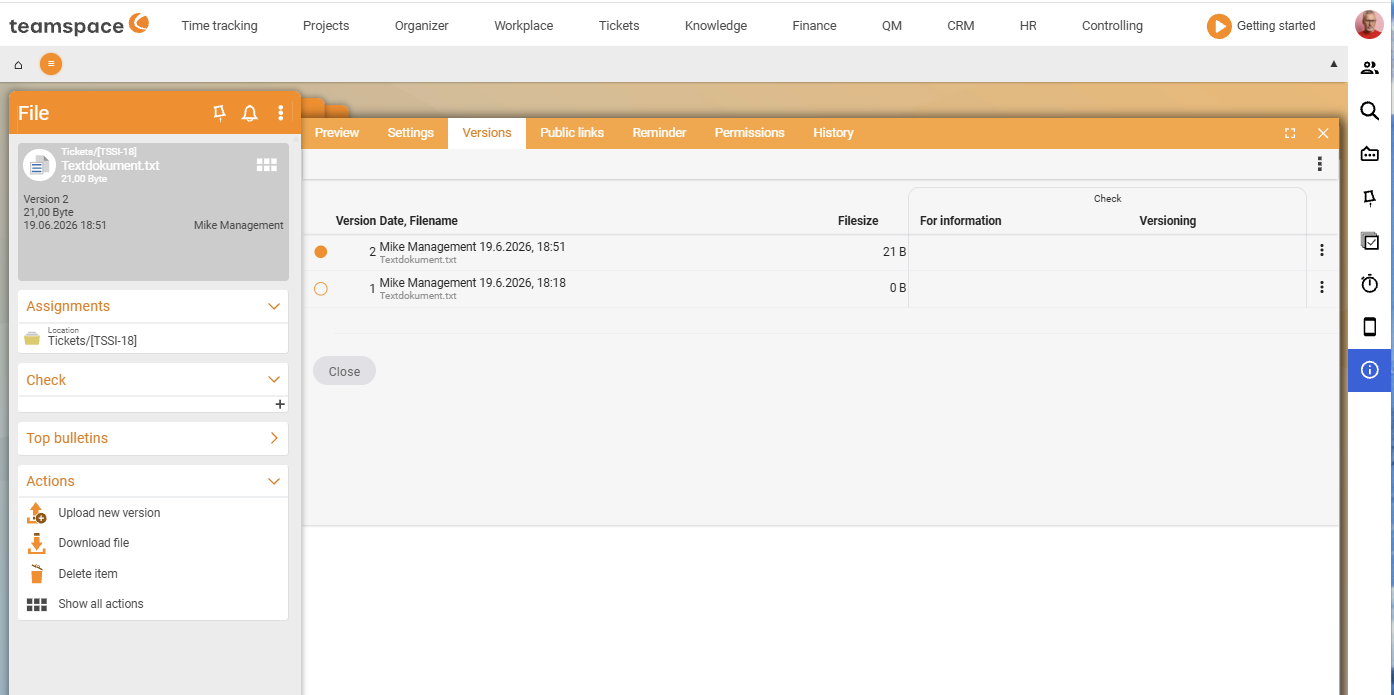
For each version row, the right-hand edge shows two controls:
Download fileicon – downloads just this one version locally.- Three-dots menu – opens the version actions: delete a version or restore it as the new main version. Using the multi-select, you can also act on several versions together.
ℹ Info. If you restore an older version, it becomes the current version. The version number is not reset – the restore creates a new, higher number with the content of the old version. The history stays complete.
Setting the version limit
In the detail manager under Properties → the Maximum number field you define how many versions of a file are kept. Once the limit is exceeded, the oldest version is deleted.
ℹ Info. You can set the
Maximum numberper file – high for contracts, low for temporary notes. At1, every new version overwrites the old one, with no history. The administrator sets the default value via the configuration.
Versions for documents
Documents such as quotes, orders and invoices are produced by teamspace itself – per document, two files land in the file tab: one without letterhead (for the internal preview) and one with letterhead (for sending). Both are versioned individually.
If you reset a validated document via Activate editing mode and validate it again, a new version of the document PDF is created automatically – you don’t have to upload anything. More on the document lifecycle in Documents: status and rights.
⚠ Important. For documents you will rarely delete a version by hand – the files belong to the document history and are needed as evidence. For free files in projects or element areas, deleting a version is uncritical.
Common questions & needs
| You want to … | How to |
|---|---|
| Undo an accidental change | In the Versions tab, use the three-dots menu to restore the older version as the main version. |
| See who uploaded a version | The Date, File name column in the Versions tab shows the user name; more in the History tab. |
| Keep only the latest version | Set Maximum number in the Properties tab to 1. |
| Regenerate an old document PDF | Reset the document via Activate editing mode and validate it again. |
| Download an old version | Use the Download file icon of the relevant row in the Versions tab. |