


A click on a file name in the table doesn’t trigger a direct download but opens a small action popup with the options that apply to that file type – view, print, download, lock, edit online. What’s offered depends on the file type: Office files additionally show Office actions.
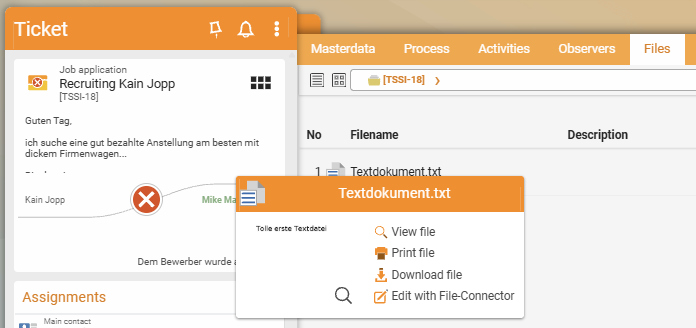
What the action popup contains
For an SVG file, for example, the popup shows five actions:
View file– preview in the browser, without downloading.Print file– the browser’s print dialog.Download file– a copy on your computer.Download and lock– download plus a lock on the file in teamspace. Others see the lock status behind the file name and cannot edit it in parallel.Edit with File Connector– opens the file in its associated desktop application, provided the File Connector is installed. When you save, the new version lands in teamspace automatically.
For Office files (Word, Excel, PowerPoint) the Microsoft Office actions appear in addition, with which you open and edit the file directly in the Office app.
The options compared
| Action | Where you edit | Saves back to teamspace |
|---|---|---|
Download file | locally on your computer | no – upload the new version manually |
Download and lock | locally, with a lock | no – manual re-upload, but others see the lock status |
Edit with File Connector | local Office app via the connector | yes – automatically as a new version |
Edit with Microsoft Office | directly in Word/Excel/PowerPoint | yes – automatically as a new version |
If you open and save the same file several times, teamspace creates a new version on each save – see Manage versions.
Locking: avoid parallel editing
Download and lock is useful for documents that several people work on in turn – contracts, reports, specifications.
- As long as you don’t release the lock, the file stays visibly locked for others (an icon behind the file name in the table).
- You release the lock by uploading the changed version or by lifting it via the
Actionssidebar in the detail manager.
ℹ Info. Online editing via Office or the File Connector requires the associated application to be installed on your computer. Without a local Office licence, only
Download fileplus a manual re-upload remains.
Alternative: straight from Office via WebDAV
If you connect the directory as a drive via WebDAV, you work straight from Office. Saving automatically creates a new version in teamspace – without downloading and uploading.
Common questions & needs
| You want to … | How to |
|---|---|
| Change a Word document without down-/upload | Edit with Microsoft Office or Edit with File Connector – the new version saves back automatically. |
| Stop someone editing in parallel | Download and lock; others see the lock status. |
| Just take a quick look at a file | View file (preview in the browser, no download). |
| Work without local Office | Download file, edit externally and upload it again as a new version. |
Related topics
- Manage versions (with video) File management How-to
- Connect the file directory via WebDAV (with video) File management How-to
- The detail manager of a file File management Concept