


In the detail manager you manage all the settings of a file – its name and location, versions, external links, alarms, permissions and history. You open it via the Details icon at the right-hand edge of a file or directory row in the table.
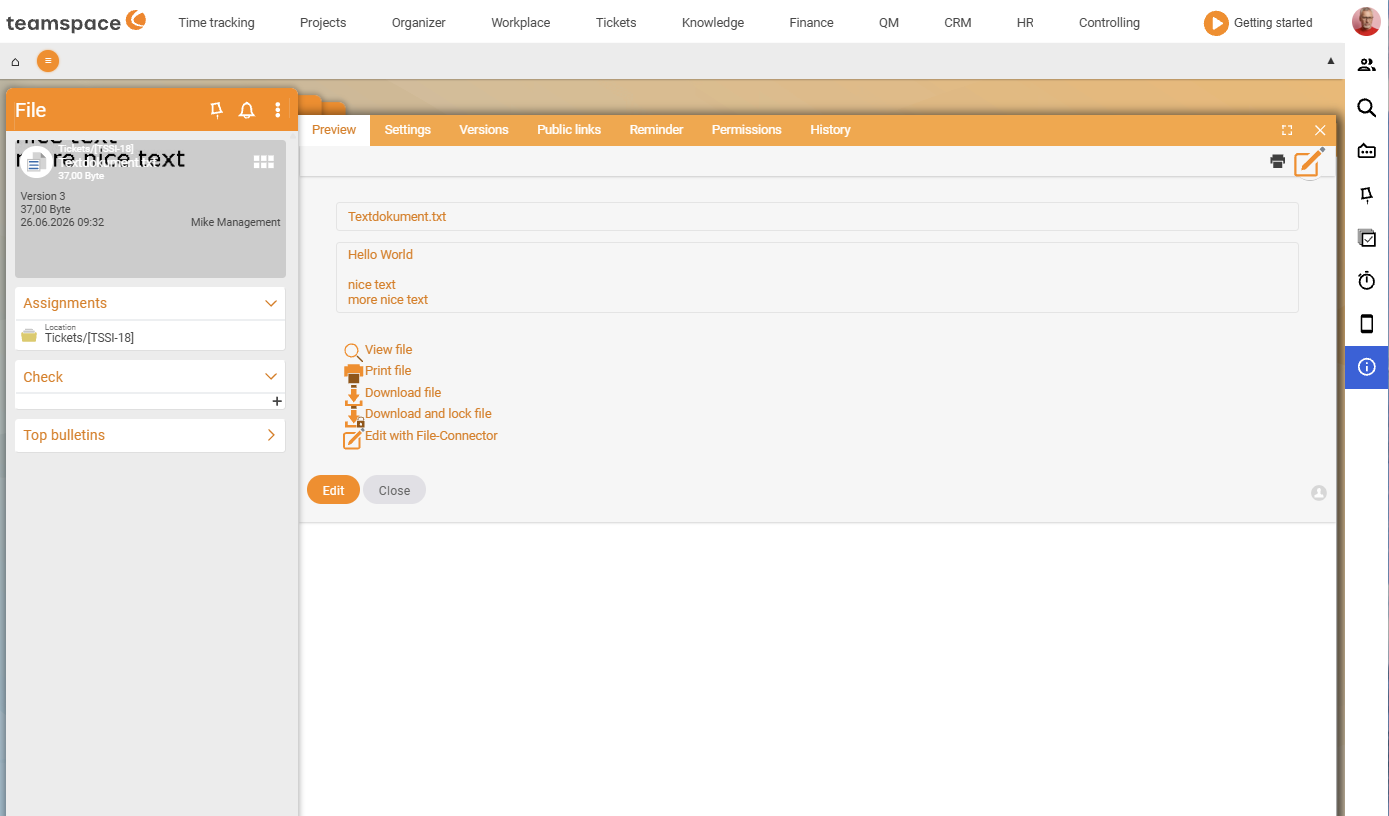
Layout
- Top: the row of tabs.
- Left: the file card with a preview and the
Actionssidebar. - Centre/right: the content of the active tab.
A file has six tabs: Properties, Versions, External links, Alarms, Permissions, History. For a directory, Versions is absent – directories don’t have any.
In the Actions sidebar you find, depending on the tab, standard actions such as Upload new version, Download file, Delete, as well as the Show all actions link, which opens a modal with the full inventory of actions.
Properties
Here you change the name and location of the file and see its master data. Three expandable sections: Master data, Properties, Assignments. The most important fields in Master data:
File name– the displayed name.Location– the file’s directory; the...button opens a directory picker for moving it.Owner– the assigned user.Version– the current version number (read-only).Maximum number– how many versions are kept (see Manage versions).File size– read-only.
The Properties section holds metadata that helps with searching (e.g. description, keywords); Assignments shows which elements the file is attached to (project, order, contact).
Versions
All saved versions in a table. Here you download old versions, restore them or delete them. The Acknowledgement and Review columns come from the document review workflow. Details in Manage versions.
External links
Here you create public links to share a file with external people – without their needing a teamspace account. Optionally with a login requirement and an expiry date. How this works in detail is in Share files with external people.
Alarms
In the Alarms tab you set reminders or notifications that teamspace sends at a defined point in time – useful for documents with an expiry date or contracts that have to be reviewed each year. The delivery channels are Popup, Notification, Internal message, SMS, Email, By report. Which channels your system supports depends on the configuration.
Permissions
In this tab’s Actions sidebar you choose one of the four access modes (Unrestricted, Restricted, Inherited, Inherited from element). How they work and when to use which is in Control access to files.
History
The History tab shows all relevant actions on the document – who uploaded, changed, submitted for review or approved it, and when. Useful for tracing who did what to a file.
Directory detail manager
On a directory the detail manager works almost the same way, only without the Versions tab and with slightly different master data. The General* section shows Name*, Location and Owner* (mandatory fields marked with *). The card at the top left shows a mini overview (Size, Access), the Actions sidebar is more compact (Delete, Show all actions) and offers the permission modes as buttons you can call directly.
ℹ Note. Directory permissions act downwards: subdirectories and files can adopt them via
Inheritedor set their own rules that override the inherited ones.
Related topics
- Manage versions (with video) File management How-to
- Control access to files File management How-to
- Share files with external people File management How-to