


User groups govern what someone is fundamentally allowed to do. Alongside these, there are more finely adjustable element permissions, which do not sit in any group but are attached to individual objects: project roles on the project, protection classes on the sensitive element. And there are clerk rights as a deliberately built-in loophole, to bypass restrictions in a targeted way.
Project roles – who is allowed to do what in which project
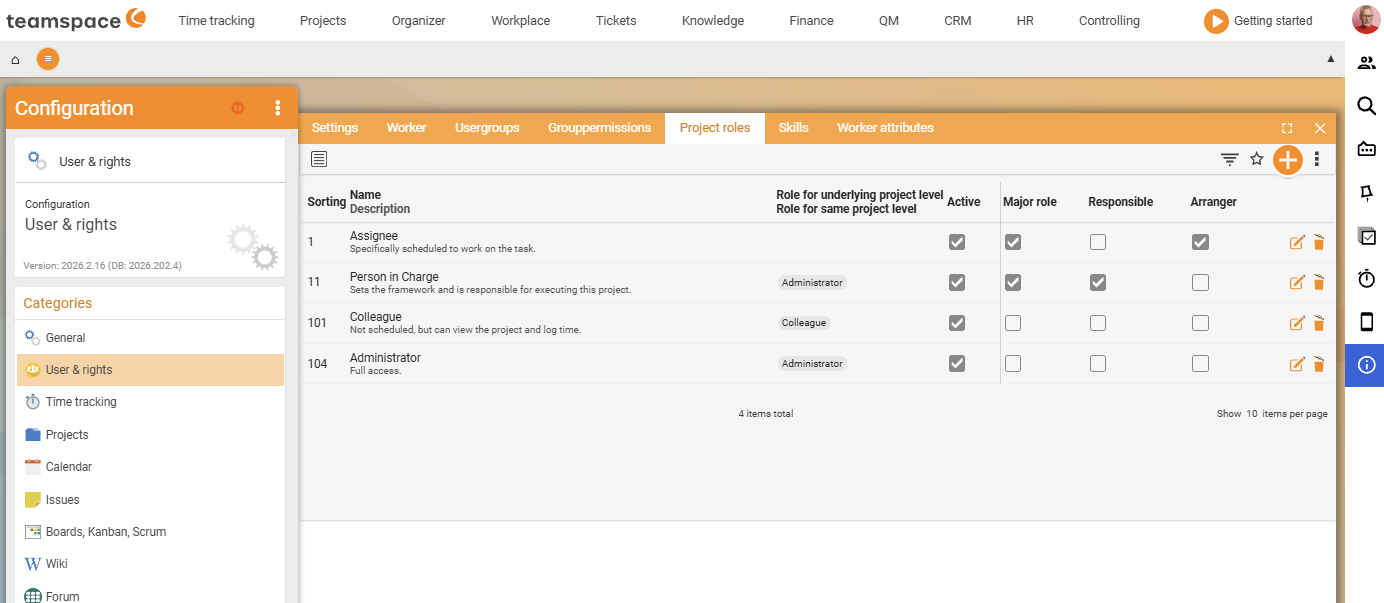
While the fundamental permission says “may someone see projects at all”, project roles govern the project-specific right: who is allowed to do or see what in this particular project? After all, you are not responsible in every project, only in some.
- The most common roles are assignee and responsible.
- Project roles can be defined yourself and are very powerful – similar to user groups. Through them you control, for example, who may book times to which projects, who may change the plan, or who can even see a project and assign people responsible.
- The roles are defined in the Project roles tab of the
User & rightscategory; they are then assigned per project – in one project you are responsible, in another only an assignee.
Via the Default project role for new projects master-data field on a user group, its members are automatically given the stored role for every new project.
Protection classes – protection directly on the element
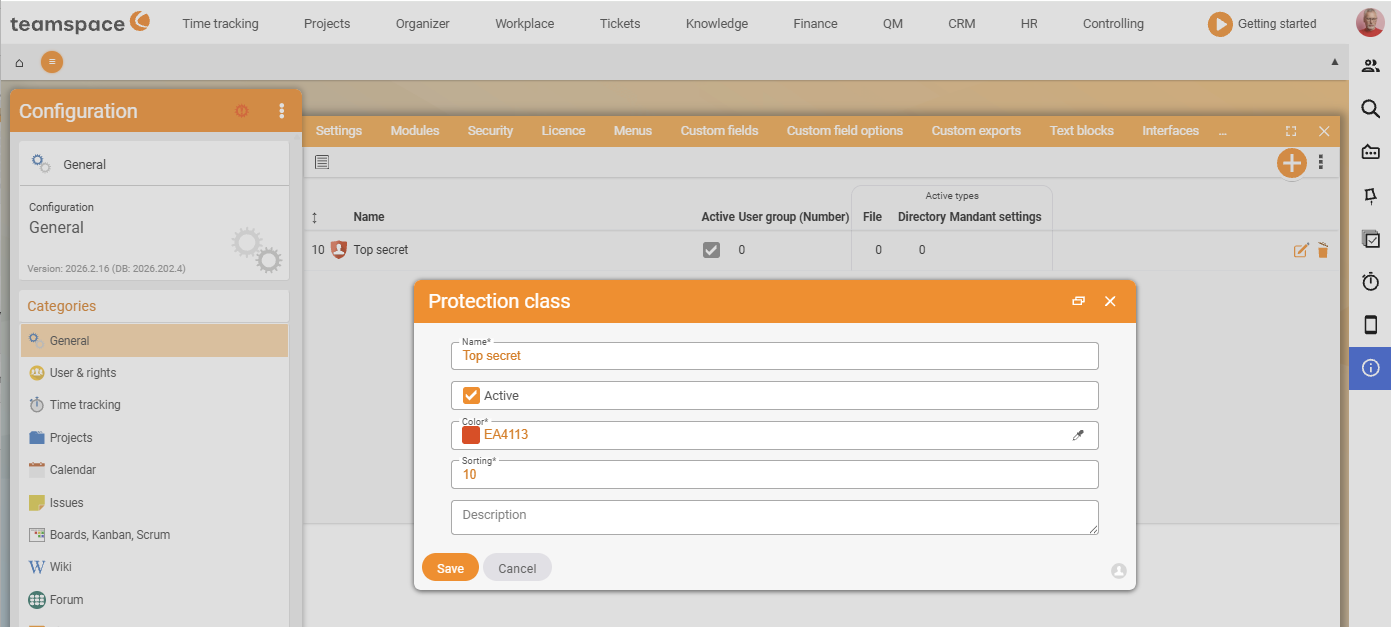
You attach a protection class to individual things – for example to salary data, employment contracts or sensitive files. If you are assigned the matching protection class via your user group, you are allowed to see everything protected with that class – otherwise not.
Here is how it works:
- You freely define a protection class (e.g.
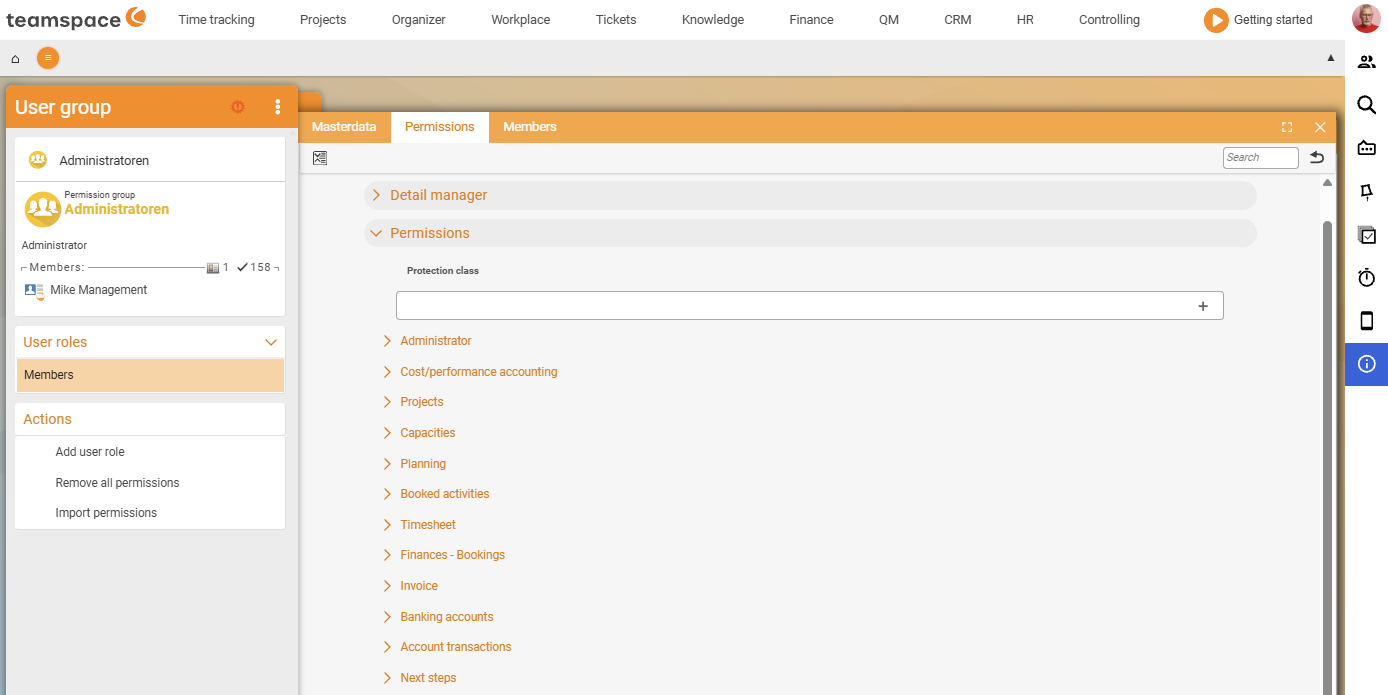
Salary). - You give this protection class to a user group (in the Permissions tab).
- You protect individual elements with this class.
This is mostly used in the HR area: salary data is given a different protection class than weekly working hours, for example – so different roles see different amounts.
Also via file classes. You can define a file class (e.g.
Employment contracts) and assign a protection class to it. All files of this class are then automatically protected – and at the same time marked as an “employment contract”. Beyond individual elements, a file in the directory, a wiki page and many other elements also carry their own permissions, with which you define exactly who may see or change them.
Clerk rights – the deliberate loophole
In teamspace, all rights required for an action must be met. If an element is particularly protected and you lack the one right, then it does not work. For exactly this situation there is a planned way out: optional clerk rights, which bypass other restrictions in a targeted way.
A typical example: a Finance clerk who is meant to see all invoices – even when the invoice hangs in a project to which they have no access at all, and without you entering them into every project. The switch sits in the group’s permissions, e.g. as Finance clerk (access to all documents, regardless of project rights).
⚠ Use loopholes sparingly. A clerk right deliberately overrides the normal AND logic. Grant it only where a functional role really needs module-wide access – not as a convenient shortcut around a clean group model.
Where element permissions fit into the overall picture
Element permissions are the fourth pillar alongside the group levels:
- User groups → fundamental rights (see, create, …)
- Group-specific permissions → person-related rights
- Project roles → what you are allowed to do in this project
- Protection classes / element rights → protection on the individual object
How the levels interact is explained in How permissions interact.
Related topics
- How permissions interact – the six levels Permissions Concept
- Set up group-specific permissions (with video) Permissions Configuration
- Topic: Project management Project management