


When granting rights, teamspace follows a simple security principle: you can only pass on the rights you hold yourself. This stops anyone from building themselves a back door and slipping themselves rights they were never given. Sensible – but with a catch: it can lock you out.
The trap: configuring yourself into a corner
Imagine you have used the permissions to set things up so that, say, the Workplace module is not active in your own main menu. Because you no longer hold this right yourself, you can no longer grant it afterwards either – to anyone, not even to yourself. Anyone who radically strips back their own access can take away rights that they are then unable to restore.
⚠ Lockout risk. Anyone who restricts their own access while not being a tenant admin can take away rights they cannot later get back themselves.
The back door: tenant admin
For this reason, the Permissions tab includes the Tenant admin option. Anyone who has this box ticked may grant all rights – even ones they do not hold themselves. A tenant admin can therefore rebuild the system completely, even after someone has “shrunk it right down”.
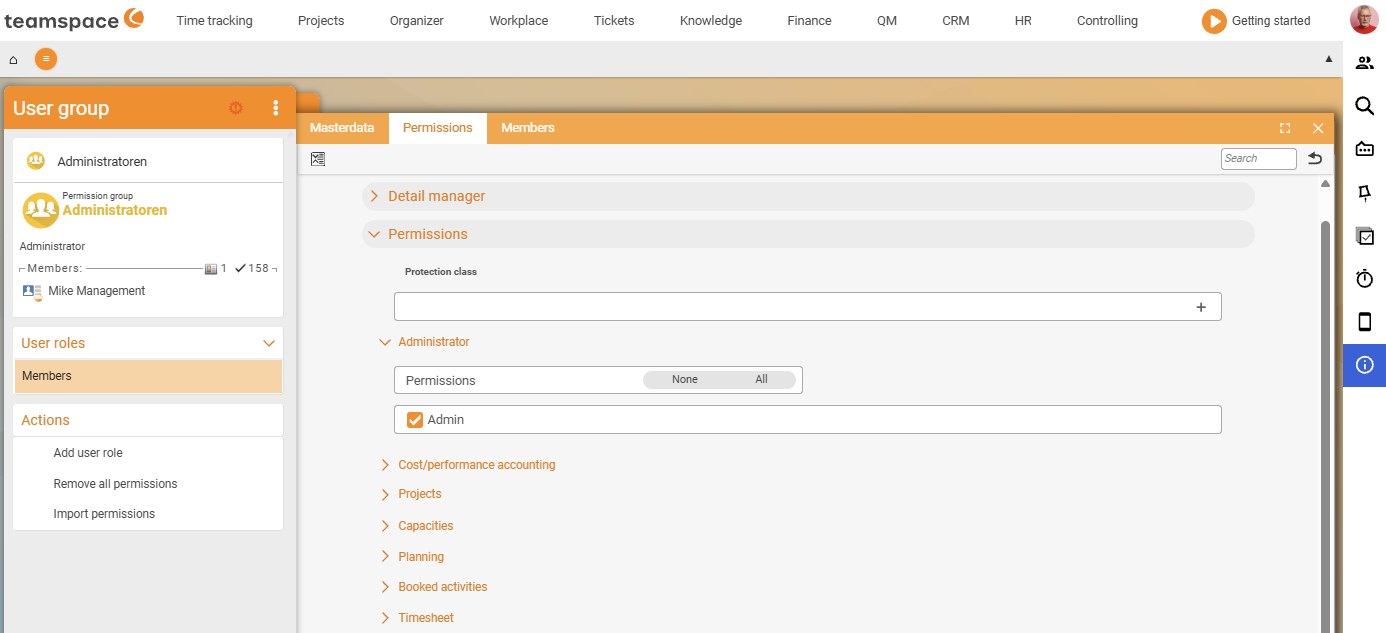
The rule: at least one person is a tenant admin
Make it a firm rule: at least one person in the tenant is a tenant admin – so that someone can grant all the rights again even after a radical strip-back. In practice, this right is held by a very small, trusted group (e.g. the administrators). It is the insurance policy of your permissions model.
Interplay with switching employees
Tenant admin and the group-specific operation Switch into a colleague’s user account are two different things, but they complement each other nicely during setup: with tenant admin you build the model, and with the employee switch you safely check how things look for the tester. Details on switching are in Set up group-specific permissions.
Common questions & needs
| You want to … | How to |
|---|---|
| Make sure no one can lock themselves out completely | Tick at least one person as a tenant admin in the Permissions tab. |
| Understand why you cannot grant a particular right | You do not hold it yourself – only tenant admins grant rights they do not have. |
| Test a heavily restricted profile without locking yourself out | Don’t cut back your own access; instead use the employee switch to switch into a test user. |
| Rebuild the system after a misconfiguration | As a tenant admin, grant all the rights again. |
Related topics
- Create and manage user groups (with video) Permissions Configuration
- Set up group-specific permissions (with video) Permissions Configuration
- Plan your permissions concept Permissions Concept