


When someone in teamspace cannot see a menu item or cannot click a button, it always comes down to one of six levels. They interlock, but each can be configured independently – a tile can be visible without any data appearing beneath it, and vice versa. Once you understand the model, you can quickly answer any “why can (or can’t) they see that?” question.
You maintain all six levels per user group on the Permissions tab – they appear there as six top-level accordions.
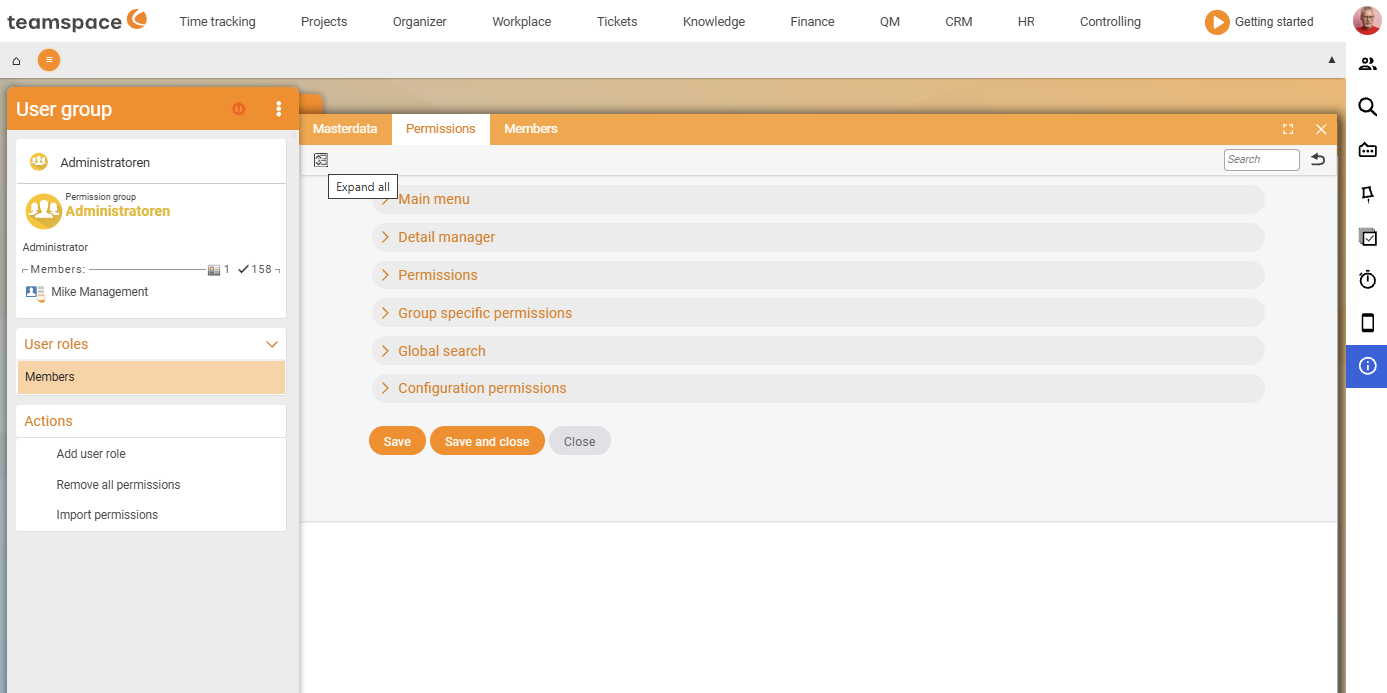
1. Main menu – which tiles appear
In teamspace you reach submenus through a menu and, ultimately, arrive at tiles. Behind the tiles you usually find lists or reports. Each tile has its own permission – without it, you see neither the tile nor the menu item.
In the Main menu accordion you find a sub-accordion for each main-menu entry (Home, Time tracking, Projects, … through to Reports). Each entry has a toggle group None ‒ All (set them all at once) and individual checkboxes per tile.
Important: for a menu item to actually appear, you also need an active menu item in the menu designer. If the tile permission is set but the menu item is not active, it still does not show up. When you enable it, teamspace offers to add the matching menu item at the same time, so things don’t get too complicated.
2. Detail manager – which tabs are visible on the object
When you open an individual element – a quote, for example – you land in the detail manager of that document. It shows tabs such as document data, line items, files and so on. Which tabs a group sees is controlled in the Detail manager accordion – with a sub-accordion per object type (Sales opportunity, QM document, Contact manager, Organisation, Task manager, Open item, …).
3. Permissions – the real action rights
The first two levels are essentially just entry points – buttons and lists. They say nothing yet about whether someone may fundamentally see something. That is handled by the Permissions accordion: may they create projects? see projects? work with capacities or times? see documents at all? You can restrict things very finely – for example “may see documents, but only quotes”.
This is the most important area, because it takes effect independently of lists. Via hyperlinks, the document overview or a document sent to you, there are many ways to reach an element. Only the action right decides whether the door is really open.
The permissions are grouped into sub-accordions by functional area (Invoicing, Projects, Capacities, Cost accounting, Employee payroll, Administrator rights, …) with entries such as Show documents, Create and edit documents, Finalise and send documents or Credit control (reminders, incoming payments). Using the search field at the top right, you can filter for a specific right.
ℹ Tile without action right = empty list. Anyone who sees the document overview as a tile but does not have
Show documentsset gets an empty list. And vice versa: anyone who has the action right but not the list tile can still reach individual documents via hyperlinks.
4. Group-specific permissions – questions about people
This level answers questions that ordinary rights cannot express: who may see whose times? who requests leave for the temporary staff? who, in the colleague list at the top right, can see whom at all? It is always about groups of people for whom I may do or see something. The full mechanics are described in Set up group-specific permissions.
5. Global search – a performance switch
In every module you can search within that module; alongside this there is a global search across all areas. That is exactly what you switch on or off at this level. The background is mainly performance: if everything is enabled, a global search can run across very large volumes of data and take longer.
6. Configuration rights – who may set what
For all of this you sit in configuration mode. Via Configuration rights you define which configuration categories a group may open – for example “may maintain articles, but configure nothing else”. This lets you delegate individual maintenance tasks without granting full admin access right away.
How the levels work together
Two basic rules make the model predictable:
- Collecting across groups (OR logic): if a user is in several groups, they have a right as soon as it is active in one of their groups. Other groups do not take it away.
- All required rights must be met (AND logic per action): for a specific action to succeed, the levels needed for it must align together – for example module access and action right and, where applicable, protection class. If one is missing, it doesn’t work.
For the AND logic there are deliberate loopholes (clerk rights) and a separate element level (project roles, protection classes). Both are explained in Project roles, protection classes & clerk rights.
Related topics
- Permissions – introduction Permissions Introduction
- Create and manage user groups (with video) Permissions Configuration
- Project roles, protection classes & clerk rights Permissions Concept
- Tenant admin & not locking yourself out Permissions Configuration