


Through permissions you control in teamspace who may see and do what: which menu items someone can open, which actions they can carry out, which data is shown to them. The guiding principle behind this is simple – every user should only be able to see and do what they need for their job. The simpler the interface is for the individual role, the better; and sensitive data stays where it belongs.
The good news: you do not have to build an elaborate permissions concept. Many tenants do very well with “everyone may do almost everything”. But as soon as the requirements come in – “only the steering committee should see this project”, “the temporary staff need a very simple menu”, “exporting our data must never be allowed” – the whole toolbox is ready to hand.
Tip: If you want to adjust your system but currently don’t fancy the detailed work: a teamspace consultant can also set this up for you. Much of it, however, can be done well by yourself – this introduction shows you how the model is structured.
Where permissions sit
There is no separate main-menu module for permissions. The whole model lives in configuration mode under the Users & rights category:
Tool icon (bottom right in the vertical icon bar)
  → enable the "Administrator mode" toggle
  → "System configuration"
  → left sidebar: "Users & rights" category
The tab row with all sub-areas then appears at the top: Settings, Users, User groups, Group rights, Project roles, Skills, Employee attributes. You handle the daily part of building your permissions in two of them: User groups (create groups, assign members, set rights) and Group rights (all person-related rules across all groups).
Six levels on which rights take effect
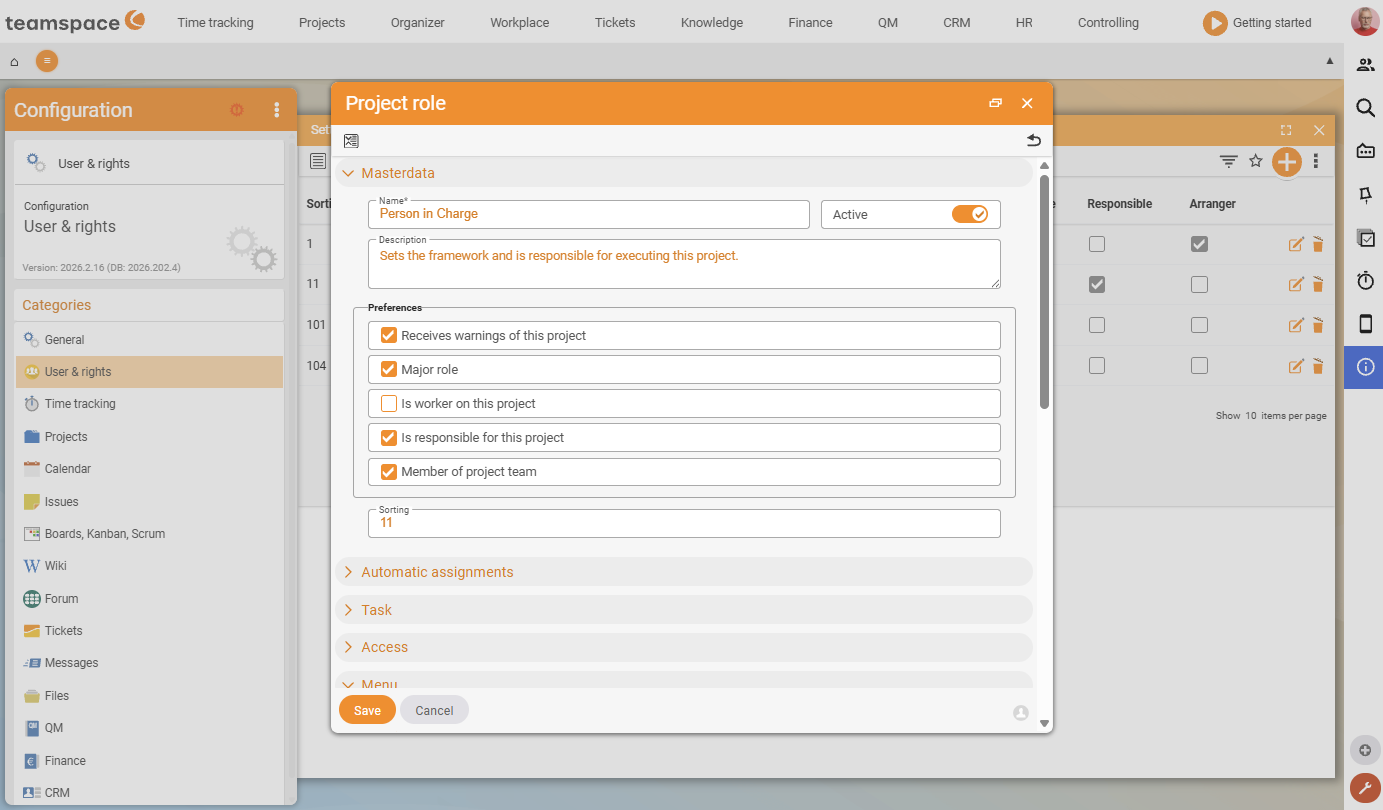
When someone cannot see a menu item or cannot click a button, it is always down to one of these six levels. They work together but can be configured independently:
- Menu & dashboard / main-menu tiles – which tiles appear in the module menu. Behind each tile lies a list or a report; whoever doesn’t have the tile won’t see the menu item. You can even define several menus and give different users different menus.
- Detail-manager tabs – which tabs are visible on a detail object (quote, contact, sales opportunity …).
- Module action rights – the fundamental permission behind the buttons: may someone see, create or complete documents at all? The most important area, because it takes effect independently of lists and tiles.
- Group-specific permissions – person-related rights: who may request leave from whom, see times, certify sickness reports?
- Global search – whether someone may search across modules (relevant for performance).
- Configuration rights – which config categories someone may open (maintain articles yes, configure tickets no).
Alongside these, element permissions take effect – project roles, protection classes and clerk rights – which hang not on every group but on individual objects. How exactly the levels interact is described in How permissions interact.
ℹ A tile is not comprehensive protection. Just because someone hasn’t activated the quotes list doesn’t mean they can’t see any quotes – they can still get in via the document overview or a hyperlink. The real lock sits at level 3 (“Module action rights”): may they see quotes at all?
User groups carry the rights
You assign rights not to individual people but to user groups. Each group carries its bundle of rights, members and group-specific rules – and members inherit it. If a user is in several groups, they accumulate the rights of all their groups: it is enough for a right to be active in one group; another group does not take it away from them.
A practical rule of thumb: set up roles in the company as a user group, not person-specific bundles. When someone changes position, you take them out of one role and put them into the next – the rights follow automatically. More on this in Create and manage user groups.
Who actually sees whom?
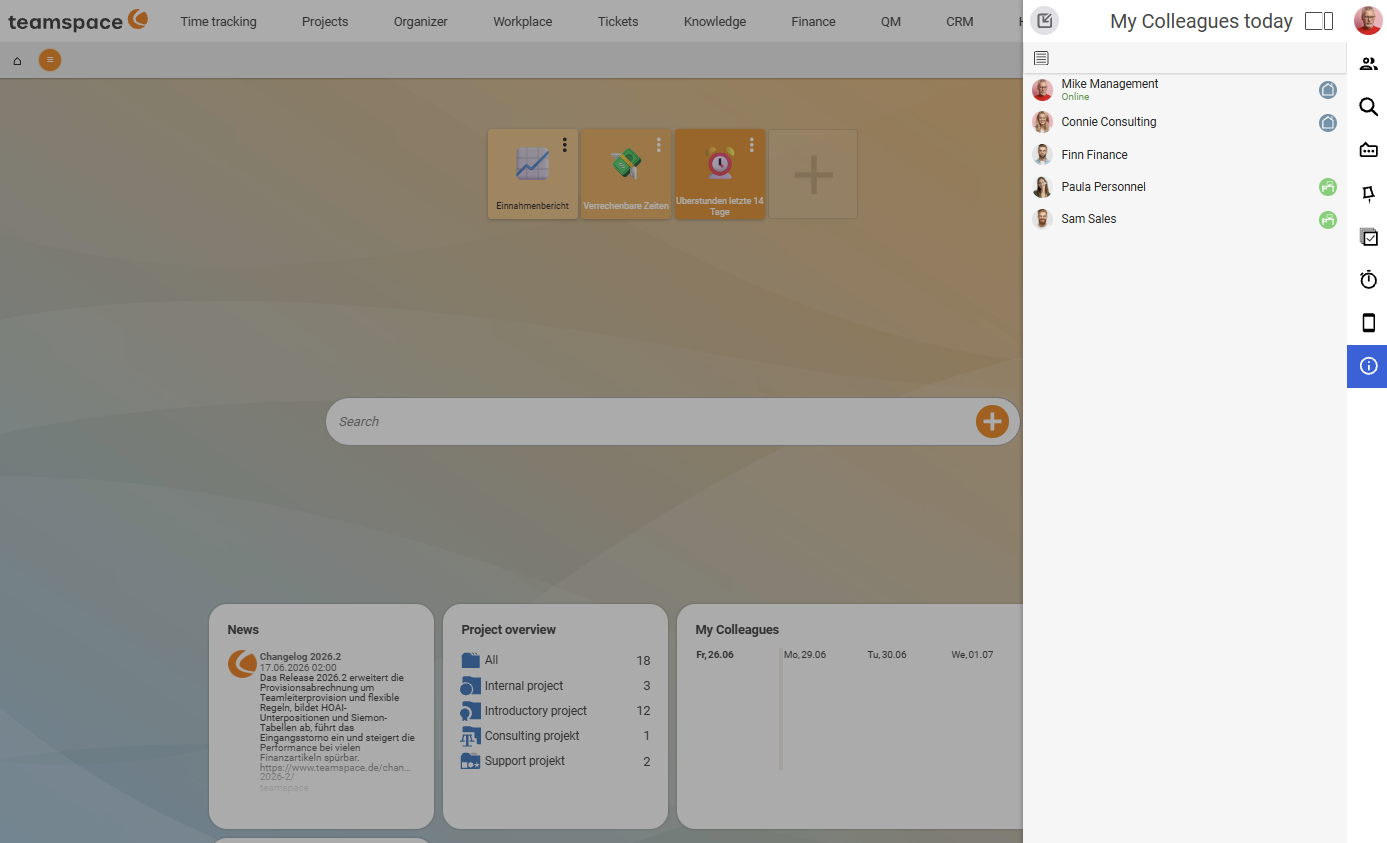
An example everyone knows: at the top right, teamspace shows which colleagues are currently logged in. In a tenant with 200 or 400 people that is a long list – yet perhaps you’re only interested in the 17 colleagues at your location. Exactly such person-related questions are solved by the Group-specific permissions level (colleague visibility, team responsibility, leave and sickness workflows).
Switch modules on and off tenant-wide
Whole modules can be switched on and off for the entire tenant – everything related to them then becomes invisible, without you having to laboriously configure it away. Note: some modules are only included in certain editions. You can switch everything off, but capacity planning, for example, cannot be switched on in the Office variant because it is not included there.
No fear of complexity
The many permissions concepts look intimidating at first glance. In practice, though, you don’t notice them – they are options for protecting data, not an obligation. The level at which you do so is individual. There are always customers who need an extensive permissions concept – and then it’s good to be able to fall back on it.
Related topics
- How permissions interact – the six levels Permissions Concept
- Create and manage user groups (with video) Permissions Configuration
- Set up group-specific permissions (with video) Permissions Configuration
- Plan a permissions concept Permissions Concept
- Modular structure & access permissions