


Some days look the same every week – Monday and Tuesday in the office, Wednesday home office, Thursday back in the office with a parking space, Friday off. Instead of booking that anew every week, you record it once as a recurring booking. From the start date onwards, the booking repeats itself week after week automatically – you no longer have to click anything.
Where the recurring booking lives
The recurring booking lives not in the Workplace module but in an employee’s user account. You open the user account via the HR module:
HR → Employees → open employee → User account → Analysis → "Workplace booking"In the UI the entry is called Workplace booking (next to Overtime and leave account and Working-days analysis); it opens the dialog of the same name, in which you record a resource and a valid-from date for each weekday.
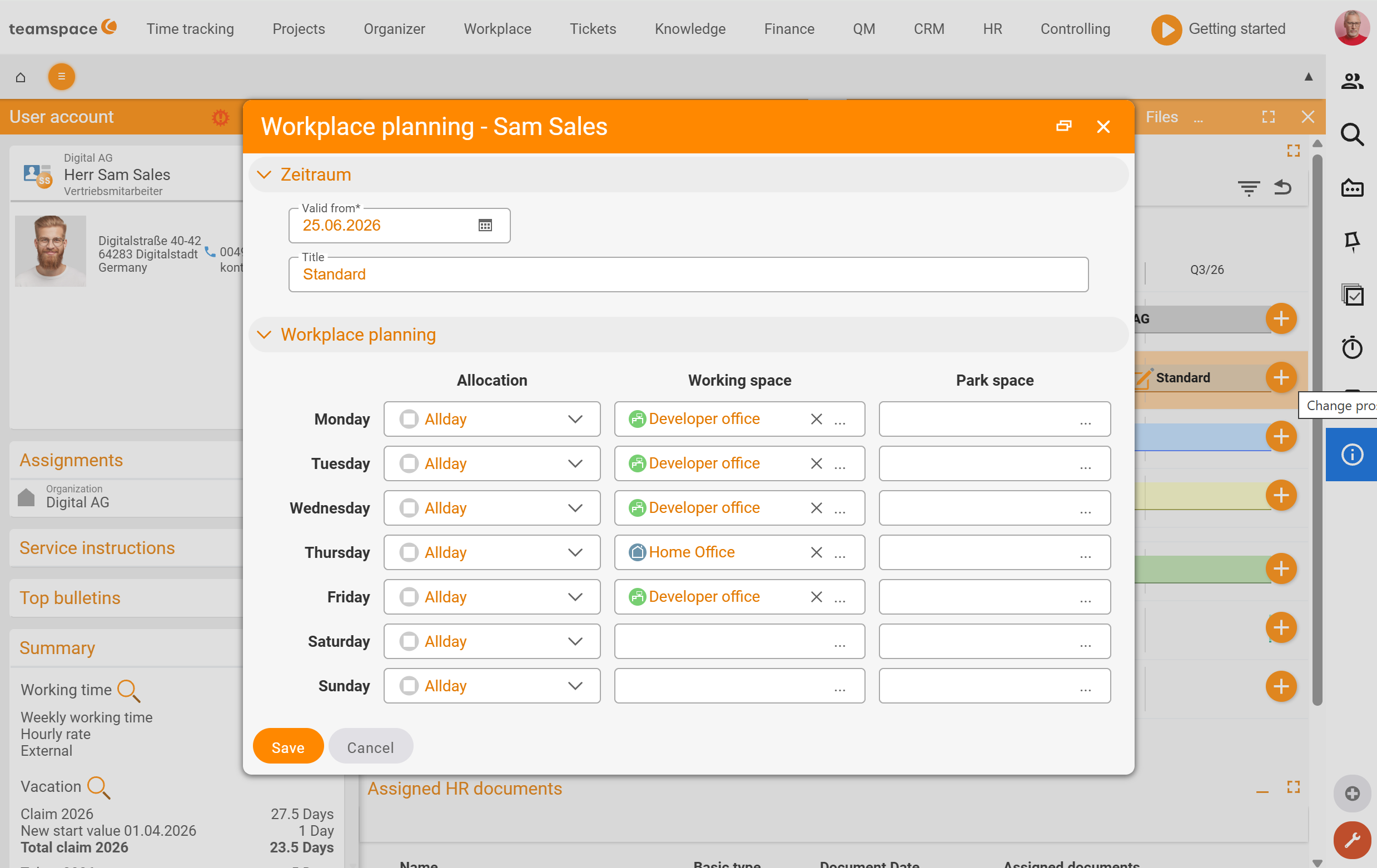
Set up a recurring booking
- In the employee’s user account, open the
Analysistab and there theWorkplace booking. - Set the desired resource for each weekday – a workplace and, if needed, an additional parking space. Days without an entry stay free (e.g. home-office or non-working days).
- Give a validity from a start date. From this date the plan takes effect.
- Save.
From the start date this plan repeats itself automatically every week. You find the bookings created this way back in My workplace and in the Employee overview as normal.
Overriding individual days
A recurring booking does not lock you in: if you book an individual day differently by hand, that applies only to that day. If on Wednesday you exceptionally enter a desk in the office, although the recurring booking provides for home office, that changes nothing about the following weeks – next week Wednesday is back to home office.
This way you combine the convenience of automation with the freedom to deviate when needed.
Common questions & needs
| You want to … | How to |
|---|---|
| Not book anew every week | In the user account under Analysis → Workplace booking, record one resource per weekday once. |
| Plan permanently from next month | In the recurring booking, set the validity to the desired start date. |
| Deviate on a day as an exception | Book the day differently by hand in My workplace – that applies only to that one week (see Book a desk or parking space). |
| Plan the parking space permanently too | For each weekday, record a parking resource in addition to the workplace. |
| Leave a day permanently free | Enter no resource for that weekday in the recurring booking. |
Related topics
- Book a desk or parking space Workplace How-to
- Workplace – introduction Workplace Introduction
- Topic: Personnel & HR Personnel & HR