


Which places your employees can book is decided by you as the administrator – not in the Workplace module but in the system configuration. Two terms determine the structure:
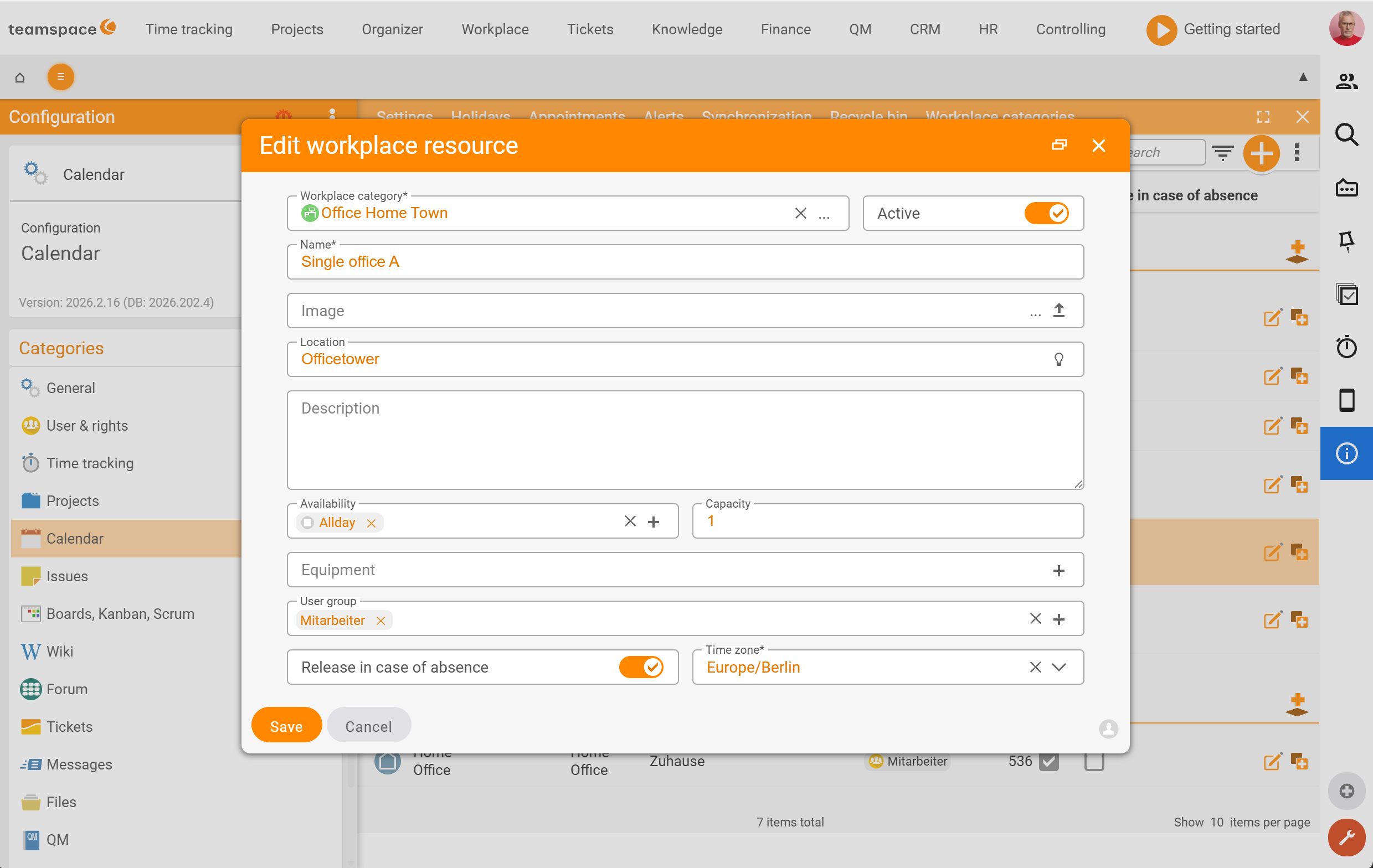
- Category – groups places that you want to assign or filter together (e.g. “Open-plan office Digitalstadt”, “EV parking spaces”).
- Resource – an individual bookable place within a category: a specific desk, a room, a parking space. The resource is what your colleagues ultimately book.
What you set here appears in the three views and as a selection in the New booking dialog.
What a category does
The category bundles places that you want to assign or filter together. It has no booking mechanics of its own – it helps with sorting and filtering in the Workplace overview (the All filter drop-down) and with searching in the New booking dialog. The category also determines the colour of the booking stripes in the Employee overview.
Examples from a typical configuration:
- Open-plan office Digitalstadt – ten equivalent desks, every employee may book.
- Single offices floor 3 – four self-contained rooms with one place each, for focused work.
- Coworking lounge – eight flexible places for external people and those present on a project basis.
- Covered parking spaces – six spaces for cars.
- EV parking spaces – two spaces with a charging point.
The four fields of a resource
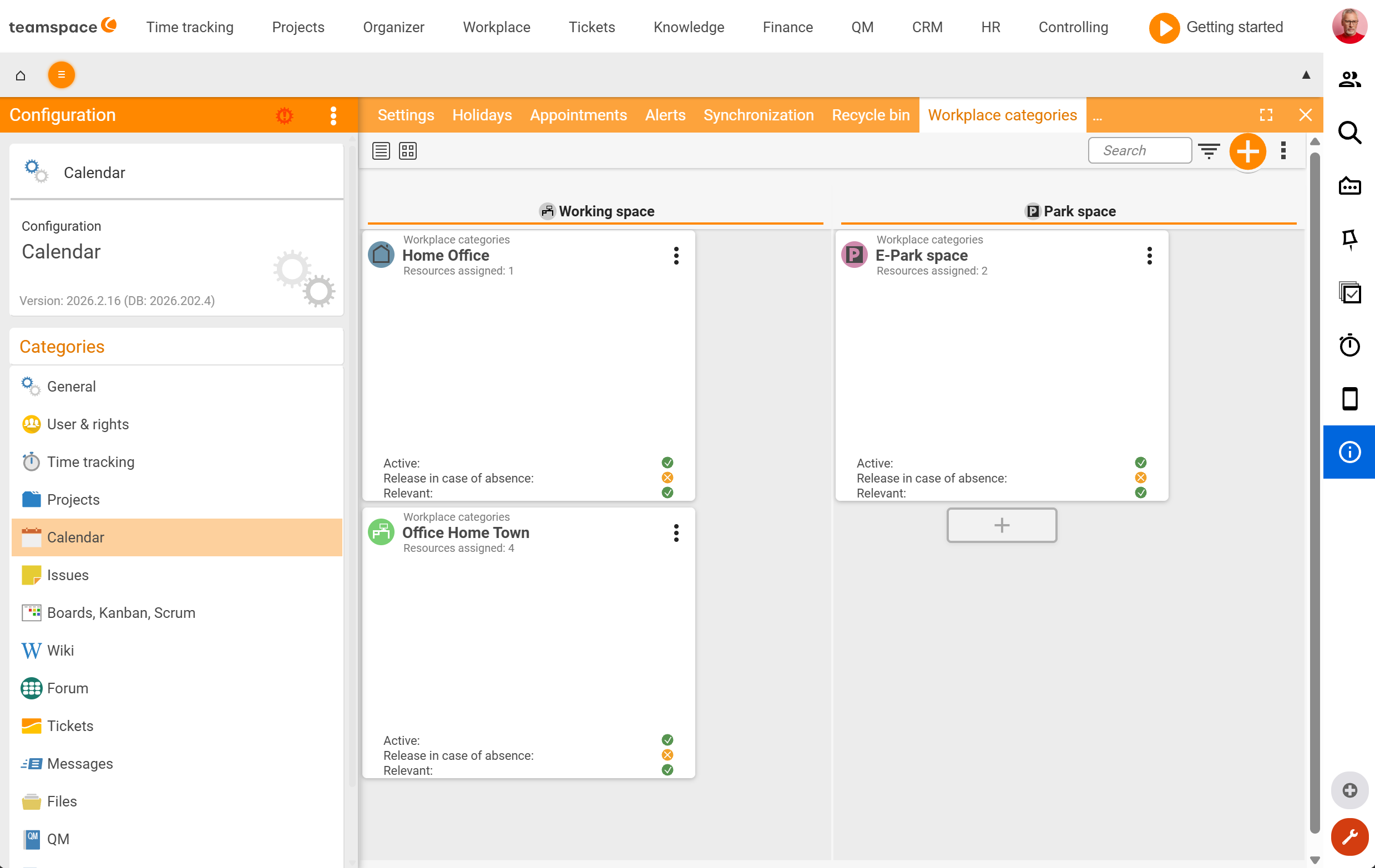
A resource is an individual place within a category. For each resource you record four properties:
- Capacity – how many people the resource accommodates. A desk has capacity
1, a single office likewise, a developer office with six workstations correspondingly6. The capacity is the upper limit of the remaining capacity in theWorkplace overview. - Availability – whether the resource is bookable at any time or only within certain time slots. You choose it as a keyword (default
Full day); via the+you can add further time slots – so it is a fixed selection, not a free time picker. - Equipment – what defines the resource: whiteboard, height-adjustable desk, projector, coffee machine, charging point. You maintain it as feature keywords (add via the
+). Filterable in theWorkplace overview. - User group – which employees are allowed to book the resource at all. A resource that is not in an employee’s group does not appear for them in the
New bookingdialog in the first place.
Where you create categories and resources
Creation and maintenance run through the system configuration. You find the access via the avatar menu at the top right:
- Click the avatar at the top right.
- Activate the “Administrator mode” toggle.
- Click the “System configuration” button (in configuration mode, administrator mode is always active anyway).
- In the category list, open the
Calendararea. There you find the two tabsWorkplace categories(create categories) andWorkplace resources(create and maintain individual resources with their properties).
The Workplace resources list shows, per resource, the columns Name, Description, Category, Location, Capacity, Equipment, User group, as well as Active and Release when absent.
Without active Administrator mode you do not see the entry – the setup is an admin task, not an end-user function.
You create or edit an individual resource via the Edit workplace resource dialog. Besides the four core fields, it also contains Name, Image, Location, Description, an Active switch, Release when absent and the Time zone.
The user group decides who books
The user group per resource is the lever with which you control who sees a place at all. A resource that only the Development group may book is not selectable for any other group in the New booking dialog.
With the same mechanism you build coworking areas for external people, reserved rooms for a project team, or parking spaces that only certain people are entitled to. What user groups are called, who belongs to them and what rights they carry is governed by the topic Topic: Permissions.
Common questions & needs
| You want to … | How to |
|---|---|
| Make a new desk bookable | In the system configuration, create a resource in the appropriate category, set capacity 1. |
| Represent an office for six people | Create a resource with Capacity = 6 – the remaining capacity then counts down from 6. |
| Allow only certain employees | On the resource, set the User group to the authorised group. |
| Mark places with an EV charging point | Maintain the resource’s Equipment accordingly – it is filterable in the Workplace overview. |
| Filter parking spaces separately from offices | Put parking and workplaces in separate categories; the All filter drop-down then separates them. |
| Release a resource only in the afternoon | Set the resource’s Availability to the desired time slot. |
Related topics
- Workplace – introduction Workplace Introduction
- The three views Workplace Concept
- Topic: Permissions Permissions