


A booking links a date, you and a resource – desk, office, parking space or home office. You create it in My workplace by clicking on the day and choosing the resource in the New booking dialog. You change and delete existing bookings in the same place. If your day looks the same every week, you record it once as a recurring booking.
1. Create a new booking
Three routes all lead into the New booking dialog:
- Click the day – in the weekly calendar under
My workplace, click the day you want. This opens the dialog withDatealready pre-filled. - Plus button – the
+button on the right of the toolbar, then chooseNew bookingin the drop-down. - From the Workplace overview – there the
+button is labelledNew bookingdirectly. The dialog is the same, onlyEmployeeandDatestart empty.
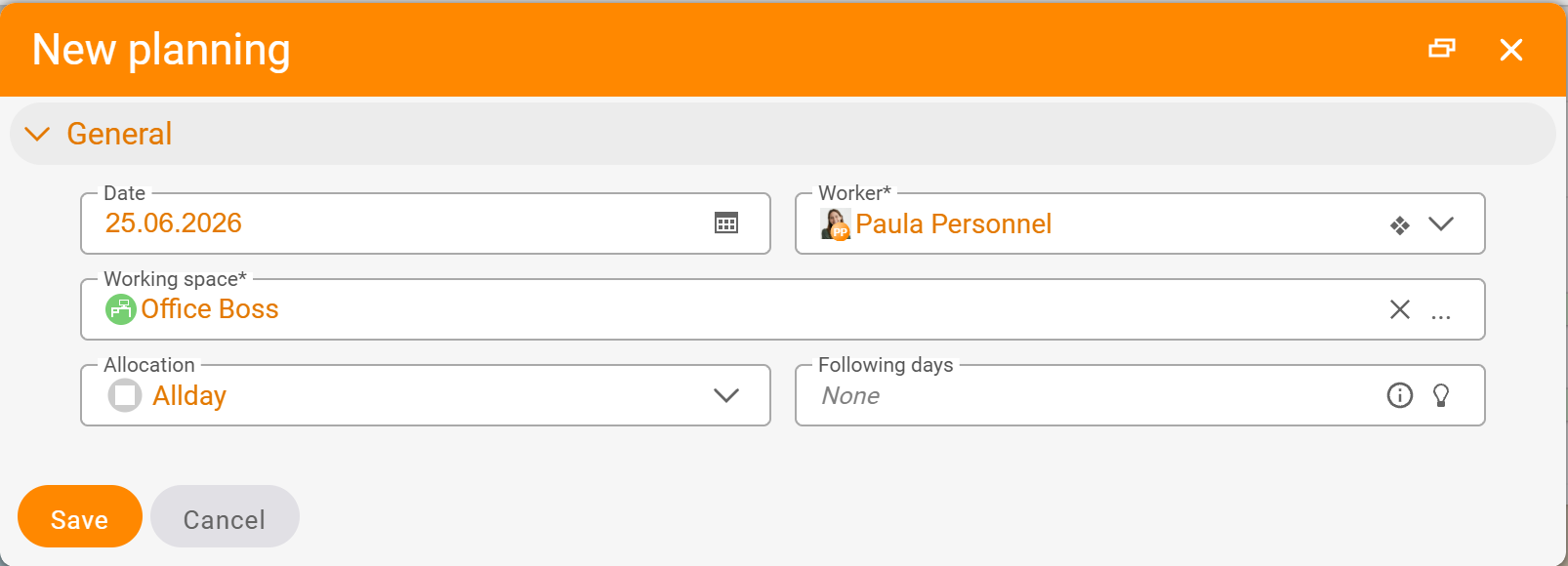
In the dialog you fill in the fields:
- Date – the date of the booking. Pre-filled from the calendar, changeable via the calendar icon.
- Employee – yourself by default. Booking for others is only possible with permission (see the note below).
- Workplace resource – the specific resource. Via the
...icon you open the selection with all resources your user group is allowed to book. - Occupancy –
Full day(default) or half day. - Following days – whether the booking extends over several days. The default is
None.
Leave the “Update existing workplace booking for this day” toggle on when you want to overwrite an existing booking on the same day. Switch it off when you want to create a second booking alongside an existing one – typically a desk plus a parking space.
A click on Save creates the booking; it appears at once in your weekly calendar and in the Employee overview.
2. Several resources on one day
A day can carry several bookings – the typical case is a desk and an additional parking space. Both are bookings of their own, each with its own resource. You create them one after another:
- Create the first booking and save it (e.g. the desk).
- On the same day, open
New bookingagain. - Choose the second resource (e.g. the parking space).
- Switch the “Update existing workplace booking for this day” toggle off – otherwise the second booking overwrites the first.
- Save.
In My workplace the two bookings appear stacked within the day. In the Workplace overview they reduce the remaining capacity of two different resources.
3. Change or delete a booking
You open an existing booking by clicking the entry in the day. This opens the Edit workplace booking dialog with the same fields as New booking – date, employee, resource, occupancy. Saving overwrites the booking.
To delete it, click the Delete booking button in this dialog (at the bottom, next to Save and Cancel).
4. When the system stops you
Three sticking points where a booking is deliberately not possible:
- Resources outside your user group do not appear in the selection dialog at all. If you need access to a reserved room or parking space, that is a permissions question – see Topic: Permissions.
- Fully occupied resources: a single office with capacity one is full for the day as soon as someone else has booked it. In the
Workplace overviewthe remaining capacity then reads0, and the resource drops out of the selection in theNew bookingdialog. - Blocked public holidays: the pink/orange public-holiday columns in the
Workplace overvieware not bookable. Which public holidays are blocked depends on the public-holiday calendar in use.
ℹ️ Booking for others. Who may create bookings for colleagues is a permission – typically assistants for their managers, or team leads for their team. If the
Employeefield in the dialog cannot be changed to other people, you lack this permission.
Common questions & needs
| You want to … | How to |
|---|---|
| Book a desk for tomorrow | Open My workplace, click on the day, choose the resource in the New booking dialog, save. |
| A desk and a parking space on the same day | Create a second booking and switch the “Update existing workplace booking for this day” toggle off. |
| Book only the morning | In the Occupancy field, switch from Full day to half day. |
| Move an existing booking | Click the entry in the day, change the date/resource in Edit workplace booking, save. |
| Remove a booking again | Click the entry and, in Edit workplace booking, click Delete booking. |
| Book on behalf of a colleague | Requires permission; then switch the Employee field in the dialog – see Topic: Permissions. |
| Book the same days automatically every week | Set up a recurring booking once. |
Related topics
- Workplace – introduction Workplace Introduction
- Set up a recurring booking Workplace How-to
- The three views Workplace Concept
- Workplace administration