


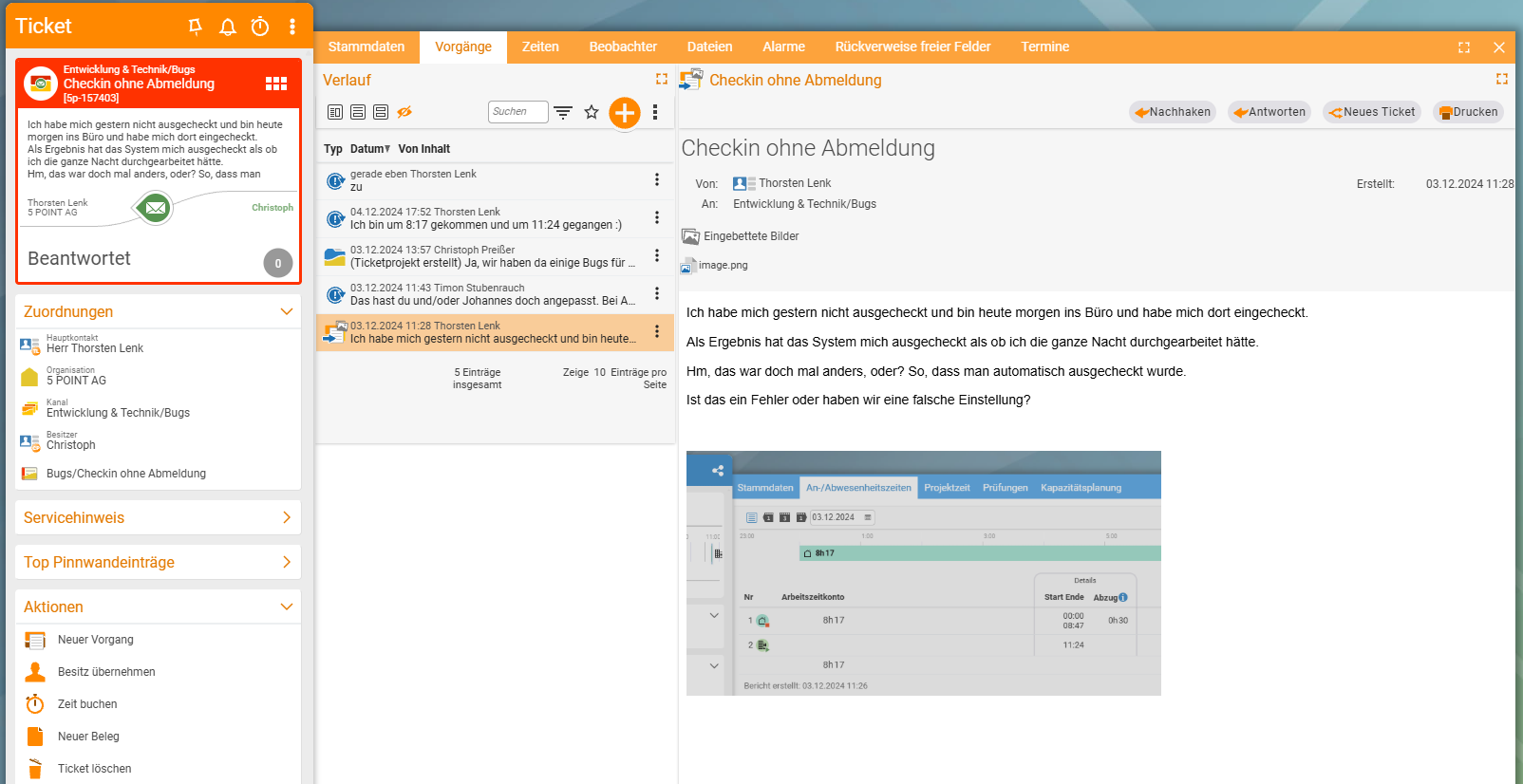
Some tickets grow over weeks: follow-up questions, interim updates, three colleagues joining in, an attachment someone forgot. Thirty, fifty, sometimes far more activities. Whoever takes over such a ticket first reads their way in – or has the AI condense it and starts with the current state instead of the whole story.
Not to be confused with the
Mergeaction. That one has existed in the ticketing system for a long time, and it does something completely different: it merges several tickets into one – for instance when a customer has opened a second ticket for the same matter. It has nothing to do with AI. See Work with tickets. This page is about condensing the content of a single ticket.
When it’s worth it
- At handover. A colleague is off sick, you take over their ticket.
- After leave. What happened over the past two weeks?
- Before a customer call. The current state in five sentences instead of forty entries.
- At escalation. Whoever has to decide won’t read forty entries.
For a ticket with three entries it isn’t worth it – reading is quicker there.
How to do it
- Open the ticket.
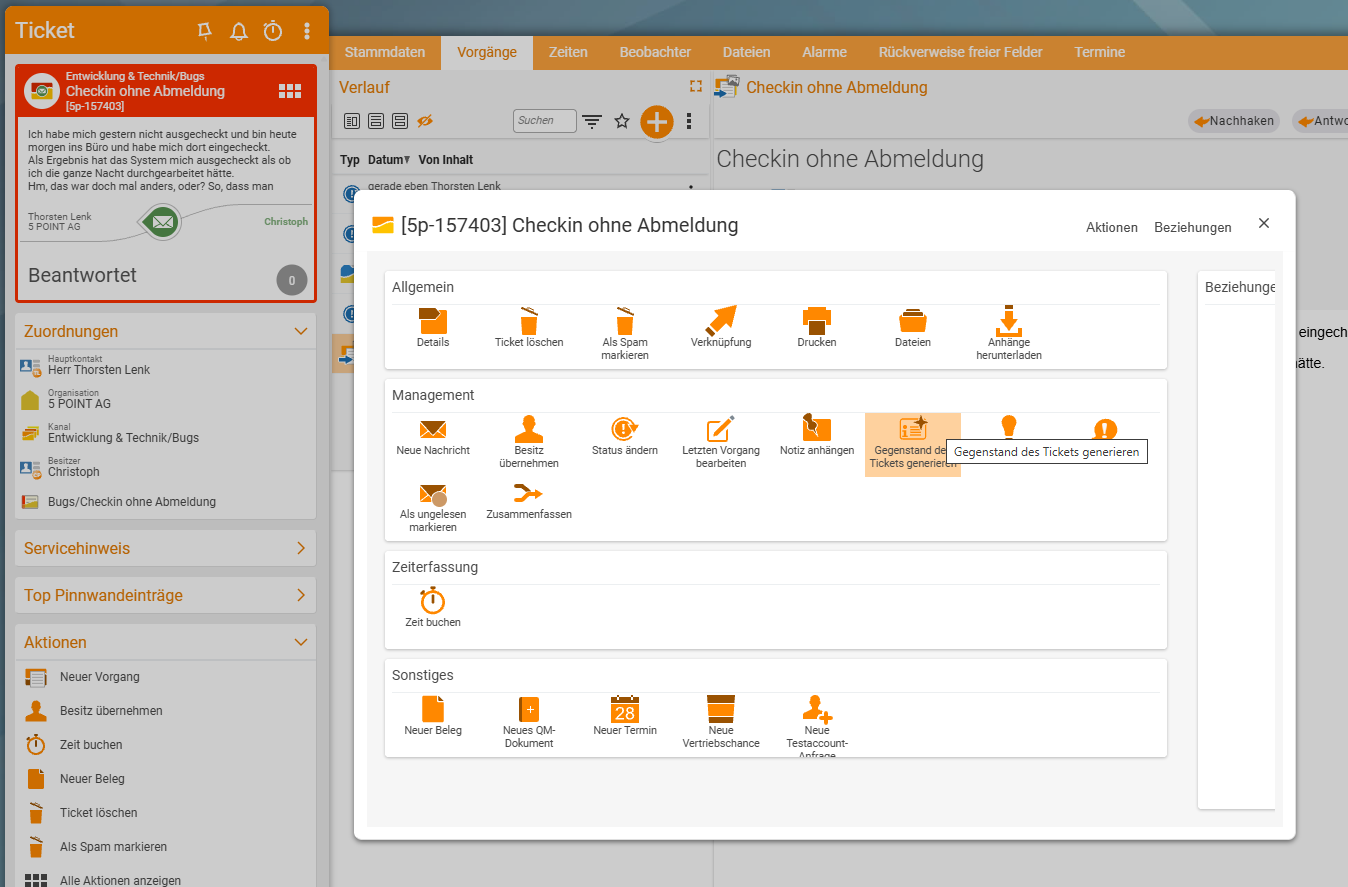
- Call up the ticket’s actions and, in the Management area, choose Generate ticket matter.
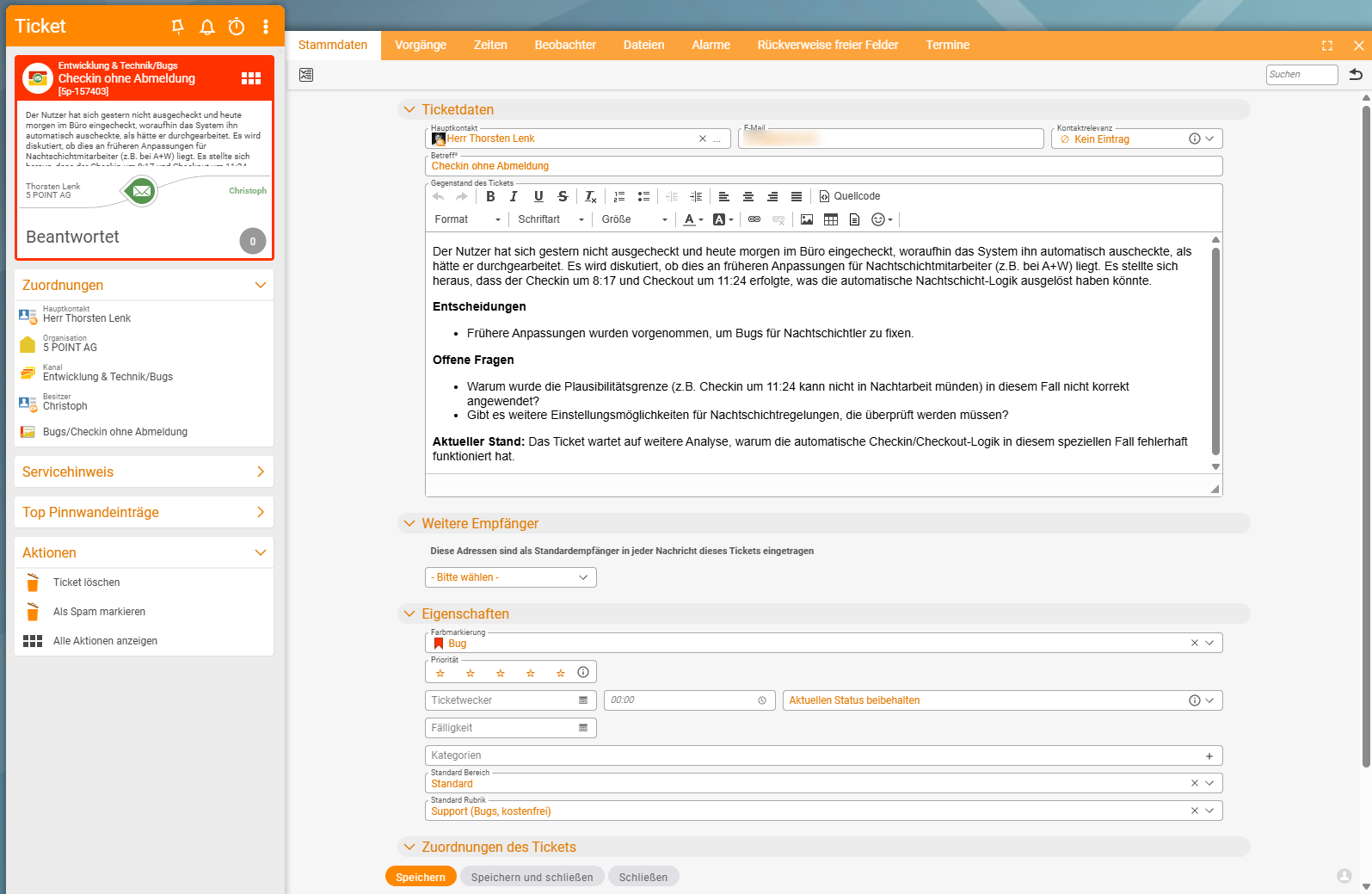
- The summary then appears in the matter of the ticket field in the
Master data.
Directly in the field: the AI magic wand
There is a second way directly in the editor: at the top right of the Matter of the ticket field sits a magic wand. Click it, and the AI creates the complete matter of the ticket from the existing ticket data. This also works if the field was empty before.
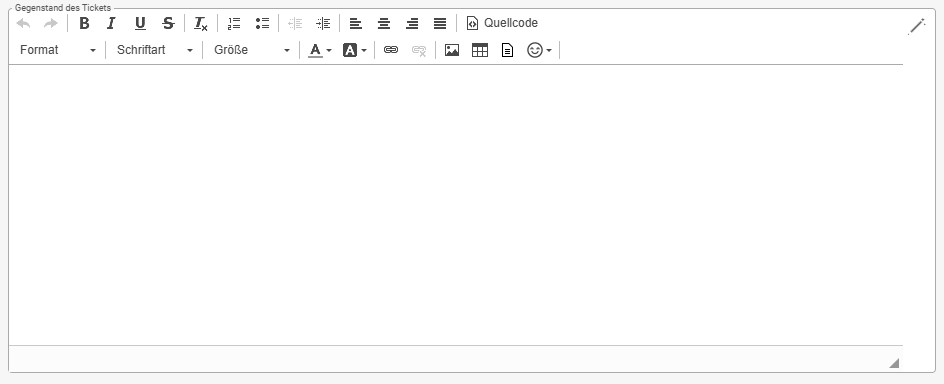
The magic wand has its own right, AI magic wand ticket description. The “Generate ticket matter” action depends on the right AI summary of ticket activity elements. So you can grant the two ways separately (see Connect an AI).
What comes out of it
The AI doesn’t just return a short prose version but structures the history around what matters to a handler:
- an introductory paragraph with the overall picture,
- Decisions – what has been decided along the way,
- Open questions – what is still pending,
- Current state – where the ticket stands now.
That is exactly why the result lands in the matter of the ticket: it is the short description of the request and is always shown above the individual activities – no scrolling, no searching. Whoever opens the ticket sees the current state first and only then the story.
The matter is overwritten in the process. Whatever was there before – usually the original request – is replaced by the summary. The activities themselves remain untouched; the original of the first request still stands in the history.
A dedicated summary activity in the history would be technically possible too and is being considered – then every summary would remain, timestamped, instead of replacing the previous one. This option doesn’t exist yet today.
What the summary does – and what it doesn’t
It does: condense, sort, separate the essential from the incidental. A ticket with forty entries becomes a few sentences that make you able to act.
It doesn’t: decide. It closes no ticket, changes no status and assigns nothing to anyone. Why it is built this way is explained in Why teamspace relies on rules for AI.
For critical matters: read the original. A summary is an interpretation. For an overview it is excellent; for the question of exactly what was promised on the 14th, the entry from the 14th is what counts – and it still stands in the history.
Common questions & needs
| You want to … | How to |
|---|---|
| Capture the state of a long ticket | The Generate ticket matter action – the result then appears at the top in the matter. |
| Create the matter directly in the editor, even if the field is empty | Magic wand at the top right of the Matter of the ticket field (see “Directly in the field: the AI magic wand”). |
| Bundle several tickets into one | That is the Merge action and has nothing to do with AI – see Work with tickets. |
| Refresh an outdated summary | Call the action again. The matter is overwritten with the new state. |
| Keep the original request | It still stands as the first activity in the history – only the matter is overwritten. |
| Know what the summary is based on | On the ticket history – limited by the maximum input length (see Connect an AI). |
| Use the feature, but it isn’t there | No AI is connected, or your user group lacks the right AI summary of ticket activity elements (action) or AI magic wand ticket description (magic wand). Ask your administrator (see Connect an AI). |
Notes
- Very long tickets can be truncated. The maximum input length limits what goes to the AI. With extremely long histories the AI may not see everything – and the summary won’t tell you that something was missing.
- Only the ticket goes out. No background process transmits data; only the call you trigger – see Your AI, your data.
- The activities remain untouched. Condensing happens into the matter; in the history nothing is replaced and nothing is deleted.
Related topics
- Analyse reports with AI AI features How-to
- Connect an AI AI features Configuration
- Why teamspace relies on rules for AI AI features Concept
- Work with tickets Ticketing How-to
- Topic: Ticketing Ticketing