



Who sees which tickets, who receives notifications and who is responsible for a ticket runs in teamspace through three mechanisms: the ticket channel governs visibility of the ticket, four roles on the ticket govern who receives notifications, and a toggle on the activity governs whether an individual activity appears in the external access.
The ticket channel governs visibility
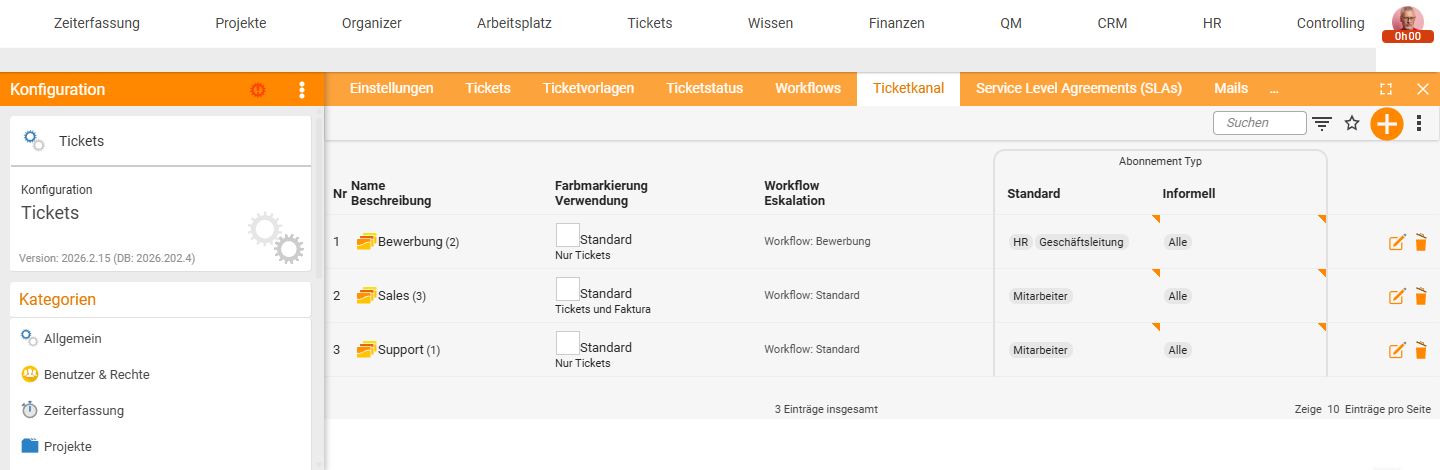
Every ticket sits in a ticket channel. The channel decides who sees it, and via the channel’s workflow configuration also who is responsible for it. A channel per team split is typical — Support, Sales, Recruitment, Backend.
Per channel you set the subscription type:
Standard: the employee is responsible by default. They receive notifications about everything that happens in the channel.Informal: the employee may look in but receives no automatic notifications.
Anyone in neither of these two groups does not see the tickets of that channel. If you move a ticket into a channel you are not listed in, it disappears from your view.
You set up the channel in the configuration under Tickets → Ticket channel — all the detail in Set up ticket channels.
ℹ Info: When a ticket is simply “gone”, it has usually changed channel. Via the ticket overview with the channel distribution expanded in the sidebar you can see how many open tickets sit in which channels — and whether “your” ticket now sits somewhere else.
Four roles that receive notifications
teamspace notifies you about tickets in which you hold one of four roles. The roles are independent of one another — you can be owner and watcher at the same time.
- Subscriber: you are listed as
Standardin the ticket’s channel. A notification when a ticket is created in the channel or relevant activities happen. - Owner: you work on the ticket. A notification about each new activity on the ticket.
- Responsible person: you watch from a little further away. A notification about each new activity.
- Watcher: you were entered manually or automatically in the
Watcherstab. A notification about each new activity.
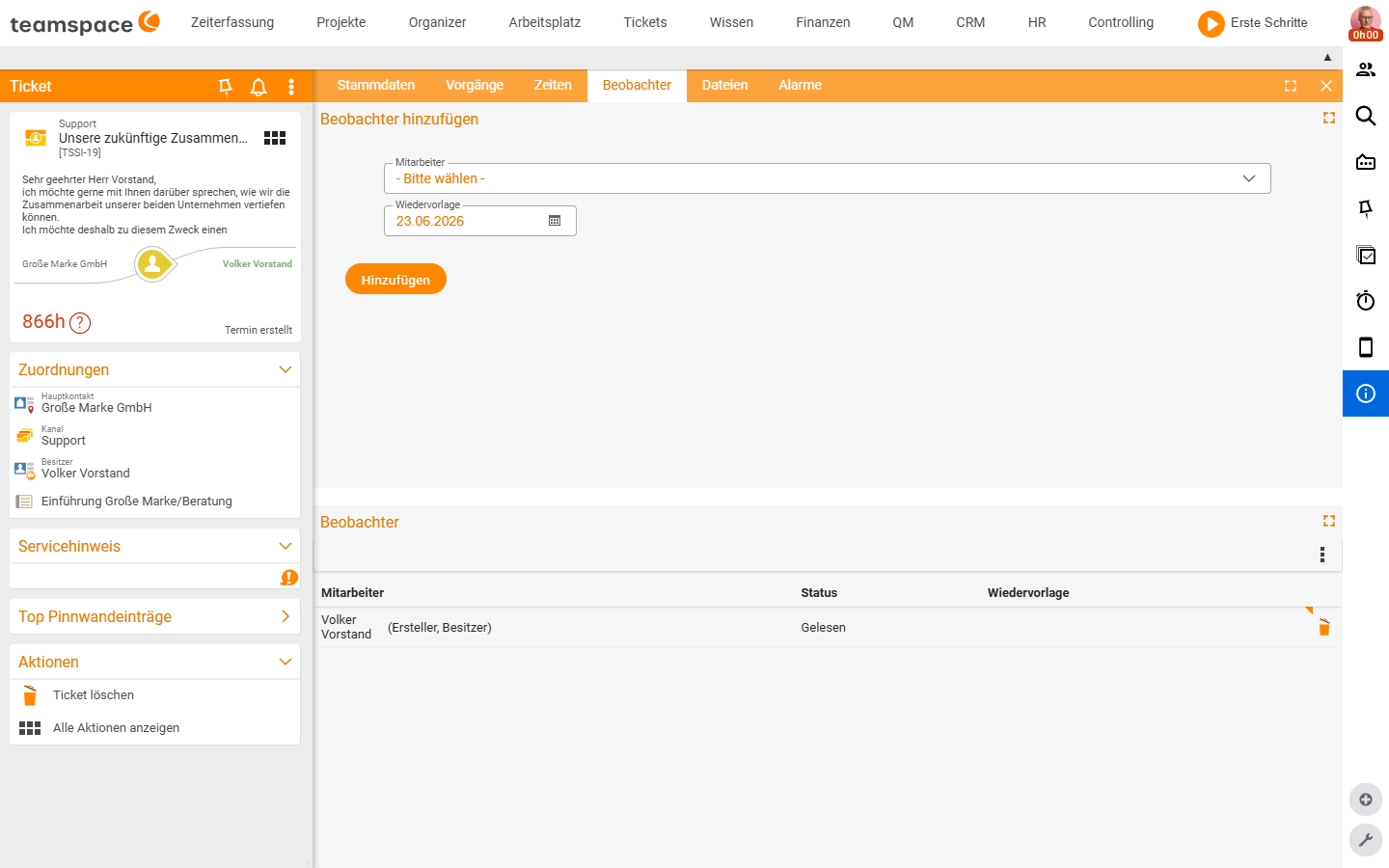
The creator and owner are automatically entered as watchers. Anyone who should be added too is entered in the Watchers tab via a selection plus a Follow-up date field — the entry stays active until you remove it.
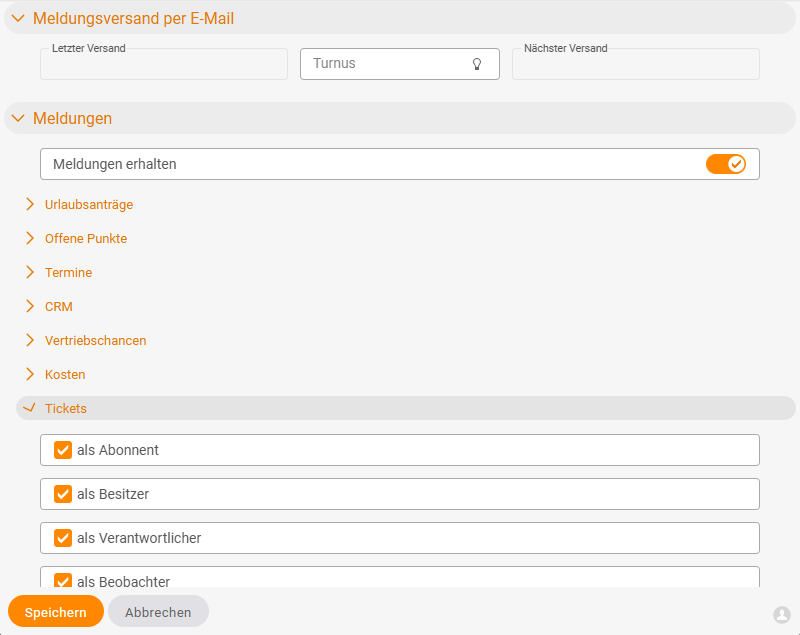
Which notifications you really want, you switch on or off per role in your personal notification settings: via the Messages bell at the top right you open the Notifications dialog with the Settings cog. In the Messages section (switch Receive messages) you expand the Tickets area and tick the boxes as subscriber, as owner, as responsible person and as watcher (verified live 2026-06-25).
Owner and responsible person
On the ticket there are two active roles that are often confused:
- Owner: the one who works on it. The next step is with them. A notification about each new activity.
- Responsible person: the one who watches over it. Receives notifications, but the next step is not with them.
You change both in the activity dialog under Next status of the ticket* — when creating a new activity you click the corresponding chip and choose the new employee.
Via a channel’s workflow configuration you can have both roles filled automatically. Example: if you are the main carer of the contact and a ticket comes up in the channel, you are automatically entered as the responsible person. Or: as soon as you reply in a channel, you automatically become the owner. What is possible is set out in the channel’s workflow detail — see Set up ticket channels.
Visibility on the individual activity
Visibility of the ticket is decided by the channel — visibility of an individual activity by the toggle pair in the activity dialog.
Show in external access: the activity is visible to customers with their own access. For replies to email tickets this is the default.Show internally only: the activity is visible internally only. For notes and internal status changes this is the default.
In addition there is the option of hiding an activity entirely — it then does not appear in the history even internally. This action is called Hide activity and sits in the three-dots menu of the individual history row (verified live 2026-06-23). Via Hide hidden activities in the history toolbar you bring such activities back into view.
Workflow and status
A workflow hangs on each channel that sets the permitted statuses and controls the transitions between them. In the Standard workflow these are New, In progress, Answered, Successfully closed, Unsuccessfully closed. For a recruitment channel there is a separate workflow with different statuses (e.g. New, Invited, Declined, Hired).
Each status has a responsibility — internal, external or no one:
- Internal: the next step is with your own team (
New,In progress). - External: the ball is with the customer, you are waiting for a reply (
Answered). - No one: the ticket is done, no further response expected (
Successfully closed). Tickets in this status disappear from the ticket overview but are reachable again via filters.
The responsibility determines the time that runs on the ticket — relevant for the escalation logic and SLA display. How a status is created is described in Ticket statuses & workflows.
Escalations and SLAs govern responsibility over time
When a ticket has not been worked on for a certain time, something often needs to happen — the owner is automatically released, the channel switches, someone receives a reminder. That is what escalations do. For contractually agreed response times you attach an SLA to the customer; on the ticket a traffic light then shows how much time you have left.
⚠ Caution: An escalation can move a ticket into a different channel. If the target channel has colleagues with further access, the ticket becomes visible there — and invisible to you, if you are not listed there. So when configuring the escalation rules, check who is listed in the target channel.
Both mechanisms in detail: Set up SLAs & escalations.
Common questions & needs
| You want to … | How to |
|---|---|
| Find a “vanished” ticket | Expand the channel distribution in the sidebar of the ticket overview — the ticket has usually changed channel. |
| Only look in, without notifications | Get listed in the channel as Informal instead of Standard. |
| Stay up to date on a particular ticket | Add yourself in the Watchers tab. |
| Receive fewer email notifications | Messages bell → Settings cog → Notifications → Tickets area, switch off per role. |
| Hand over a ticket but stay informed | Change the Owner to the colleague and enter yourself as the Responsible person. |
| Hide an internal note from the customer | Choose Show internally only in the activity dialog. |
| Automatically become owner when you reply | Activate the corresponding rule in the channel workflow (see Set up ticket channels). |
Related topics
- Basics & operating concepts (with video) Ticketing Concept
- Set up ticket channels Ticketing Configuration
- Ticket statuses & workflows Ticketing Configuration
- Set up SLAs & escalations Ticketing Configuration
- Ticketing software