


Tickets come about in teamspace in three ways — a customer sends an email, you create a ticket on their behalf, or you make an internal ticket for a matter that does not involve a customer. On top of that there are two external ways for customers to create tickets themselves.
The three ways at a glance
- Email ticket: a customer sends an email to your support address. teamspace creates the ticket automatically, matches the sender address to a contact from the CRM and records the email as the first activity.
- Ticket from enquiry: the customer calls you, you create the ticket on their behalf. When a handler replies later, the answer goes to the customer by email.
- Internal ticket: does not run over email, stays entirely within teamspace — for bug reports, internal clarifications, tasks between colleagues.
The mechanism in the detail manager is the same for all three ways — the tabs, the actions on the activity, the notifications. Where the click starts and who receives an email at the end is the difference. The structure is explained in Basics & operating concepts.
Email ticket
When you have connected a mail account that receives tickets, the email ticket runs by itself: an email comes in, teamspace checks the sender address, matches it to a contact in the CRM, and creates a new ticket in the configured channel. The email appears as the first activity in the history.
For this to work, a mail account of type Ticket must be set up — under Tickets → Mail accounts in the configuration. Important here: the authentication must match the account (Microsoft 365 or classic SMTP), and on the account you define which channel incoming emails land in by default.
⚙ Prerequisite: Without an active mail account of type
Ticket, teamspace receives no emails. If the creation actionNew ticketis missing from the listMy tickets, no mail account is connected or it is set up incorrectly.
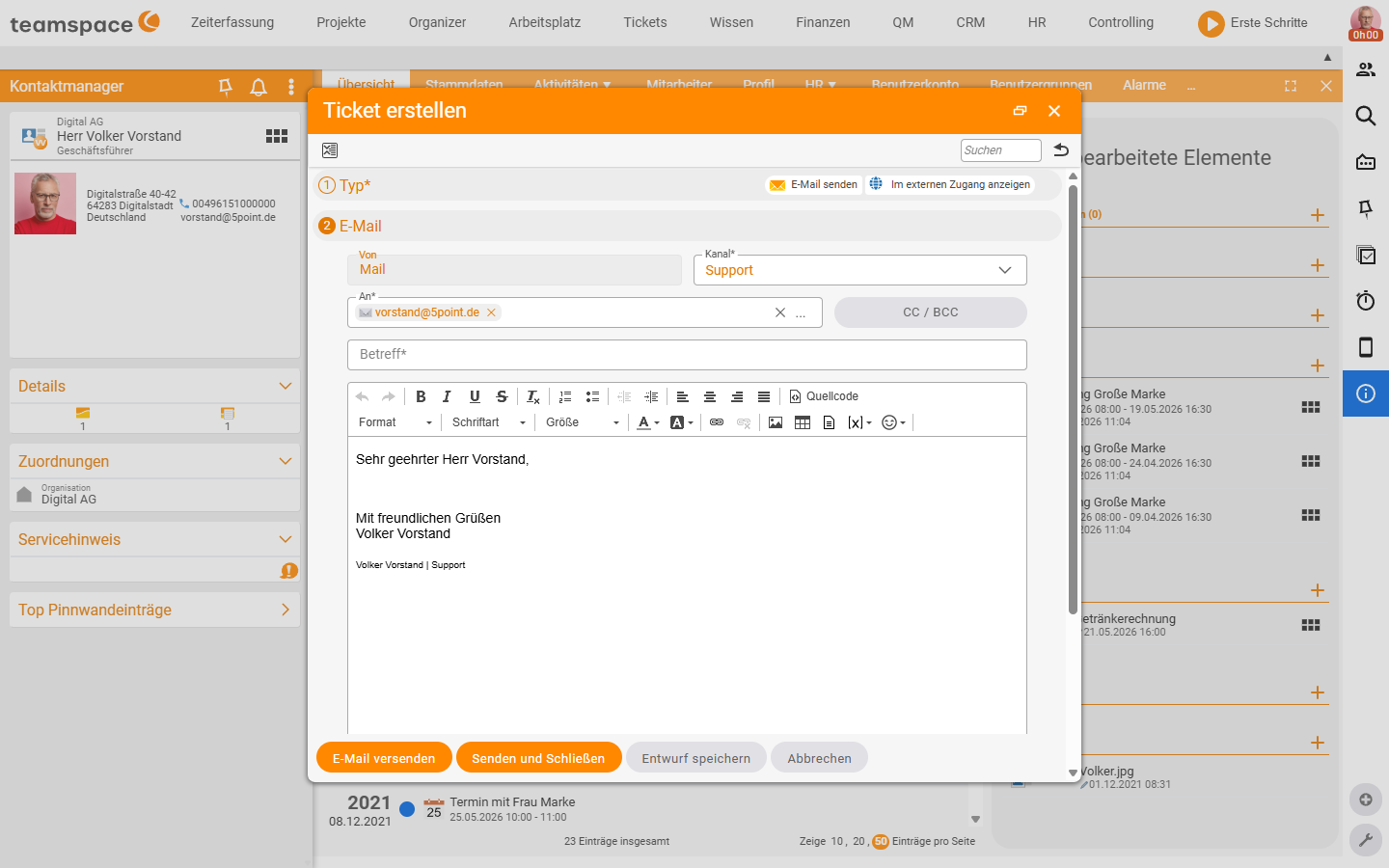
For the reverse case — you open a ticket yourself by email — you start via the action New ticket in the list My tickets. You write the email to the customer and send it off; the sent email is the first activity in the new ticket. Which fields the dialog carries is covered under Fields in the email dispatch dialog.
Ticket from enquiry — when the customer calls
A customer gets in touch by phone and describes a matter — you want to document it so it doesn’t get lost. That is what Ticket from enquiry is for.
- Start the action via the plus on the module home page or directly on the contact in the CRM (the contact overview has a plus that offers
New ticket from enquiry). - The contact name is entered automatically, the ticket treated as incoming.
- Choose the channel, write the subject and content, and enter an owner directly if needed.
Save and closecreates the ticket. When a handler replies later, the answer goes to the customer by email.
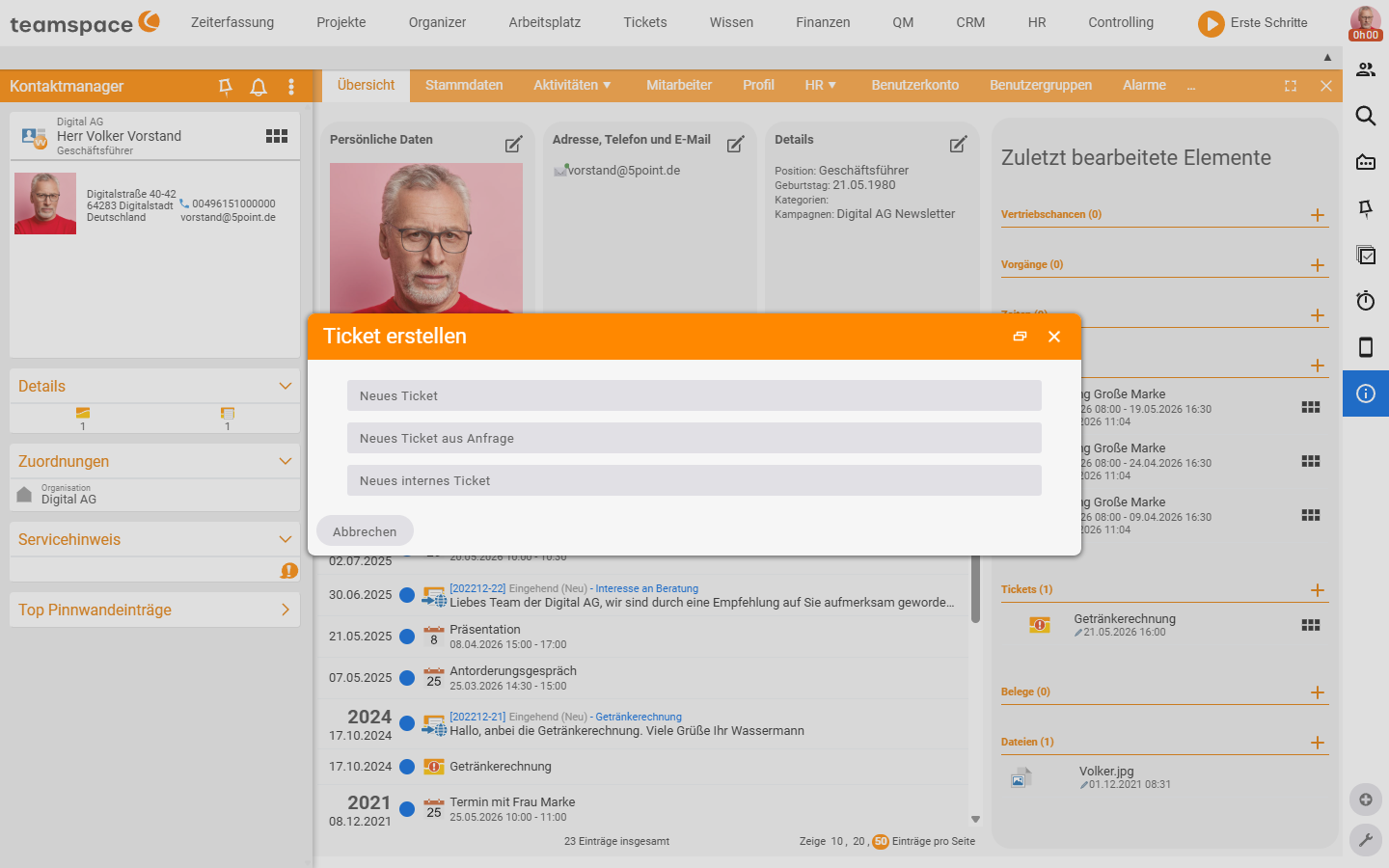
Anna Müller takes a call: Rudolf Riese wants a new quote. She goes to the contact in the CRM, clicks the plus, chooses
New ticket from enquiry. She writes two sentences in the content, assigns the ticket to theSaleschannel, enters Viktor Vertrieb as owner. Viktor receives the notification and writes the quote — the email goes straight to Rudolf.
Internal ticket
An internal ticket stays entirely within teamspace. No email goes to an external party, the history stays within the team. Typical cases: a bug report to development, a clarification between two departments, a task to be documented.
- Start creation via
Tickets → Plus → New internal ticket. - Choose a channel — usually a backend channel or internal area — and a status (default
New). - Write the subject and describe the activity (e.g. “Error in module XY”).
- Enter an owner directly or leave the field empty.
Internal tickets also have the full detail manager — master data, activities, times, watchers, files. Colleagues respond with further internal activities.
Tickets from external access
Customers can create tickets themselves without sending an email. There are two ways:
- Web service interface: you integrate ticket creation into your own website. The customer fills in a form, the ticket lands directly in the right channel.
- Customer-specific login: you give the customer their own login with restricted access. Through this access they see their own tickets, can reply and create new tickets. You can define forms they must fill in when creating one.
Both ways make creation more structured for the customer and take the load off your inbox. More on customer access on the feature page Self service portal.
The external access points are set up in the configuration under CRM → External access (verified live 2026-06-25). There you create an External access — in the demo tenant it is called Customer portal. The detail manager has the tabs Master data, User interface and Contacts:
- In the
Master datatab you activate theTicketssection and define whichticket channelsthe customer may use or only read, whichvisibility mode(e.g.Company/Entire organisation), whichaccess to ticket statusand whether adeputy modeapplies. Alongside this you can enableProjects,File sharesandInvoicesfor the access. - In the
Contactstab you assign the CRM contacts allowed to log in through the access.
Fields in the email dispatch dialog
The dialog for creating an email ticket — whether New ticket for your own dispatch or Ticket from enquiry — carries, alongside the classic email fields, the ticket specifics too:
- From: the sender, that is, the mail account the email goes out through.
- Channel: defines where the ticket lands and who sees it.
- To, CC, BCC: the recipients.
- Subject: the subject of the email. With the corresponding option enabled in the channel, teamspace prepends the ticket number.
- Content: the email text. Can be formatted, as the email goes out in HTML format.
- File: attachments via the
Browsefield or directly by drag & drop into the email text.
For classification you also assign a Priority and a Colour marker — you find both in the Master data tab under Properties (verified live 2026-06-23). The available colour markers are maintained by an admin under Tickets → Colour markers in the configuration.
What happens after creation
After a click on Save and close, teamspace creates the ticket, assigns a number (the ticket ID) and enters it in the subject of every outgoing email. Replies from outside are matched to the existing ticket by the ticket ID. You land directly in the detail manager.
If the ticket has an owner, that person receives a notification. Who else is informed — watchers, responsible person, channel subscribers — depends on the roles in the channel; this is explained in Visibility & access.
Common questions & needs
| You want to … | How to |
|---|---|
| Respond to a customer email | Runs automatically: an email ticket comes about on receipt, you reply in the history. |
| Document a ticket after a call | Create Ticket from enquiry via the plus or directly on the CRM contact. |
| Report a bug internally | New internal ticket in the backend channel, owner = developer. |
| Open an email to a customer yourself | Action New ticket in the list My tickets. |
| The action “New ticket” is missing | Check/set up a mail account of type Ticket (see Basic configuration). |
| Let customers create tickets themselves | Set up external access under CRM → External access (web service interface or customer-specific login / customer portal). |
| Flag the urgency | Set Priority and Colour marker in the Master data tab under Properties. |
Related topics
- Work with tickets Ticketing How-to
- Basics & operating concepts (with video) Ticketing Concept
- Use the Outlook add-in Ticketing How-to
- Self service portal