


To keep an overview when you have many tickets, there are three lists. The sidebar holds pre-filtered sub-views, and you can refine the filters further. Which list helps depends on whether you want to know what you are doing today — or what the team is currently working on.
My tickets
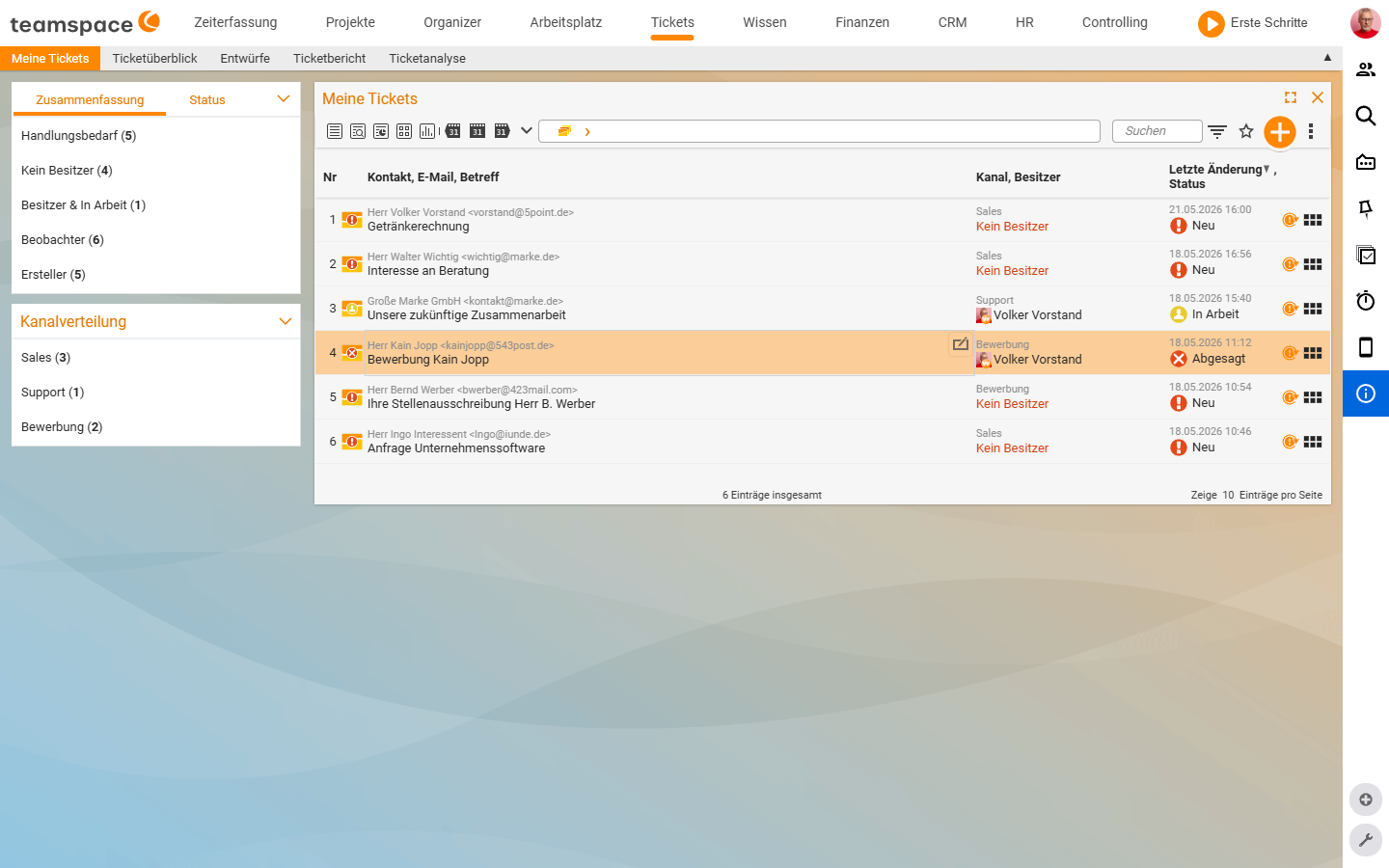
My tickets shows everything you are involved in yourself — tickets you created, where you are the owner or that you receive as a standard subscriber of your channel. New, as yet unread tickets also appear here.
The list has four columns: No., Contact, email, subject, Channel, owner, Last change / status.
The left sidebar carries three tabs with filters and counts:
Summary: pre-filters such asAction required (<n>),No owner (<n>),Owner & in progress (<n>),Watcher (<n>),Creator (<n>),Handled today (<n>).Status: filters by status value. The tab lists the statuses actually present in the list with their count — in the exampleNew (4),In progress (1),Declined (1). Which statuses appear therefore depends on the stock and on the channel’s workflow.Channels: one entry per channel with the number of tickets — for exampleRecruitment (2),Sales (3),Support (1).
The filters are cumulative — combine them for tighter sub-lists. The number in brackets after each filter is the hit count, so you can see what to expect before you even click.
Ticket overview
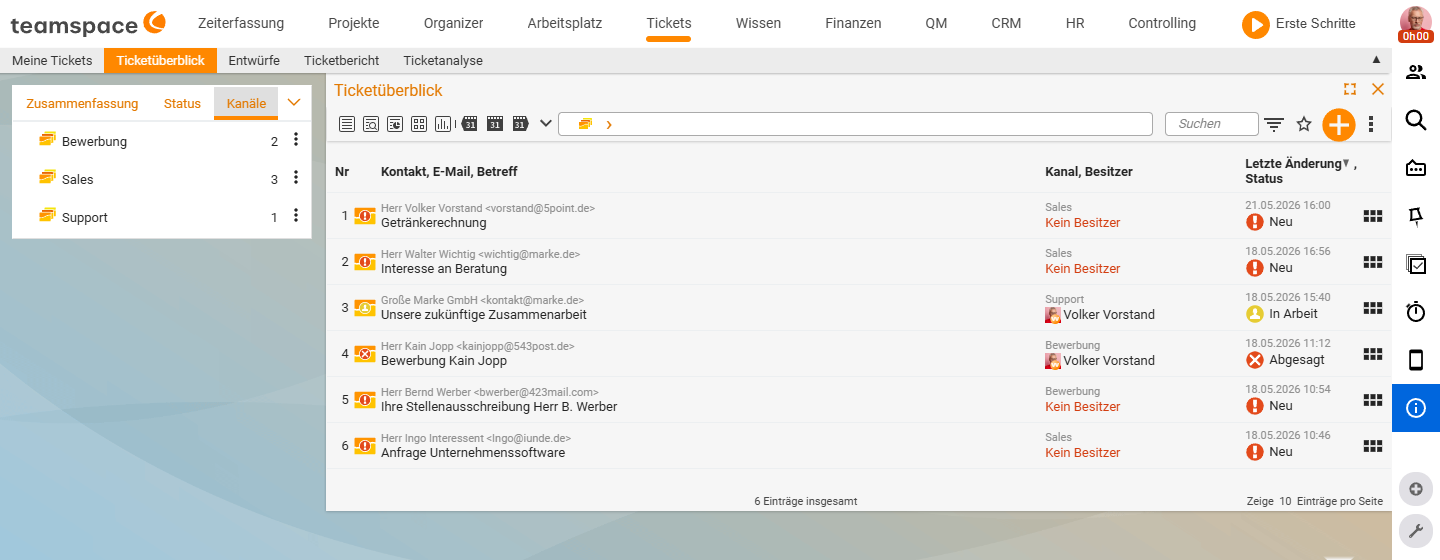
Ticket overview shows all tickets from all channels you have visibility into — including those a colleague is currently working on. When you want to know what is going on in the team rather than just your own work, this is the list.
The columns are identical to My tickets. The sidebar carries a Summary block with filters such as Open tickets (<n>), Handled today (<n>), Handled yesterday (<n>).
For each ticket a small preview shows the most important information — topic, customer, response time, and where applicable the linked project or an invoicing activity. A click on a row opens the ticket detail manager. You also have row actions via the three-dots menu at the right edge of each row — for example Close or Reply directly from the list, without opening the detail manager.
ℹ Info: Via the multiple selection (from the toolbar at the top) you can assign, close or delete several tickets at once. The action
Enable multiple selectionsits in the three-dots menu of the list toolbar.
Drafts
Drafts shows tickets you interrupted while writing and set aside via Save draft. From the list you open them again and carry on writing. If there are no drafts of your own, the list shows the note No drafts of your own.
What the search covers
In the header of each list tab sits a search field (placeholder Search). It searches across number, contact, subject and content — with full-text access to activities. Per list you can adjust the columns and save filters. The toolbar at the top right carries actions for search, column selection, filters, favourites and creation.
Saving your own view
A customised view — chosen columns, sorting and filters — you save via the star icon in the list toolbar (tooltip Bookmark / save default). It opens a dialog with the tabs Bookmark list, Save new and Share. Under Save new (verified live 2026-06-25):
Name: what the view should be called.Default: loads the view automatically when the list is opened.Favourite: stores the view as a quickly reachable favourite.Show in…: where the view appears (e.g.Tickets).
You then find saved views in the Bookmark list tab; via Share you pass them on to colleagues.
When you take which list
- What do I have to do today? →
My tickets, sidebar filterAction required. - What is currently open, beyond my own work? →
Ticket overview, sidebar filterOpen tickets. - What did I work through yesterday? →
My tickets, sidebar filterHandled today/Handled yesterday. - Which channel is overloaded? →
Ticket overview, tabChannelsin the sidebar.
Whoever finds a ticket clicks it and lands in the ticket detail manager — the tab structure there is covered in Basics & operating concepts.
Common questions & needs
| You want to … | How to |
|---|---|
| Know what is due today | My tickets → sidebar filter Action required. |
| Take on ownerless tickets | My tickets → filter No owner, then Take ownership. |
| See the team status | Ticket overview → filter Open tickets. |
| Spot an overloaded channel | Ticket overview → tab Channels in the sidebar. |
| Assign/close several tickets at once | Enable multiple selection in the three-dots menu of the toolbar. |
| Reply quickly from the list | Row action Reply in the three-dots menu of the row. |
| Find a particular ticket | Search field Search (number, contact, subject, full text). |
| Save your own filter/column view | Star icon of the toolbar (Bookmark / save default) → tab Save new. |
| Continue an interrupted email | Open the Drafts list and click the ticket. |
Related topics
- Basics & operating concepts (with video) Ticketing Concept
- Work with tickets Ticketing How-to
- Visibility & access (with video) Ticketing Concept
- Ticketing software