



With the ticket reminder you set yourself a reminder on a ticket — say after ten days, because you are waiting on a customer’s reply and want to chase it up. Until then the ticket disappears from your active view; on the set date you receive a notification that brings it back up.
When the ticket reminder helps
With a full inbox, a single ticket easily gets lost. You have sent off an email and are waiting for a reply — but as long as the ticket sits in status New or In progress, it keeps appearing in your open lists and obscures your view of what really matters today. With the ticket reminder you deliberately set the ticket aside and come back to it at the right time.
Setting the ticket reminder on the ticket
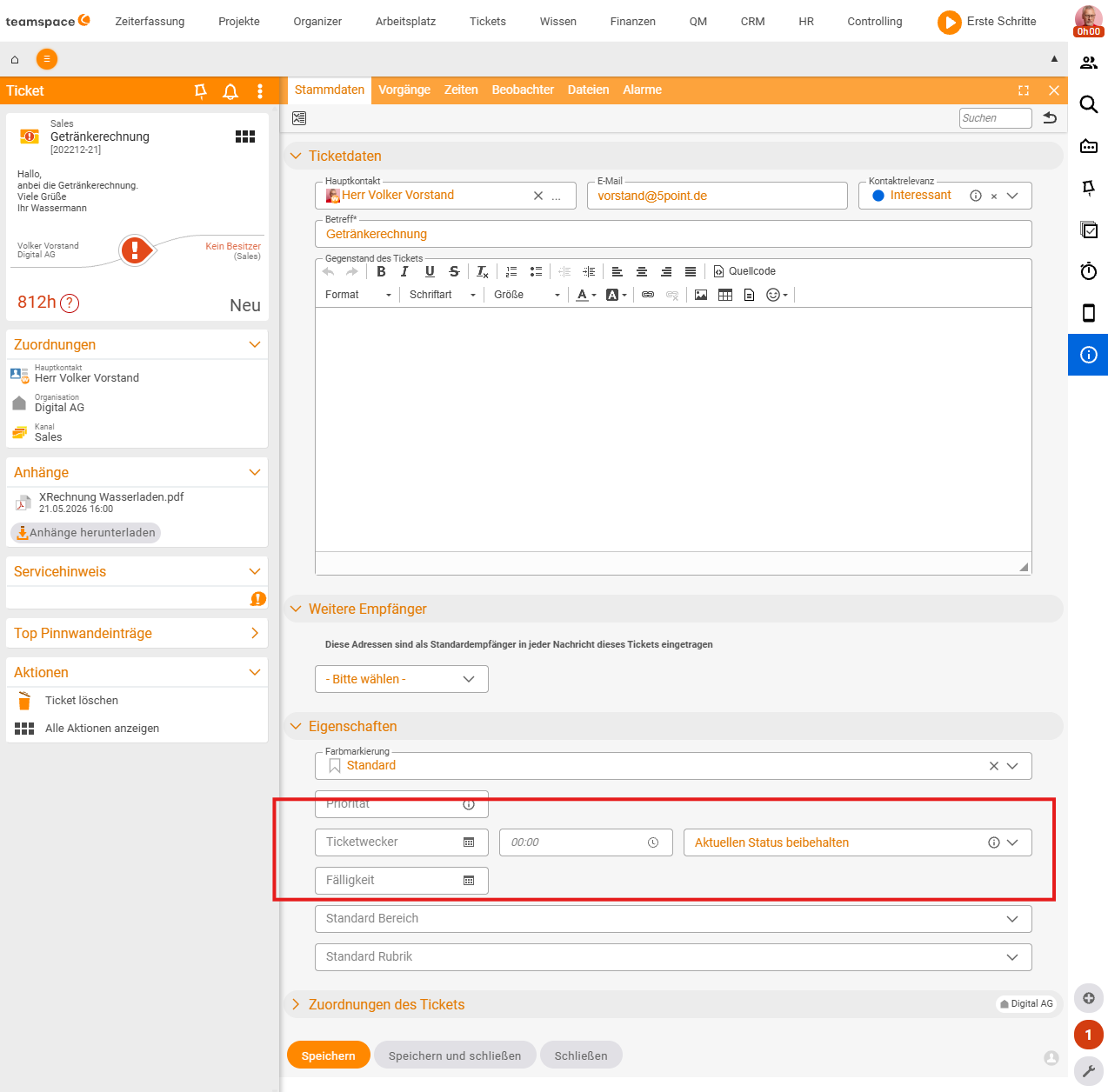
- Open the ticket in the detail manager and go to the
Master datatab. - In the
Ticket reminderfield you choose a date and, optionally, a time. - Decide what should happen on the due date (see below).
Saveactivates the reminder. The active reminder is shown at the bottom of the detail manager.
When setting it you have two options:
- Status stays unchanged (
Keep current status): you only want to bring the ticket back to mind on the date — the status stays where it was. - Status changes: you choose the target status for the due date directly — for example, so that a ticket previously marked
Answeredautomatically jumps toIn progresson the due date.
How the reminder is delivered
On the due date the reminder creates an activity on the ticket in the background — and you receive a notification, just as with any other activity change on one of your tickets. You click the notification, land in the ticket and remember what you had planned.
You can switch the reminder off again at any time — either via the cleared date field or via the action on the reminder block itself. While it is active, you can change the date and status option.
When the Ticket reminder field is not there
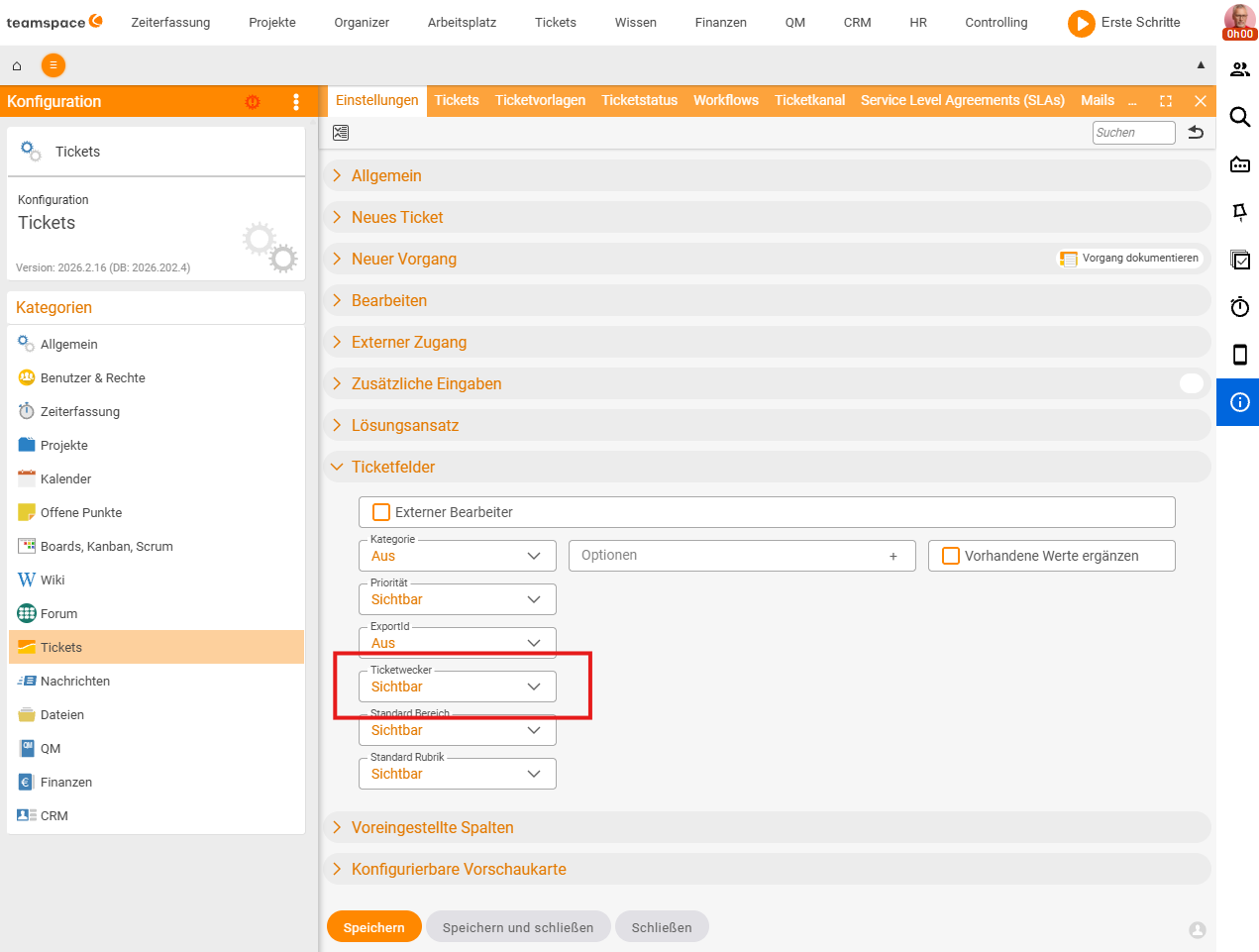
By default the field is visible in the Master data tab. If it is missing for you, it must be activated as a ticket field in the configuration:
- In the configuration, go to
Tickets → Settingsand expand theTicket fieldssection. - Find the
Ticket reminderfield. - Set it to
Visibleand save — after that it appears in theMaster datatab.
ℹ Info: Anyone wanting to put several tickets into a waiting state at once should check, in the workflow design, whether a dedicated status
Waiting for replywith external responsibility makes more sense. The ticket reminder is the reminder for one ticket; a dedicated status is the catch-all for all of them (see Ticket statuses & workflows).
Related topics
- Work with tickets Ticketing How-to
- Ticket lists & views Ticketing How-to
- Ticket statuses & workflows Ticketing Configuration
- Ticketing software