


With teamspace you lose no billable minute: you log service times directly on the ticket, release them for billing and create an invoice from them at the push of a button. Because time tracking, ticket and invoicing sit in the same system, the time entry, activity description and ticket identifier land automatically in the associated order.
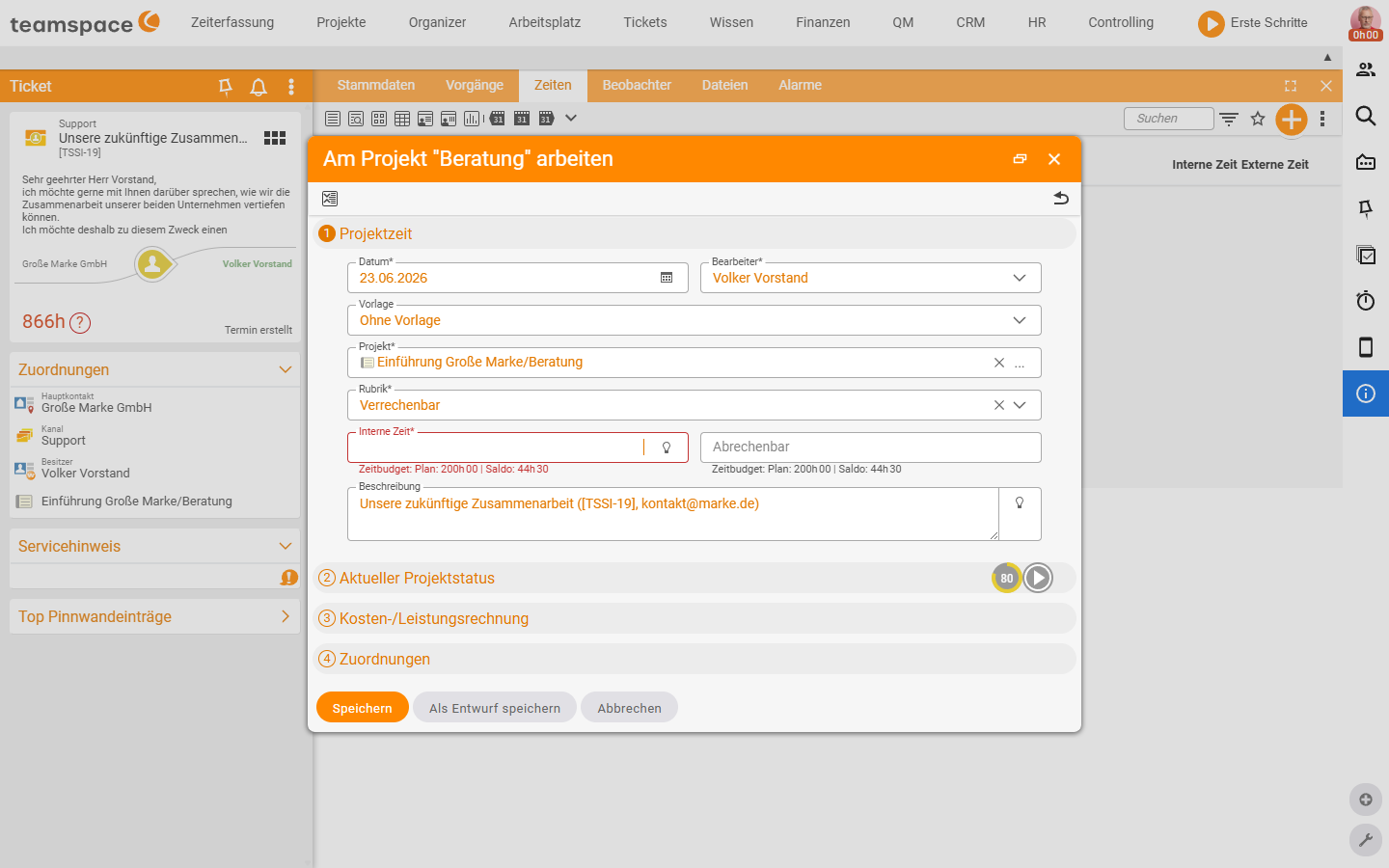
Logging time to the ticket
Times in teamspace are generally logged to a project. If the ticket is linked to a project, you log the working time directly from the ticket — the time lands on the project and is at the same time visible on the ticket.
- Open the ticket and go to the
Timestab. - Via the action box you log a new time — by entry or by stopwatch.
- The time is logged to the linked project and assigned to the ticket.
You can also have the time recorded automatically — when replying to the ticket or changing its status. An admin activates this function in the configuration under Tickets → Settings.
ℹ Tip: Store a default project per customer (in the CRM) onto which all that customer’s tickets run automatically, unless something else is specified. That way, regardless of the individual ticket, you quickly find out how much time in total was billed or logged as goodwill. More on that in the topic CRM.
From time to invoice
Billable times are collected in the order. For the invoice, teamspace automatically draws the correct values:
- Hourly rates: even complex rules by employee and customer are taken into account.
- Surcharges: for night, weekend or public-holiday work, included automatically.
- Contact data & document layout: taken from the CRM or your template.
You create the document directly from the ticket: via the action box you choose the document type (e.g. quote or order), the contact from the ticket is carried over automatically. After that you only need to create and send the invoice at the push of a button.
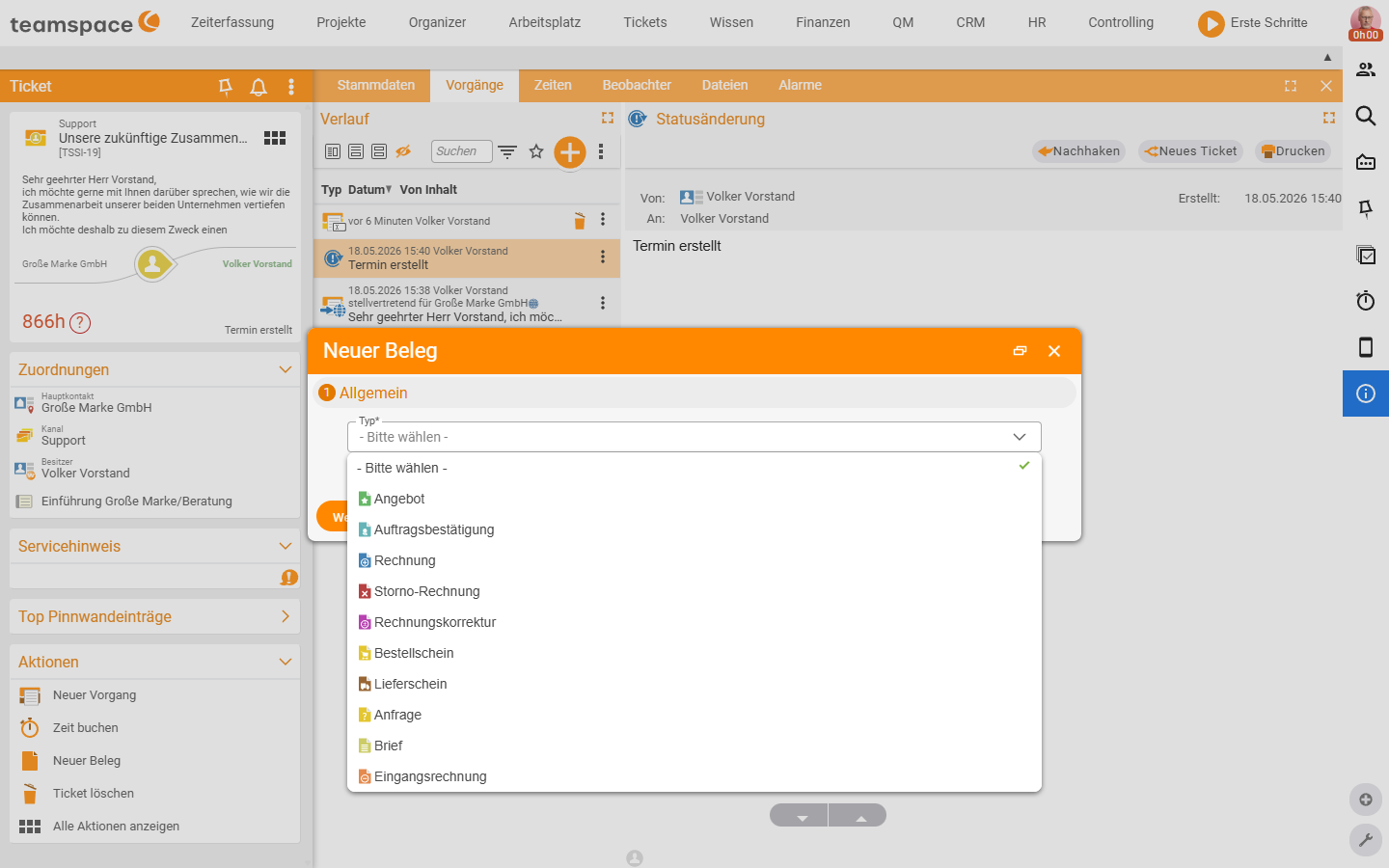
Flexible billing options
For ticket billing many options are open to you, controlled by an admin or the invoicing configuration:
- Service intervals: services are billed in a fixed cadence (e.g. half-hourly, hourly) instead of to the minute.
- Internal and external times: distinguish between billable and non-billable times — so you can bill minimum flat rates or exclude goodwill time.
- Time budgets: bill recurring flat amounts with a fixed time budget; the system automatically recognises when the budget is used up and how further hours are charged.
- Individual or collective billing: bill tickets individually or collectively (e.g. at month-end), with individual rules per case.
The detailed setup of these rules sits in the topics Invoicing and Product management (maintenance and quota items).
Billing larger matters as a ticket project
When a support case grows into an extensive matter, you turn the ticket into a ticket project — then all the possibilities of project management are available to you, and you bill the times as a whole. How to create the ticket project is covered in Work with tickets.
Common questions & needs
| You want to … | How to |
|---|---|
| Record time for a ticket | Times tab → action box, by entry or stopwatch. |
| Log time automatically when replying | Activate the option in the configuration Tickets → Settings (admin). |
| Create an invoice from the ticket | Create a document (quote/order) via the action box — the contact is carried over. |
| Bill in a fixed cadence instead of to the minute | Set service intervals in the invoicing configuration. |
| Exclude goodwill time from the invoice | Mark times as internal (non-billable). |
| Bill flat amounts with a time budget | Use time budgets via maintenance/quota items. |
| Bill several tickets collectively | Collective billing (e.g. month-end) in the order. |
| Bill a large case as a whole | Turn the ticket into a ticket project. |
Related topics
- Work with tickets Ticketing How-to
- Topic: Invoicing Invoicing
- Topic: Time tracking Time tracking
- Ticket billing