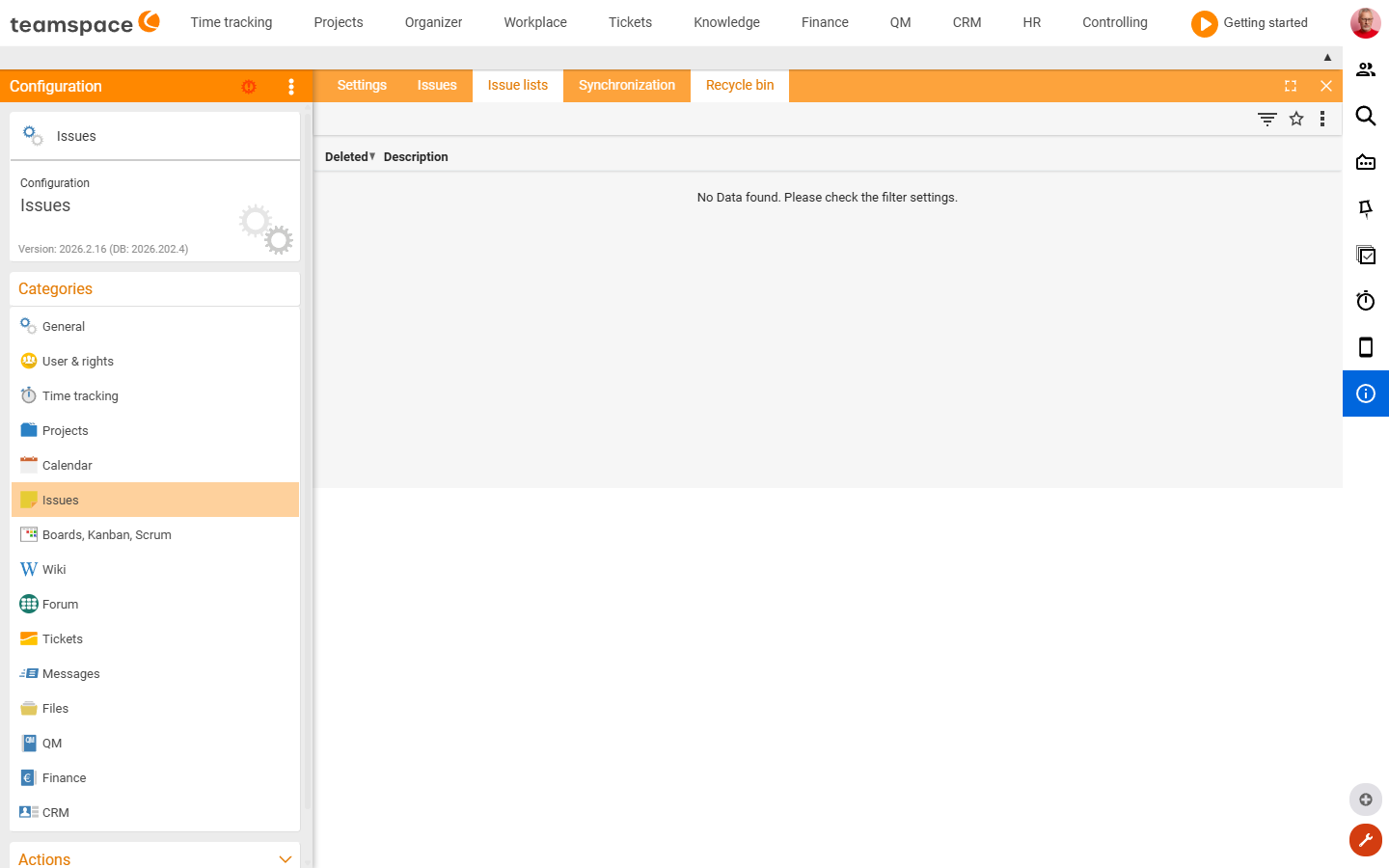
This reference lists all settings of the “Open items” admin area – every field with its possible values, plus all tiles with their columns, dialogs and actions. It is meant for looking things up: “Can I set X, and where?”. Across all areas, the Configuration search is the fastest way to search. How to work with open items themselves is covered in the Open items topic.
How to reach this area: Home page → System configuration button (administrator mode) → in the sidebar Categories, the entry Open items. The area has five tiles:
| Tile | Type | Content |
|---|---|---|
| Settings | Form | Visibility of the comment and category field on the open item |
| Open items | List | tenant-wide list of all open items |
| Open-items lists | List + dialog | create and manage distribution lists |
| Synchronisation | List + dialog | sync profiles (teamSync/CalDAV/iCalendar) |
| Recycle bin | List | restore deleted open items |
ℹ The available fields and tiles may differ by edition and activated modules. Your own tenant is always authoritative.
The “Settings” tile
Controls whether a comment and a category field appear on the individual open item. Both visibility fields offer the same four levels.
| Field | Type | Values | Meaning |
|---|---|---|---|
| Comment | Selection | Off · Visible in admin mode · Visible · Visible and mandatory | Shows the comment field on the open item. Off = no field; Visible in admin mode = only for administrators; Visible = for everyone; Visible and mandatory = required entry. Default: Off. |
| Categories | Selection | Off · Visible in admin mode · Visible · Visible and mandatory | As above, for the category field on the open item. Default: Off. |
| Options | List (text values) | free | The selectable category values (only relevant when “Categories” is active). Multiple values as a list. |
| Add existing values | Switch | off/on | Companion switch to the “Options” field. When set to on, teamspace automatically adds the category values already assigned on existing open items to the selection list – so values in use remain selectable even if they are not in the predefined options list (the same switch also controls this for tickets and messages). Default: off. |

The “Open items” tile
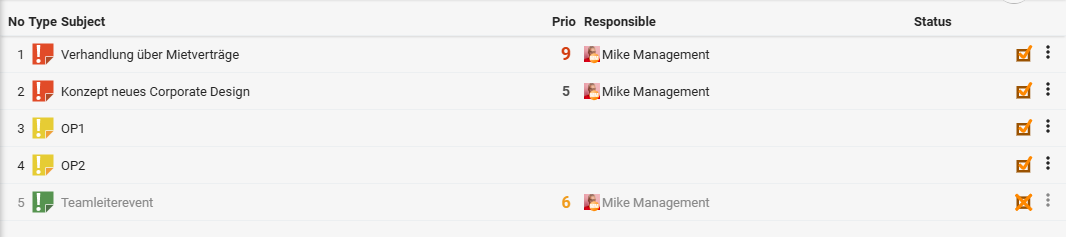
A tenant-wide list of all open items – not just your own. Here the administration gets the overall view and intervenes in bulk.
Columns: No · Type · Subject · Prio · Assignee · Status
Filters (left sidebar): by creator or assignee, and by period (due date – e.g. This week, This month, This year).
Actions:
| Action | Effect |
|---|---|
| Enable multiple selection | Select several items at once and edit them in bulk. |
| Edit cells | Change values directly in the list (inline). |
| Print · Export · Import | Print or export the list, or import items. |
| Mark as done / not done | Toggle the status of an item (per row). |
| Master data … | Bulk change: Assign assignee, Assign list, Assign project, Apply, Project relevance, Pin to pin board, Remember elements. |
| Delete | Move the item to the recycle bin. |
The “Open-items lists” tile
Manages the distribution lists that open items are bundled onto (e.g. “Management”, “Jour fixe”).
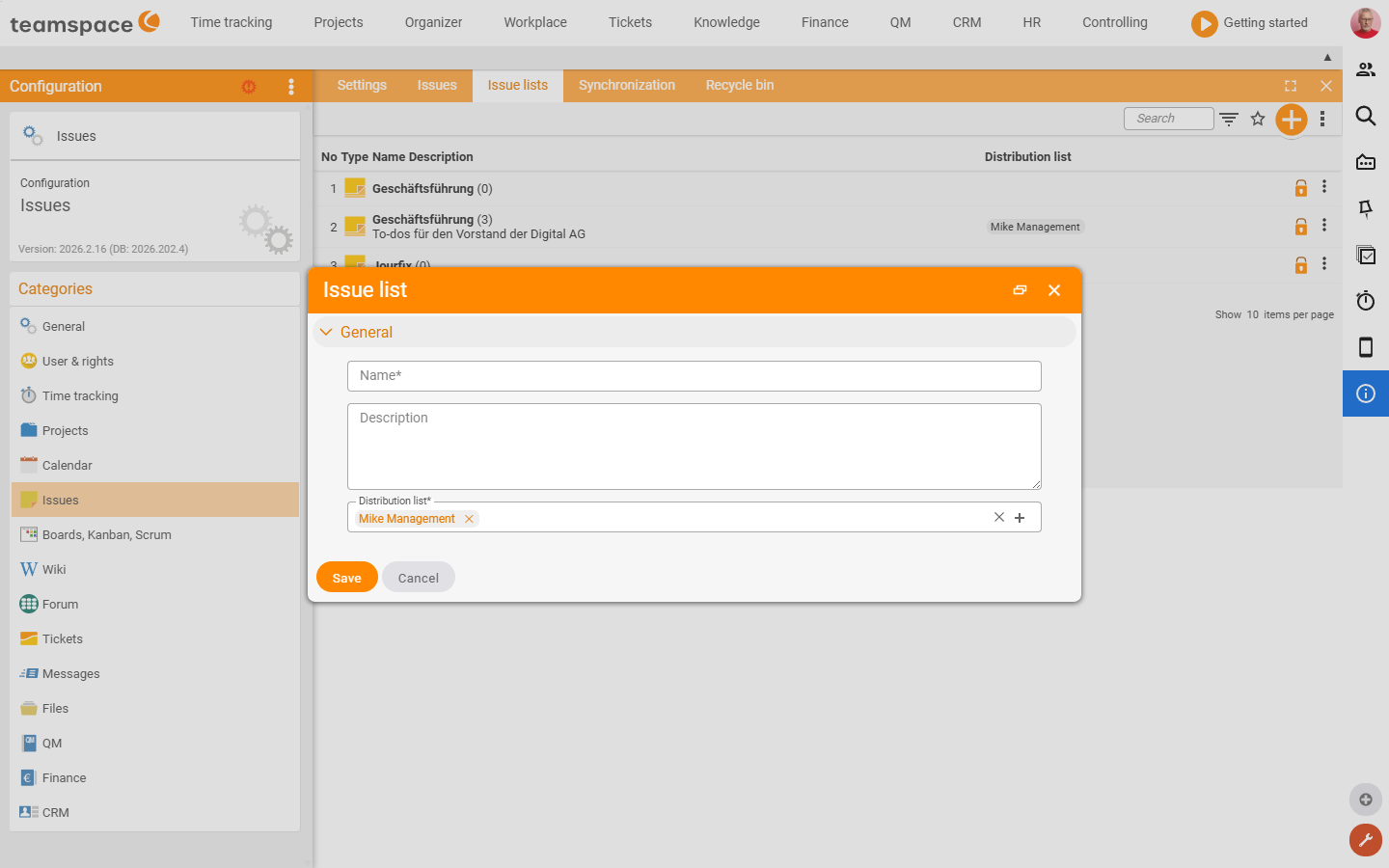
Columns: No · Type · Name / Description · Distribution list
Via New list (plus sign), the “Open-items list” dialog opens:
| Field | Type | Mandatory | Meaning |
|---|---|---|---|
| Name | Text field | ✅ | Label of the list. |
| Description | Text area | – | Free text on the list. |
| Distribution list | Selection | ✅ | Who sees/receives the list: a user group, a person or a skill of the tenant. |
Per list entry there are additionally the actions Archive and New open item.
The “Synchronisation” tile
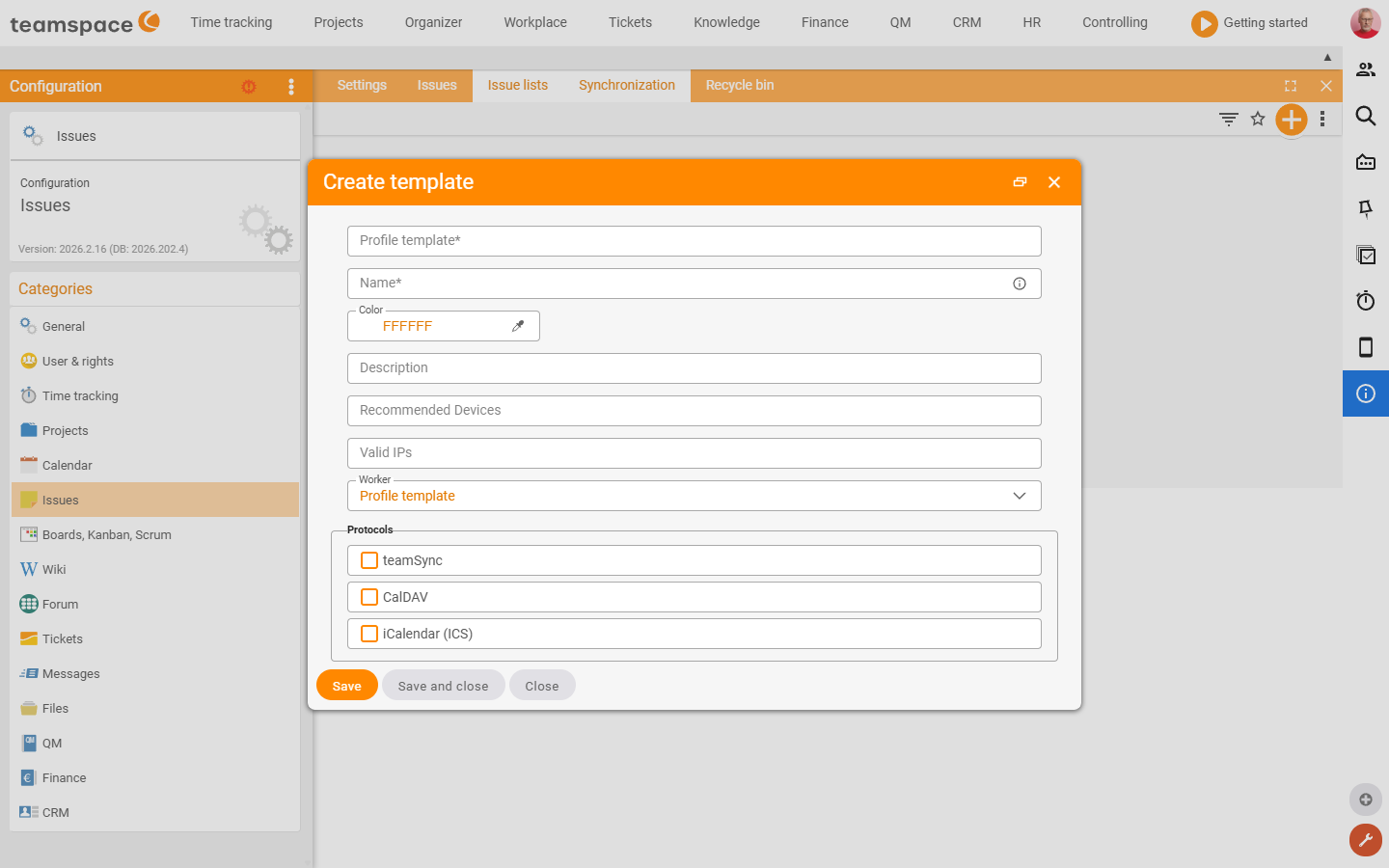
Manages sync profiles with which open items (appointments/tasks) are synchronised with external devices via teamSync, CalDAV or iCalendar. The list is empty at first; you create a profile via the plus sign:
| Field | Type | Meaning |
|---|---|---|
| Profile template | Text field | Name of the underlying template. |
| Name | Text field | Label of the profile. |
| Colour | Colour picker | Colour coding. |
| Description | Text field | Free text on the profile. |
| Recommended devices | Text field | A note on which devices the profile is intended for. |
| Valid IPs | Text field | Restriction to specific IP addresses. |
| Employee | Selection | Scope: Public profile, Profile template or a person. |
| teamSync | Switch | Enable synchronisation via teamSync. |
| CalDAV | Switch | Enable synchronisation via CalDAV. |
| iCalendar (ICS) | Switch | Enable synchronisation via iCalendar/ICS. |
The “Recycle bin” tile
Shows deleted open items and lists and makes them restorable.
Columns: Deleted · Description
Actions: Restore (bring the entry back) and Delete (remove permanently).