


In teamspace, QM is a configuration task: you set up the building blocks so that users can manage, review and approve documents without having to think about the mechanics. This article walks you through the four levers – templates, review/approval processes, permissions and version/archive rules.
ℹ Note (Review). QM uses the configuration of the Files module and the wiki; a dedicated “QM” configuration area does not necessarily exist. The exact UI paths of individual review-process settings have not yet been fully reviewed against the live interface in this version (
last_verified: null).
1. Provide QM templates
So that users can create documents via Actions → New document from QM templates (Idea, Proposal, Approval, Work instruction … – see QM document templates at a glance), you create a template in the configuration for each document type. A file under System/Templates is not needed for this. Each template needs two things:
- Valid layout: Every template must be linked to a valid layout – only then does it become usable.
- Workflow: In the template you set the workflow, that is, which follow-up document may be created from a document (e.g. a Proposal from an Idea, and an Approval from that).
Configuration → Templates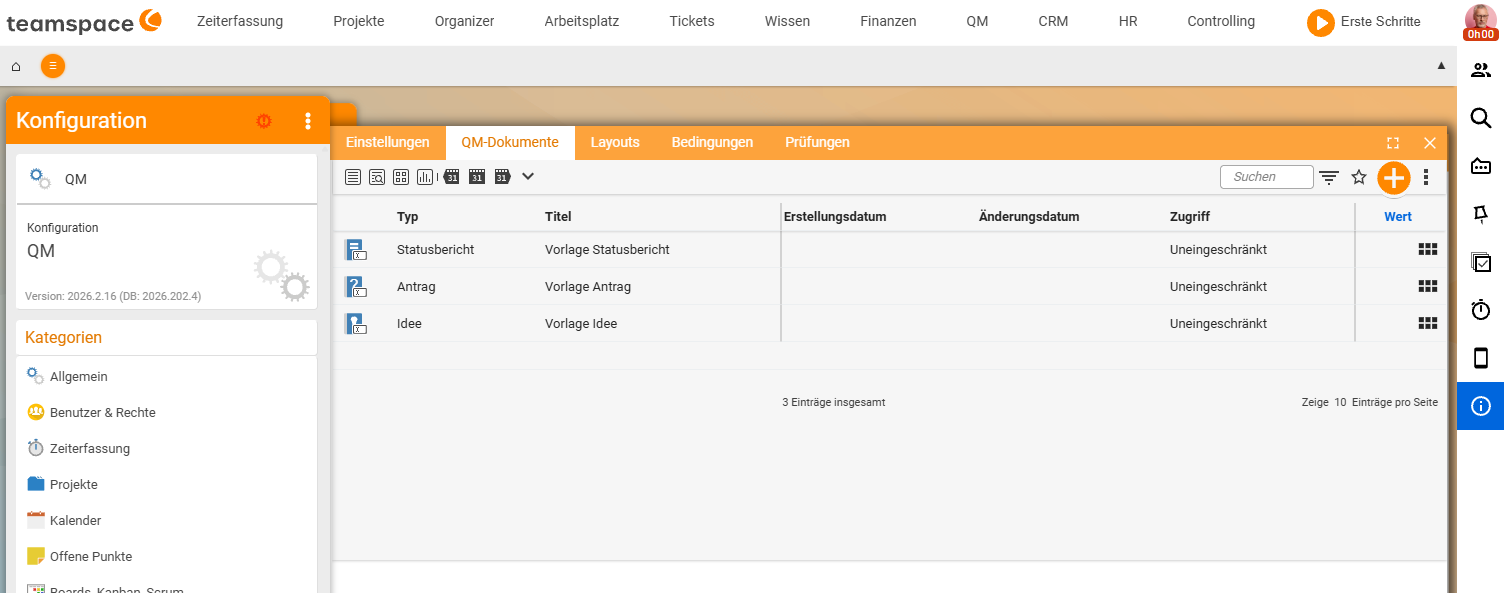
ℹ Info. If no template appears under
New document, it has not been created in the configuration or is not linked to a valid layout.
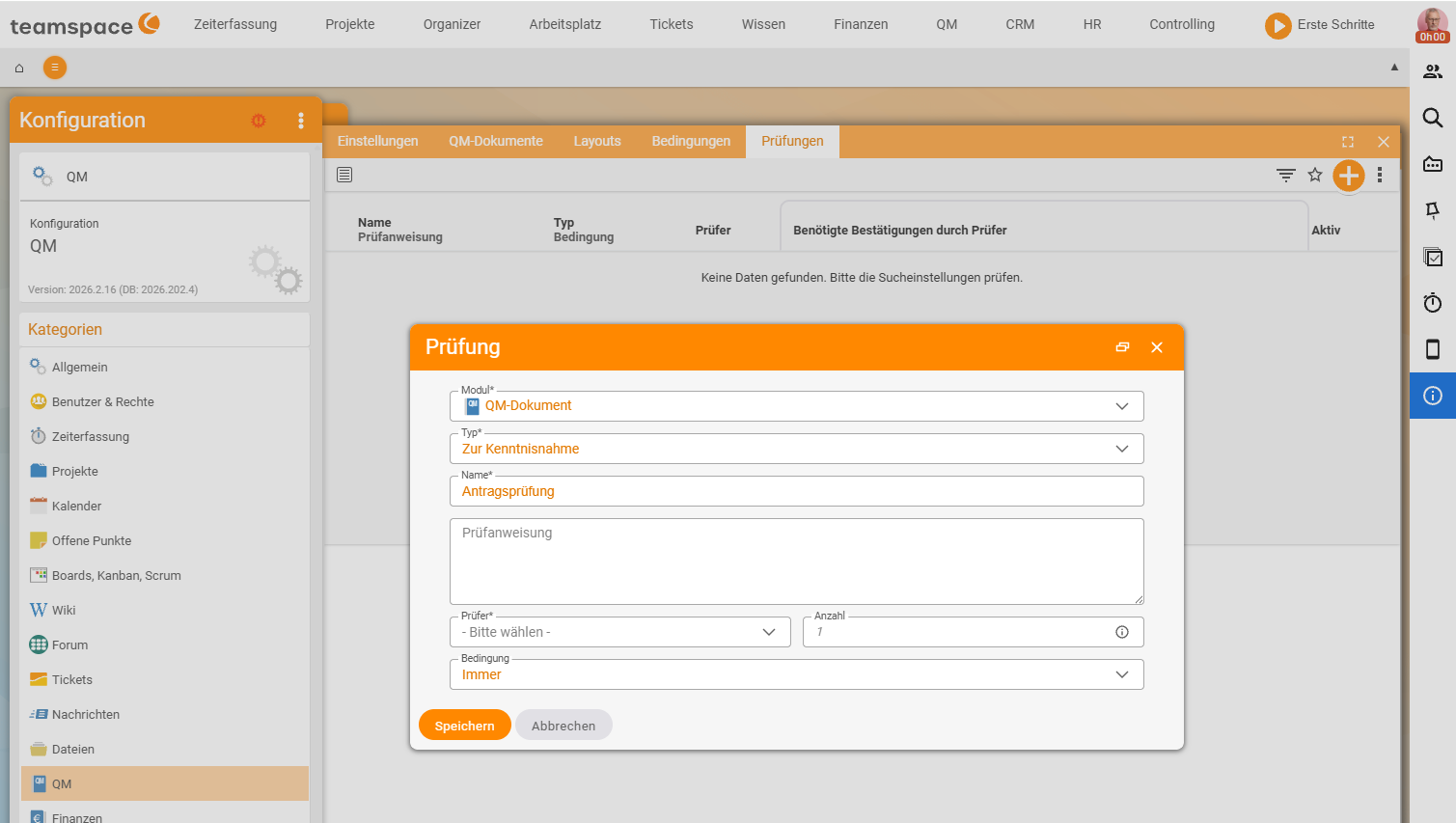
2. Define the review and approval process
Define how a document is reviewed and approved:
- Review types: Approval (technical sign-off) and Acknowledgement (read confirmation) – both are available per version via the columns
ReviewandFor acknowledgement. - Reviewers/those responsible: Who may approve, who must acknowledge – controllable via the permissions (Step 3).
- Notifications: Reviewers are informed automatically on handover, and the applicant after approval.
3. Permissions: who may do what
Using the permission system you separate reading, editing, reviewing and approving. This is how you technically enforce the four-eyes principle (authors may not approve their own documents). Create a dedicated QM directory with clear access modes:
- How the access modes work: Control access to files.
- Cross-cutting permission logic: Permissions topic.
4. Version and storage rules
- Version limit: Set the default value for
Maximum numbercentrally; for QM documents rather high, so that older versions are retained when revising (Configuration → Files → Setting). - Resubmission: Users set reminders per document in the
Alarmstab when a document is to be updated periodically. - Structure for finding documents: Create a clear QM directory with meaningful folders – this is the basis for users finding documents quickly (see Structure and find documents).
ℹ Optional: audit-proof archiving (GoBD). Anyone who must retain tax-relevant or completed documents in an unalterable form can use GoBD mode. This is a special case, not the normal operation of QM. GoBD mode and certifications come from the product description; activation in configuration mode has not yet been reviewed against the live interface.
Common problems
Why does no template appear under New document?
Then it has not been created in the configuration, or it is not linked to a valid layout – only a valid layout makes a template usable.
Why are older versions lost when revising?
The version limit is probably too low. Set the default value for Maximum number centrally to a higher value (Configuration → Files → Setting), so that older versions are retained.
Do I need GoBD mode for QM? No, that is a special case – only needed if you must retain tax-relevant or completed documents in an unalterable form. It is not required for the normal operation of QM (review activation against the live configuration beforehand).
Common questions & needs
| You want to … | How to |
|---|---|
| Offer QM templates to users | Create templates in the configuration, link them to a valid layout and define the workflow. |
| Enable the four-eyes principle | Separate review/approval rights from editing rights (Permissions). |
| Keep older versions when revising | Set the Maximum number of versions high. |
| Remind people of due updates | Users set reminders in the Alarms tab. |
| Archive completed documents in an unalterable form (special case) | Use GoBD mode (review activation against the live configuration beforehand). |
Related topics
- Set up files (configuration) File management Configuration
- File classes and required files File management Concept
- Control access to files File management How-to
- Topic: Permissions Permissions