


teamspace shows every project through one detail manager. You no longer switch between separate tools but, for each data point, only decide how to view it: as a structure list (the whole tree with accumulated values), as a detail list (a freely designed list of one level, optionally including its sublevels) or as a detail dialog (the settings of exactly one level). This article first explains the three view types and then lists, for reference, which data areas the menu offers.
The three view types
No matter where you are in the project – dates, open items, budget, documents: the same data can usually be shown in three ways.
Structure list
The structure list shows the project as a work breakdown structure across the full width – the complete tree with all sub- and lower-level elements.
- Each row stands for exactly one level; what is shown is usually accumulated counts and values, occasionally also chips of the elements.
- You set the columns freely, depending on what you want to see.
- Structure lists are only predefined column views: every structure list can be transformed into any other. Which ones are active and pre-set is defined in the configuration.
Examples: the dates of all elements in one column; the open items as an accumulated count per level.
Detail list
The detail list shows the data of one level as a freely designed list – for example the open items of a work package as a tile view.
- You decide whether only the exact level is included or the levels below it from the structure as well.
- You have full design freedom: which columns and fields, sorting, presentation.
- At the front there is only a “stub structure” – a compact structure excerpt that lets you navigate quickly between the elements without opening the full structure list.
Detail dialog
The detail dialog is mostly used for settings and parameters.
- It always shows the value of exactly this level (no sublevels).
- Here too, a stub structure at the front allows quick navigation between the elements.
In short: The structure list gives the accumulated overview of the whole tree; the detail list and detail dialog focus on one level – the detail list optionally including its sublevels, the detail dialog always only the level itself. Which views are available depends on the configuration – not all are always switched on.
The detail manager’s menu
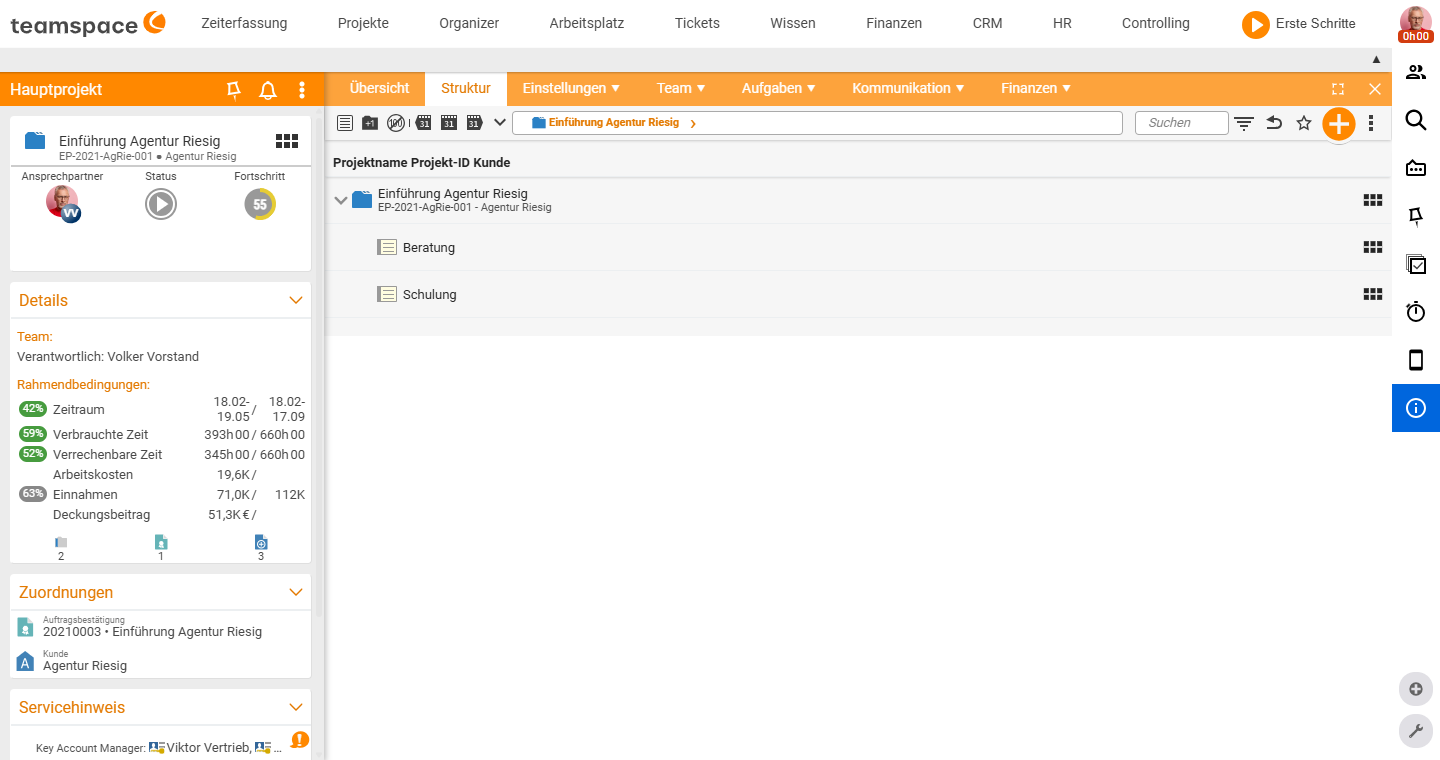
The menu bar sits above the content. The first two entries are special entry points:
- Overview – the quick way in, above all for work packages: “What do I have to do?” Here you see at a glance the status, attached documents, staff with booked time and much more.
- Structure – the sensible base view for seeing an element in context: in which project does the subproject sit, what children does it have, how do the times add up? (a structure list)
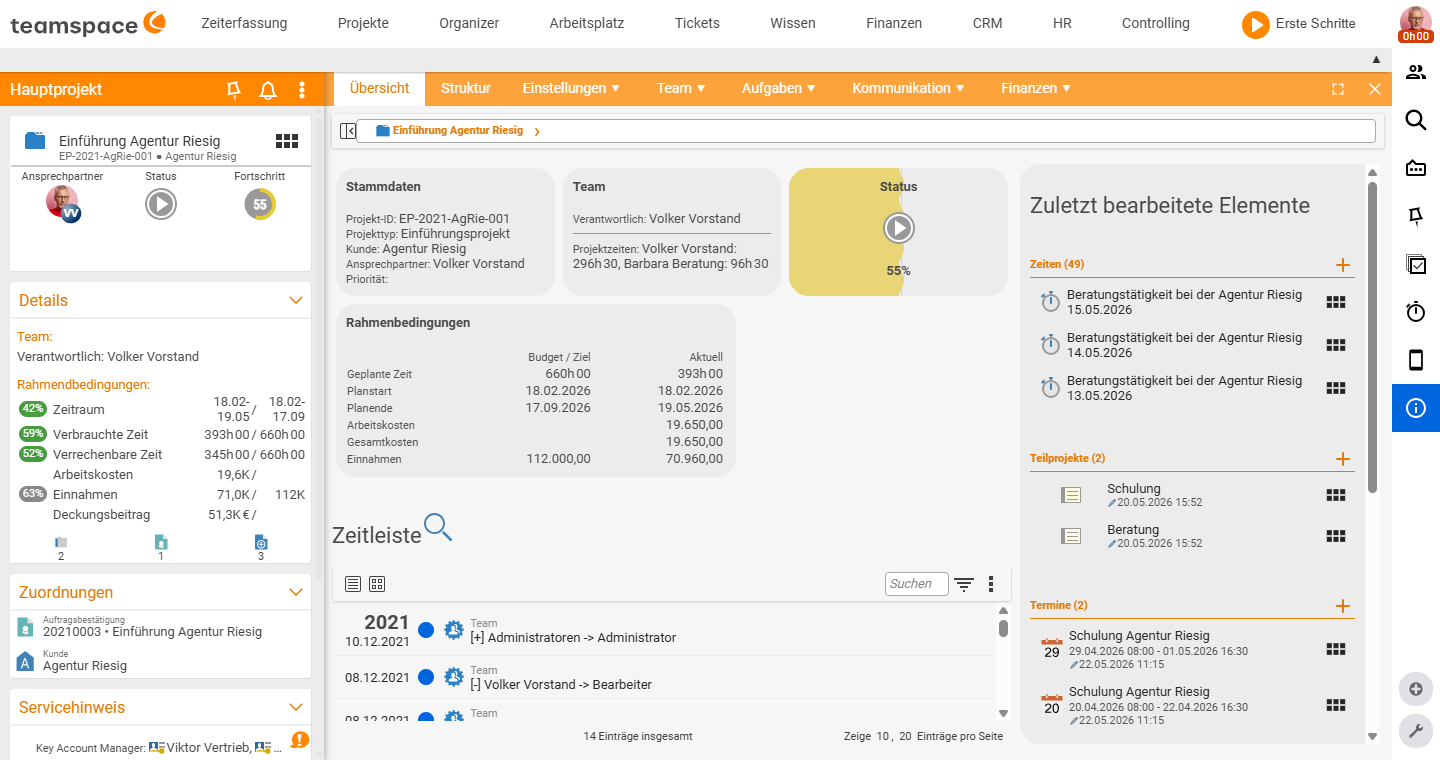
After that come five topic groups that bundle the remaining data areas – split by the main concerns so you can find your way quickly:
Settings · Team · Tasks · Communication · Finance
Each group contains sub-items that – depending on the data area – appear as a structure list, detail list or detail dialog. Each topic item remembers its most recently viewed sub-item and shows it directly on the next click, so you can jump back and forth quickly. Which sub-items and views are active depends on the configuration; not all are always switched on.
Live-checked (25 June 2026): The menu entries Overview · Structure · Settings · Team · Tasks · Communication · Finance and their sub-items are present in the current interface as described and assigned to the correct groups in the reference below.
Which views are available
What can be selected at all in the detail manager is steered by two places: the configuration (which structure lists exist) and the permissions (which detail-manager views a person may see).
Define structure lists (configuration)
The structure lists are predefined column views. Which ones exist and which default columns they start with is defined under Configuration → Projects → Preset columns → Project structure. Every structure list can later be transformed into any other, and the columns are freely changeable.
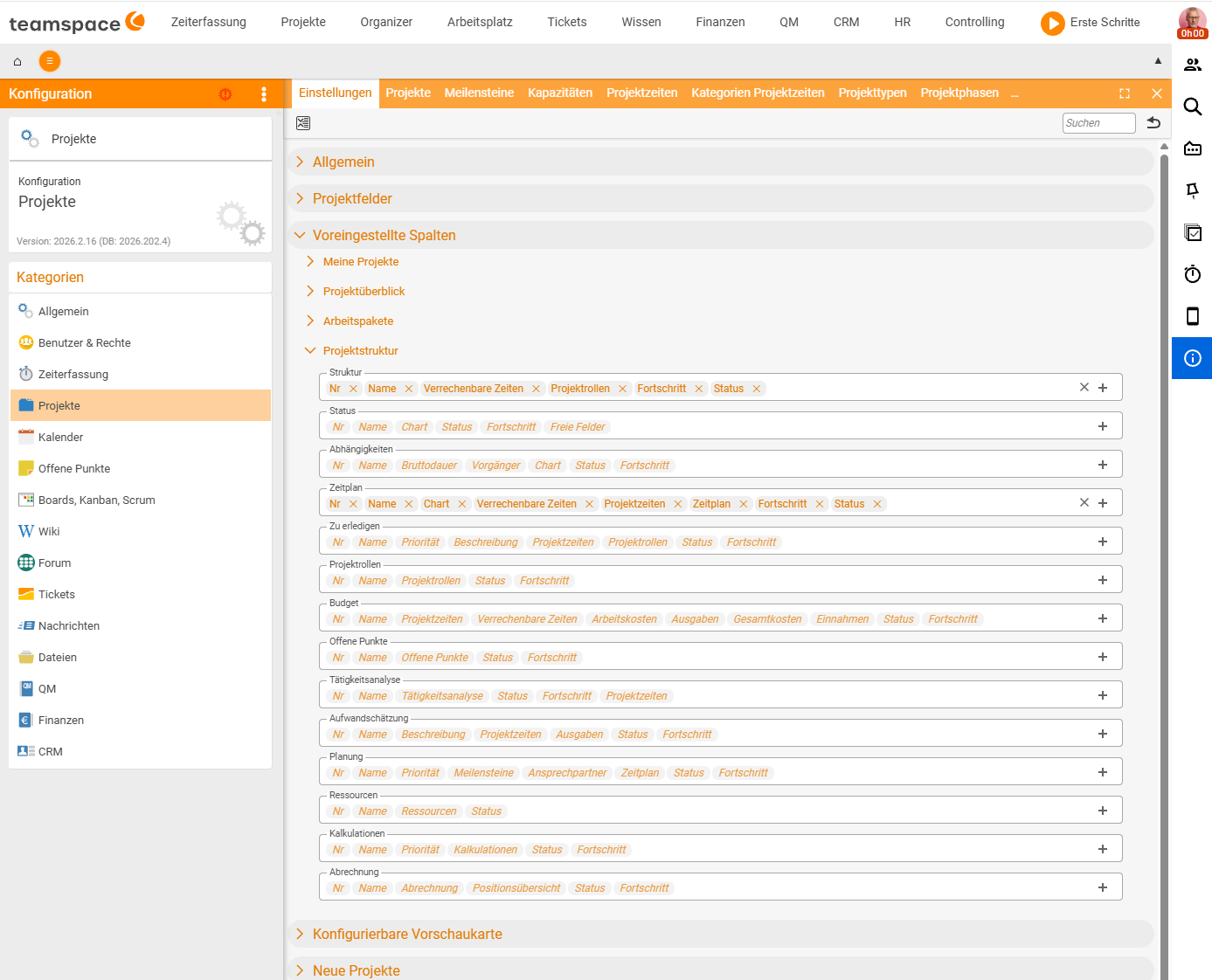
The supplied structure lists and their default columns:
| Structure list | Default columns |
|---|---|
| Structure | No., Name, Billable time, Project roles, Progress, Status |
| Status | No., Name, Chart, Status, Progress, Free fields |
| Dependencies | No., Name, Gross duration, Predecessor, Chart, Status, Progress |
| Schedule | No., Name, Chart, Billable time, Project time, Schedule, Progress, Status |
| To do | No., Name, Priority, Description, Project time, Project roles, Status, Progress |
| Project roles | No., Name, Project roles, Status, Progress |
| Budget | No., Name, Project time, Billable time, Labour costs, Expenditure, Total costs, Income, Status, Progress |
| Open items | No., Name, Open items, Status, Progress |
| Activity analysis | No., Name, Activity analysis, Status, Progress, Project time |
| Effort estimation | No., Name, Description, Project time, Expenditure, Status, Progress |
| Planning | No., Name, Priority, Milestones, Contact, Schedule, Status, Progress |
| Resources | No., Name, Resources, Status |
| Costings | No., Name, Priority, Costings, Status, Progress |
| Billing | No., Name, Billing, Item overview, Status, Progress |
Enable views (permissions)
Which detail-manager views a person sees is controlled via the permission groups – with the permissions from the project roles and the user groups both having to be met. This lets you hide finance views from pure assignees, for example.
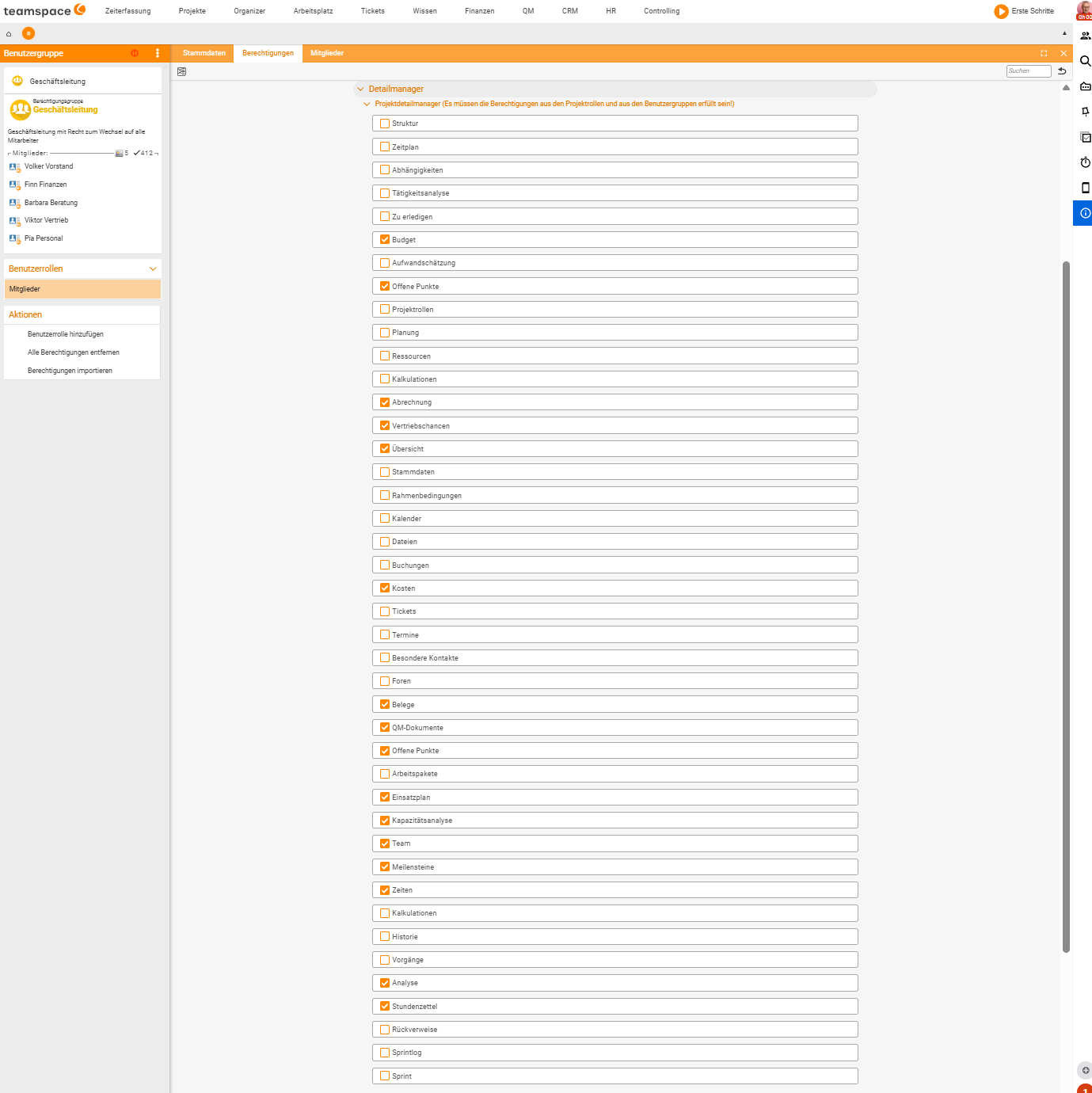
Available are, among others: Overview, Structure, Master data, Parameters, Schedule, Dependencies, To do, Activity analysis, Effort estimation, Planning, Project roles, Team, Resources, Deployment plan, Capacity analysis, Milestones, Items, Open items, Tickets, Appointments, Calendar, Forums, Special contacts, Files, QM documents, Documents, Budget, Costs, Bookings, Billing, Sales opportunities, Costings, Analysis, Time, Timesheet, History, Back-references, Work packages, Sprint and Sprint log. The most important ones are described below.
Reference: the data areas
Each data area appears – depending on the configuration – as a structure list, detail list or detail dialog. The following overview is organised by the menu’s five topic groups (live-checked 25 June 2026); the final block summarises further views that can be enabled only via permissions.
Settings
- Master data – with three sections:
- “Project”: display and edit name, customer/contractor, project type.
- “Configuration”: the project’s settings – e.g. pre-set the categories when booking time or define the storage location for the assigned files (for subprojects the directory of the “parent project” can be inherited).
- “Billing”: define which order items the booked time is billed against (requires a linked order).
- Parameters – budgets and time targets as well as dependencies. Three options per property: None, Auto (accumulated) or Manual. Planning errors are marked with colour. (a typical detail dialog)
- Schedule – the chronological structuring (“What is to be done when?”): time period and time budget per element, plus the sum of the booked time (Gantt).
- Alarms – set up thresholds and notifications for the project.
Team
- Project roles – who has taken on which task (main roles only); the best view for assigning staff. You show the secondary roles via a symbol.
- Team – staff with their main role (assignee or responsible); here you distribute the time budget across the people.
- Time – all bookings with a filter menu and a printable activity report.
- Timesheet – the recorded time per person as a timesheet.
Tasks
- Status – the workflow status of the tasks or the project.
- Open items – divided into issues, to-dos, ideas. In the structure list as an accumulated count per level, in the detail list e.g. as a tile view.
- Open items analysis – analysis of the open items.
- Milestones – create the project’s milestones and assign them to linked projects.
Communication
- Tickets – linked tickets; time can be booked directly onto the ticket.
- Files – all linked files (the content of the link box). Via the synchronised directory you control whether files are visible project-wide or only in the respective subproject – see Files in project management.
- Appointments – appointments for the project; in the structure list accumulated, from one level also as a calendar.
- QM documents – QM documents linked to the project.
Finance
- Budget – chosen versus consumed budgets.
- Documents – quotes, orders, invoices for the project.
- Costs – the costs assigned to the project.
- Billing – billable versus internal hours, plus open items.
- Analysis – project status with income and expenditure (travel costs, internal hourly rates), staff with their time and costs as well as the current contribution margin (see Analyse projects).
- Sales opportunities – sales opportunities linked to the project.
Further views that can be enabled
Via the permissions, further views can be switched on (not all are active in the tenant above); depending on the configuration they are assigned to one of the topic groups:
- To do – the chronological organisation of delivery (“What is to be done when?”).
- Planning – fundamental planning (contact, task ↔ milestone, adjust schedule).
- Activity analysis – booked hours including their timing.
- Effort estimation – estimate the effort for tasks (helpful for quotes and for gauging the margin).
- Resources / deployment plan / capacity analysis – allocation, planned deployments and available versus committed staff capacity.
- Costings – costings for the project or element.
- Calendar – the appointments of one level as a calendar view.
- Forums – exchange about the project; a new topic via “New topic” in the action box.
- Special contacts – project-related contacts outside the team.
- Bookings · Items · History · Back-references – further detail views of an element.
- Work packages – the work packages as a view of their own.
- Sprint / Sprint log – agile views (boards, Kanban, Scrum).
Notes
- Which menu items, views and columns are visible depends on the configuration and partly on the permissions – not all views are always active.
- Continuous or ongoing-activity projects show some time-related analyses only to a limited extent.