


For project management, teamspace brings along a whole toolbox. This article sorts the tools into four groups and shows when each one pays off. One thing up front: in the rarest of cases is everything used – this is an overview, not a compulsory programme.
The four tool groups
1. Structure elements – they break the project down:
- Main project, subproject, phase – serve only to organise and structure large undertakings.
- Work package – what is finally done and estimated with an effort. Nothing more can be attached to a work package – “that’s the end”.
- Milestone – separates phases and defines targets (e.g. “don’t start implementation before planning is finished”). Structure elements can be attached to milestones.
Structure elements accumulate the planned and actual effort of their “children” upwards (bottom-up planning).
2. Planning and control elements – with these you steer the project: budgets, assignees, progress, status, alarms.
3. Consumption and delivery elements – what actually arises: time, costs, material, capacities.
4. Supporting elements – additional information right on the project: wiki pages, files, calendar/appointments, tickets, open items, quotes/documents.
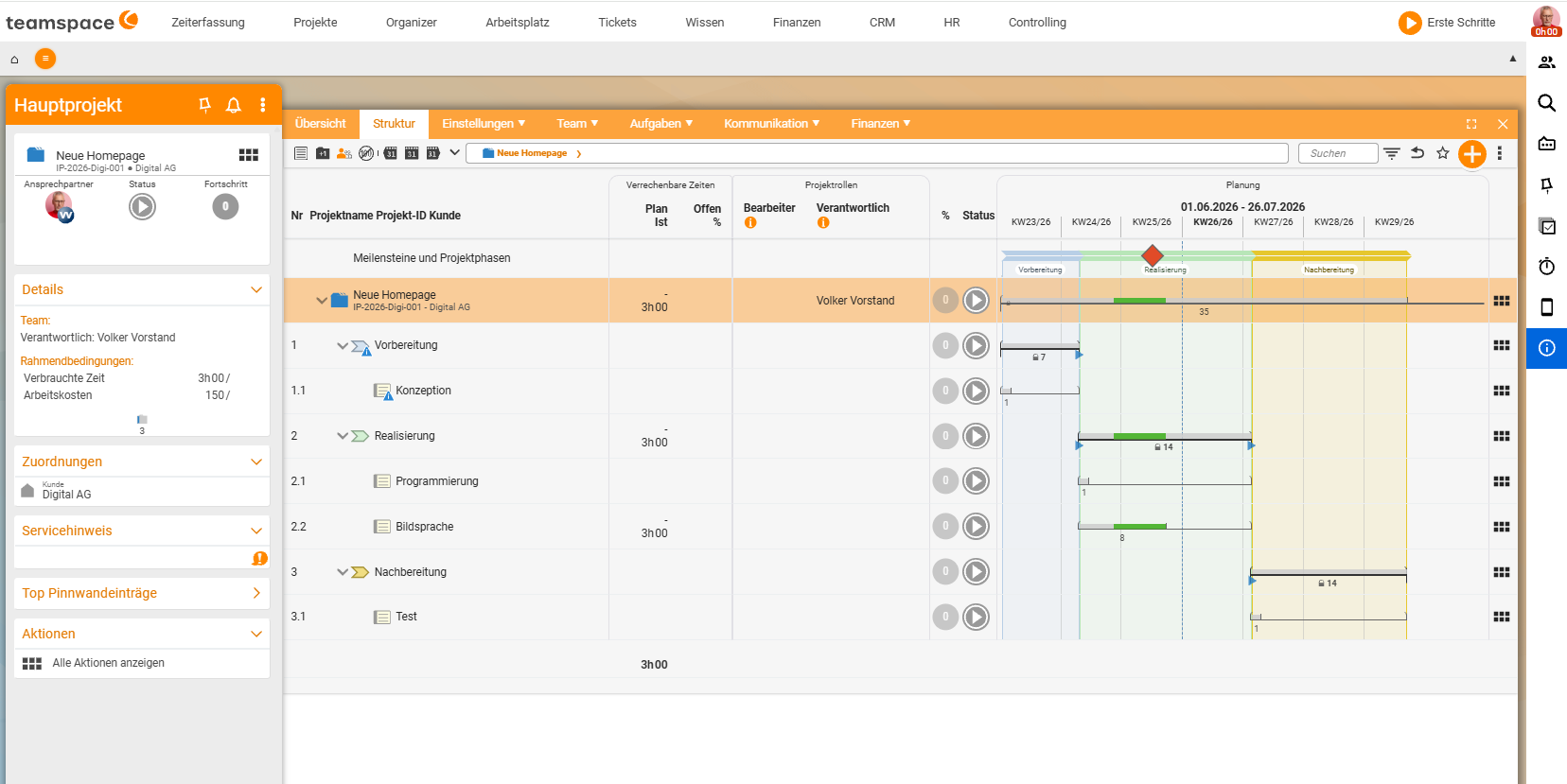
Structure: break down and combine
You create structure elements in the structure view. You create phases via the action “New phase” (on the left); subprojects and work packages via the context menu (the “chocolate bar”) of the element they are to be attached to – e.g. “New subproject”. teamspace keeps the most recently used action in focus.
- Any number of further subprojects and work packages can be attached to a subproject (nestable).
- Nothing more can be attached to a work package.
- Elements can be converted into one another (work package ↔ subproject, phase → subproject …). Via a setting you define whether an element is bookable at all – that also changes its icon.
- You copy several elements via the three dots → multiple selection → Copy and choose the target (e.g. “into the Realisation phase”).
Planning: gross time, effort and dependencies
In scheduling, teamspace distinguishes two quantities:
- Gross duration – how long an element runs overall (e.g. “Preparation = 10 days”).
- Effort / project time – the actual working time planned within that duration (field “Project time”; enter e.g.
8 hor1 d).
You recognise editable fields by the small triangles; you can show and hide them via the eye icon and edit them via the pencil icon. Accumulated (inherited) values appear in grey, directly entered ones in black.
Via predecessors and successors you chain elements together (e.g. “the predecessor of Realisation is Preparation”). If you give the main project or a phase a start date, teamspace automatically spreads the project across all phases and slots the work packages into the timeline.
Scheduling staff and roles
You assign people most easily in the list via the “Assignee” / “Project roles” column (columns can be shown/hidden via the active view). Several people or whole groups can be assigned; the assignment reserves capacity and makes utilisation visible.
By default there are two roles: assignee and responsible – “responsible” may do considerably more (assign staff, change budgets). Further roles (e.g. “intern”) can be defined freely. Details in Assign people.
Steering: progress, status, warnings, alarms
- Progress – a value from 0 to 100%.
- Status – freely definable via a workflow (e.g. “Planning”, “In progress”, “Done”).
- Warnings – arise automatically when planning limits are exceeded (e.g. too many booked hours); they accumulate up to the main project.
- Alarms – you set these yourself per subproject, e.g. “send me a message when 70% of the budget is used up”.
Booked time, stored documents as well as progress and status document the project automatically.
Rule of thumb: which tool when?
Start small and use only what you really need:
- Always: structure (at least work packages), assignees, status, progress.
- As needed: milestones, predecessors/successors, budgets and alarms – worthwhile as soon as dates and dependencies become important.
- For special cases: detailed capacity planning, material and costs.
That way you avoid overkill and still keep all the options in reserve.
Related topics
- Project management – an introduction (with video) Project management Introduction
- Plan and structure projects Project management How-to
- Project views: structure and details Project management Reference
- Work breakdown structure software