


If you resell articles that you first buy in from a supplier, teamspace can create the purchase order from within the order. On the sales article you set up once which purchase article and which supplier belong with it – as soon as someone adds the sales article to an order, teamspace flags Purchase order required, and one click creates the purchase order. Order and purchase order are linked, and the purchase price flows back into the order’s gross profit.
Prerequisites
Prerequisites: In the
Financemodule thePurchase and contract managementandIncoming invoicesbookmarks must be active so that purchase orders are shown and the incoming invoice can later be posted against them. You can tell product management is on by the product list underFinance(see Product management – introduction).
Step 1 – Create the sales article and purchase article
You need two articles: a sales article for the customer and a purchase article for the purchasing. You create both in the configuration under Finance → Articles.
Volker sells SQL Server licences that he buys in from Bürozubehör GmbH. He creates:
SQL Serveras the sales article: article number2060, tax rate19%, billing typeFixed price. In the pricing:€120 per unit. That is the price the customer pays.SQL purchaseas the purchase article: article number2070, tax rate19%, billing typeFixed price. In the pricing:€60 per unitas an estimated purchasing price. Volker enters the exact price later in the purchase order.
In the purchase article’s Master data Volker stores the supplier – Bürozubehör GmbH. That way he doesn’t have to specify it every time he creates a purchase order.
Note: If you pass articles on to accounting via the
Posting export, it’s worth setting the article’sPurposetoPurchasingorSales. This saves the manual account assignment later. For the purchase-order mechanics themselves it isn’t necessary.
Step 2 – Set the purchase toggle on the sales article
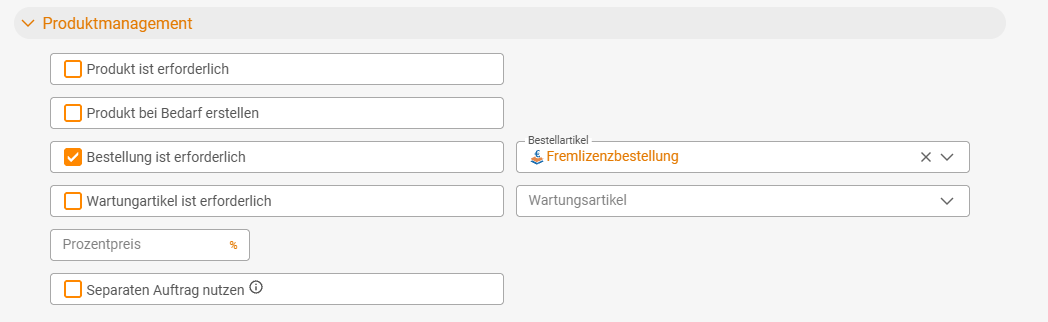
In the sales article Volker opens the Product management section and does two things:
Purchase order is required– the toggle that switches on the workflow flag.- Select the purchase article –
SQL purchase. This tells teamspace what should be ordered as soon as someone sells theSQL Server.
Save. From now on every order with this sales article triggers the purchase-order workflow helper.
Step 3 – Create the purchase order from the order
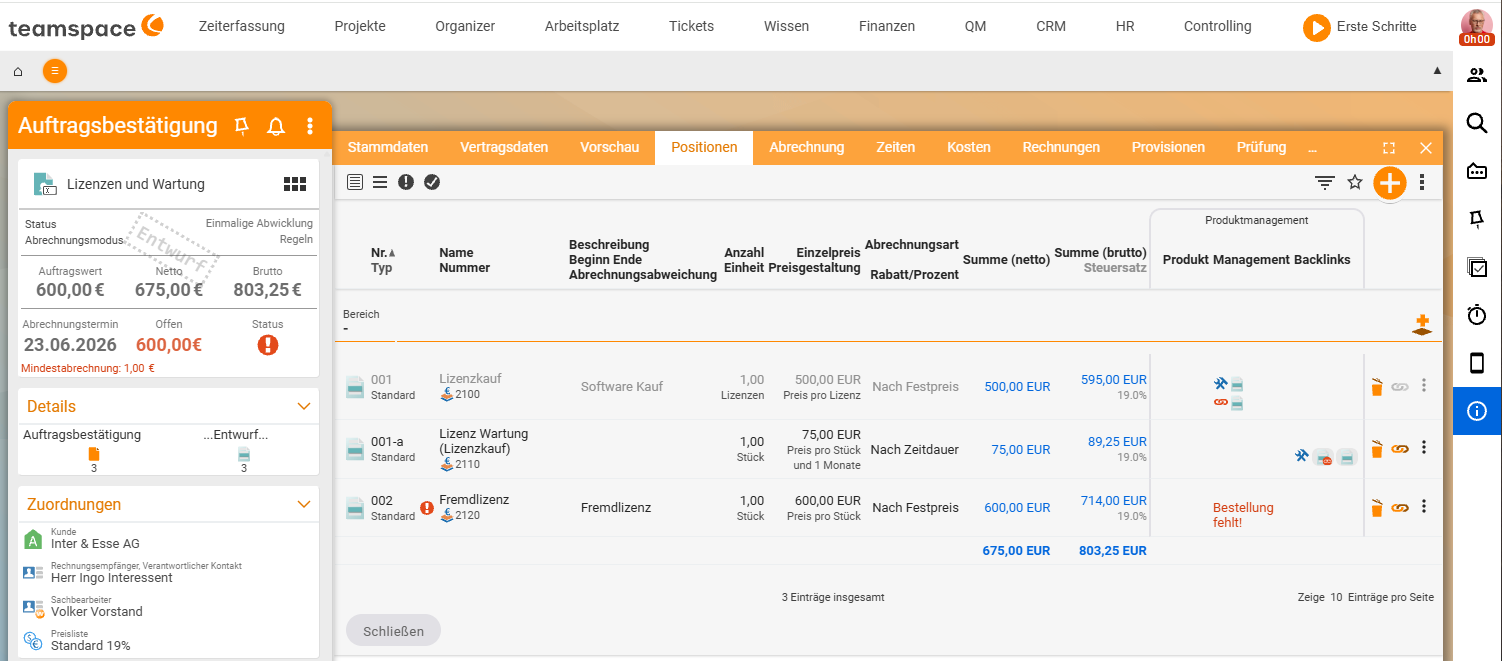
Volker creates an order for Ingo, adds an item with SQL Server, quantity three. As soon as he saves, the red badge Purchase order required appears in the item row. (Incidentally, this is already passed through from the quote – the purchase order is due by the order stage at the latest.)
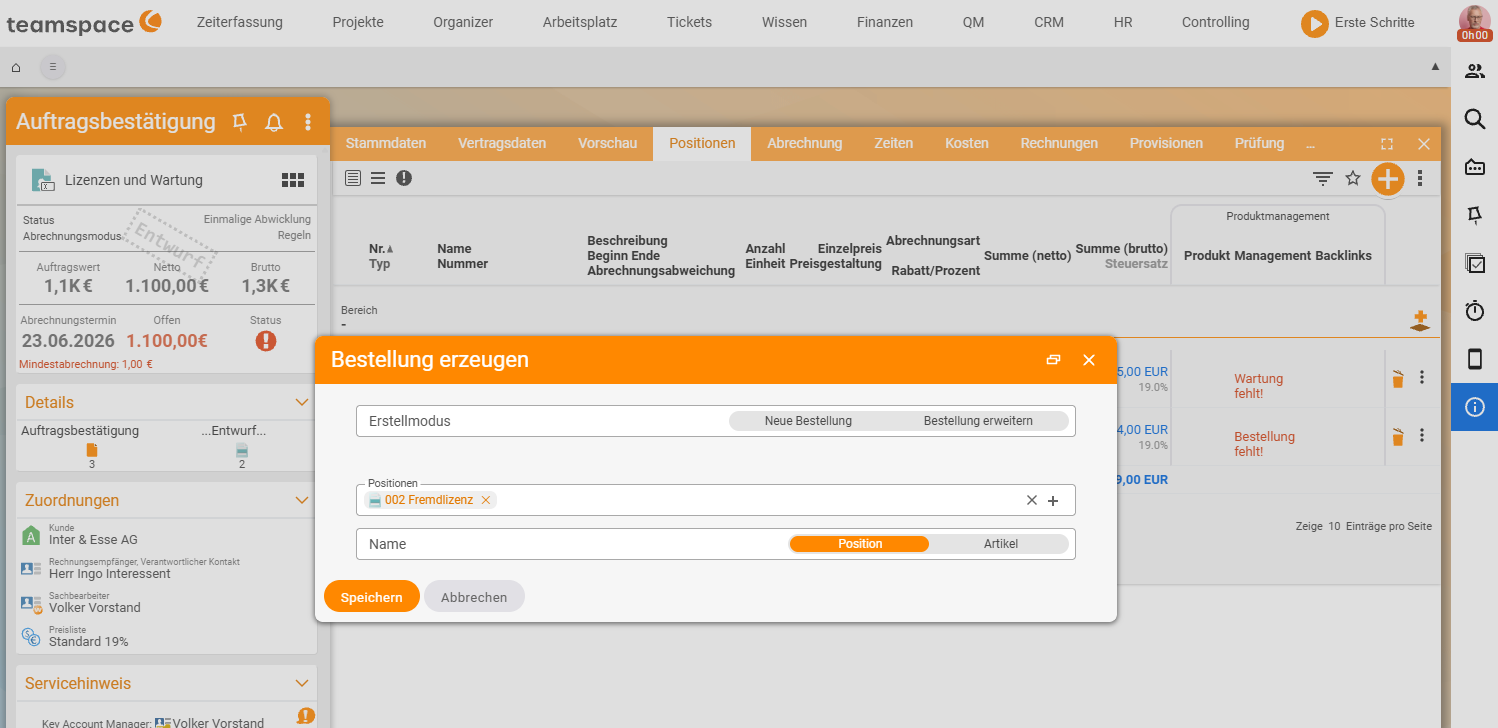
Via the three-dots action on the item he opens the Create purchase order dialog. Two options:
- New purchase order: a fresh purchase order for exactly this item. The default when you only order this one sale.
- Extend an existing purchase order: if you have a collective purchase order in progress with the same supplier (e.g. for five customers at once), you attach the new item to it. The collective order grows, yet individual sales stay assigned.
Volker chooses new purchase order, saves. teamspace confirms with a green message, and in the Relationships section the new purchase order appears highlighted in yellow. teamspace takes the invoice recipient automatically because the supplier is already on the purchase article. Order and purchase order are linked.
Editing the purchase order
Clicking the linked purchase order opens it. It carries the address of Bürozubehör GmbH, the three units of SQL purchase, the estimated price €60.
Volker calls the supplier – who gives him the server for €35 per unit instead of the estimated €60. Volker adjusts the purchase price in the purchase order and presses Validate (which sends the order out). When the incoming invoice arrives later, he posts it against the purchase order under Incoming invoices.
Calculating the gross profit
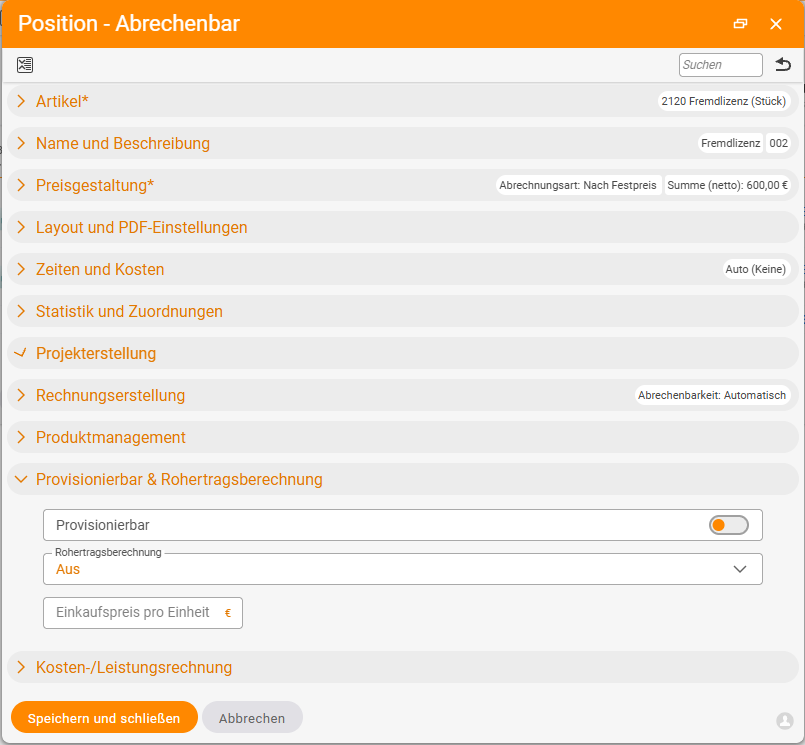
Once you have the sales and purchase prices, teamspace can show you the gross profit per item. By default this is off – on a freshly triggered purchase order there is no purchase price in the order, and the gross profit calculation is off.
You find the toggle on the sales article in the Commissionable & gross profit calculation section. Volker sets:
- Gross profit calculation on –
according to purchase price. teamspace takes the purchase price from the purchase order. - Synchronise purchase price – the toggle that writes the purchase-order price back into the order. Without it the order stays at its estimate; with it, it follows the real purchase-order price.
With both toggles on, Volker now sees in the order: sales €120, purchase €35 – gross profit €85 per unit. You also see the gross profit in higher-level lists – in the order list you show a gross profit column for this.
Important: Without the
Synchronise purchase pricetoggle, the purchase-order price and the order’s purchase price drift apart. If the supplier gets more expensive and you don’t let that feed into the gross profit calculation, teamspace keeps calculating with the old estimate – and your gross profit is no longer correct. You set the toggle once per sales article and then forget about it.
When the workflow doesn’t kick in
Three common pitfalls that keep the Purchase order required badge from appearing:
- Toggle on the wrong article: The purchase toggle has to be on the sales article, not on the purchase article. Setting “Purchase order required” on the purchase article itself triggers nothing.
Product managementmodule off: Without active product management there is noProduct managementsection on the article at all. Switch it on underConfiguration → General → Modules → Invoicing → Product management.- Purchase article not selected: The
Purchase order requiredtoggle is set, but the field for which purchase article is empty. Then teamspace doesn’t flag the missing purchase order at all – it doesn’t know what to order.
Common questions & needs
| You want to … | How to |
|---|---|
| Be reminded of the purchase order when selling | Set Purchase order required on the sales article and select a purchase article. |
| Avoid typing the supplier every time | Store the supplier in the purchase article’s Master data. |
| Bundle several sales into one purchase order | In the Create purchase order dialog → Extend an existing purchase order. |
| See the real purchase price in the order | Enable Synchronise purchase price on the sales article. |
| Analyse the gross profit per item | Gross profit calculation → according to purchase price; show the gross profit column in the order list. |
| Create a purchase order without an order | In Purchase and contract management via New document → Type: Purchase order. |
Where purchase orders live
Purchase orders end up in the Purchase and contract management bookmark in Finance. The purchase order is a document type like the quote or the invoice. If you want to create a purchase order directly, without starting from an order, you can do so via New document → Type: Purchase order from the plus button in the list toolbar.