


You have an order item that shouldn’t actually be billed in the current order, but in a different one – e.g. an ongoing maintenance contract. Instead of deleting the item and recreating it, you move it as a reference. It stays visible in the source order but is billed in the target order. Both sides know the reference. The source order stays valid, and the maintenance item runs in the right contract.
What the mechanism is for
If you have long-running service contracts, new items are added over the years. The customer sends you the expansion order with three new maintenance items – you don’t want to bill them in the expansion order, but in the large maintenance contract, where twelve items already sit.
The other way round: you write a new quote with a licence plus maintenance. As soon as the customer places the order, the maintenance item and licence should move into the maintenance contract that bills monthly – the original order sends out the purchase licence only once.
The item-as-a-reference mechanic does both: an item can be visible in two orders but is billed in only one.
Prerequisite – enable the standard maintenance contract
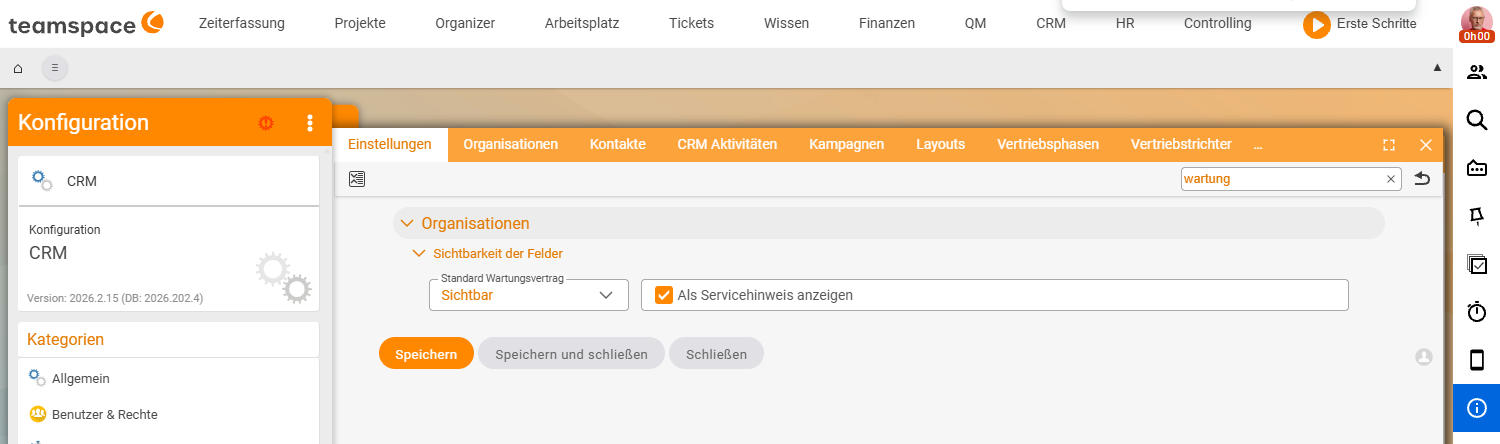
teamspace offers the function automatically when a customer has a standard maintenance contract stored. You switch on the field for this in the CRM:
Configuration → CRM → Settings → Organisations → Field visibility → (search "maintenance") → Standard maintenance contract → VisibleYou can additionally enable the maintenance contract to be shown in the service note on the customer.
Prerequisites: The
Standard maintenance contractfield must be active for you to be able to enter a maintenance contract on a customer at all. Without this field, teamspace can’t tell which order is the “standard target order” when moving.
Creating the maintenance contract
Before you move an item as a reference, you need an order that serves as the maintenance contract – that is a normal order marked as the standard maintenance contract in the customer link:
- Create a new order –
Finance → Purchase and contract management→New document→ typeOrder confirmation. Name e.g.Maintenance contract Ingo. - Add a starting item – a monthly licence or other recurring item (e.g.
L1, two units, start date). This turns the order into a real contract with content. - Validate the order – via
Create order confirmation. The draft becomes a valid order. - Enter it on the customer – open the organisation, and in the
Standard maintenance contractfield select the new order. This tells teamspace: For this customer, that is the collective order for maintenance items.
Note: You set the
Billing mode(e.g.Rulesfor monthly billing) in the order’s contract data. How it works is explained in Recurring invoices.
Moving an item as a reference
Now the actual step. You’re in an order with several items – say, a new order with a monthly licence and a one-off purchase licence. The monthly one should go into the maintenance contract, the one-off purchase stays in the order.
- Open the item – in the
Itemstab, via the three-dots menu of the monthly licence, choose the actionMove item to another order. - Choose the target order – teamspace pre-fills the
Standard maintenance contractfield with the contract stored on the customer. You can also choose any other order; the system doesn’t restrict this. - Confirm – save.
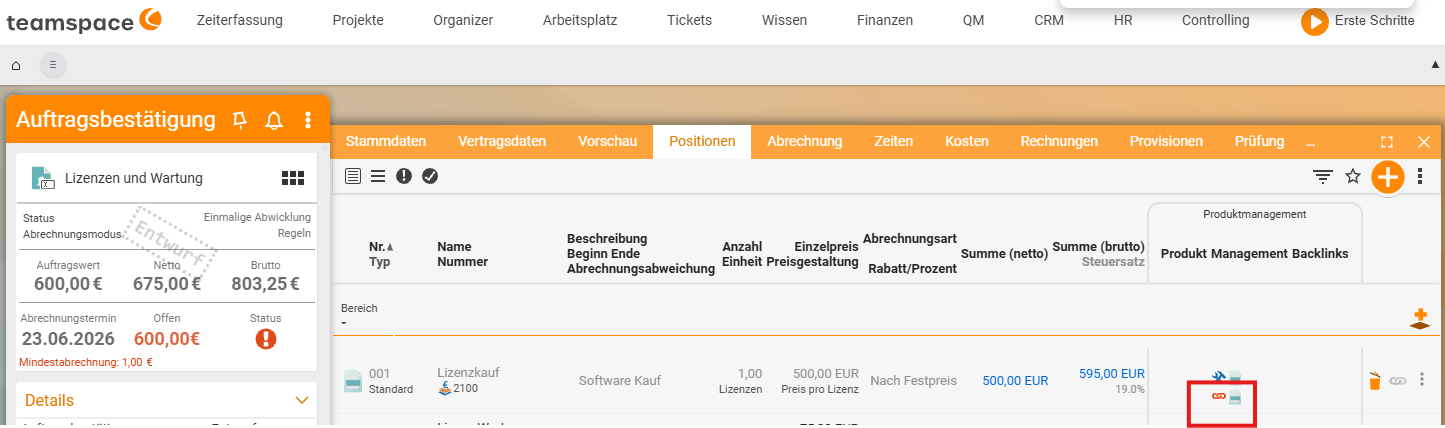
What happens: the item stays in the source order but is shown there in grey and marked as a reference. From now on teamspace bills it only in the target order.
!['Move item to another order' dialog: at the top the pre-filled 'Standard maintenance contract' field with 'Maintenance with 45 minutes [20260004]', below it the Items field with '001 Licence purchase' and Area '- None -'.](/images/de/screens/prod-14.png)
What you see on the referenced item
In the source order the item stays in the list – keeping the order “complete” and valid. It is visually grey and carries a note that it is billed as a reference in another order.
In the target order (e.g. the maintenance contract) the same item appears. There it shows that it comes from another order – with a note pointing to the source order. Billing, the billing run and time bookings run on the target order.
Important: Don’t delete the original item from the source order. It is the source of the reference; if you delete it, the link in the target order disappears too. If you no longer need an item, deactivate the reference and consider whether you really want to cancel both sides.
When this comes up in your day-to-day
Three typical cases:
- Expansion order into the collective maintenance contract: The customer expands their licence holding. The expansion quote contains the purchase licence and the maintenance item. You move the maintenance item into the maintenance contract, the purchase licence stays in the expansion order – a clean separation of one-off sale and ongoing billing.
- Lean quote, large order in the background: You send a quote with five items; the maintenance contract in the background has ten more items. After the order is placed, you move the five items into the large maintenance contract. The quote stays clear, the maintenance contract grows.
- Several contracts per customer: A customer has one maintenance contract for the licences and a separate one for managed support. The standard maintenance contract covers only one – when moving, you deliberately choose the right target order instead of blindly taking the suggestion.
Interaction with the other strands
When you have a maintenance item created via the workflow toggle maintenance items, it initially stays in the source order. If this customer has a maintenance contract, the next step is almost always: move the item there as a reference. The two mechanics are made to run in sequence – first create the maintenance item, then move it into the right contract.
The reference mechanic isn’t directly connected to the product manager (templates). A moved item remains visible to the template analysis – it still counts towards the customer’s product size, no matter which order it is billed in.
Common questions & needs
| You want to … | How to |
|---|---|
| Collect maintenance items centrally in one contract | Store the standard maintenance contract on the customer, move items there as a reference. |
| A lean quote despite a large maintenance contract | Move items into the large maintenance contract after the order is placed. |
| Keep the source order valid | Don’t delete the item – it stays grey as a reference. |
| Move into a contract other than the standard one | In the dialog, choose the desired order instead of the pre-filled contract. |
| Tell whether an item has been moved | Grey display + reference note in the source order. |
Related topics
- Generate maintenance items for sales articles (with video) Product management How-to
- The two strands: product manager & workflow helpers Product management Concept
- Recurring invoices Invoicing How-to
- Manage organisations CRM How-to