


A template is the blueprint for a product in the product manager. You describe once which articles count towards the product and how size and term are calculated – then teamspace analyses all existing documents, creates one product entry per customer and keeps it current. A template replaces maintaining each individual product by hand.
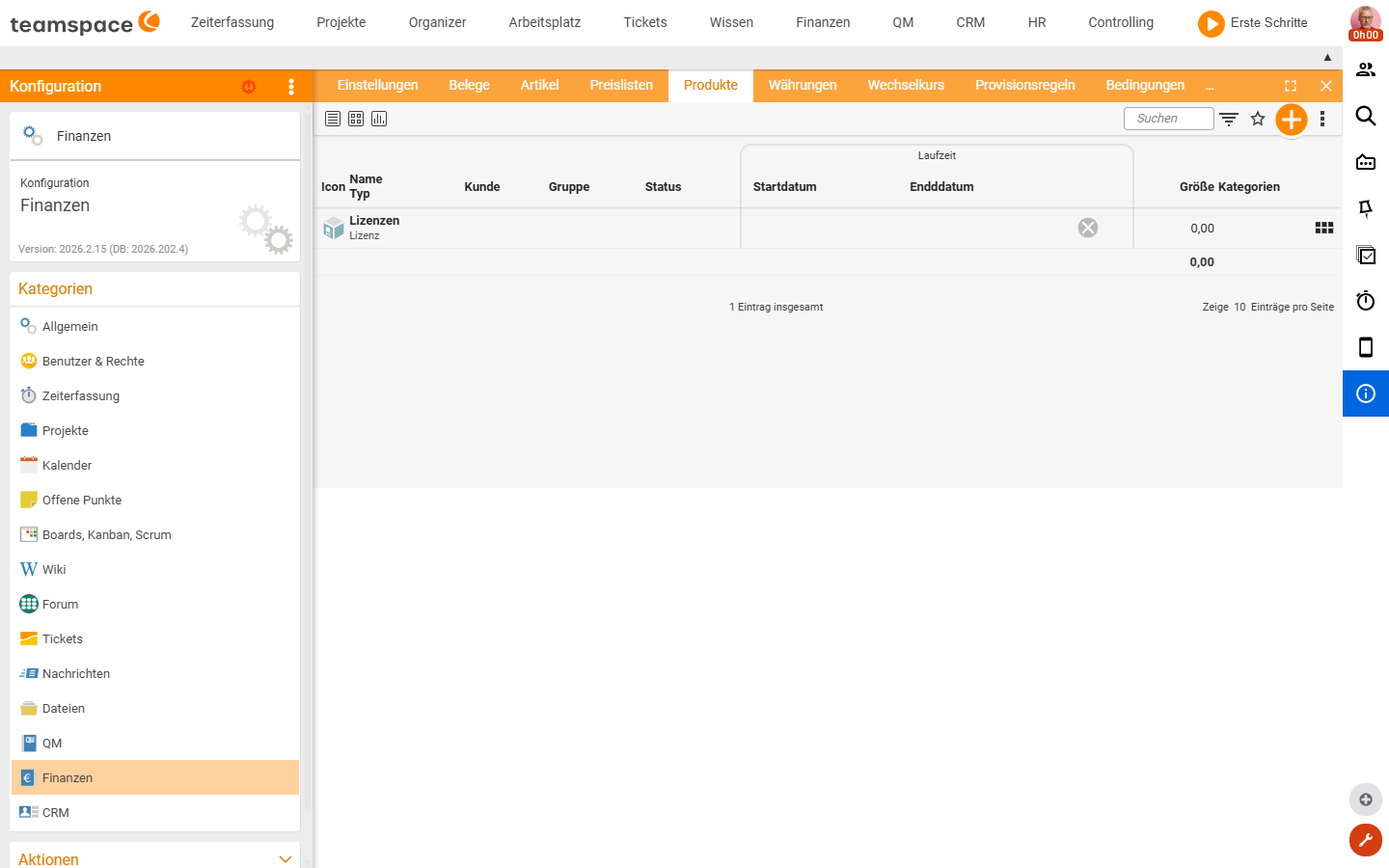
Where templates live
Templates sit in the configuration:
Configuration → Finance → ProductsHere you see the existing templates plus the products created from them per customer. Bottom left is the Create products button, which runs the templates once – it creates the products in advance (100 at a time by default; for larger holdings you increase the number).
Prerequisite: You can tell the module is unlocked by the presence of the product list under
Finance. If it’s missing, switch product management on first – see Product management – introduction. Available from theEnterpriseedition and in everyprojectedition.
Creating a template – using Licence L as an example
Volker sells annual software licences and wants to see per customer how many licences they currently use and which monthly price they pay. He creates a Licence L template.
1. Create the template with master data
In Configuration → Finance → Products he opens the creation dialog and enters:
- Name:
Licence L. Appears later as the product name on the customer. - Type: the product type, e.g.
Type Licence. Used for filtering and statistics in the product list. - Active: the toggle that arms the template.
- Template: the toggle that marks this entry as a template. Without it the entry would be a single product – “template” means: it creates products itself.
Save. That gives you the shell; the filter logic comes next.
2. Set the article filter
In the Articles section Volker chooses which articles count towards the template – e.g. his annual licence article. If you have a product family (Office, Enterprise, project), you enter several articles; teamspace picks up all items using these articles – whether on the quote, order or invoice.
3. Configure size and term
Below sit the fields for the size calculation. Volker sets Calculated automatically – teamspace then adds up the active items per customer and outputs the current size (e.g. 25 licences). Alternatively, Calculated manually is available.
In the same area he selects again the articles that should count towards the size. This can be a subset of the filter articles – for instance when the filter also collects maintenance and purchase items, but only the licence quantities make up the size.
Note: The size filter and the collection filter are deliberately separate. Volker collects all items around the licence (for the overview), but only the pure licence item counts towards the quantity. This prevents a maintenance item from doubling the licence count.
4. Establish the self-reference
A peculiarity of the template: in the Master data it has to point to itself as its “own product”. Volker first saves the shell, then goes back to Master data and selects the Licence L template itself in the lower field. Only then does the analysis run cleanly. Then Save and close.
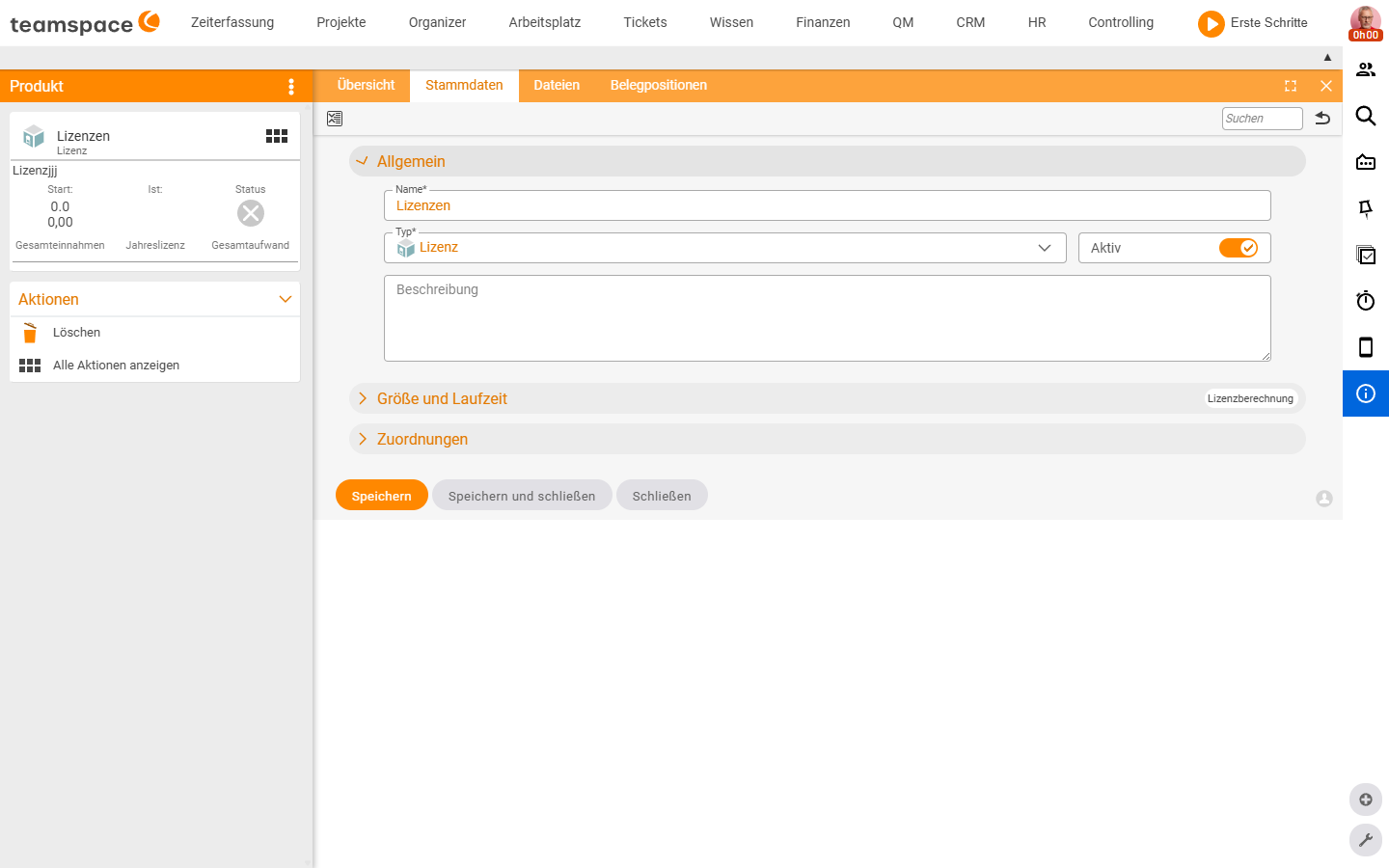
ℹ Note (verified live 2026-06-25): In the tenant the template’s
Master datatab is organised into three accordions with the following fields:
General–Name,Type(choice Standard / Licence / Hosting / Hardware / Software / Maintenance / Service),Activetoggle,Description.Size and term– the article filter sits here (Articlesfield, multi-select), the toggle for automatic size calculation (for the Licence type it is calledLicence calculation, On/Off) and the term (Start date,End date).Assignments–Customer,Responsible unit,Supplier,Project,Target article,Assigneeand theTemplatefield (selection), through which the template points to itself as a self-reference.There is no separately named “Update automatically” toggle in the master-data dialog – the automatic calculation is controlled by the size /
Licence calculationtoggle (On/Off).
Creating products from the template
Back in Configuration → Finance → Products, Volker clicks Create products bottom left. teamspace asks for the quantity – 100 by default – and creates a product entry for every customer who has bought a matching article. With two affected customers it creates two products; with larger holdings, correspondingly more.
A second after creation, teamspace calculates the sizes (you may need to wait/refresh once more). If Volker now opens the product list, he sees the new products with customer name, size (e.g. 25 licences) and monthly price (e.g. €29). Clicking a product shows all document items that teamspace analysed for it – very useful when the size calculation doesn’t add up and you want to trace which item is missing or has been counted twice. (In the example you can see that an item that only starts on 1 March is not yet counted.)
Automatic calculation
Whether the template keeps itself current is controlled in the Master data (Size and term accordion) by the size-calculation toggle – for the Licence type it is called Licence calculation (On/Off, verified live 2026-06-25; there is no separately named “Update automatically” toggle in the dialog). When it is On, teamspace calculates the size automatically and pulls in matching documents whenever someone saves a matching document. Anna creates an order with Licence L – the product appears on the customer immediately, without anyone pressing the Create products button.
When it is Off, the template only runs at the press of a button (Calculated manually). Useful when you have many templates and want to control when they run.
Note: You need the
Create productsbutton when first creating, or when the size-calculation toggle (Licence calculation) isOff. Otherwise the template keeps itself current.
Semi-automatic via the article toggle
If you don’t want to build a template but still want to use the product manager – as a safety net for sales nobody must forget: on the sales article you set the Product required toggle in the Product management section. As soon as someone saves an order with the article, teamspace asks for the product; you can have it created with a click. This is the bridge from the second strand to the first – the mechanics behind it are described in the two strands.
Where the products become visible
Once templates have created products, you have three places to read them off:
- Product list in
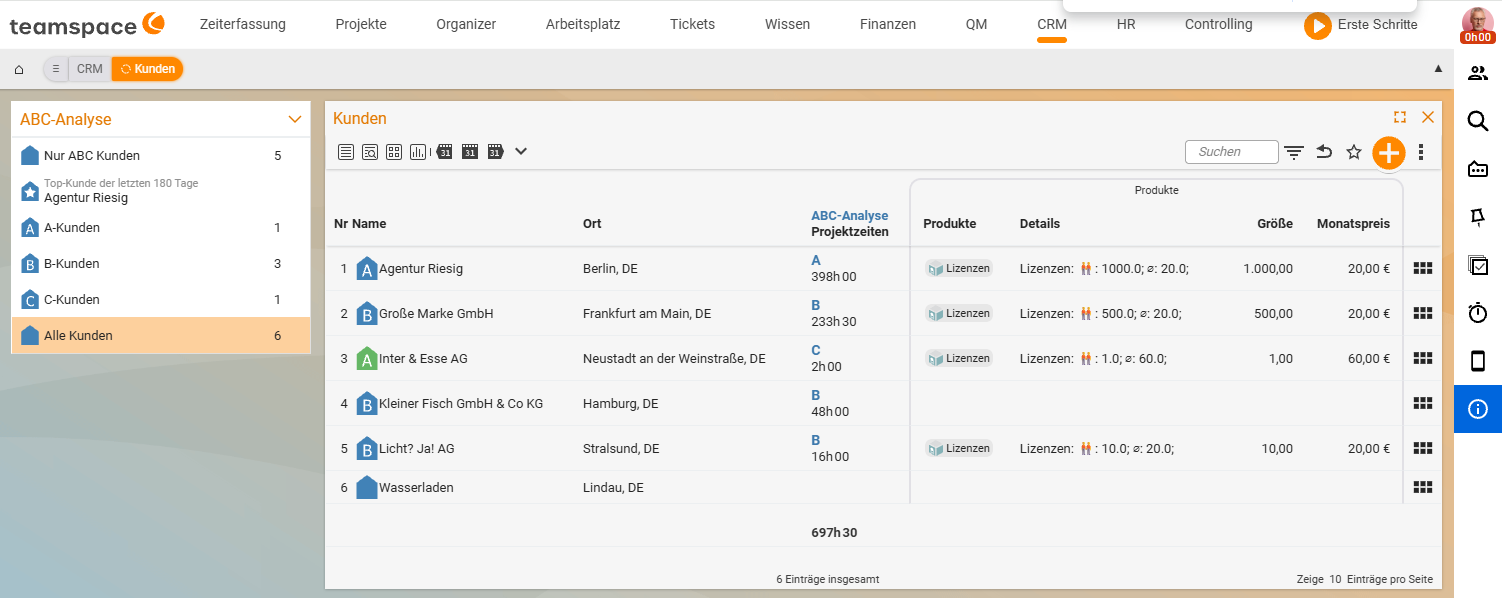
Finance → Products: all products, sortable and filterable by type. Handy for “How many Office licences have we sold in total?”. - Customer list in the CRM: there you show a column with the product name plus extra values such as the monthly price. Useful when you want to know at a glance who uses which edition.
- Service note on the customer: in the CRM configuration (
Configuration → Finance → Settings → ProductsorCRM → Service note) you enable a product to appear in the service-note block. On a call or ticket the product is then right there – advisers see immediately what the customer uses.
Common questions & needs
| You want to … | How to |
|---|---|
| See the current licence count per customer | Template with Calculated automatically and the licence articles in the size filter. |
| Collect several editions into one product family | Enter several articles in the template’s Articles section. |
| Prevent maintenance items from distorting the size | In the size filter select only the pure licence item (a subset of the collection articles). |
| Keep products current without pressing a button | Set the size-calculation toggle (Licence calculation) in the Size and term accordion to On. |
| See the customer’s product immediately on a call | Enable the product in the Service note (CRM configuration). |
| Trace how the size is arrived at | Open the product → check the list of analysed document items. |
| Safeguard a sale the template doesn’t recognise | Also set Product required on the article (see the two strands). |
Important: The template only creates a product when its article filter matches. If someone sells through an article that isn’t in the template, the sale appears nowhere in the product manager. If that can happen, also set
Product requiredon the article as a safety net.
Related topics
- The two strands: product manager & workflow helpers Product management Concept
- Product management – introduction Product management Introduction
- Key account, VIP & service notes CRM Configuration
- Articles and price lists Invoicing Concept