



“Oh yes, I still need to get that done.” That is exactly what the open item is for in teamspace: the smallest unit of work – smaller than a ticket, smaller than a work package. You type in a subject and a type, attach it to yourself or to a colleague, optionally to a project, a list or a board, and tick it off once it is done. Due date, priority and status tell you at a glance what is still open and what is urgent – a red marker means: overdue.
Five types, five symbols
When you create an item you choose the Type* – the default is ToDo. Five values are in the drop-down:
- ToDo – a small task. The classic choice to start with.
- Goal – something worth aiming for that you set for yourself or the team. “When everything lights up green, you have made it.”
- Problem – a problem to be solved; add a description or an image and pass it on to an expert in the company.
- Idea – a suggestion you do not want to lose, e.g. while brainstorming for the team.
- Note – a short remark; the ideal sticky note to attach to other teamspace elements.
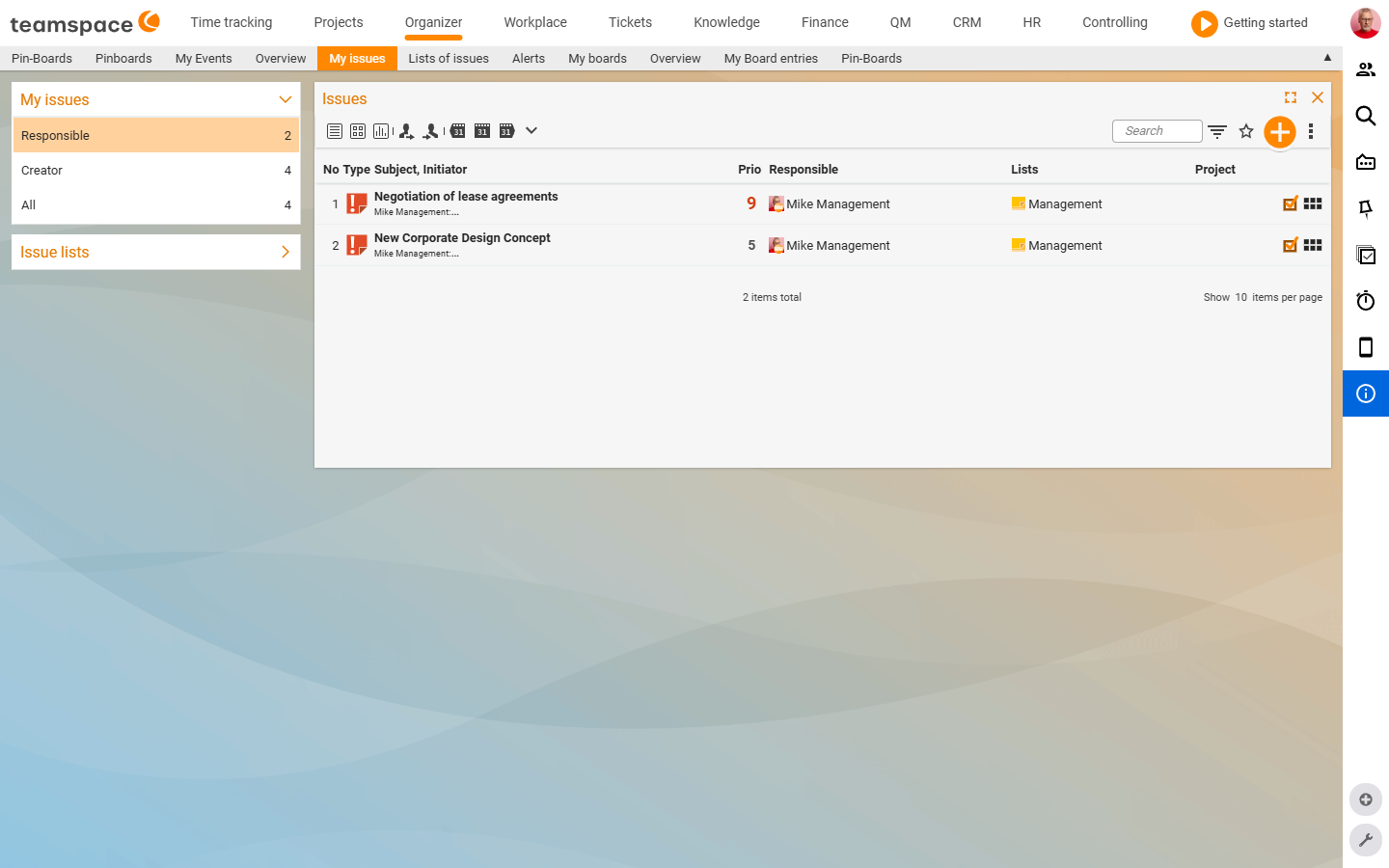
The type determines the icon in the list – a light bulb for the idea, an exclamation mark for the problem, a clipboard symbol for the ToDo. Using the Type drop-down in the detail manager you can convert the item at any time.
Where open items live
In the standard menu the open items sit under Organizer. There you will find two entry points: the My open items tile and the Open-items lists tile. Beyond that an item appears everywhere it is attached – on the work package, the ticket, the board entry, in its list.
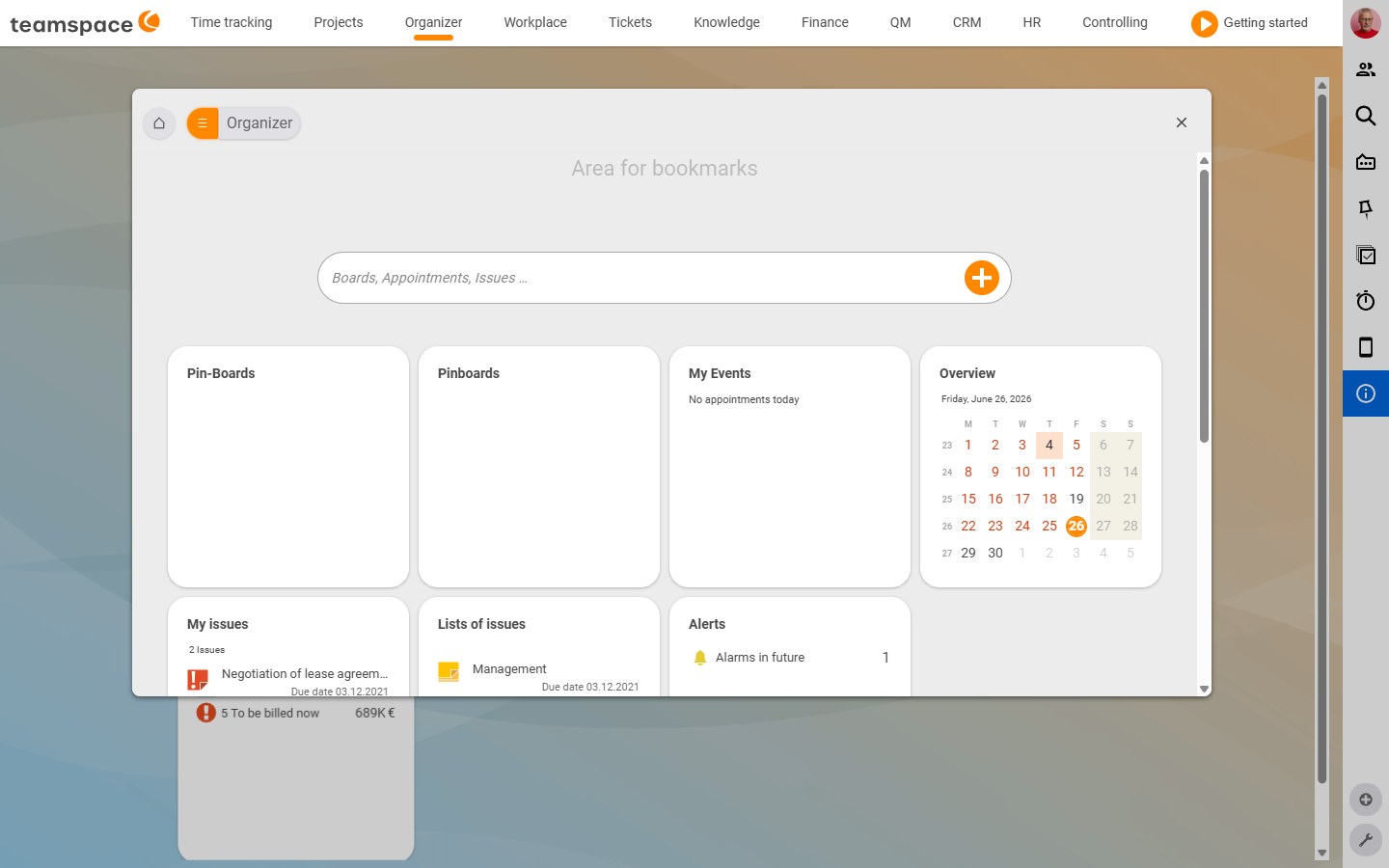
Note: The menu in teamspace is fully configurable. In your installation the open items may therefore sit in a different place or under a menu item of their own.
One important property: it is always the same item, never a copy. If you mark it as done in one place, it is done in all places.
Three places to work – depending on how you work
Three views of the same items:
-
You have a long to-do list and want to clear it by due date. My open items is your list – sorted by due date by default, with the
Assignee/Creator/Allfilters, plus a tile and a statistics view. If someone hands you an item, a notification appears in the Organizer. -
Several people work through the same stack – maintenance, meeting minutes, a sprint checklist. An open-items list bundles items by topic and gives the group access via a distribution list. An item can be in several lists at the same time; the minutes function freezes the state at a given date.
-
You want to see everything in one place – appointments, follow-ups, tickets, open items. The task manager slides in from the right and gathers everything attached to you – and from there you also create new things.
When the open item is the right tool
The open item is small and handy. As soon as a task needs effort estimation, time bookings or a formal workflow, it is a work package or a ticket – these also have a task character, but they are larger, more cumbersome objects. If it becomes clear along the way that there is more effort behind it, an item can be converted into a work package at any time.
Within teamspace you mainly encounter the open item in three places:
- In the project, on the work package. In the structure manager or in the detail manager tab
Open itemsyou attach a checklist to the package. Details in Open items in projects & on the work package. - On boards as a card. On Kanban and Scrum boards the open item is the typical card content that moves between columns. See Board types.
- On your personal pin board. On the personal pin board you pin items to yourself as yellow sticky notes.
What you can set on an item
Every open item carries a few values that make its visibility and status easy to read:
Due date– a date, optionally with a time. It controls the list colour: yellow with no due date or a due date in the future, red when overdue, green when done.Priority– a scale of 1–9 (1 low, 9 very high), shown in the list as a number. The display (number, stars, ABC) is configurable.Status(free text) – a keyword such as In progress, Waiting, Tricky – it travels along into the list column.Progress– a percentage. It is not tied to the done status – only theDonedate that has been set makes an item done.AssigneeandCreator– the creator stays fixed, the assignee is handed over when someone else is to do the work.
Related topics
- My open items: create and work through (with video) Open items How-to
- Open-items lists (with video) Open items How-to
- The task manager (with video) Open items How-to
- Open items – system configuration – all settings for this area System configuration Reference
- Boards – introduction Boards Introduction
- Task management tool