



A cost item is a single document – a receipt, a journey, a meal allowance, a material entry. Whatever the base type: all cost elements share the same logic underneath. They are attached to a project, carry a document type, a status and three accounts: what it charges to the project, what the customer pays, what you as an employee get back. Once you understand this model, you understand every document type.
Why cost elements exist
In everyday business, costs other than staff costs (from times) arise: material costs, classic travel costs such as meal allowances, accommodation and mileage, plus supplements or commissions. They all run through cost elements and have three things in common:
- Costs reduce a project’s contribution margin. For the project result to be correct in the end, all costs that arise have to be charged against the project.
- Costs can be invoiced to the customer. Common for travel costs, and for material usually even with a mark-up. So the amount that charges the project and the amount the customer pays can differ.
- The employee is reimbursed for something – e.g. the hotel invoice they presented.
The same hotel night can charge the project €200, be invoiced to the customer at €240 and be reimbursed to you at €220. teamspace tracks each of the three paths separately – with different amounts, timings and even different workflows.
Three accounts – project, customer, employee
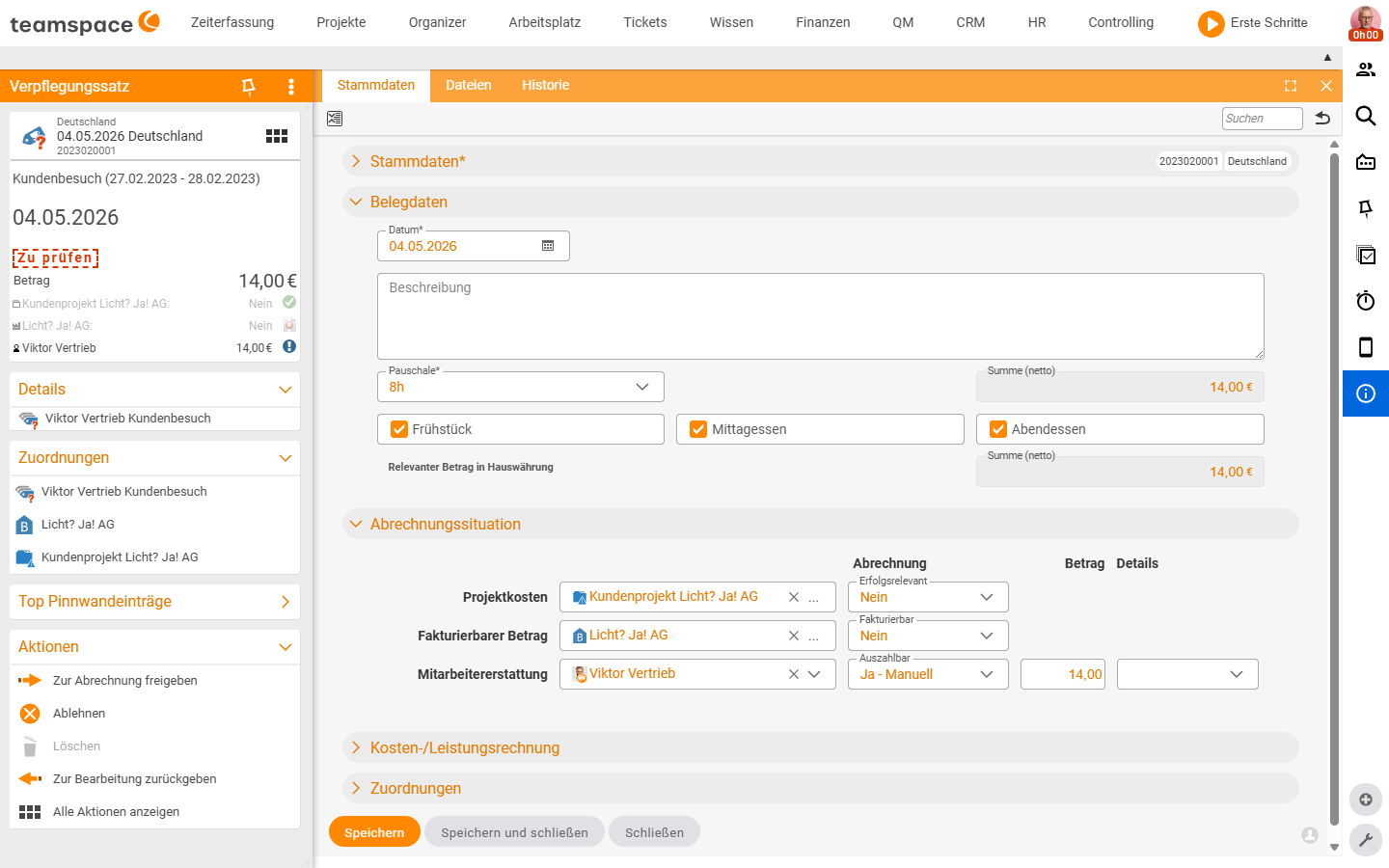
The Billing situation accordion carries three rows with the columns Billing, Amount, Details. In the Billing column you define, per row, where the price comes from.
Project costs – how the project is charged. Possible values: as per cost element (price from the document), Manual (you type the amount), No (the project is not charged), to clarify (you’re unsure, someone reviews later).
Billable amount – what the customer pays. Here you have four price sources: as per cost element (1:1 like the document), as per price list (a generally valid price), as per order (price from the order item), Manual – plus No and to clarify. Exactly how these four sources work is covered in Recharge costs to customers.
Employee reimbursement – what you get back. Depends on who paid. Paid privately → you want the gross amount back. Company credit card → you get nothing back. This row can also be kept in a different currency, in case you paid cash abroad.
⚠ If
Billable amountis set to as perorder, an item with a matching expense type must exist in the order. If it’s missing, the order can’t bill the document – the error message appears in the order’sCoststab.
What a cost item carries
The card header shows the document type – Meal allowance, Travel costs, Expense receipt, Expense invoice, Material. The document type determines which fields appear in the Master data tab; the logic underneath is the same everywhere. The detail manager has three tabs (Master data, Files, History); the Master data tab carries five to six accordion sections:
- Master data: the document number (e.g.
2023020001) and the type label (e.g.Germanyfor the meal allowance). In the create dialog, the mandatory fieldsPreferred reviewerandExpense type*often sit here. - Document data: type-dependent – date, description, amounts, quantities. For the meal allowance
Flat rate*(8h/24h) plus meal checkboxes, for travel costs kilometres and rate, for the expense invoice the line-item table with VAT rates. - File: the document scan or the PDF.
- Billing situation: the three accounts (see above).
- Cost accounting: cost category, cost centre, cost object – if your tenant has cost accounting (KLR) enabled (see Set up cost types, supplements & document templates).
- Assignments: employee, customer, project – the anchors the document is attached to.
Lifecycle – from draft to billed
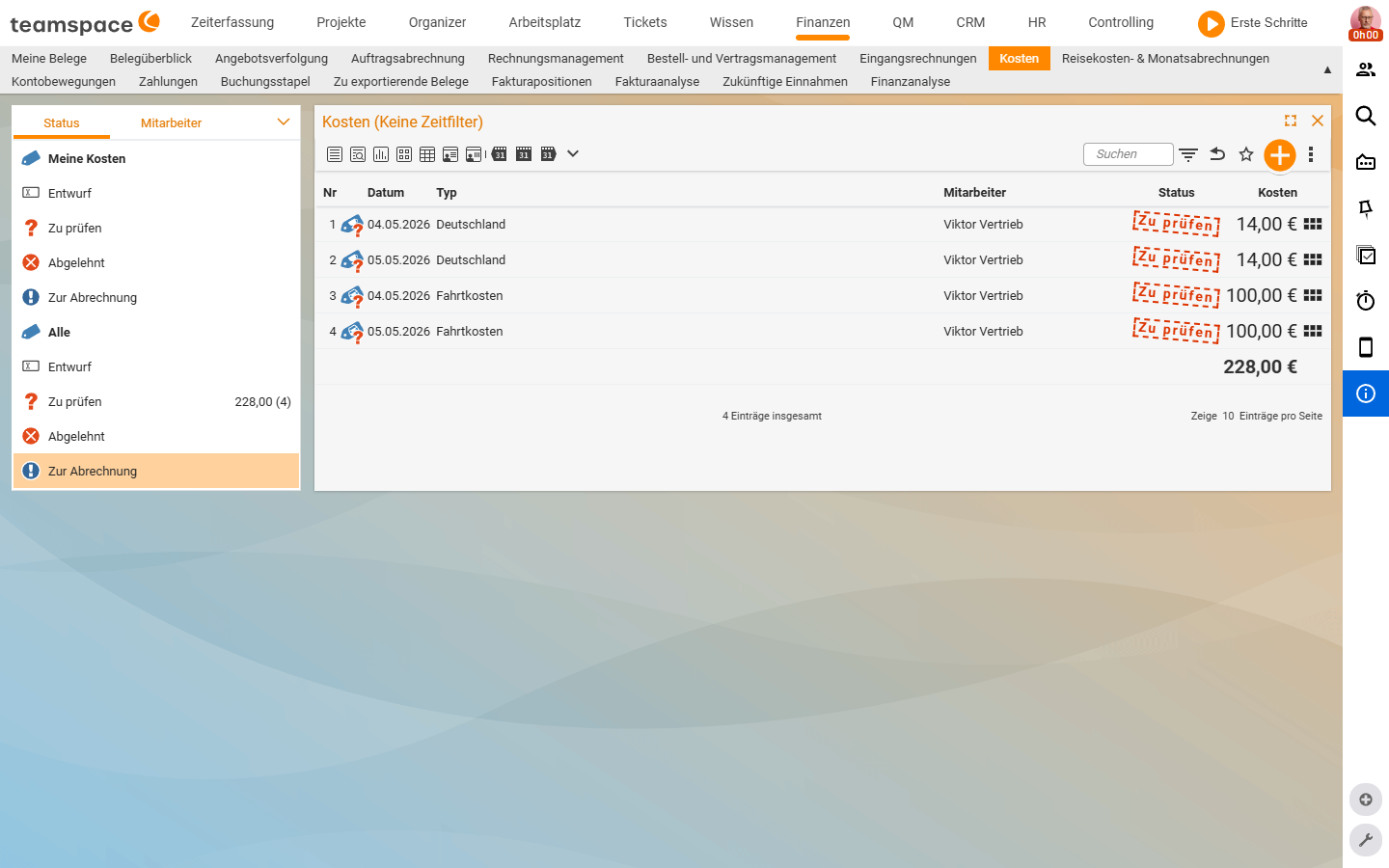
All cost items run through the same statuses, regardless of document type:
- Draft: freshly created, everything editable. Visible by default under
My costs → Draft. - To review: released for review. The reviewer sees the document in their
To reviewfilter. - Rejected: the reviewer clicked
Reject. - For billing: the reviewer clicked
Release for billing. The document is write-protected and now runs through its three billing paths. - billed: the document is only fully billed once all three parties – project, customer and employee – are served.
Anyone with the authority (e.g. a reviewer like Volker Vorstand) may also Release for billing their own document directly – without the detour via To review.
Actions on the document
The detail manager’s sidebar shows the Actions section at the bottom. In the To review status these are typically:
- Release for billing: the document moves on and becomes write-protected.
- Reject: the document goes to
Rejected. - Return for editing: the document goes back to
Draft– the creator can change it and release it again. - Delete: available in the Actions modal, greyed out when the document is attached to a statement.
In the Actions modal the actions are grouped into General (Details, Delete, Files, Copy) and Billing history. The Relationships tab shows a graph view with the travel expense report, employee, customer and project as nodes – handy for jumping quickly to the linked statement or the project.
Quick entry – straight from the project
In the project detail manager you often have a quick entry for cost elements: one click opens a small dialog with the document types you currently need – meal allowance, travel costs, material, expenses. Date pre-filled, one unit, one amount, done. Via quick entry you can also Release for billing straight away if you have the rights – otherwise it goes to To review.