


A collective statement bundles documents freely – no trip as a bracket, no fixed period, you put any cost elements in it as you used to in the shoebox. The month-end closing goes further: it closes a calendar month and generates supplements automatically. Both are – alongside the travel expense report – higher-level statements that hold individual cost elements together.
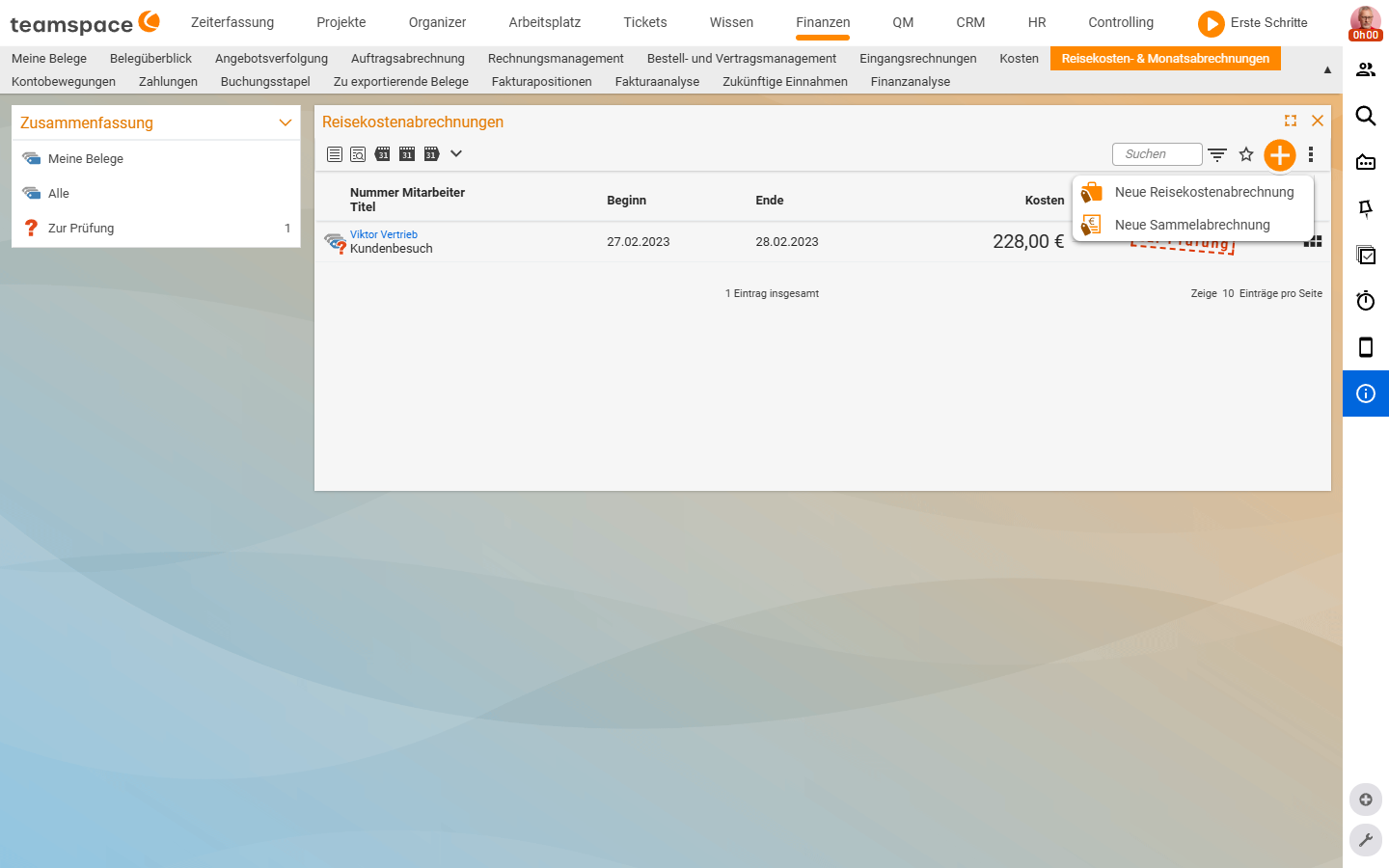
ℹ Note (verified live 2026-06-22): The plus drop-down of this list only offers “New travel expense report” and “New collective statement” – there is no “New month-end closing” entry here. The month-end closing is presumably triggered elsewhere (to be clarified, see TODO below).
Three bundles – what for what
| Bundle | Context | Mandatory content | Speciality |
|---|---|---|---|
| Travel expense report | a specific trip | period, from/to, meal allowance | generates additional subsistence expenses automatically |
| Collective statement | free, no trip context | title, employee, start | any number possible |
| Month-end closing | one calendar month | employee, month | generates supplements, freezes the month |
Create a collective statement
Two ways lead in: via the Travel expense & month-end statements list in the Finance module, or via the Time tracking tile My travel expenses if the employee has no access to the Finance module.
- In the plus button
New element, chooseNew collective statement. - Fill in the mandatory fields:
Title*,Employee*,Start*. OptionallyEndandComment. - In the
Default values for new cost elementsaccordion, pre-set project and customer – all newly created documents inherit the values. - Via
Nextthe empty detail manager of the bundle opens.
Pull documents into the bundle
Straight from the bundle. In the detail manager, create new cost elements via the plus icon – meal allowance, expense receipt, travel costs, material. Project and customer are pre-filled from the default values. Even quicker via quick entry (date pre-filled, the detail manager doesn’t even open).
Collect free-floating documents. If you have cost elements that were created somewhere without a bundle, filter in the detail manager on not assigned. teamspace shows all free-floating documents from across the whole system. Via multi-select you mark them and choose Assign – the documents land in this bundle.
ℹ Tip: Click the topmost entry, hold
Shiftand click the bottommost to select the whole list at once.
Review and release – as for the travel expense report
A collective statement runs through the same flow:
- The employee fills the bundle, clicks
for review. - The reviewer opens the bundle; in the
Coststab they see all documents as a list with amounts. - The action
Release elements for billingswitches all documents toFor billingat once. - The action
Run employee payrolltriggers the payout via the HR module.
ℹ A travel expense report and a collective statement do not generate supplements. Sunday, public holiday and night supplements arise exclusively at the month-end closing.
Month-end closing – the special case
The month-end closing isn’t simply a third bundle type but a mechanism of its own with three additional effects:
- Closing the month. After closing you can no longer book or change attendance times in that month. The month is frozen.
- Automatic supplements. When creating it, teamspace looks at the booked times: Sunday, public holiday, night work. Per rule match, a cost element arises (Sunday supplement, night supplement) according to the configuration rules.
- Overtime payout. If your configuration marks overtime for payout rather than time off, the month-end closing additionally generates overtime payout elements.
Create it.
- Plus button
New element, in the drop-downNew month-end closing. - Choose employee and month,
Next. - teamspace shows the working days and the supplement-eligible times found beforehand (e.g.
Night work 2h,Sunday work 5h). You can also add cost elements here. Create month-end closingcreates the supplement elements, attaches them to the statement and closes the month.
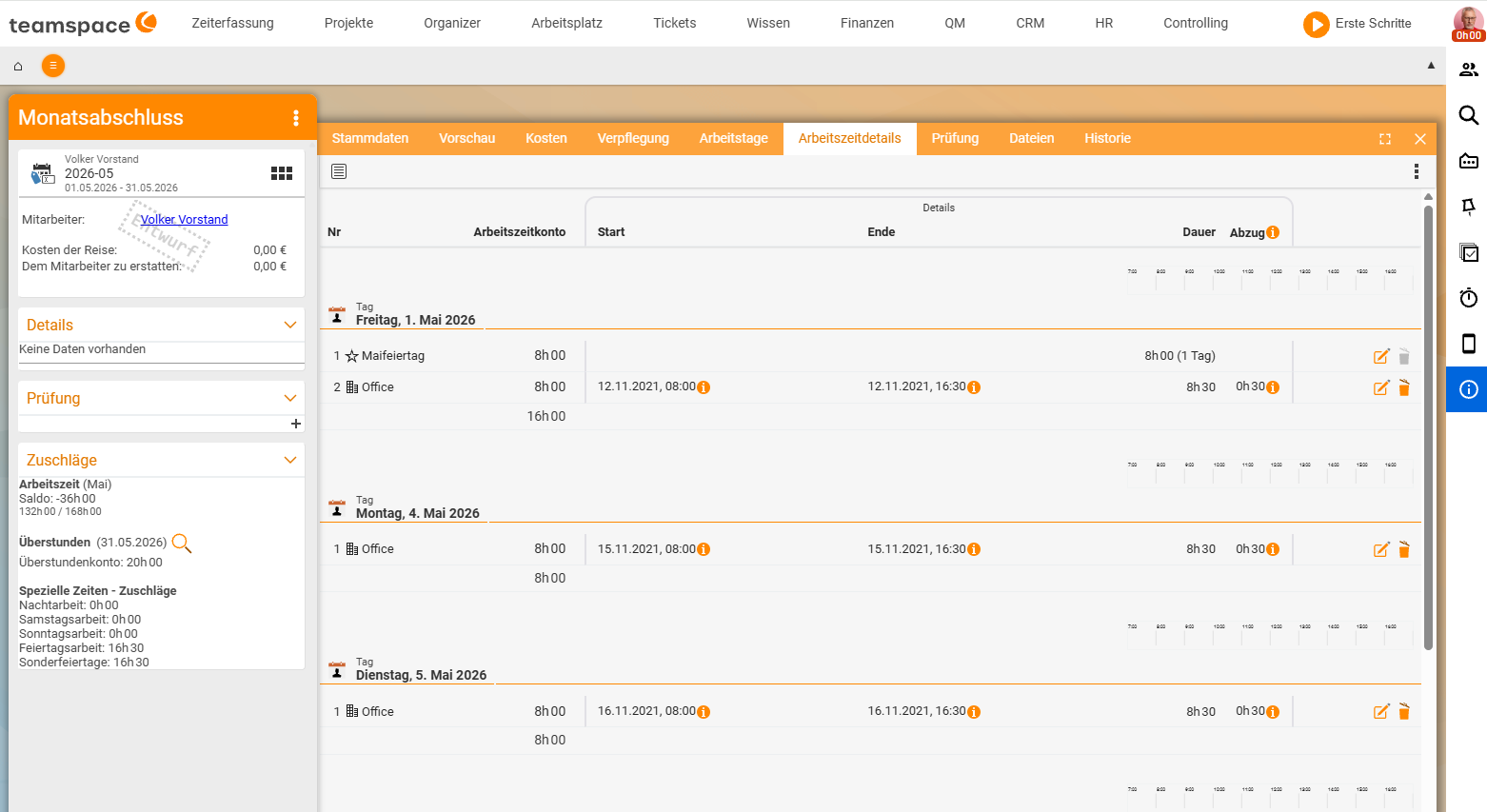
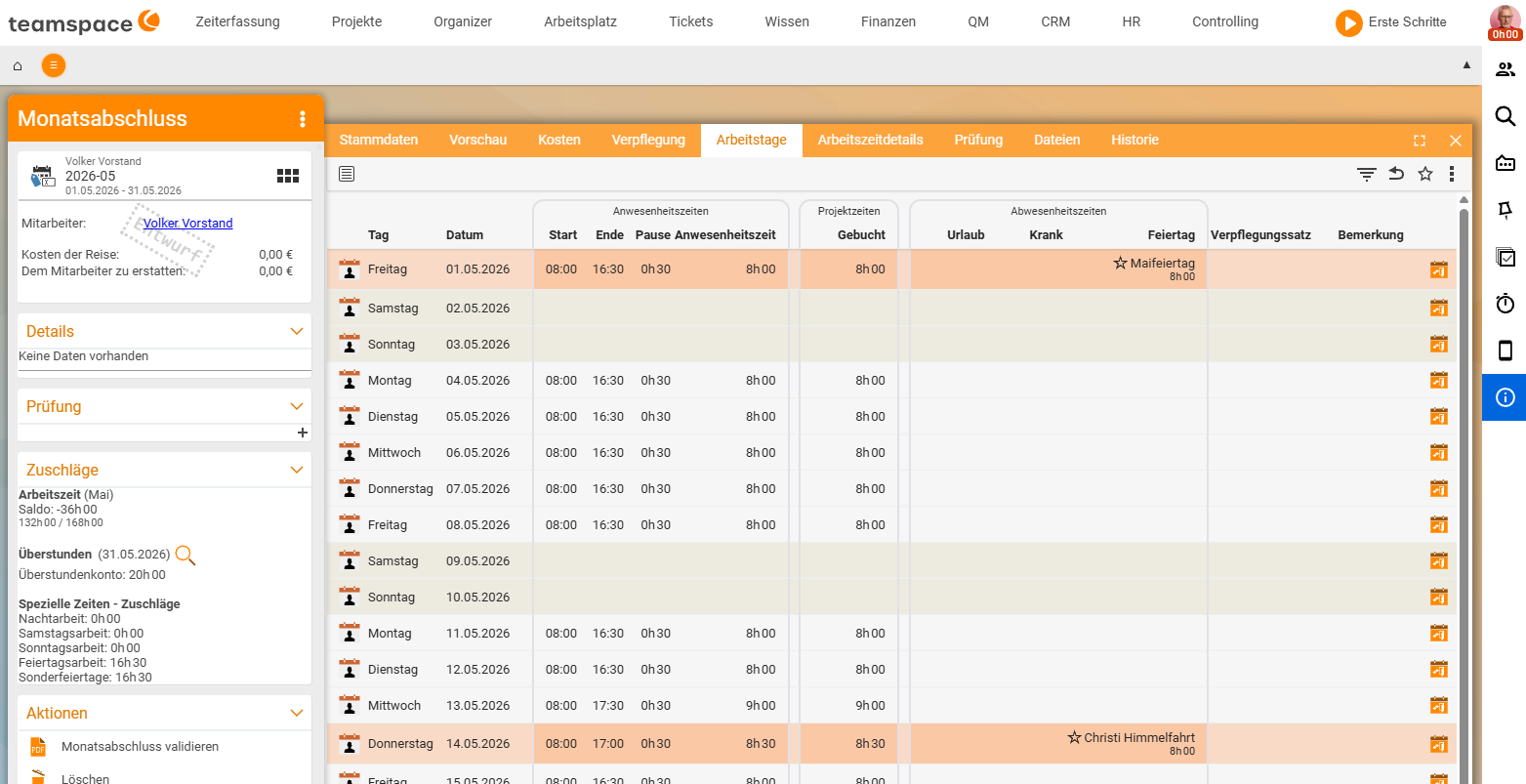
⚠ Exactly one month-end closing per employee and month. You can set it back to draft mode – the generated supplements then disappear automatically and the month is open again. If you submit it again, the supplements are recalculated from scratch.
Prerequisites from the configuration. For supplements to arise, the supplement rules, supplement cost types, their linking and the payout rates have to be set up cleanly. In addition, the employee must use Attendance as their time-tracking type in the HR portal and have a payout rate stored. The paths are in Set up cost types, supplements & document templates.
Employee payroll – the last step
Whatever the bundle – in the end the payout runs via employee payroll in the HR module. There you see per employee what reimbursable amounts are open, and you bring together all outstanding items in one statement: documents from travel expense reports, from collective statements, supplements from the month-end closing. It runs through Draft → Released → For review → Marked as posted.
Common questions & needs
| You want to … | How to |
|---|---|
| Bill documents without a trip context | New collective statement – the free shoebox. |
| Bundle freely created documents afterwards | Filter on not assigned in the bundle, multi-select, Assign. |
| Generate Sunday/night/public holiday supplements | New month-end closing – only it generates supplements. |
| Lock a month against late bookings | Create a month-end closing – the month is frozen. |
| Pay out overtime instead of taking time off | Set the configuration to payout; the month-end closing generates the payout elements. |
| Correct a month-end closing | Back to draft mode – supplements disappear, month open again. |