


Some apps – such as the iPhone sync, the Outlook add-in, teamsync or a piece of self-developed software – cannot cope with Microsoft SSO or two-factor authentication (2FA). So that you can still connect such apps using a classic combination of username and password, without compromising on security, there are device passwords.
My devices
In your personal settings, under “Personal settings → Devices”, you will find all logins to your user account – including the one you are currently using in the browser. Whenever a “device” (a browser, an app or a software plugin) signs in, a new entry is created here.
- Each entry is the device’s “permission” to access your data in teamspace.
- If you delete an entry, access for that device is blocked.
- You can rename entries to make it easier later to recognise which device is connected.
- You should delete old logins that are no longer in use from time to time to keep things tidy.
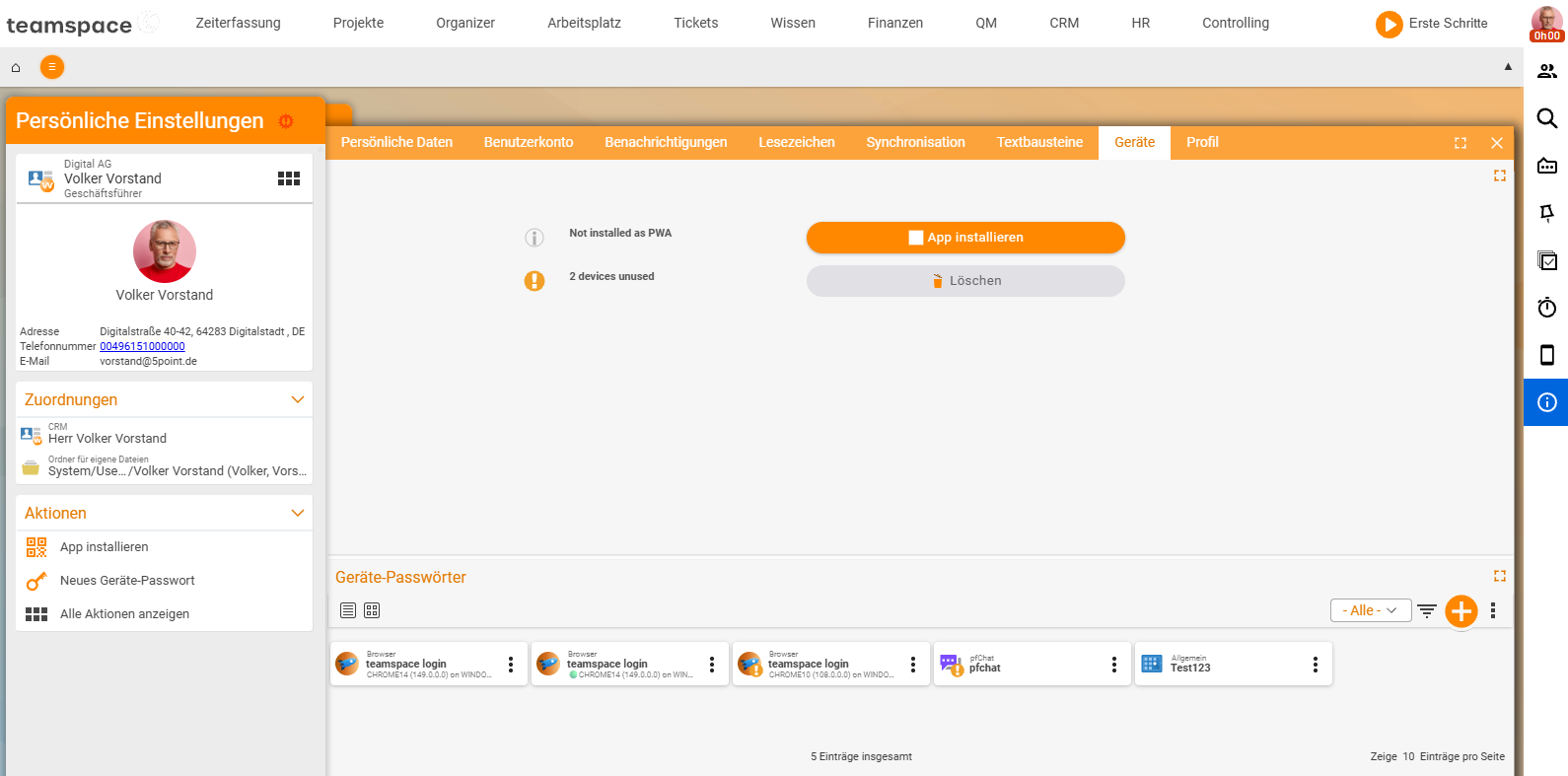
Create a device password
Every successful login automatically creates a device. But if you use 2FA, you cannot enter the 2FA token when, for example, you want to connect your Thunderbird calendar. That is why the process can be reversed: you create the entry manually in teamspace and then enter the device password in the target app. Please create a separate device password for each device.
- For a new device password you only specify a type and a name (both are purely for your own reference).
- The username and password are generated automatically and cannot be changed.
- For security reasons the password is not stored. Copy it straight into the target app or make a note of it – it cannot be displayed again later.
Compatibility
Device passwords work in all apps that allow a simple login via username/password. The exception is the main teamspace application itself. If you run into problems, please check whether a newer teamspace version is available.
Typical use cases for device passwords:
- API
- ApiExplorer
- CalDAV, CardDAV (iPhone, Thunderbird, …)
- Outlook add-in
- pfScan
- teamsync
Notes
One password per device: Create a separate device password for each device or app. That way you can block an individual device deliberately without affecting other connections.
- The password is only displayed once – copy it immediately.
- Delete logins that are no longer in use regularly to keep access clean.
Related topics
- Synchronise calendars & contacts Configuration How-to
- teamSync – Introduction teamSync Introduction