


Many reports should always follow the current date – for example a finance report that always shows “the last three months”. A rigidly entered period would have to be adjusted anew with every search. With dynamic date filters you avoid this effort: instead of a fixed date, you enter a short command that calculates the time window relative to today. This function is available in all filterable lists.
Structure of a dynamic date filter
A command always follows the same pattern: (sign)(number)(time unit)(optional)
- Sign – controls the direction:
- ”-” goes back by the number of time-unit values.
- ”+” goes forward by the number of time-unit values.
- Number – a whole number that specifies the size of the steps.
- Time unit:
- “d” for steps in days
- “m” for steps in months
- “y” for steps in years
- optional – sets the reference point within the time unit:
- ”+” for the end of the time unit
- ”-” for the start of the time unit
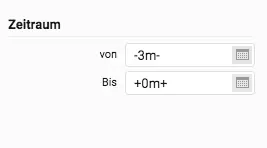
Use and save the filter
The command is not evaluated in the filter dialog itself, but in the “From” and “To” date fields of the saved view. Follow the syntax exactly – otherwise the filter will not take effect.
- Open the filter dialog.
- Enter the command – in each of the “From” and “To” fields.
- Click “Bookmarks”.
- On the “Save as new” tab, activate the default setting.
The saved default view with the dynamic filter takes effect after a restart of the session at the latest.
Examples
- Current year (annual overview):
From
-0y-and To+0y+. - The last 3 months plus the current month:
From
-3m-and To+0m+. - One month back and one month ahead:
From
-1m-and To+1m+.
Sources of error
If a dynamic date filter does not take effect as expected, the cause is usually one of these:
- The filter was used directly in the filter dialog – this is not possible.
- Typing errors in the command or deviations from the syntax.
- The default view was not saved or not activated.
- A space between the individual characters of the command.
Common questions & needs
| Question / need | Answer |
|---|---|
| ”My report should always show the current year.” | Enter From -0y- and To +0y+ and save it as the default view. |
| ”Does this work in every list?” | Yes, dynamic date filters are available in all filterable lists. |
| ”Why doesn’t teamspace apply my filter straight away?” | The command is only evaluated in the saved view, not in the filter dialog itself. Only “Bookmarks” → “Save as new” makes it effective. |
| ”The filter only takes effect later.” | The saved default view becomes active after a restart of the session at the latest. |
| ”My command doesn’t work.” | Check the syntax and spelling and make sure there is no space between the characters. |
Related topics
- Configuration – Introduction Configuration Introduction