


Custom (input) fields extend the existing properties of elements with individual data. Such elements can include projects, tickets or documents, among others. Custom fields are often used in the CRM to map your own process even better in teamspace – for example a selection field “How was the customer acquired?”, a free-text field for the latest customer feedback or a checkbox “NDA signed?”.
When does a custom field make sense?
Custom fields are especially useful when you want to find elements again based on a property. They can be filtered just like system fields.
If you want to keep all notes on an element structured, custom fields of the type Selection or Checkbox are a good way to curb the “sprawl” in description fields.
Limits of custom fields
The biggest disadvantage of custom fields compared with the native properties of an element is the lack of meaning from the software’s point of view. The name of a custom field is just “noise” to teamspace: teamspace can neither check the plausibility of an entry, nor can the data feed complex analyses or processes. If a property is meant to influence functionality, an extension of teamspace in the form of a custom development is required.
A further disadvantage is technical in nature: if too many custom fields are used and displayed at the same time, this can negatively affect the performance of the software. So only create custom fields that you genuinely need.
The field type determines how a custom field is displayed and what input is possible, and it cannot be changed afterwards. So think the type through carefully before creating the field.
Field types
| Field type | What for |
|---|---|
| Text | Single-line, unformatted input field – e.g. for keywords or identifiers such as reference numbers. |
| Date | Input field with a calendar widget for entering a date (without a time). |
| Number | For numeric values. Further options determine the permitted number of decimal places as well as the unit shown in dialogs and lists – for example a field “Area” with the unit “sqm” and three decimal places. |
| Textarea and formatted text | Multi-line text with line breaks. Formatted text additionally offers a toolbar for formatting (font style, colour, etc.) – see the section Formattable custom fields. |
| Selection and Selection (hierarchy) | These do not allow free entry, only a choice from a predefined list or tree structure. Rule of thumb: no more than around 10 values to choose from (in tree structures likewise no more than 10 “at once”). For more values, Selection (database) is the better choice. |
| Selection (database) | Allows thousands of options. The input field is then not a dropdown but a search field that narrows the results as you type. The values are held in a dedicated table, which you find in the configuration under Custom Field Options and where you can also maintain them via Excel import. |
| Checkbox | For simple yes/no properties, e.g. “Does the employee have a travel pass?”. |
| Relation | Links two elements together – for example a field “Site manager” on projects for selecting a contact. |
| KPI | Not an input field, but the evaluation of an element via a formula with a numeric result – e.g. the home-office ratio or the proportion of billable time to total attendance time. |
| Replacement template | Likewise not an input field. It summarises several properties of an element in writing: a base text contains placeholders that are replaced by the respective properties when displayed (e.g. in a list). |
Properties of a custom field
Access
Since teamspace cannot know what the content of a custom field is about, custom fields are initially tied to the basic visibility of the respective element.
You restrict visibility by selecting a protection class: employees without this protection class cannot use or see the custom field.
For custom fields in the Employees module there is an additional permission setting, because data protection often has to take an organisational structure into account. You can choose whether the custom field is shown to colleagues, provided that …
- colleague visibility exists (weakest requirement),
- team responsibility exists, or
- HR access is possible (strongest requirement).
Display settings
Here you define in which dialogs and lists the custom field can be shown, how it can be searched, and whether it should be displayed in its own area (section).
Formattable custom fields
Formattable custom fields are text fields into which users enter free text and can additionally format it. They can be integrated at various points in the system – for example in documents such as quotes, to add individual text elements to the PDF document.
Setup
You create custom fields under Configuration > General. First choose the desired element type in which the field is to appear (e.g. document). As the field type, choose “Formatted text”. Using the switch next to it, you control whether the text content should be transferred to the PDF version of the document. If so, switch “Advanced formatting” off.
Next, you decide in which dialogs and lists the text field appears. For documents, master and document data as well as the associated document lists are possible, for example. If you wish, you can restrict the document type, for instance to quotes. Save the custom field once you are finished.
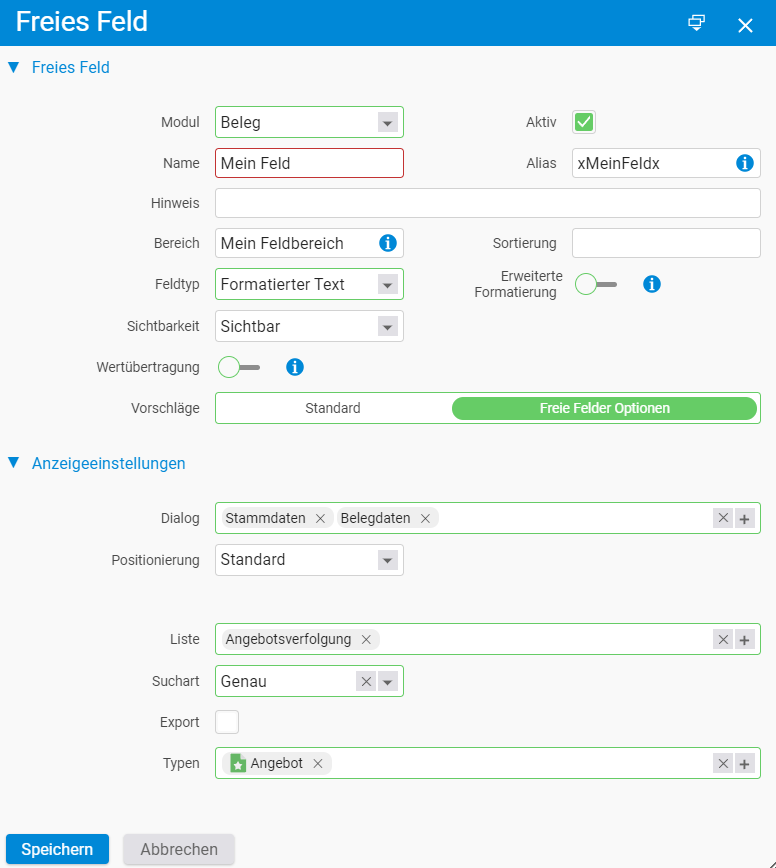
So that a formattable field appears in the right place in the PDF layout, its field alias is integrated into the document’s layout. In this way, several formattable text fields can also be transferred into PDF documents. Please feel free to contact our support team for this – we will insert the relevant placeholders into your layouts.
Storing text suggestions
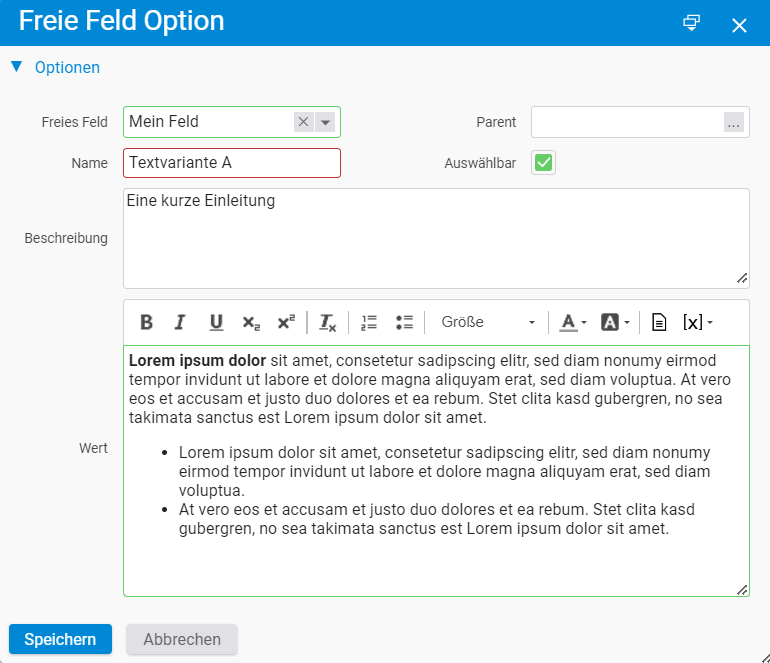
Via “Custom Field Options” you can store several text suggestions that users can access. These are offered for selection via an additional button and, if desired, inserted into the field.
To do this, switch to the Custom Field Options tab and create a new element. First choose the custom field you have just created and assigned, then enter a description and the desired content. Optionally, use the “Parent” field to assign a higher-level element and organise the text suggestions hierarchically.
Notes
- The field type cannot be changed afterwards. Plan it carefully before creating the field.
- Only create custom fields that you genuinely use – too many fields displayed at the same time slow down the software.
- teamspace does not check the content of a custom field for plausibility.
- If the content of a formattable field is to be transferred into a PDF, switch “Advanced formatting” off.
Common questions & needs
| You want to … | How to |
|---|---|
| Filter an element by a custom property | Create a custom field of the type Selection or Checkbox – these can be filtered just like system fields. |
| Store very many selection values | Choose the field type Selection (database) and maintain the values under Custom Field Options (also via Excel import). |
| Make a custom field visible only to certain employees | Select a protection class under Access; for employee fields, use the levels colleague visibility / team responsibility / HR access. |
| Transfer a custom text field into a PDF document | Field type “Formatted text”, activate the PDF transfer, switch “Advanced formatting” off and have the field alias inserted into the layout by support. |
| Offer users ready-made text blocks | Store text suggestions with description and content under “Custom Field Options”, optionally hierarchically via “Parent”. |
| Change the field type of an existing field | Not possible – create a new custom field with the desired type. |
Related topics
- Automate follow-up tasks with “Next steps” Configuration Configuration
- Configuration – Introduction Configuration Introduction