


With capacity planning you allocate employee time to projects before it is consumed. You create a capacity, attach a team and a target project, schedule hours per day and see at once who is overbooked and where there is still room. Holidays, sick leave and public holidays are deducted automatically.
The planning serves two purposes at once: checking future availability (does the next quote even fit in?) and the concrete scheduling of work on ongoing projects.
Where capacities live
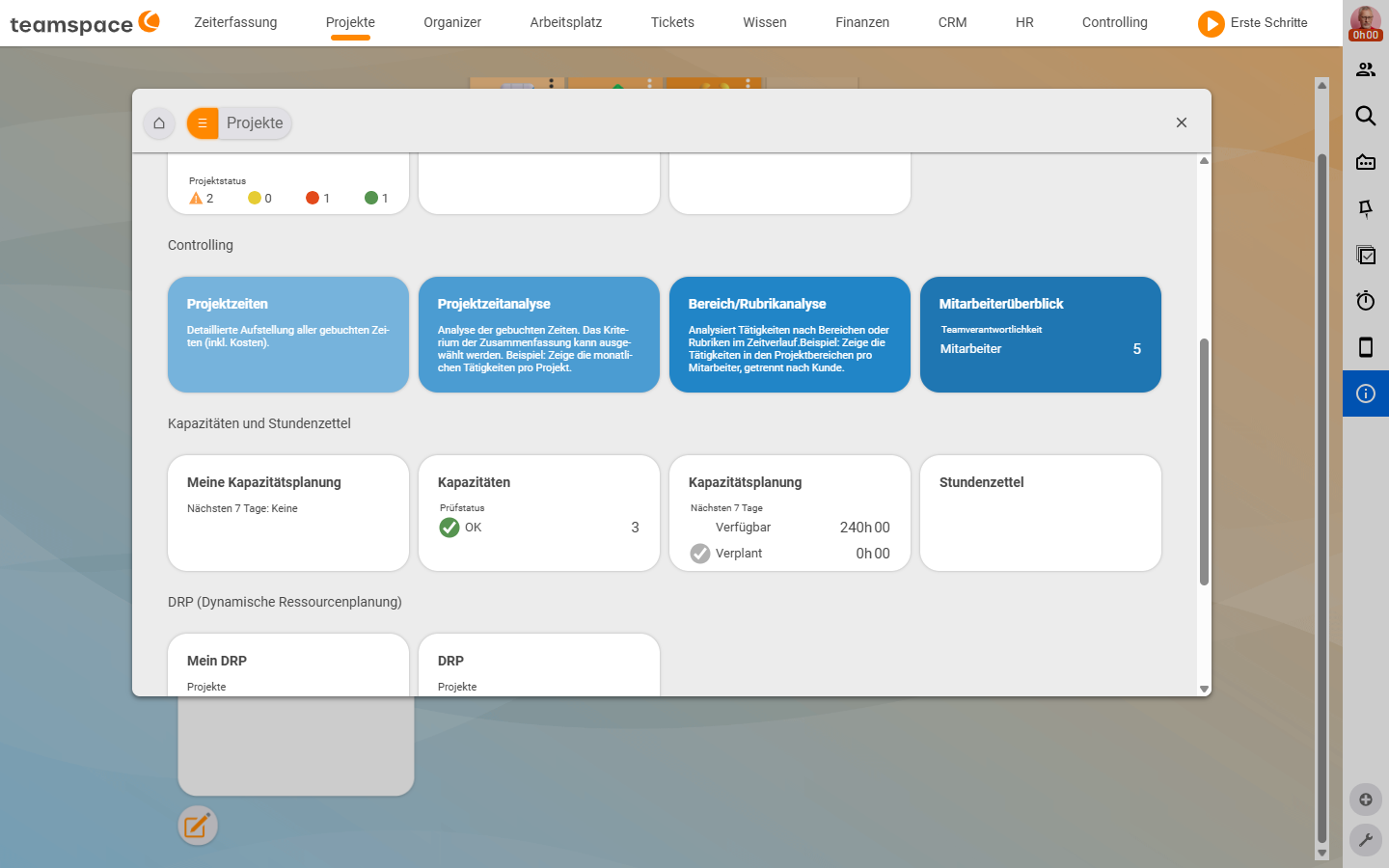
Capacities sit in the main menu under Projects. Clicking it opens the module modal with several sections – your bookmarks area at the top, then Controlling and the Capacities and timesheets section (right at the bottom comes DRP – Dynamic Resource Planning). The Capacities and timesheets section holds four tiles:
Capacities– the list of all capacities you have created.Capacity planning– the global utilisation report across all employees.My capacity planning– the same view, but only for you and at day level.Timesheets– the booked times (time tracking).
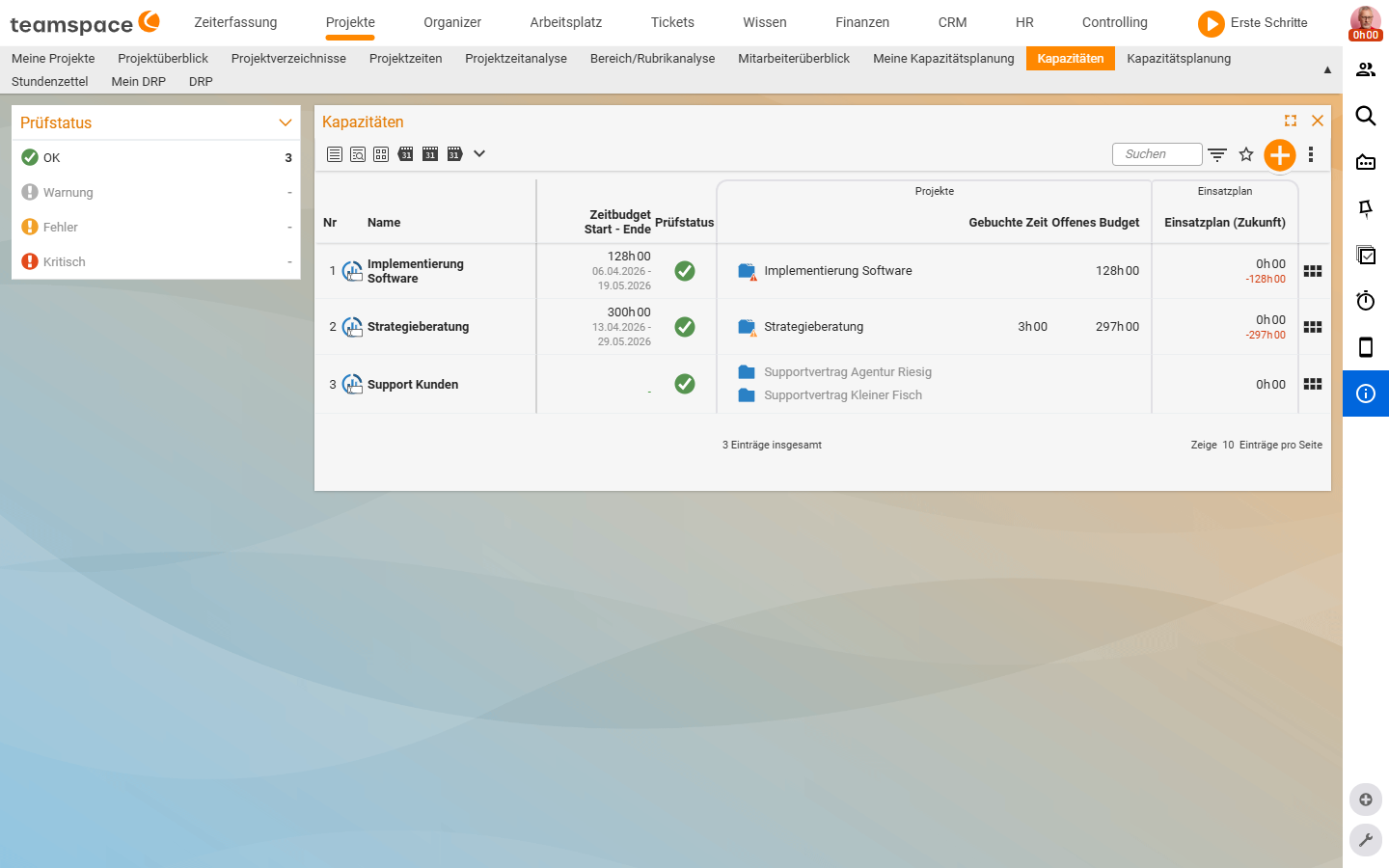
The Capacities tile opens the list. A row shows No, Name, Time budget with Start – End, Check status, under Projects the Booked time and the Open budget, and under Resource schedule a forward preview. On the left you filter via a filter box by Check status (values OK, Warning, Error, Critical) and so spot at once where there is an overbooking or a discrepancy between plan and actuals. Via the action box you create a new capacity – it is assigned a name first.
ℹ Note.
Probabilityis a master-data field, but not a default column of the capacities list.
What a capacity is
A capacity is a slice of available time that belongs to an undertaking – typically a project, a support area or a department. It has a start and end date, a time budget in hours, a probability and a team.
📘 Definition. Capacity = a container for planned employee time. The budget sits in the master data, the team is distributed across days in the resource schedule, and the link to the work hangs on the target project.
Three building blocks make up every capacity:
- Master data: name, manager, start, end, time budget, probability, colour marker. Here you define what is being planned and how big the pot is.
- Team: the employees who may be scheduled within the capacity. Each team member gets their own time budget and an access permission.
- Resource schedule: the daily distribution. This is where it lands who works how many hours on this capacity and when.
The building blocks interlock: the team budget sits within the master-data budget, and the resource schedule draws from the team budget. How you manage master data, team and target project is described in Create and set up a capacity; the daily distribution of hours is covered in Maintain the resource schedule.
The capacity life cycle
A capacity moves through four statuses – from the first idea to completion:
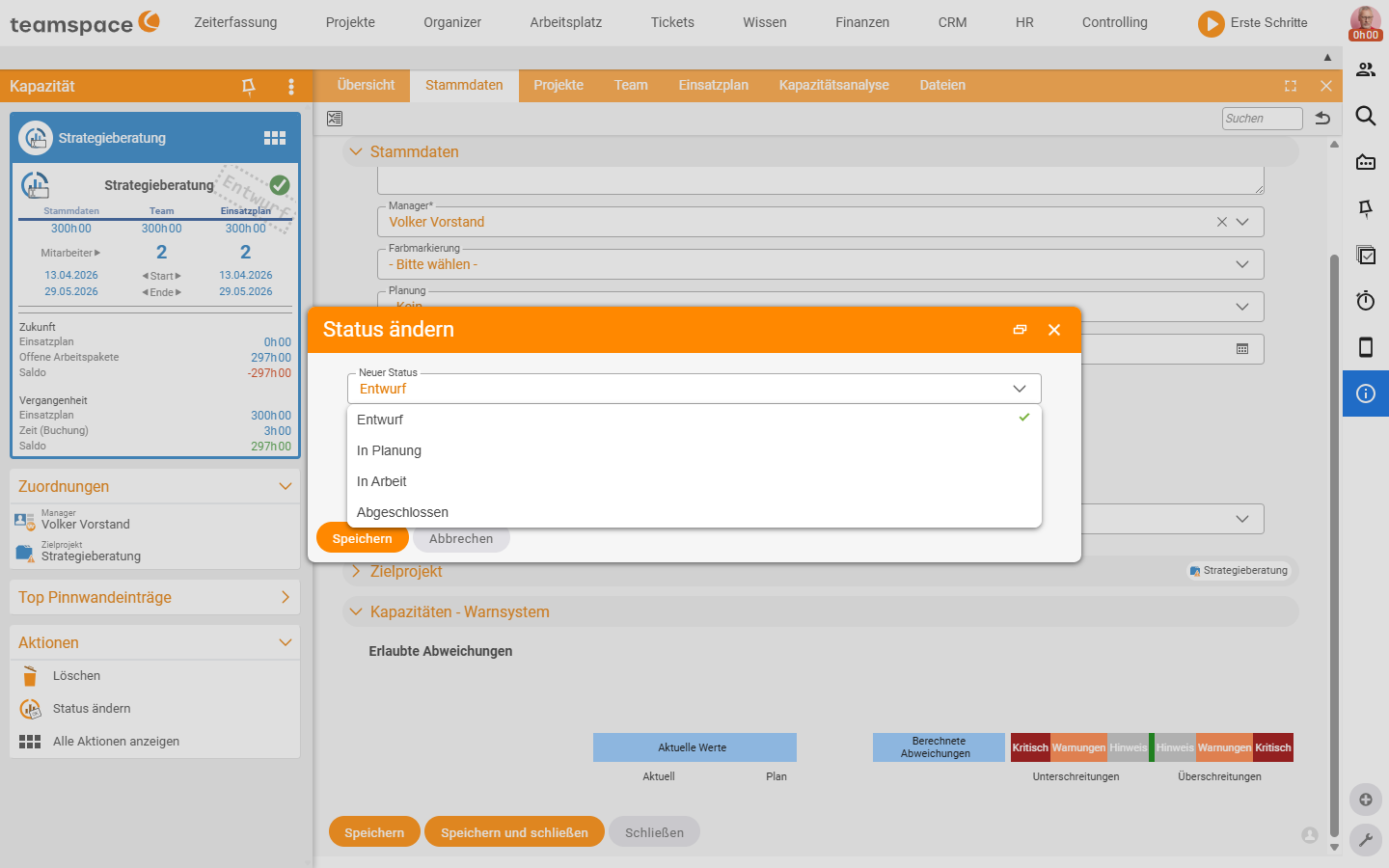
Draft: freshly created, you are still building. Everything is editable.In planning: the distribution in the resource schedule is under way. Team and days are being set.In progress: the plan is fixed, employees book their time against it.Completed: the capacity is done. It stays visible for reporting.
You trigger the status change in the Actions sidebar on the left via Change status – a dialog asks for the new status and a comment. Every change is recorded in the history.
What you use capacities for
Three typical use cases. They all carry the same mechanics; only the question that precedes them differs.
- Check availability before you make an offer. You receive an enquiry for a quote spanning three months. Before you commit, you create a capacity with probability
50%. In the resource schedule you see at once whether the people are free. When the order comes in, you switch the probability to100%and the status toIn progress. - Concrete project scheduling. An ongoing project has 240 planned hours. You create a capacity on the project, attach two employees with 120 hours each and schedule them to the day across four weeks. The resource schedule deducts holidays and sick leave automatically.
- A support pool for many projects. Support requests come from ten different projects. You create a capacity Support 2026, give it 80 hours per month and allow further projects in the master data. The time is booked against the capacity, no matter which project the request came from.
The background – strategic versus operational planning, rough and fine planning – is explored in Understanding capacity planning. Anyone who needs an overview of all capacities at once (where is someone next week, who still has room in May) goes into one of the global reports – see Analyse capacities.
Notes
- Availability comes from the employee master data: contractual working time, holidays and sick leave flow automatically into the resource schedule – see Topic: Time tracking.
- Without a target project the capacity lacks its link to the work. So set a project as early as you can (see Create and set up a capacity).
- Via the configuration you activate a warning system that reconciles plan and actuals and writes deviations onto the capacity as a check status – see Set up the warning system.